
1. Introduction
This manual provides detailed instructions for the installation, operation, and maintenance of the ZKTeco IN01-A/3G Fingerprint Time Attendance and Access Control Terminal. Please read this manual thoroughly before using the device to ensure proper functionality and to prevent damage.
2. Product Overview
The ZKTeco IN01-A/3G is a sophisticated 3-inch TFT screen terminal designed for both time attendance and access control applications. It integrates advanced fingerprint recognition technology to provide secure and efficient user identification.
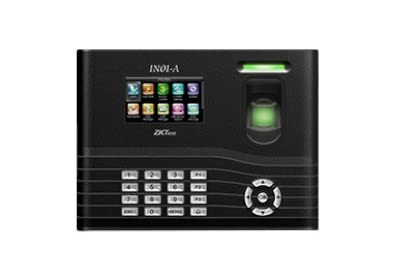
Figure 1: Front view of the ZKTeco IN01-A/3G terminal, showing the 3-inch TFT screen, numeric keypad, navigation buttons, and the fingerprint sensor with an illuminated ring.
Key components include a high-resolution TFT display for user interaction, a numeric keypad for data entry, navigation buttons for menu control, and a robust fingerprint sensor for biometric authentication.
3. Features
- Fingerprint Capacity: Supports storage for up to 3000 fingerprints.
- Display: Equipped with an LCD (3-inch TFT screen) for clear visual feedback.
- Identification Method: Primarily uses fingerprint recognition for user authentication.
- Durability: Features a scratch-proof design for enhanced longevity.
- Functionality: Combines time attendance tracking with access control capabilities.
4. Setup
4.1 Unpacking and Inspection
Carefully unpack the device and verify that all components are present and undamaged. Report any discrepancies to your supplier immediately.
4.2 Mounting the Device
- Choose a suitable location for installation, ensuring it is protected from direct sunlight, extreme temperatures, and moisture.
- Use the provided mounting template to mark drilling positions on the wall.
- Drill holes and insert wall plugs.
- Secure the mounting plate to the wall using screws.
- Attach the IN01-A/3G terminal to the mounting plate.
4.3 Power Connection
Connect the provided power adapter to the device's power input port and then plug it into a standard electrical outlet. Ensure the power supply matches the device's requirements.
4.4 Network Connection (Optional)
If network connectivity is required for data transfer or remote management, connect an Ethernet cable to the device's LAN port and to your network router/switch.
4.5 Initial Configuration
Upon first power-up, the device may prompt for initial setup, including date, time, and administrator registration. Follow the on-screen instructions to complete these steps.
5. Operating Instructions
5.1 Administrator Registration
The first step is to register an administrator fingerprint. This user will have access to all device settings and user management functions.
- Press the MENU button.
- Navigate to User Management and select New User.
- Enter a User ID and then select Enroll Fingerprint.
- Place your finger on the sensor three times as prompted, ensuring full contact each time.
- Set the user's privilege level to Administrator.
- Save the settings.
5.2 User Fingerprint Enrollment
To allow other users to record attendance or gain access, their fingerprints must be enrolled.
- Access the menu as an administrator.
- Navigate to User Management and select New User or select an existing user to add a fingerprint.
- Enter or confirm the User ID.
- Select Enroll Fingerprint and follow the on-screen prompts to scan the user's finger three times.
- Save the user's information.
5.3 Recording Attendance
Users can record their attendance by simply placing their enrolled finger on the fingerprint sensor. The device will provide visual and audible confirmation of a successful scan.
5.4 Access Control Functionality
For access control, the device will verify the enrolled fingerprint against its database. Upon successful verification, it will trigger the connected access mechanism (e.g., door lock) according to the configured access rules.
6. Maintenance
6.1 Cleaning the Device
Regularly clean the fingerprint sensor and screen with a soft, dry, lint-free cloth. Do not use abrasive cleaners or solvents, as these can damage the surface.
6.2 Data Backup
It is recommended to regularly back up attendance records and user data to an external storage device (e.g., USB drive) or a connected server to prevent data loss.
6.3 Firmware Updates
Periodically check the ZKTeco official website for firmware updates. Keeping the device's firmware up-to-date ensures optimal performance and access to new features.
7. Troubleshooting
- Device does not power on:
- Ensure the power adapter is securely connected to both the device and a working power outlet.
- Verify the power outlet is functional.
- Fingerprint not recognized:
- Ensure your finger is clean and dry.
- Place your finger flat and centered on the sensor.
- Try enrolling the fingerprint again if the issue persists.
- Clean the fingerprint sensor surface.
- Cannot access menu:
- Ensure you are using an enrolled administrator fingerprint or password.
- Data transfer issues:
- Check network cable connections.
- Verify network settings on the device and server.
8. Specifications
| Feature | Detail |
|---|---|
| Brand | ZKTeco |
| Model | IN01-A/3G |
| Fingerprint Capacity | 3000 |
| Display | 3-inch TFT LCD |
| Identification Method | Fingerprint |
| Product Dimensions (LxWxH) | 21.2 x 158.9 x 4.8 Centimeters |
| Item Part Number | 8765 |
| Country of Origin | India |
| First Available Date | 22 June 2022 |
9. Warranty and Support
For warranty information and technical support, please refer to the documentation provided with your purchase or visit the official ZKTeco website. Keep your purchase receipt as proof of purchase for warranty claims.
For further assistance, you may contact ZKTeco customer service or your local distributor.


