
Introduction
The YMOO B10Q is a USB Bluetooth 5.3 audio adapter designed to transmit audio wirelessly from various devices to Bluetooth-enabled headphones or speakers. Featuring Qualcomm Bluetooth 5.3 technology, it offers low latency, strong anti-interference capabilities, and reduced power consumption. This adapter supports multiple encoding formats, including aptX Adaptive, aptX HD, aptX LL, aptX, and SBC, ensuring high-quality audio transmission. It also supports microphone functionality for voice calls and can connect to two Bluetooth audio devices simultaneously.
Product Features
- Bluetooth 5.3 Technology: Equipped with the latest Qualcomm Bluetooth 5.3 chip (QCC3056) for enhanced performance, lower latency, and improved anti-interference compared to Bluetooth 5.0. It is backward compatible with older Bluetooth versions.
- Low Latency Audio: Supports aptX Adaptive, aptX HD, aptX LL, aptX, and SBC encoding formats. When paired with an aptX-LL compatible headset, audio delay can be reduced to less than 36ms, allowing for real-time audio synchronization, especially for PC gaming or video.
- Microphone Support: Facilitates 24-bit and 48K audio streaming and supports microphone calling for internet communication platforms like Skype or WhatsApp. Ensure your headset has a microphone function. During calls, audio automatically switches to a single channel and returns to stereo after the call.
- Dual Device Connection: Capable of connecting to two Bluetooth headphones or earbuds simultaneously, allowing shared audio experiences.
- Plug and Play: No driver installation required for most compatible devices. Simply plug into a PS5, PS4, PC, or other supported USB host.
Package Contents

Image: The YMOO B10Q USB Bluetooth Audio Adapter and its accompanying user manual are included in the package.
- YMOO B10Q USB Bluetooth Audio Adapter
- User Manual
Note: An extension cable is not included in the package.
Setup Guide
General Setup (Plug and Play)
The YMOO B10Q is designed for plug-and-play operation. Simply insert the adapter into an available USB port on your compatible device (e.g., PS5, PS4, PC). The device will typically recognize the adapter automatically.

Image: The YMOO B10Q USB Bluetooth Audio Adapter plugged into a laptop's USB port, ready for use.
Connecting to PS4/PS5
Follow these steps to connect your YMOO B10Q to a PlayStation 4 or PlayStation 5 console:
- Insert the YMOO B10Q into a USB port on your PS4/PS5 console.
- Press and hold the Multi-Function Button (MFB) on the B10Q to activate pairing mode. The LED indicator will flash red and blue alternately.
- On your PS4/PS5, navigate to Settings > Devices > Audio Devices.
- Set both the Input Device and Output Device to "USB Headset (B10Q)".
- Your Bluetooth headphones/speakers should now be connected and ready for use.
Video: A tutorial demonstrating how to connect the YMOO B10Q USB Bluetooth Audio Adapter to a PS4 console, including navigating the settings menu to select the adapter as the audio input and output device.
Connecting to PC/Mac
When using the B10Q with a PC or Mac, you may need to manually select the adapter as your audio device:
- Insert the YMOO B10Q into an available USB port on your computer.
- On Windows, go to Sound Settings and select "USB Headset (B10Q)" as your output and input device.
- On Mac, go to System Preferences > Sound and select "USB Headset (B10Q)" for both input and output.
For optimal performance on PC, consider using a front case USB port if rear ports experience bandwidth issues, which can affect Bluetooth signal quality.
Operating Instructions
Pairing with Bluetooth Devices
To pair the B10Q with your Bluetooth headphones or speakers:
- Ensure the B10Q is plugged into a powered USB port.
- Press and hold the MFB button on the B10Q until the LED flashes red and blue alternately, indicating pairing mode.
- Put your Bluetooth headphones or speakers into their pairing mode (refer to their respective manuals).
- The B10Q will automatically search for and connect to nearby Bluetooth devices in pairing mode. Once connected, the LED will typically show a steady blue light or flash slowly.
Dual Device Connection
The YMOO B10Q can connect to two Bluetooth headphones/earbuds simultaneously:
- First, pair and connect your primary Bluetooth device as described above.
- Once the first device is connected, press and hold the MFB button again for approximately 2 seconds to re-enter pairing mode (LED flashes red and blue).
- Put your second Bluetooth device into its pairing mode.
- The B10Q will connect to the second device. Both devices will now receive audio from the B10Q.

Image: Two individuals simultaneously listening to audio through separate Bluetooth headphones connected to a laptop via the YMOO B10Q adapter, illustrating its dual connection capability.
Microphone Functionality
The B10Q supports microphone input for voice calls. When a microphone function is active (e.g., during a call or recording), the audio output will automatically switch to a single channel. After the microphone function is no longer in use, the audio will revert to stereo output.
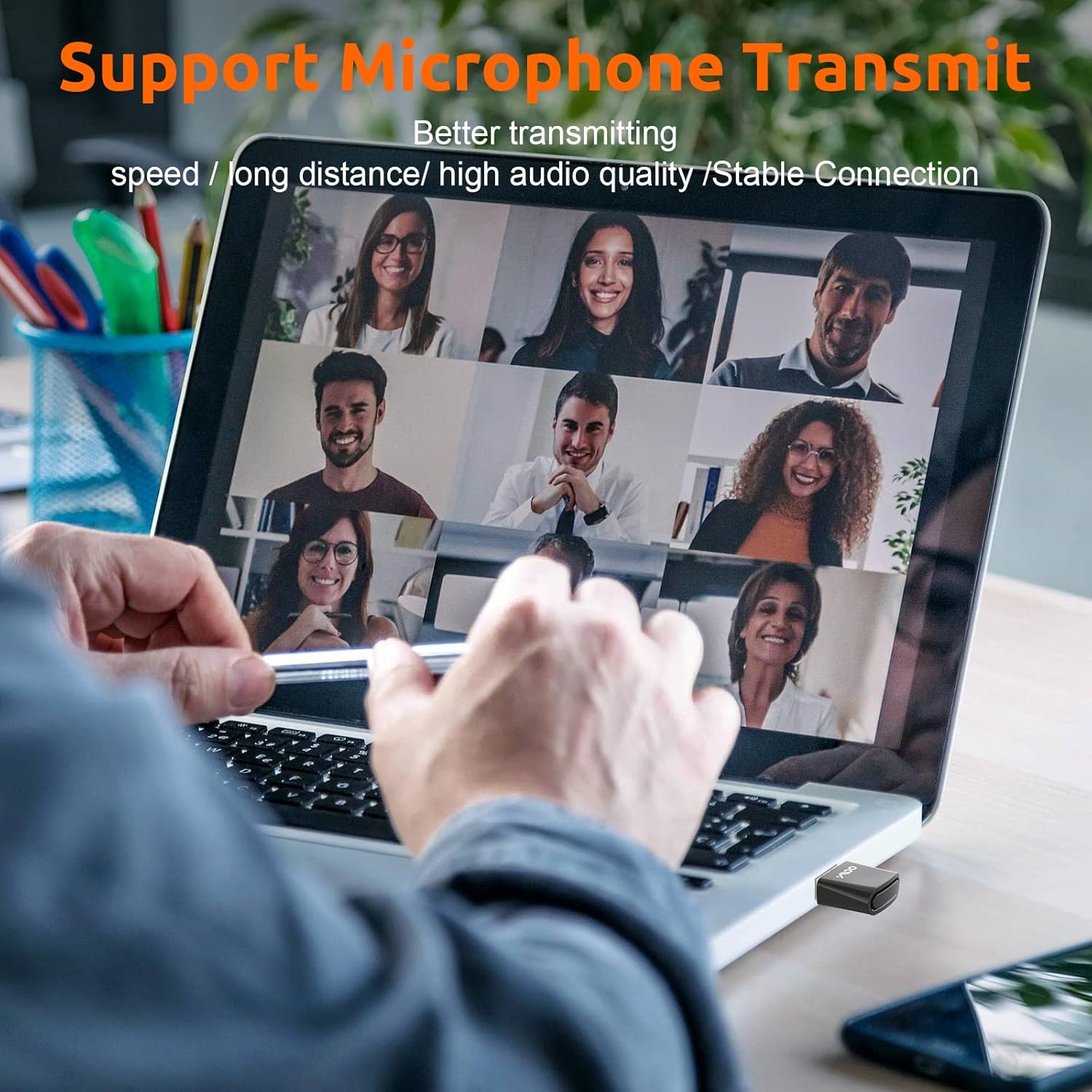
Image: A person engaged in a video conference call on a laptop, utilizing the YMOO B10Q adapter for clear microphone audio transmission.
Codec Switching
The B10Q supports various audio codecs. In some cases, you may need to manually cycle through codecs to achieve the desired audio quality or to resolve sound issues. This can typically be done by double-clicking the MFB button. The adapter may not remember the last used codec for a specific device upon reconnection, potentially defaulting to a standard codec like aptX.
Important Notes and Limitations
- Transmitter Only: The YMOO B10Q is designed exclusively as a Bluetooth audio transmitter. It cannot function as a Bluetooth receiver.
- Unsupported Devices: This adapter does not support connections to Bluetooth mice, keyboards, printers, mobile phones, TVs, or car audio systems. It is intended for audio transmission to headphones and speakers only.
- Audio Channel during Calls: When the microphone function is active (e.g., during a voice call), the audio output will automatically switch to a single channel. It will return to stereo mode once the microphone is no longer in use.
Troubleshooting
- No Sound / Poor Sound Quality:
- Ensure the B10Q is correctly selected as the input and output audio device in your computer's or console's sound settings.
- If using a PC, verify that the B10Q is not simultaneously selected as both an input and output device for applications that might force a lower bitrate protocol.
- Try double-clicking the MFB button to cycle through different audio codecs.
- Ensure your Bluetooth headphones/speakers are fully charged and within range.
- Difficulty Reconnecting:
- If the B10Q does not automatically reconnect, try re-entering pairing mode on both the adapter and your Bluetooth device.
- Remove the B10Q from the USB port and reinsert it.
- One Earphone Has No Sound:
- This can occur when pausing/resuming music or changing audio content. Try cycling through the codecs by double-clicking the MFB button until sound is restored to both earphones.
- Intermittent Connection / Weak Signal:
- Ensure there are no significant obstructions between the B10Q and your Bluetooth device.
- If using with a desktop PC, try plugging the B10Q into a front USB port, as rear ports may sometimes have bandwidth limitations affecting Bluetooth signal.
Specifications
| Model Number | B10Q |
| Bluetooth Version | 5.3 |
| Hardware Interface | Bluetooth, USB |
| Supported Codecs | aptX Adaptive, aptX HD, aptX LL, aptX, SBC |
| Audio Streaming | 24-bit, 48K |
| Data Transfer Rate | 3 Megabits Per Second |
| Product Dimensions | 1.14 x 0.75 x 0.31 inches (2.9 x 1.9 x 0.8 cm) |
| Item Weight | 1.76 ounces (0.05 kg) |
| Color | Black |
| Manufacturer | YMOO |
Warranty and Support
For warranty information and technical support, please refer to the official YMOO website or contact their customer service directly. Details may be available in the product packaging or on the manufacturer's website.
Contact Email: support@ymoo.com


