
1. Product Overview
The Baseus Metal Gleam Series 8-in-1 USB-C Hub is a versatile docking station designed to expand the connectivity of your USB-C enabled devices. It integrates multiple essential ports, including USB 3.0, HDMI, USB-C Power Delivery (PD), and microSD/SD card readers, into a single compact unit. This hub is ideal for enhancing productivity by connecting various peripherals, external displays, and charging your device simultaneously.

The Baseus Metal Gleam Series 8-in-1 USB-C Hub is presented in its retail box, showcasing the product and its key features on the packaging.
2. Key Features
- 8-in-1 Connectivity: Provides comprehensive port expansion for modern USB-C devices.
- Triple USB 3.0 Ports: Offers high-speed data transfer up to 5Gbps for peripherals like external hard drives, keyboards, and mice.
- Dual HDMI Outputs: Supports dual-display ultra-clear expansion, enabling connection to two external monitors for enhanced multitasking.
- USB-C Power Delivery (PD): Allows for fast charging of your host device with up to 100W power pass-through.
- MicroSD/SD Card Readers: Facilitates quick access to photos and videos from memory cards.
- Compact and Portable Design: Metal gleam series design ensures durability and easy portability.
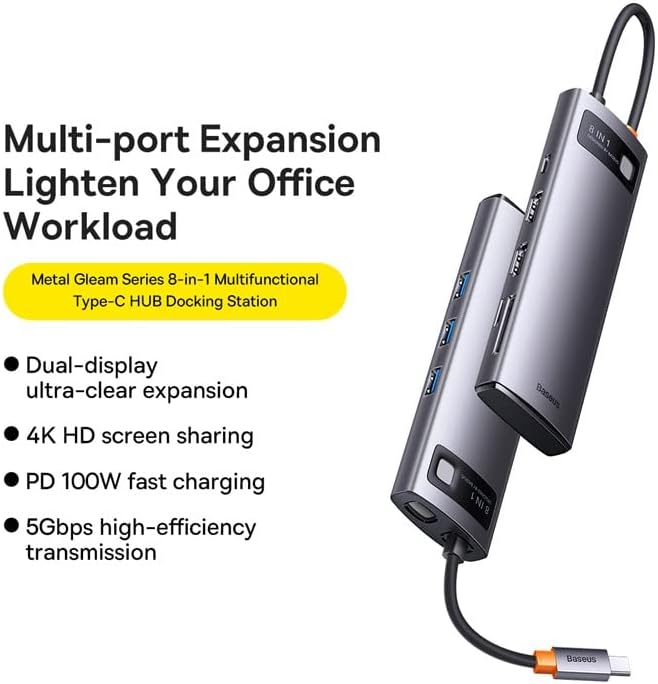
This graphic highlights the multi-port expansion capabilities of the Baseus Metal Gleam Series 8-in-1 USB-C Hub, emphasizing its ability to lighten office workload with features like dual-display, 4K HD screen sharing, PD 100W fast charging, and 5Gbps high-efficiency transmission.
3. Package Contents
- 1 x Baseus Metal Gleam Series 8-in-1 USB-C Hub
- 1 x User Manual
4. Setup Instructions
- Connect to Host Device: Plug the USB-C connector of the hub into the USB-C port of your laptop, tablet, or smartphone. Ensure the connection is secure.
- Connect Peripherals: Connect your USB devices (e.g., mouse, keyboard, external hard drive) to the USB 3.0 ports on the hub.
- Connect Displays: Use HDMI cables to connect your external monitors to the HDMI ports on the hub.
- Power Delivery (Optional): If your host device requires charging, connect your original USB-C power adapter to the USB-C PD port on the hub. This will charge your device while using the hub.
- Insert Memory Cards: Insert your microSD or SD cards into the corresponding slots for data access.

This image provides an angled perspective of the Baseus Metal Gleam Series 8-in-1 USB-C Hub, highlighting its sleek design and the three accessible USB 3.0 ports on its side.
5. Operating Instructions
5.1. USB 3.0 Data Transfer
Connect USB devices such as flash drives, external hard drives, or other USB peripherals to the USB 3.0 ports. The hub supports data transfer speeds of up to 5Gbps.
5.2. HDMI Display Output
Connect your monitors using HDMI cables. The hub supports dual HDMI output. For optimal performance, ensure your display settings on your computer are configured correctly for extended or mirrored displays.
- Windows Systems: Supports triple-display (A+B+C) at 1080P@60Hz in expansion mode, and (A+A+A) at 1080P@60Hz in mirroring mode.
- Apple OS Systems: Supports dual-display (A+B+B) at 4K@30Hz in expansion mode, and (A+A+A) at 4K@30Hz in mirroring mode.

This visual guide demonstrates the dual-display functionality of the Baseus Metal Gleam Series 8-in-1 USB-C Hub, showing both expansion and mirroring modes for Windows systems (1080P@60Hz) and Apple OS systems (4K@30Hz).
5.3. USB-C Power Delivery
The USB-C PD port allows you to charge your host device (laptop, tablet) while simultaneously using the hub's other functions. Connect your device's original USB-C power adapter to this port. The hub supports up to 100W power pass-through.
5.4. SD/MicroSD Card Reader
Insert your SD or microSD cards into the designated slots. The hub will allow your device to read and write data to these cards.
6. Maintenance
- Cleaning: Use a soft, dry cloth to clean the surface of the hub. Avoid using liquid cleaners or abrasive materials.
- Storage: Store the hub in a cool, dry place away from direct sunlight and extreme temperatures.
- Handling: Avoid dropping the hub or subjecting it to strong impacts. Do not attempt to disassemble the device.

An exploded diagram of the Baseus Metal Gleam Series 8-in-1 USB-C Hub illustrates its internal electronic components and sophisticated circuit board design.
7. Troubleshooting
- No Display Output:
- Ensure the HDMI cables are securely connected to both the hub and the monitor.
- Verify that your monitor input source is set to the correct HDMI port.
- Check your computer's display settings to ensure the external monitor is detected and configured.
- Try restarting your computer.
- Devices Not Recognized (USB/SD/MicroSD):
- Ensure the hub's USB-C connector is fully inserted into your host device.
- Try connecting the device directly to your computer's USB port to confirm it functions independently.
- Restart your computer and reconnect the hub.
- No Power Delivery/Charging:
- Ensure your USB-C power adapter is connected to the hub's PD port and is functioning correctly.
- Verify that your host device supports USB-C Power Delivery.
- Intermittent Connection:
- Ensure all connections are firm and stable.
- Avoid placing the hub near strong electromagnetic interference sources.
8. Specifications
| Attribute | Value |
|---|---|
| Product Dimensions | 3.94 x 1.97 x 1.18 inches |
| Item Weight | 5.3 ounces |
| Item Model Number | WKWG050113 |
| Hardware Interface | USB 3.0, HDMI, USB-C, SD, MicroSD |
| Special Feature | Portable |
| Compatible Devices | Devices with USB-C port |
| Total USB Ports | 8 (3x USB 3.0, 2x HDMI, 1x USB-C PD, 1x MicroSD, 1x SD) |
| HDMI Resolution | Up to 4K@30Hz (Apple OS), 1080P@60Hz (Windows) |
| USB-C PD Input | Up to 100W |
| Data Transfer Speed | Up to 5Gbps (USB 3.0) |
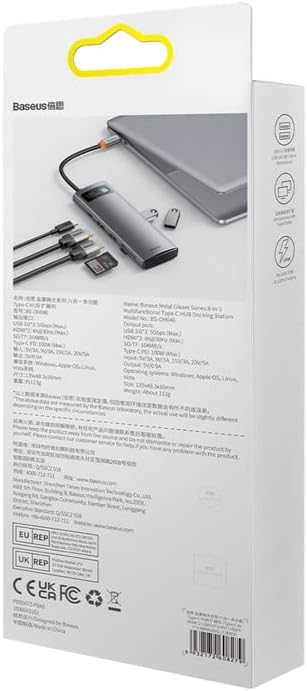
The rear view of the product packaging displays detailed technical specifications and compliance information for the Baseus Metal Gleam Series 8-in-1 USB-C Hub.
9. Warranty and Support
For warranty information, technical support, or further inquiries, please visit the official Baseus website or contact their customer service. Keep your purchase receipt for warranty claims.
Official Baseus Website: www.baseus.com


