
Product Overview
The PDP Wired Xbox Gaming Controller is designed for an enhanced gaming experience across multiple platforms. This controller features a durable wired connection, customizable controls, and integrated audio features, making it a versatile choice for serious gamers.
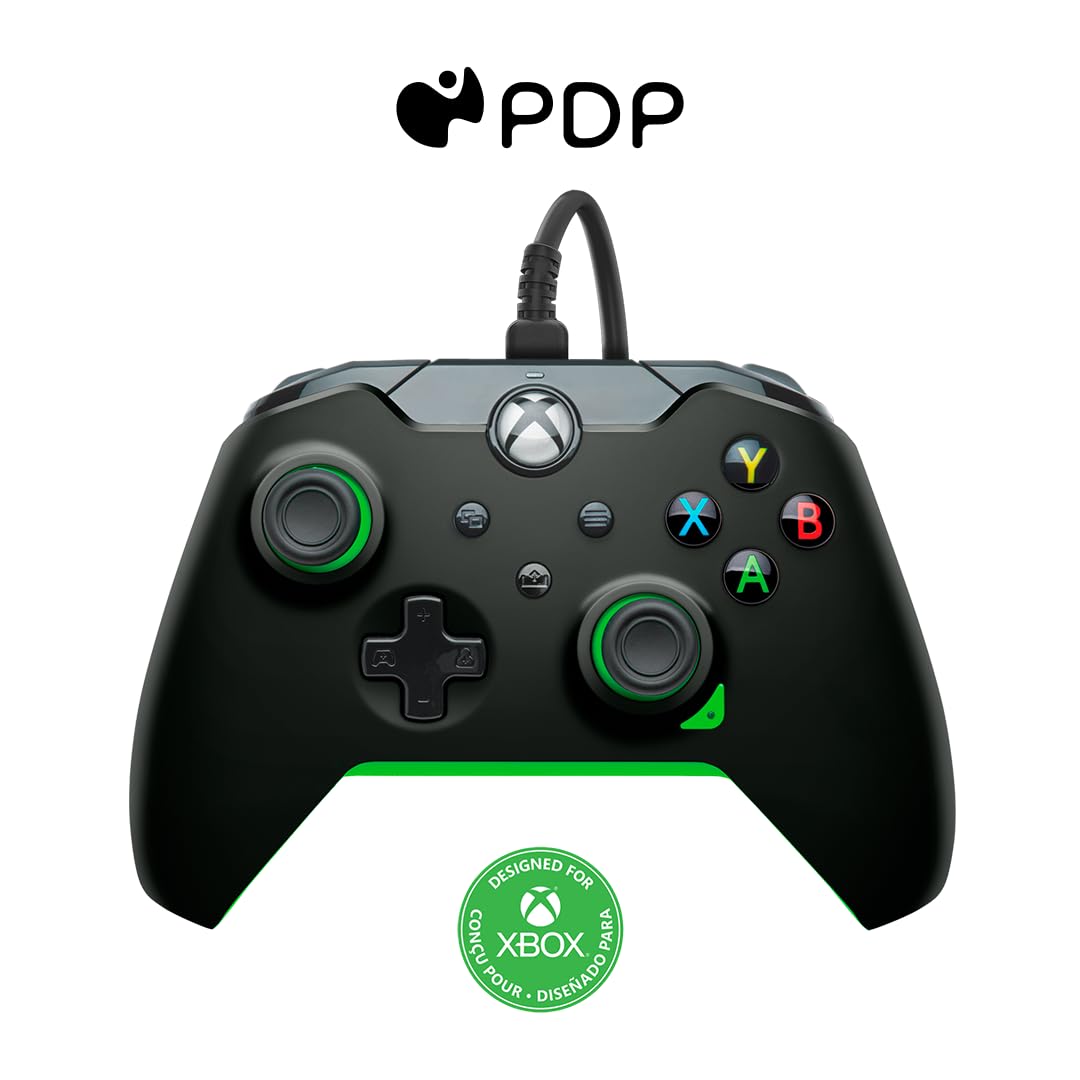
Image: Front view of the PDP Wired Xbox Gaming Controller in Neon Black.
This controller is officially licensed for Xbox Series X|S, Xbox One, and is also compatible with Windows 10/11 PCs. Its wired design ensures a stable connection without the need for batteries, providing uninterrupted gameplay.
Key Features
- Customizable Controls: Utilize the free PDP Control Hub App to remap buttons, reconfigure triggers, and adjust dead zones to personalize your gameplay.

Image: Screenshot showing the PDP Control Hub App interface for controller customization.
- Integrated Audio Controls: Adjust game and chat audio volume directly using the controls located on the D-pad. The built-in 3.5mm audio jack allows for communication with teammates, and the mic can be muted by double-tapping the "Function" button.
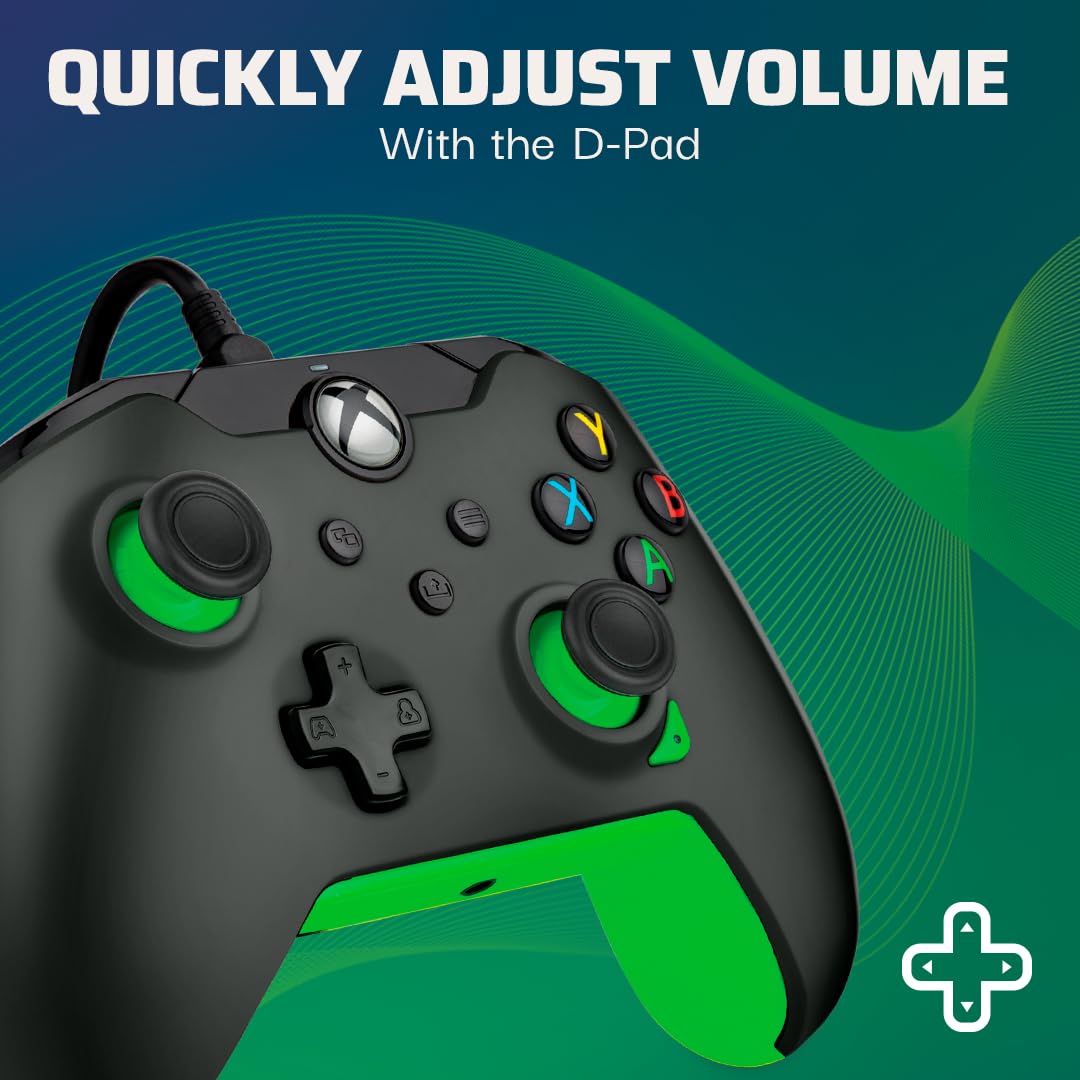
Image: Close-up of the controller's D-pad, highlighting the integrated audio controls.
- Dedicated Share Button: Easily capture and share your in-game images and videos with a dedicated share button.

Image: Detail view of the controller, showing the dedicated share button for capturing content.
- 8-Foot Detachable Cable: Provides ample room for comfortable gameplay and easy storage.
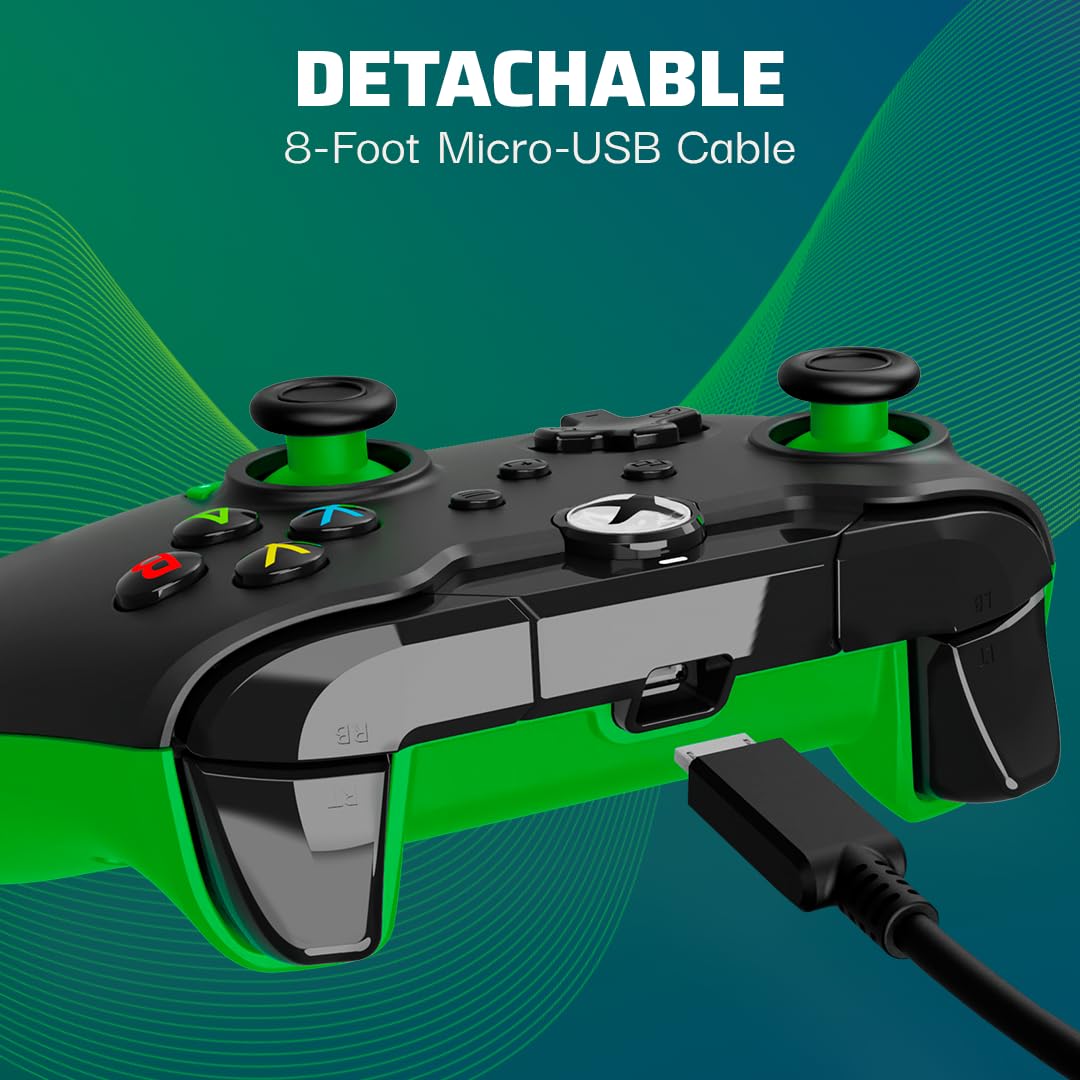
Image: The controller with its detachable 8-foot USB cable connected.
- Officially Licensed: Guaranteed compatibility and quality as an officially licensed Xbox product.

Image: The controller prominently displaying the "Officially Licensed by Xbox" branding.
Setup Guide
- Connect the Cable: Insert the detachable 8-foot USB cable into the port on the top of the controller.
- Connect to Console/PC: Plug the other end of the USB cable into an available USB port on your Xbox console (Xbox Series X|S, Xbox One) or Windows 10/11 PC.
- Power On: The controller will automatically power on and connect to your device. The Xbox button on the controller will illuminate to indicate a successful connection.
- Install PDP Control Hub App (Optional): For advanced customization, download and install the free PDP Control Hub App from the Microsoft Store on your Xbox or PC.
Operating Instructions
Basic Controls:
- Xbox Button: Powers on the console/PC, opens the guide, and indicates connection status.
- A, B, X, Y Buttons: Standard action buttons for in-game commands.
- D-Pad: Directional input, also used for audio controls (see below).
- Left/Right Analog Sticks: For movement and camera control.
- Left/Right Triggers (LT/RT): Analog input for actions like acceleration or firing.
- Left/Right Bumpers (LB/RB): Digital input for various actions.
- View Button: Opens the view menu or displays additional information.
- Menu Button: Opens the menu or pauses the game.
- Share Button: Captures screenshots or records game clips.
Audio Controls:
The D-pad on the controller features integrated audio controls for quick adjustments:
- Volume Up/Down: Press the Function button (located below the Xbox button) and then press Up/Down on the D-pad to adjust game volume.
- Chat Mix: Press the Function button and then press Left/Right on the D-pad to adjust the balance between game audio and chat audio.
- Mic Mute: Double-tap the Function button to mute or unmute your microphone. The LED indicator on the controller will change to show mic status.
Using the PDP Control Hub App:
The PDP Control Hub App allows for advanced customization of your controller. Connect your controller to your Xbox or PC and launch the app to:
- Remap any button to a different function.
- Adjust trigger dead zones for precise input.
- Calibrate analog sticks and triggers.
- Set vibration intensity.
- Create and save custom profiles for different games.
Maintenance
- Cleaning: Use a soft, dry cloth to wipe down the controller. For stubborn dirt, slightly dampen the cloth with water. Avoid using harsh chemicals or abrasive materials.
- Storage: When not in use, store the controller in a clean, dry place away from direct sunlight and extreme temperatures. The detachable cable can be removed for easier storage.
- Cable Care: Avoid sharp bends or kinks in the cable. Do not pull on the cable to disconnect it from the controller or console/PC; always grasp the connector.
Troubleshooting
| Problem | Solution |
|---|---|
| Controller not responding/connecting. |
|
| Audio issues (no sound, mic not working). |
|
| Buttons/sticks not working correctly. |
|
Specifications
| Feature | Detail |
|---|---|
| Model Number | 049-012-GG |
| Compatibility | Xbox Series X|S, Xbox One, Windows 10/11 PC |
| Connection Type | Wired (Detachable USB Cable) |
| Cable Length | 8 feet (approx. 2.4 meters) |
| Audio Jack | 3.5mm |
| Dimensions (L x W x H) | 3.23 x 6.89 x 6.89 inches |
| Weight | 12.17 ounces (approx. 345 grams) |
| Manufacturer | PDP |
| Country of Origin | China |
Warranty and Support
For warranty information and technical support, please refer to the official PDP website or contact their customer service directly. Keep your proof of purchase for warranty claims.
Online Resources:
- Visit the Official PDP Store on Amazon
- For the latest drivers and the PDP Control Hub App, visit the Microsoft Store or the official PDP support page.
Note: Product specifications and features are subject to change without notice.


