1. Introduction
The XPLORA XGO 3 is a watch phone designed for children, offering a secure way to stay connected. It features 4G connectivity for calls and messages, a Kids School Mode, an SOS function for emergencies, GPS location tracking, a camera, and a pedometer. This manual provides essential information for setting up and operating your XGO 3 device.

Image: The XPLORA XGO 3 watch phone in various colors.
2. What's in the Box
Upon opening your XPLORA XGO 3 package, you should find the following items:
- XPLORA XGO 3 Watch Phone
- USB Charging Cable
- Quick Start Guide
- Pre-installed Xplora Connect SIM card

Image: Contents of the XPLORA XGO 3 packaging.
3. Setup Guide
Follow these steps to set up your XPLORA XGO 3 watch phone:
- Activate your SIM: The XPLORA XGO 3 comes with a pre-installed Xplora Connect SIM card. Activate this SIM card through the Xplora website or app as instructed in the Quick Start Guide. A minimum 12-month subscription is required for optimum performance.
- Install the Xplora App: Download the official Xplora app on your smartphone from your device's app store.
- Connect your watch to the Xplora app: Follow the in-app instructions to pair your XGO 3 watch phone with your smartphone. This typically involves scanning a QR code displayed on the watch screen.

Image: Visual guide for the three-step setup process.
Video: Official Xplora XGO 3 product overview, demonstrating features and usage.
4. Key Features
4.1 Voice Calls
The XGO 3 allows children to make and receive calls from pre-saved numbers. Parents manage the contact list through the Xplora app, ensuring communication only with trusted contacts.
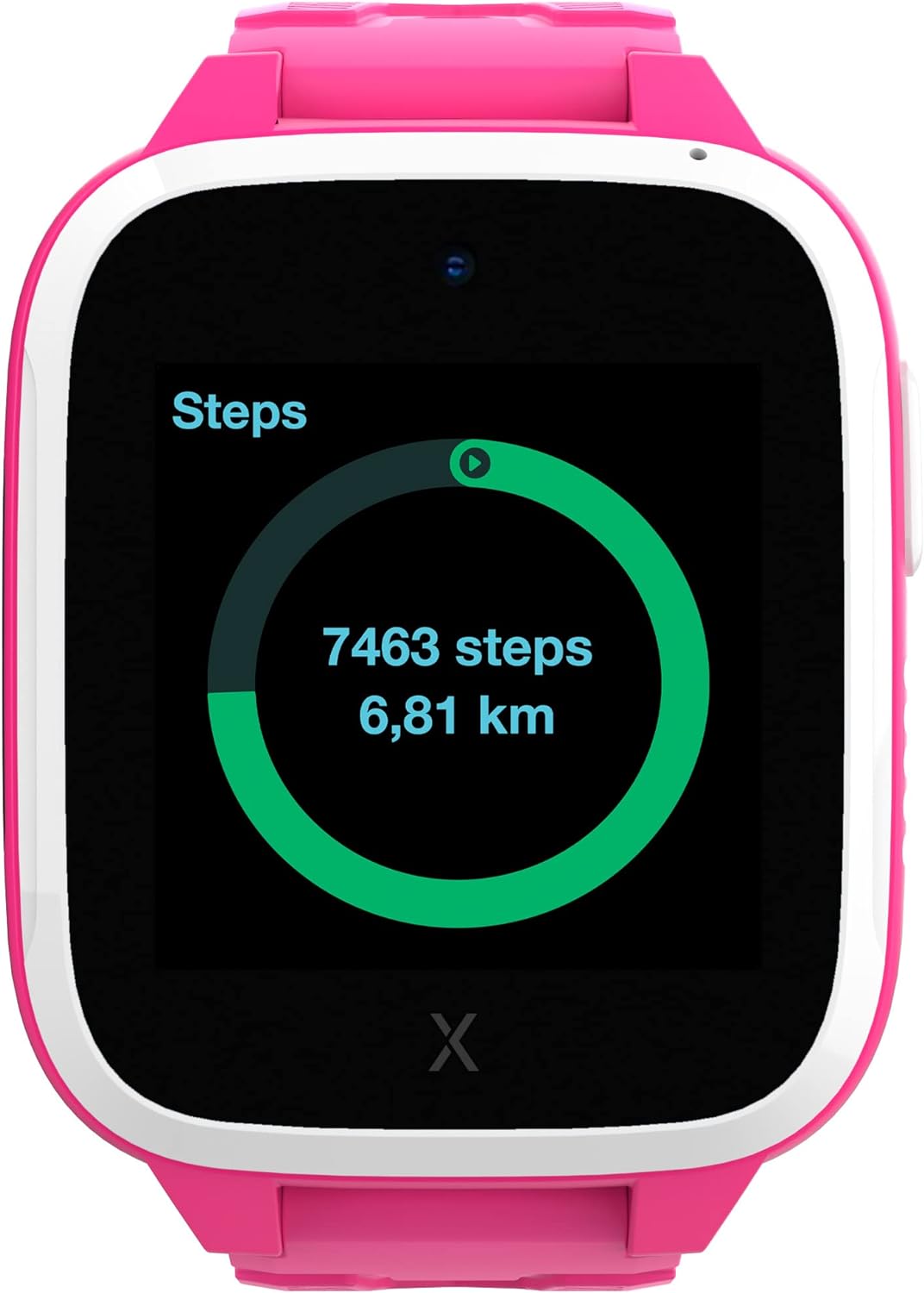
Image: The watch displaying an incoming call.
4.2 Messages
The device can receive text messages, emojis, images, and voice messages. Children can reply using images, emojis, and voice messages, providing a safe and controlled communication environment.
4.3 SOS Function
In an emergency, the child can press the SOS button to notify pre-selected emergency contacts of their location, providing immediate assistance and peace of mind.
4.4 GPS Location & Safety Zones
The XGO 3 utilizes multiple services for accurate device location tracking. Parents can set up customizable Safety Zones around key locations like home and school. Notifications are sent when the child enters or leaves these designated areas.

Image: The Xplora app displaying GPS tracking and safety zone setup.
4.5 Kids School Mode
School Mode allows parents to disable all watch functions except the clock and SOS feature during school hours, minimizing distractions and promoting focus.
4.6 Pedometer & Activity Platform
The built-in pedometer tracks your child's steps, encouraging physical activity. Steps can be converted into Xplora Coins, redeemable for content on the Xplora Goplay Activity Platform.

Image: The watch displaying the step counter.
4.7 Camera
The XGO 3 includes a camera for capturing photos, which can be shared via messages with approved contacts.
5. Operating Instructions
This section covers basic operation of your XPLORA XGO 3 watch phone.
5.1 Power On/Off
- To Power On: Press and hold the side button until the screen lights up.
- To Power Off: Navigate to the settings menu on the watch, then select 'Shut Down'. Alternatively, press and hold the side button and confirm power off.
5.2 Navigation
- Swipe: Swipe left or right on the screen to navigate between different app screens and features.
- Tap: Tap on an icon to open an application or select an option.
- Side Button: The side button typically acts as a 'back' button or to return to the home screen.
5.3 Making and Receiving Calls
- Making a Call: From the home screen, swipe to the 'Phone' app, select a contact from the approved list, and tap to initiate a call.
- Receiving a Call: When a call comes in, the watch will ring and display the caller's name (if in contacts). Tap the green icon to answer or the red icon to decline.
5.4 Sending Messages
- From the home screen, swipe to the 'Chat' app. Select a contact. You can send pre-defined messages, emojis, voice messages, or photos taken with the watch camera.
5.5 Activating School Mode
- School Mode is managed by parents through the Xplora app. Set specific timeframes during which the watch will only display the time and allow SOS calls.
6. Safety Information
Please read the following safety guidelines carefully to ensure safe and proper use of the XPLORA XGO 3 watch phone:
- Adult Supervision: While designed for children, adult supervision is recommended, especially during initial setup and for monitoring usage.
- Battery Safety: The device contains a Lithium Ion battery. Do not attempt to replace the battery yourself. Use only the provided USB charging cable. Avoid exposing the device to extreme temperatures or direct sunlight for prolonged periods.
- Water Resistance: The XGO 3 is designed to be splash-proof and resistant to light rain. It is not suitable for swimming or submersion in water. Avoid exposing the device to high-pressure water or steam.
- Choking Hazard: Keep small parts, such as the SIM card, out of reach of very young children to prevent choking hazards.
- Network Coverage: GPS accuracy and call quality depend on network coverage. Ensure your child is in an area with adequate 4G signal for optimal performance.
7. Specifications
| Feature | Detail |
|---|---|
| Model Number | XGOTED 3 |
| Product Dimensions | 10.24 x 2.76 x 1.18 inches |
| Item Weight | 7.1 ounces (200 Grams) |
| Batteries | 1 Lithium Ion battery (included) |
| Standing Screen Display Size | 1.3 Inches |
| Operating System | Android |
| Special Feature | GPS |
| Battery Capacity | 850 Milliamp Hours |
| Connectivity Technology | Wi-Fi |
| Wireless Communication Standard | Bluetooth |
| GPS | True |
| Shape | Square |
8. Troubleshooting
If you encounter issues with your XPLORA XGO 3, refer to the common problems and solutions below:
- "No SIM" Error: Ensure the Xplora Connect SIM card is properly inserted and activated. If the issue persists, contact Xplora customer support.
- Inaccurate GPS Location: GPS accuracy can be affected by environmental factors (e.g., dense buildings, heavy tree cover) and network signal strength. Ensure the watch has a clear view of the sky and good network coverage. If the problem continues, check for software updates.
- Watch Freezing or Unresponsive: Try restarting the watch. If a restart doesn't resolve the issue, perform a factory reset via the settings menu (note: this will erase data).
- Call Quality Issues: Ensure the watch has strong 4G network signal. Poor signal can lead to dropped calls or unclear audio.
- Cannot Make/Receive Calls: Verify that the SIM card is active and that the contact numbers are correctly saved in the Xplora app. Ensure no dashes or parentheses are in the contact phone numbers within the app.
9. Warranty and Support
For warranty claims, technical support, or further assistance, please refer to the following:
- Return Policy: The product is eligible for a 30-day refund/replacement policy.
- Protection Plans: Optional 2-Year or 3-Year Protection Plans are available for purchase. Monthly
Related Documents - XGOTED 3

Xplora XGO3 Quick Start Guide: Setup and Features
Get started with your Xplora XGO3 kids smartwatch. This guide covers setup, important information, and support resources from Xplora Technologies AS.
Xplora X5 Play Smartwatch Phone for Kids User Guide
Comprehensive user guide for the Xplora X5 Play smartwatch phone, detailing setup, features, safety, and disposal information for children's wearable technology.
XPLORA Watch User Manual: Features, Setup, and Operation
Comprehensive user manual for the XPLORA Watch, covering package contents, device layout, charging, strap replacement, power functions, touch interface, calling, messaging, SOS features, app installation, account creation, and advanced settings like location tracking, schedules, and safety zones.
XPLORA GO Quick User Guide: Setup and Features
Learn how to set up and use your XPLORA GO device with this concise user guide. Covers SIM card preparation, charging, main features like calls, camera, tracking, and SOS functionality.
Xplora X6Play Quick Start Guide - Get Your Kids Smartwatch Running
Get started with your Xplora X6Play kids smartwatch. This quick start guide covers essential setup steps, app download, SIM plan configuration, and important safety information for parents and children.
Xplora X6Play Quick Start Guide
A concise guide to setting up and using the Xplora X6Play smartwatch, covering initial setup steps, important safety and warranty information, FCC and IC compliance statements, and proper disposal guidelines.