
ANCEL HD3500
ANCEL HD3500 Pro Diagnostic Scanner User Manual
Model: HD3500
1. Introduction
This manual provides detailed instructions for the operation and maintenance of the ANCEL HD3500 Pro Diagnostic Scanner. This device is designed for comprehensive diagnostic functions on both light trucks and passenger cars, offering features such as code reading, live data streaming, service resets, and active tests.
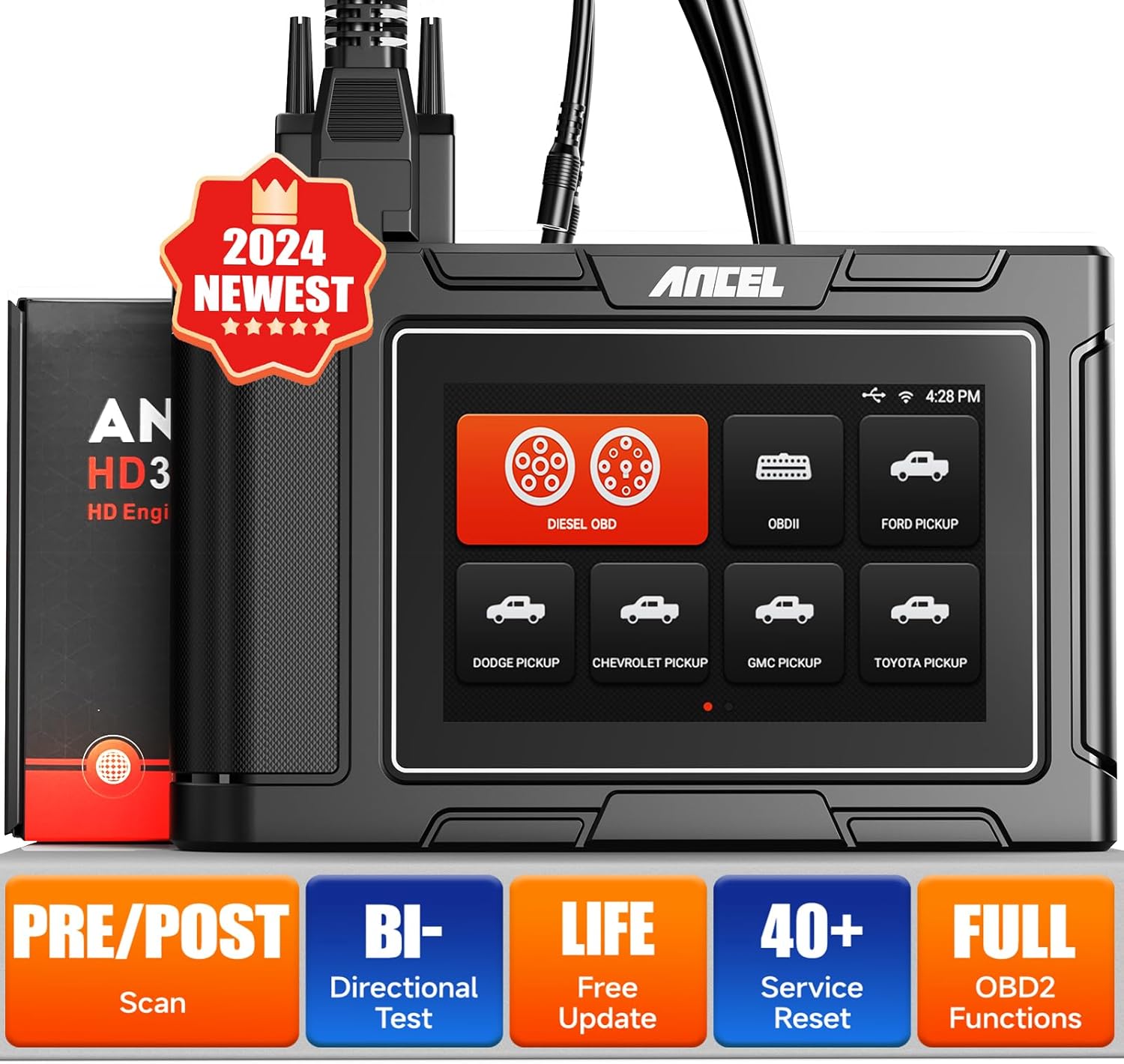
Figure 1: ANCEL HD3500 Pro Diagnostic Scanner
2. Package Contents
Upon opening the package, verify that all items listed below are present and in good condition. If any items are missing or damaged, please contact your vendor.
- ANCEL HD3500 Pro Main Unit
- OBD-II 16-pin Diagnostic Cable
- Various Heavy-Duty Diagnostic Adapters (e.g., 6-pin, 9-pin)
- USB Cable for PC connection (if applicable)
- User Manual
- Protective Carrying Case

Figure 2: ANCEL HD3500 Pro Package Contents
3. Setup
3.1 Initial Power-On and Language Selection
- Connect the scanner to a vehicle's OBD-II port or an external power source. The device will power on automatically.
- Follow the on-screen prompts to select your preferred language (English or Spanish).
3.2 Wi-Fi Connection
To access online features such as software updates and report sharing, connect the device to a Wi-Fi network.
- From the main menu, navigate to 'Settings'.
- Select 'Wi-Fi' and choose your desired network.
- Enter the password if prompted and confirm the connection.
3.3 Software Updates
Regular software updates ensure optimal performance and expanded vehicle coverage. The ANCEL HD3500 Pro offers lifetime free updates.
- Ensure the device is connected to Wi-Fi.
- From the main menu, select 'Update'.
- The system will check for available updates. Follow the on-screen instructions to download and install them.
3.4 Device Activation
The device requires a one-time activation to unlock full functionality.
- Ensure the device is connected to Wi-Fi.
- From the main menu, select 'Activation'.
- Follow the on-screen instructions to complete the activation process using valid user information.
3.5 Connecting to a Vehicle
The ANCEL HD3500 Pro supports both 12V OBDII protocols for cars and 24V diesel OBD protocols for light trucks.
- Locate the vehicle's diagnostic link connector (DLC), typically under the dashboard on the driver's side.
- For 12V vehicles, use the standard OBD-II 16-pin cable. For 24V diesel trucks, select the appropriate adapter (e.g., 6-pin, 9-pin) and connect it to the main diagnostic cable.
- Connect the diagnostic cable to the ANCEL HD3500 Pro unit.
- Turn the vehicle's ignition to the 'ON' position (engine off).
4. Operating Instructions
4.1 Main Menu Navigation
The device features a 5-inch LCD touchscreen for intuitive navigation. Tap icons to select functions or use the physical buttons if available.
4.2 Diagnostic Functions
The HD3500 Pro offers comprehensive diagnostic capabilities for various vehicle systems.
- Read Codes: Retrieves Diagnostic Trouble Codes (DTCs) from the vehicle's control modules.
- Clear Codes: Erases DTCs from the vehicle's memory. Ensure the underlying issue is resolved before clearing codes.
- Live Data Stream: Displays real-time data parameters from the vehicle's sensors and modules in text or graph format.
- ECU Information: Retrieves vehicle information such as VIN, calibration IDs, and calibration verification numbers.
- Full System Diagnosis: Accesses and diagnoses all available control modules, including Engine, Transmission, ABS, SRS, BMS, EPB, SAS, Fuel System, Light System, A/C System, and more.

Figure 3: Full System Diagnosis Overview

Figure 4: Compatible Pickup Truck Models
4.3 Special Functions and Service Resets
The HD3500 Pro supports various maintenance and service functions, which may vary by vehicle make and model.
- Oil Reset: Resets the engine oil life system.
- EPB (Electronic Parking Brake) Reset: Deactivates and reactivates the brake control system for brake service.
- ABS Bleeding: Performs brake bleeding procedures for ABS systems.
- Injector Reset: Resets injector learned values.
- SAS (Steering Angle Sensor) Reset: Calibrates the steering angle sensor.
- TPMS (Tire Pressure Monitoring System) Reset: Resets tire pressure values.
- BMS (Battery Management System) Reset: Registers new battery replacement.
- ETS (Electronic Throttle System) Reset: Clears the adaptive values of the electronic throttle.
- AFS (Adaptive Front-lighting System) Reset: Initializes the adaptive headlight system.
- EGR (Exhaust Gas Recirculation) Reset: Resets EGR valve adaptations.
- DPF (Diesel Particulate Filter) Functions: Includes active/passive regeneration, DPF reset, DPF parameter reset, DPF Regeneration Suspension, DPF Replacement, DPF Pressure Sensor Learn/Reset, and DPF/Catalyst 2 Reset.

Figure 5: Special Functions and Service Resets
4.4 Active Test / Bidirectional Control
This function allows the user to send commands to the vehicle's ECUs to test specific components, verifying their functionality.
- Examples include testing A/C clutch engagement, window operation, and fuel injector activation.

Figure 6: Active Test Capabilities
4.5 Pre-scan & Post-scan Reports
The device can generate pre-scan and post-scan reports, which are useful for documenting vehicle conditions before and after repairs.
- Reports can be saved, printed, or shared via email (requires Wi-Fi).

Figure 7: Pre-scan and Post-scan Report Feature
4.6 Pin Detect Function
The Pin Detect function helps diagnose the connection status of the OBD interface and identify potential damage to the pins.
4.7 Screenshot and Report Management
The device allows for one-click screenshots of diagnostic results and offers tools for managing generated reports.
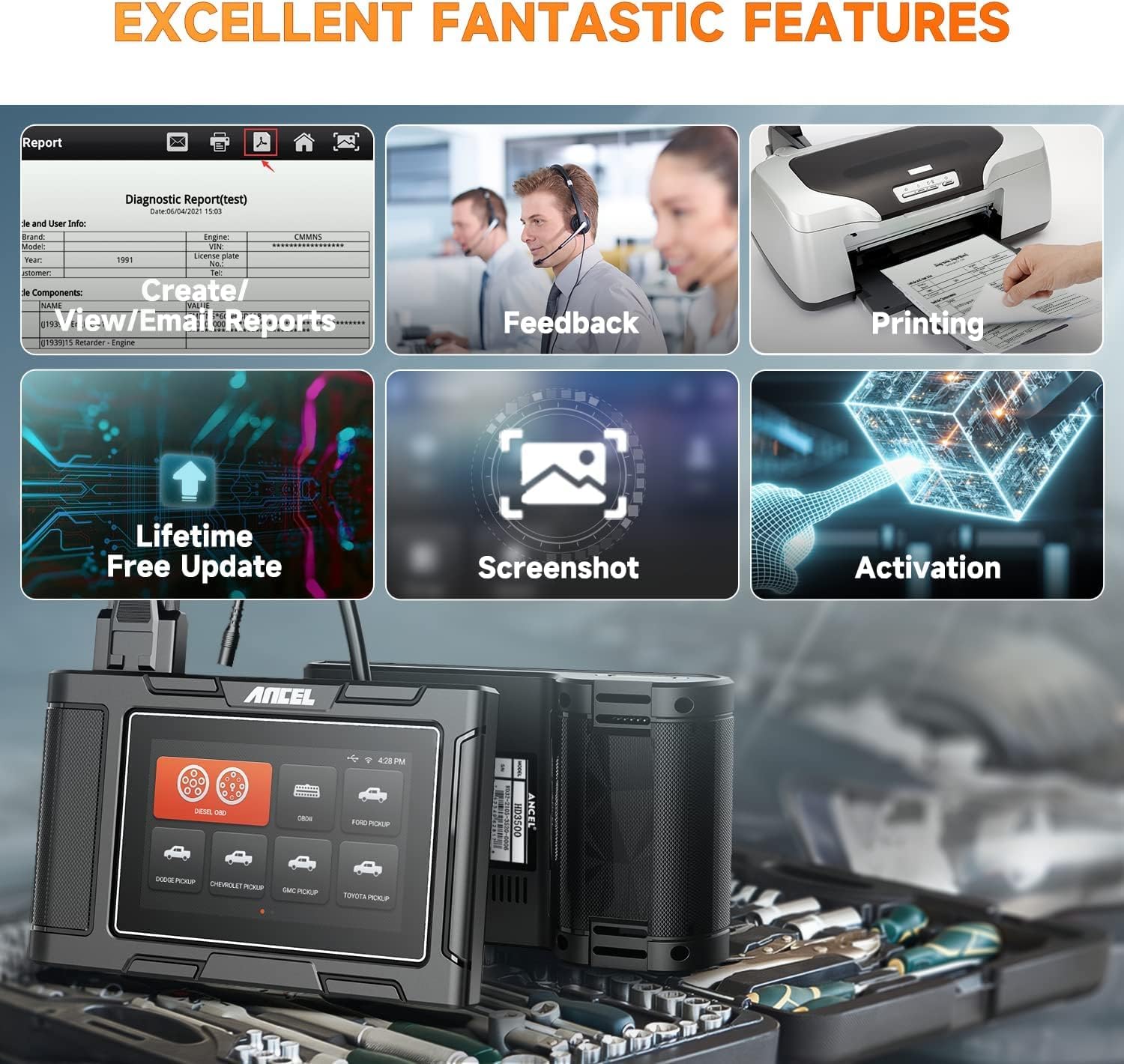
Figure 8: Report, Feedback, and Screenshot Features
5. Maintenance
5.1 Cleaning the Device
Use a soft, damp cloth to clean the device's exterior. Avoid abrasive cleaners or solvents that could damage the screen or casing.
5.2 Software Updates
Regularly check for and install software updates to ensure the scanner has the latest vehicle coverage and features. This can be done via Wi-Fi as described in Section 3.3.
5.3 Storage
Store the device in its protective carrying case in a dry, cool environment, away from direct sunlight and extreme temperatures, when not in use.
6. Troubleshooting
6.1 Common Issues
- Device not powering on: Ensure the diagnostic cable is securely connected to the vehicle's DLC and the vehicle's ignition is in the 'ON' position. Check the vehicle's battery voltage.
- Communication error with vehicle: Verify the diagnostic cable connections. Ensure the correct adapter is used for heavy-duty trucks. Use the 'Pin Detect' function to check the integrity of the OBD interface pins. Confirm the vehicle's ignition is on.
- Function not working as expected: Ensure the device software is up to date. Some functions are vehicle-specific; verify compatibility for your vehicle's make, model, and year.
- Wi-Fi connection issues: Check network password and signal strength. Try restarting the device and the Wi-Fi router.
6.2 Using the Pin Detect Function
If you suspect a connection issue, use the 'Pin Detect' function to analyze the voltage and connection status of each pin on the OBD interface. This can help identify faulty connections or damaged pins.
6.3 Contacting Support
If troubleshooting steps do not resolve the issue, utilize the device's 'Feedback' function to report problems or request remote assistance. You may also refer to the official ANCEL website for further support resources.
7. Specifications
| Feature | Specification |
|---|---|
| Operating System | Android 4.4 |
| Display | 5-inch LCD |
| RAM | 1GB |
| Internal Storage | 8GB (Flash) |
| External Storage | 16GB (TF card) |
| Connectivity | 2.4GHz WiFi |
| Supported Protocols | J1587, J1939, J1708, J27145, SAE J1850 PWM, SAE J1850 VPW, ISO 14230-4, ISO 9141-2, ISO 15765-4, ISO 27145-4 |
| Vehicle Voltage Support | 12V (OBDII cars), 24V (Diesel trucks) |
| Dimensions | 5.28 x 5.94 x 10.98 inches |
| Item Weight | 3.03 pounds |
| Supported Languages | English, Spanish |
8. Warranty and Support
8.1 Warranty Information
For specific warranty terms and conditions, please refer to the warranty card included with your product or contact ANCEL customer service directly. Protection plans may be available for extended coverage.
8.2 Customer Support
If you require assistance or have questions regarding your ANCEL HD3500 Pro, please use the following resources:
- In-Device Feedback: Utilize the 'Feedback' function on the scanner for direct communication with technical support.
- Official User Manual (PDF): A detailed PDF version of the user manual is available for download at https://manuals.plus/m/f23bfdc72df9fd24f0528372c3e7cc45a2dbd22680d8bf27b14e753259febea9.
- Manufacturer Website: Visit the official ANCEL website for FAQs, software downloads, and contact information.
Related documentsHD3500


Ask a question about this manual
Ask about setup, troubleshooting, compatibility, parts, safety, or missing instructions. Manuals+ will review the question and use this page’s manual context to help answer it.