
1. Introduction
This manual provides essential information for the safe and efficient operation of your ONN 43-Inch Class 4K UHD (2160P) LED Smart TV. This television offers a 4K Ultra High Definition display, High Dynamic Range (HDR) compatibility, and integrated smart TV functionalities powered by Roku. It supports popular streaming services and voice assistants like Alexa and Google Assistant. Please read this manual thoroughly before using your television and retain it for future reference.

Image 1: ONN 43-Inch 4K UHD Smart TV in a typical living room environment.
2. Safety Information
Always follow basic safety precautions when using this product to reduce the risk of fire, electric shock, and injury. Keep this manual handy for reference.
- Power Source: Connect the TV only to the specified power supply.
- Ventilation: Ensure adequate ventilation around the TV. Do not block ventilation openings.
- Water and Moisture: Do not expose the TV to rain or moisture. Do not place objects filled with liquids on the TV.
- Cleaning: Unplug the TV before cleaning. Use a soft, dry cloth.
- Wall Mounting: If wall mounting, ensure the mount is compatible with VESA 400x400 standards and installed by qualified personnel.
- Children: Supervise children to prevent them from climbing on or playing with the TV.
3. Package Contents
Verify that all items are present in the package. If any items are missing or damaged, contact your retailer.
- ONN 43-Inch Class 4K UHD LED Smart TV
- Remote Control
- Wall Mount (Note: For renewed products, TV stands may not be included as a wall mount is provided for installation.)
- Power Cord
- Quick Start Guide (not included in this manual)

Image 2: The ONN 43-Inch 4K UHD Smart TV alongside its included wall mount.
4. Setup
4.1 Wall Mount Installation
Your ONN 43-Inch Smart TV is designed for wall mounting using a VESA 400x400 compatible bracket. Follow these general steps for installation:
- Prepare the Wall: Locate wall studs and ensure the mounting area can support the TV's weight (approximately 16.9 pounds) plus the mount.
- Attach Mount Brackets to TV: Secure the wall mount brackets to the VESA holes on the back of the TV using appropriate screws.
- Install Wall Plate: Mount the wall plate securely to the wall studs according to the wall mount manufacturer's instructions.
- Hang the TV: Carefully lift the TV and attach it to the wall plate. Ensure it is securely locked in place.
Note: Always refer to the specific instructions provided with your wall mount for detailed installation steps. Professional installation is recommended.
4.2 Connecting Peripherals
The TV offers various ports for connecting external devices:
- HDMI: 3 HDMI ports (including 1 eARC) for high-definition audio/video devices like Blu-ray players, gaming consoles, or cable boxes.
- USB: 1 USB port for media playback from USB drives.
- LAN: 1 Ethernet port for wired internet connection.
- Optical: 1 Optical digital audio output for connecting to soundbars or home theater systems.
- Composite: 1 Composite video input for older devices.
- Coaxial/Cable: 1 Coaxial input for antenna or cable TV connection.
- Headphone: 1 Headphone jack for private listening.
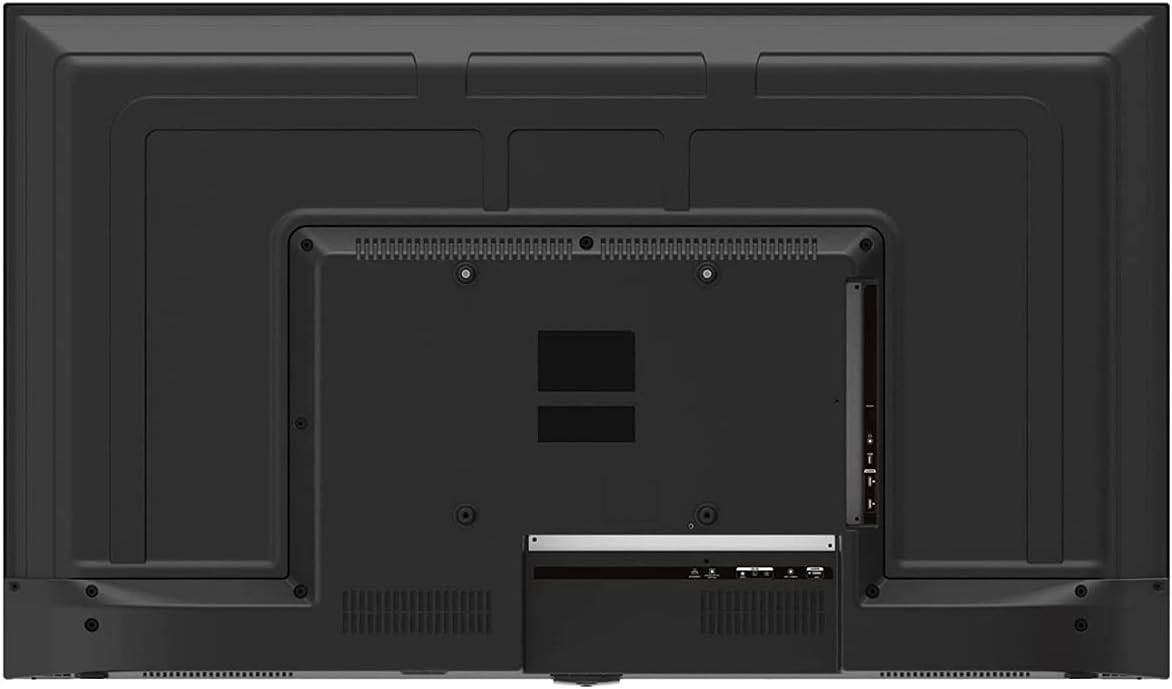
Image 3: Rear panel of the ONN 43-Inch Smart TV, highlighting the available connectivity ports.
4.3 Initial Power On and Network Setup
- Power On: Connect the power cord to the TV and a power outlet. Press the power button on the remote control.
- Language Selection: Follow the on-screen prompts to select your preferred language.
- Network Connection: Select your Wi-Fi network from the list and enter the password. Alternatively, connect an Ethernet cable for a wired connection.
- Roku Account Setup: Follow the instructions to create or sign in to your Roku account. This is necessary to access streaming channels and features.
5. Operating Your TV
5.1 Remote Control
The included remote control provides easy access to all TV functions and streaming services. It features dedicated buttons for popular streaming apps like Netflix, Apple TV+, Paramount+, and HBO Max.
5.2 Smart TV Interface (Roku TV)
The Roku TV home screen provides a centralized hub for all your entertainment. You can easily navigate through streaming channels, live TV inputs, and device connections.

Image 4: The Roku TV home screen on the ONN 43-Inch Smart TV, showing available streaming applications.

Image 5: An angled view of the ONN 43-Inch Smart TV, showcasing the user interface from a different perspective.
- Home: Access the main Roku TV interface.
- Live TV: Browse available live television channels.
- Streaming Store: Discover and add new streaming channels.
- Apps & Inputs: Select connected devices (e.g., HDMI 1, HDMI 2) or launch installed applications.
5.3 Voice Assistant Integration
The TV is compatible with Alexa and Google Assistant. You can use a compatible voice assistant device (sold separately) or the Roku mobile app to control your TV with voice commands, such as turning it on/off, changing channels, or launching apps.
5.4 Picture Settings
To adjust picture quality, navigate to Settings > Picture Settings on the Roku TV menu. Options typically include Brightness, Contrast, Color, Tint, Sharpness, and various picture modes (e.g., Movie, Sports, Vivid, Standard).
5.5 Sound Settings
To adjust audio settings, navigate to Settings > Audio Settings. Options may include Volume Mode, Audio Delay, and various sound modes (e.g., Standard, Theater, Music).
6. Maintenance
6.1 Cleaning the TV
- Always unplug the TV before cleaning.
- Use a soft, lint-free cloth to gently wipe the screen and cabinet.
- For stubborn marks, lightly dampen the cloth with water or a mild, non-abrasive screen cleaner. Never spray cleaner directly onto the screen.
6.2 Software Updates
Your ONN Roku TV automatically receives software updates to improve performance and add new features. Ensure your TV is connected to the internet for these updates. You can manually check for updates via Settings > System > System Update.
7. Troubleshooting
If you encounter issues with your TV, refer to the following common solutions:
| Problem | Solution |
|---|---|
| No Power | Ensure the power cord is securely plugged into both the TV and a working electrical outlet. Try a different outlet. |
| No Picture/Sound | Check all cable connections (HDMI, coaxial). Ensure the correct input source is selected on the TV. |
| Remote Not Working | Replace the batteries in the remote control. Ensure there are no obstructions between the remote and the TV's IR sensor. |
| Cannot Connect to Wi-Fi | Verify your Wi-Fi password. Restart your router and modem. Move the TV closer to the router if possible. |
| Poor Picture Quality | Check the resolution settings of your connected device. Adjust picture settings on the TV. Ensure you are viewing 4K content for optimal resolution. |
8. Specifications
| Feature | Detail |
|---|---|
| Screen Size | 43 Inches |
| Display Technology | LED |
| Resolution | 4K Ultra HD (2160p) |
| HDR Compatibility | Yes |
| Smart TV Platform | Roku TV |
| Voice Assistant Support | Alexa, Google Assistant |
| Connectivity | 3 HDMI (1 eARC), 1 Composite, 1 USB, 1 LAN, 1 Optical, 1 Coaxial/Cable, 1 Headphone |
| Aspect Ratio | 16:9 |
| Product Dimensions (D x W x H) | 7" x 38" x 23" |
| Item Weight | 16.9 pounds |
| Color | Black |

Image 6: Side profile of the ONN 43-Inch Smart TV, illustrating its slim design.

Image 7: Energy Guide label providing estimated yearly energy cost and consumption for the television.
9. Warranty and Support
For warranty information and technical support, please refer to the documentation included with your product or visit the official ONN support website. As this is a renewed product, specific warranty terms may vary. Please consult the seller or product listing for details regarding the renewed product warranty.


