
Baseus B0B39GPWX2
Baseus Desktop Fan User Manual
Model: B0B39GPWX2 | Brand: Baseus
Introduction
The Baseus Desktop Fan is a versatile 2-in-1 cooling solution designed for office and personal use. It can be easily clipped onto a monitor or used as a stand-up desk fan, providing efficient cooling while saving space. This manual provides detailed instructions for setup, operation, maintenance, and troubleshooting to ensure optimal performance of your device.
Key features include a bladeless design for gentle airflow, three adjustable speeds, a touch screen interface, and a flexible mounting system compatible with various monitor types.
Product Features
- 2-in-1 Design: Functions as both a monitor clip-on fan and a stand-up desk fan, optimizing space and providing flexible cooling options.
- Baseus Coology System: Delivers powerful and consistent airflow through an elongated outlet design, covering a wider area for effective cooling.
- Adjustable Speeds & Touch Control: Features three adjustable fan speeds and a responsive touch screen interface for easy operation.
- Adjustable Airflow Direction: Manually adjust the airflow direction within a 0 to 90-degree range to customize cooling.
- Secure Mounting: Equipped with a triangle-shaped adjustable silicone stand and gravitational hinge for a sturdy grip on monitors with thickness from 0.2 to 0.8 inches (5mm-20mm).
- USB Powered: Comes with a Type-C charging cable, allowing it to be powered by any compatible USB power source.
- Bladeless Design: Provides a smooth, gentle, and natural breeze, reducing harsh airflow and promoting a healthier environment.

Figure 1: Comparison illustrating the smooth airflow of the bladeless fan versus the stiff airflow of traditional bladed fans.
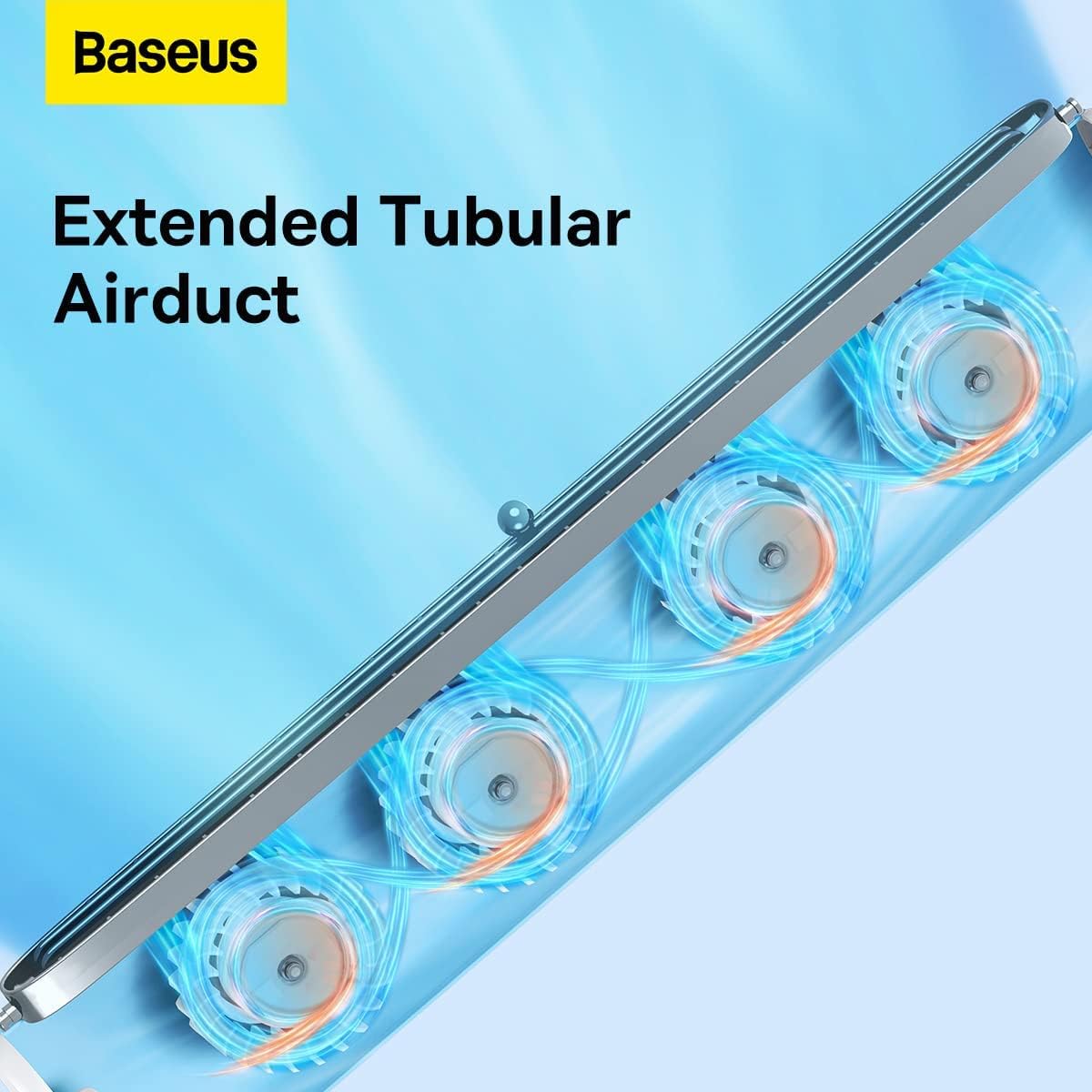
Figure 2: Detail of the harmonica-like wind outlet, designed for efficient and wide-range air distribution.

Figure 3: Illustration of the extended tubular airduct, which provides a wider range of wind outlet for comprehensive cooling.
Setup
Monitor Clip-on Installation
- Ensure your monitor's thickness is between 0.2 to 0.8 inches (5mm-20mm).
- Open the gravitational hinge on the back of the fan.
- Carefully place the fan on top of your monitor, ensuring the silicone stand securely grips the top edge and the hinge rests against the back.
- Adjust the angle of the fan as needed for optimal airflow.
- Connect the Type-C charging cable to the fan and a USB power source.

Figure 4: The Baseus Desktop Fan securely clipped onto a monitor, providing personal cooling.

Figure 5: The gravitational hinge provides a sturdy and adaptable grip for various monitor types.

Figure 6: The fan is compatible with multi-sized monitors, including narrow-bezel screens, curved screens, and laptops.
Stand-Up Desk Fan Setup
- Detach the fan from the monitor if it is currently clipped on.
- Place the fan vertically on a flat, stable surface. The integrated stand will provide stability.
- Connect the Type-C charging cable to the fan and a USB power source.

Figure 7: The Baseus Desktop Fan in its stand-up configuration, ideal for use on any flat surface.
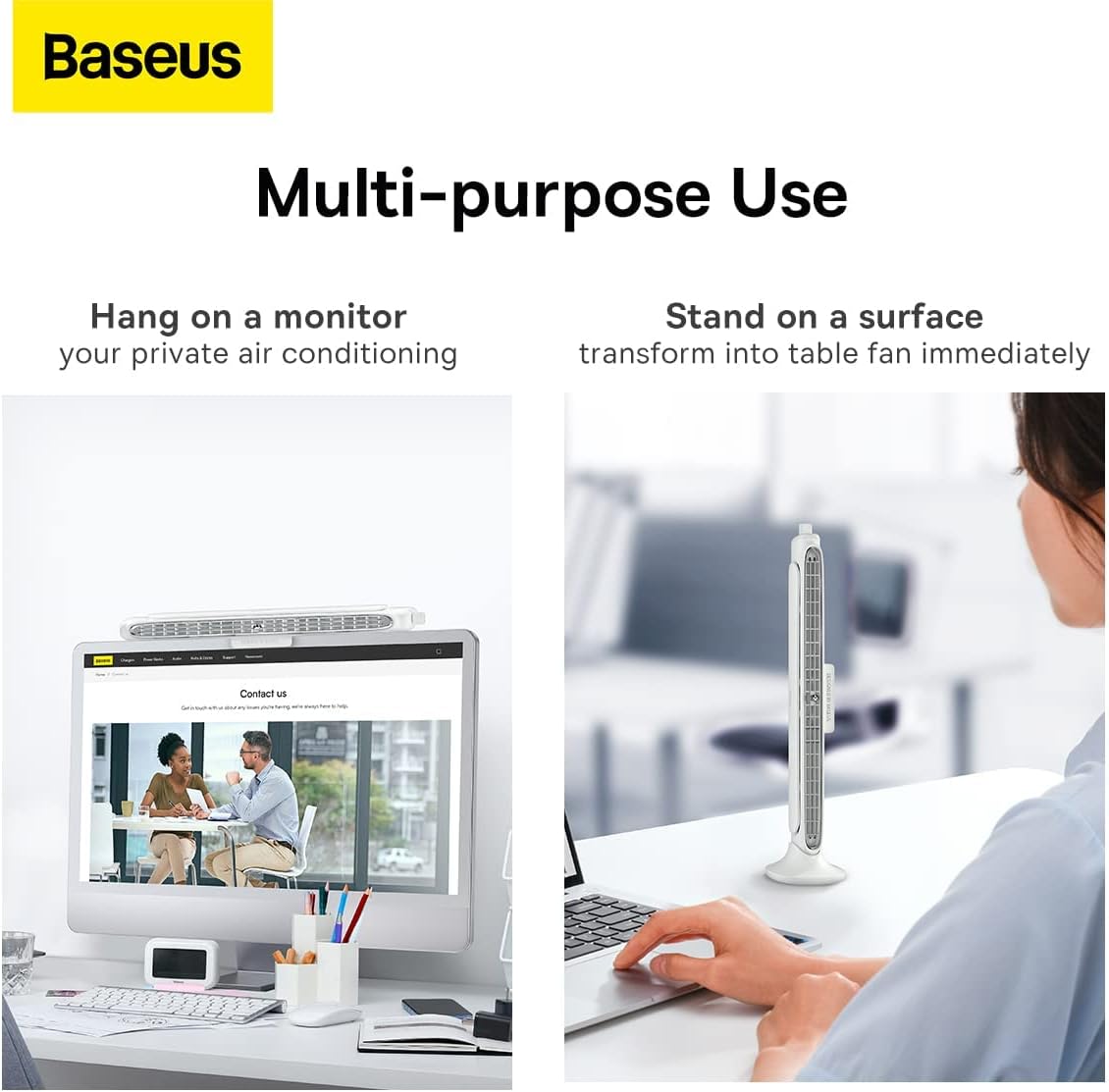
Figure 8: The fan offers multi-purpose use, functioning as both a monitor-mounted and a stand-up desk fan.
Operating Instructions
Power On/Off
- Ensure the fan is connected to a power source via the Type-C cable.
- Locate the power button/touch interface on the fan.
- Press the power button or tap the touch interface to turn the fan on or off.
Adjusting Fan Speed
- The fan features three adjustable speeds.
- Use the touch screen interface or dedicated speed control button (if present) to cycle through the speed settings (Low, Medium, High).
- Some models may feature stepless adjustment via a rotary knob. Rotate the knob to increase or decrease wind speed.

Figure 9: Stepless adjustment allows precise control over wind speed, from soft to strong.
Adjusting Airflow Direction
- The fan allows for manual adjustment of the airflow direction.
- Gently tilt the fan body to direct the airflow within its 0 to 90-degree adjustable range.
Maintenance
Cleaning
- Before cleaning, ensure the fan is powered off and disconnected from the power source.
- Use a soft, dry cloth to wipe the exterior of the fan.
- For dust accumulation in the air outlet, use a soft brush or compressed air to gently clear it.
- Do not use abrasive cleaners, solvents, or immerse the fan in water.
Storage
- When not in use for extended periods, store the fan in a cool, dry place away from direct sunlight and extreme temperatures.
- Keep the fan in its original packaging or a protective cover to prevent dust buildup.
Troubleshooting
| Problem | Possible Cause | Solution |
|---|---|---|
| Fan does not turn on. | Not connected to power source; Power source issue; Cable damaged. | Ensure Type-C cable is securely connected to both the fan and a working USB power source. Try a different USB port or power adapter. Check cable for damage. |
| Weak airflow. | Fan speed set too low; Air outlet blocked; Dust accumulation. | Increase fan speed. Ensure nothing is obstructing the air outlet. Clean any dust from the air outlet. |
| Unusual noise during operation. | Fan not placed on a stable surface; Internal obstruction; Dust buildup. | Ensure the fan is on a flat, stable surface. Check for any foreign objects near the air intake/outlet. Clean the fan thoroughly. If noise persists, contact customer support. |
| Touch controls unresponsive. | Temporary software glitch; Power cycle needed. | Disconnect the fan from power for 30 seconds, then reconnect and try again. |
Specifications
| Attribute | Value |
|---|---|
| Brand | Baseus |
| Model | B0B39GPWX2 |
| Color | White |
| Product Dimensions | 4.72 x 2.99 x 14.17 cm |
| Item Weight | 760 g |
| Power / Wattage | 1.77 watts |
| Material | Acrylonitrile Butadiene Styrene |
| Number of Speeds | 3 |
| Noise Level | 42 dB |
| Special Features | Bladeless |
| Power Source | Corded Electric (USB Type-C) |
| Mounting Type | Monitor Mount, Tabletop |
Warranty and Support
Baseus offers comprehensive support for its products:
- 30-Day Free Return Policy: If you are not satisfied with your purchase, you may return it within 30 days for a full refund.
- 180-Day Limited Warranty: The product is covered by a 180-day limited warranty from the date of purchase, covering manufacturing defects.
- Lifetime Support: Baseus provides lifetime customer support with a guaranteed 12-hour response time for inquiries.
For warranty claims, technical assistance, or any other support needs, please contact Baseus customer service through their official channels or the retailer where the product was purchased.
Ask a question about this manual
Ask about setup, troubleshooting, compatibility, parts, safety, or missing instructions. Manuals+ will review the question and use this page’s manual context to help answer it.