
1. Introduction
This manual provides detailed instructions for the setup, operation, maintenance, and troubleshooting of your KTC H27S17 27-inch Curved Gaming Monitor. Please read this manual thoroughly before using the product to ensure proper functionality and to prevent damage.
2. What's in the Box
Carefully unpack the box and ensure all items listed below are present and in good condition. If any items are missing or damaged, please contact your retailer.
- 27 inch Monitor (x1)
- Tilt Adjustable Stand (x1)
- Warranty Card (x1)
- Quick Start Guide (QSG) (x1)
- DisplayPort (DP) Cable (x1)
- Power Adapter (x1)
- Power Cord (x1)
- Screwdriver (x1)
3. Setup
3.1. Monitor Assembly
To assemble the monitor stand:
- Place the monitor face down on a soft, clean surface to prevent scratches.
- Attach the stand neck to the monitor's mounting point, aligning the screw holes.
- Secure the stand neck to the monitor using the provided screws and screwdriver.
- Attach the base to the stand neck and tighten the thumb screw or screws.
Alternatively, the monitor supports VESA 100x100mm wall mounting. Ensure you use appropriate VESA mounting hardware (not included) and follow the wall mount manufacturer's instructions.
3.2. Connecting Cables
Connect the necessary cables to the monitor's rear ports:
- Power: Connect the power adapter to the monitor's DC input, then plug the power cord into the adapter and a power outlet.
- Video Input: Connect the DisplayPort cable (included) or an HDMI cable (not included) from your computer's graphics card to the corresponding port on the monitor. For optimal performance (180Hz refresh rate), DisplayPort is recommended.
- USB: If available, connect the USB upstream cable from your computer to the monitor's USB port to enable additional USB ports on the monitor.
- Audio: Connect headphones or external speakers to the 3.5mm audio jack if desired.

Figure 3.1: KTC H27S17 Monitor with stand.

Figure 3.2: Rear view of the monitor with various input ports including DisplayPort, HDMI, and USB.
3.3. Initial Power On
After connecting all cables, press the power button on the monitor. The monitor should power on and display an image from your connected device. You may need to select the correct input source using the On-Screen Display (OSD) menu.
4. Operating
4.1. On-Screen Display (OSD) Navigation
The monitor features a joystick control for navigating the OSD menu. Press the joystick to open the OSD menu, then move it up/down/left/right to select and adjust settings. Press again to confirm selections.
4.2. Key Features and Settings
- Display Resolution & Refresh Rate: The H27S17 offers a 2560 x 1440 (QHD) resolution with a maximum refresh rate of 180Hz and a 1ms MPRT response time. This combination provides incredibly detailed, crisp images and smooth motion, crucial for fast-paced gaming.
- 1500R Curved Display: The 1500R curvature provides an immersive viewing experience, drawing you into the content and reducing eye strain during extended use.
- Color and Contrast: Enjoy accurate and vibrant colors with 120% sRGB color gamut coverage and HDR10 support. The 4000:1 contrast ratio ensures deeper blacks and brighter whites, revealing more details in dark and shadowy scenes.
- Adaptive Sync (FreeSync Premium & G-Sync Compatible): Synchronizes the monitor's refresh rate with your graphics card's frame rate, eliminating screen tearing and stuttering for a smoother gaming experience.
- GAMEPLUS Features: Enhance your gaming with built-in features such as Crosshairs for improved aiming accuracy in FPS games, Black eQualizer to reveal hidden details in dark areas, and a GAMEPLUS Timer for in-game timing.
- Eye Saver Mode: Reduces blue light emission and flicker, minimizing eye strain during prolonged use.

Figure 4.1: Visual comparison illustrating the smoothness of 180Hz refresh rate versus 60Hz.

Figure 4.2: Illustration of the 1500R curvature and wide 178° viewing angle for enhanced comfort and immersion.
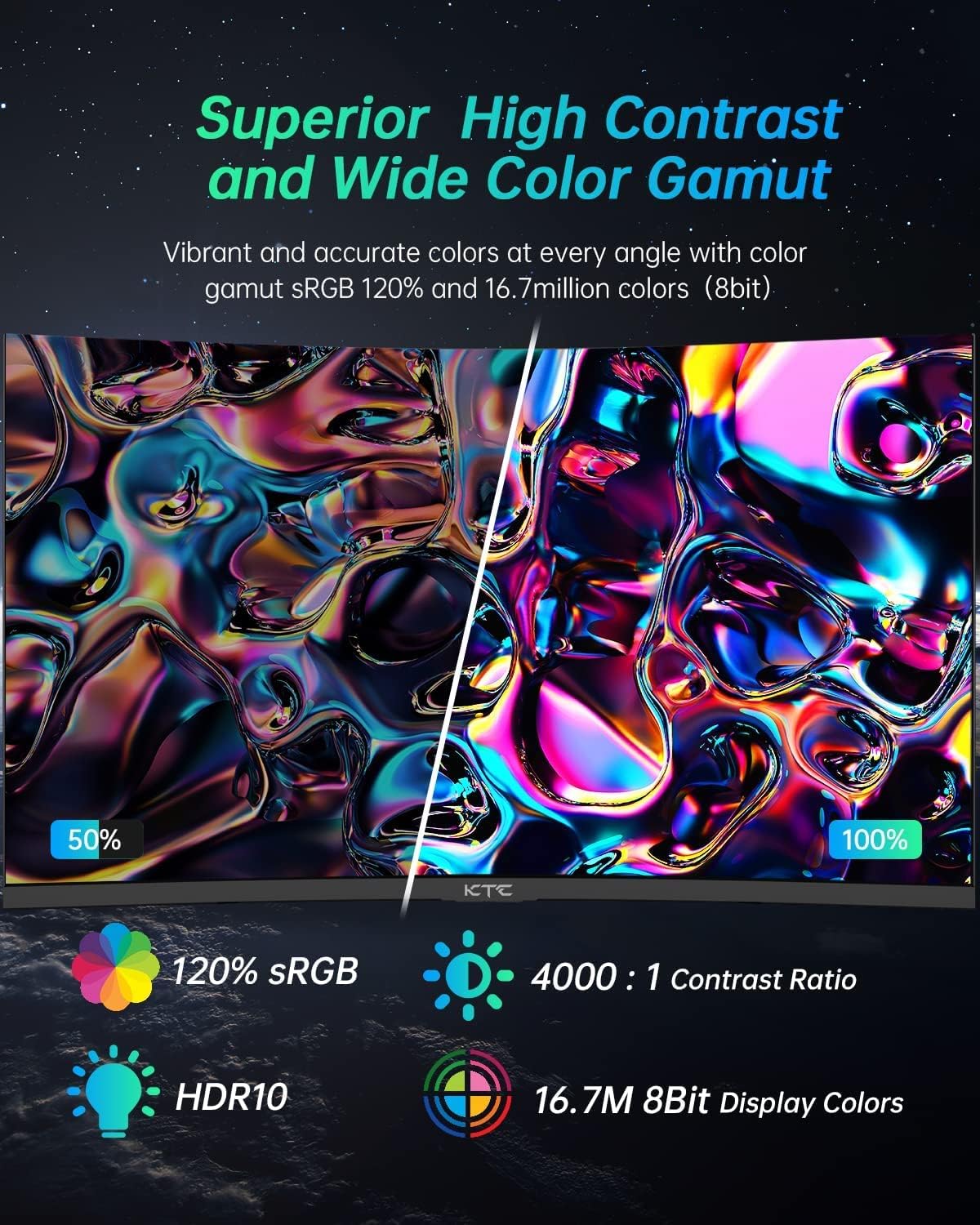
Figure 4.3: Visual representation of the monitor's superior color and contrast capabilities.

Figure 4.4: Demonstration of Adaptive Sync technology reducing input lag and improving visual fluidity.
4.3. Official Product Video
Video 4.1: Official KTC H27S17 QHD Curved Gaming Monitor Video. This video provides a visual overview of the monitor's design and key features, demonstrating its performance in a gaming context.
5. Maintenance
To ensure the longevity and optimal performance of your monitor, follow these maintenance guidelines:
- Cleaning the Screen: Gently wipe the screen with a soft, lint-free cloth. For stubborn marks, lightly dampen the cloth with water or a non-ammonia, non-alcohol based screen cleaner. Never spray liquid directly onto the screen.
- Cleaning the Casing: Use a soft, dry cloth to clean the monitor casing. Avoid abrasive cleaners or solvents.
- Ventilation: Ensure the ventilation openings on the monitor are not blocked. Do not place the monitor in an enclosed space without adequate airflow.
- Power Off: Always turn off the monitor when not in use for extended periods.
- Avoid Direct Sunlight: Do not expose the monitor to direct sunlight or excessive heat, as this can damage the panel.
6. Troubleshooting
If you encounter issues with your monitor, please refer to the following common troubleshooting steps:
| Problem | Possible Cause | Solution |
|---|---|---|
| No image on screen | Monitor not powered on; Incorrect input source; Loose video cable. | Ensure power cable is securely connected and monitor is on. Press the joystick to open OSD and select correct input source (DP/HDMI). Check video cable connections at both monitor and computer. |
| Flickering or distorted image | Incorrect refresh rate; Cable issue; Graphics driver issue. | Ensure your computer's display settings match the monitor's supported refresh rate (e.g., 180Hz). Try a different video cable. Update your graphics card drivers. |
| Colors appear incorrect | Color settings; Graphics card settings. | Adjust color settings (brightness, contrast, color temperature) via the OSD menu. Check your graphics card control panel for color profile settings. |
| Monitor does not turn on | No power; Faulty power adapter. | Verify power outlet is working. Ensure power adapter and cord are fully connected. Test with another compatible power adapter if available. |
| Dead pixel(s) | Manufacturing defect. | While rare, a small number of dead or stuck pixels is common in LCD/LED technology and typically not considered a defect unless exceeding manufacturer specifications. If concerned, refer to warranty policy. |
If the problem persists after trying these steps, please contact KTC customer support for further assistance.
7. Specifications
Key technical specifications for the KTC H27S17 monitor:
| Feature | Specification |
|---|---|
| Screen Size | 27 Inches |
| Resolution | 2560 x 1440 Pixels (QHD Wide 1440p) |
| Refresh Rate | 180Hz |
| Response Time | 1ms (MPRT) |
| Curvature | 1500R |
| Panel Type | Curved HVA Fast Panel |
| Color Gamut | 120% sRGB |
| HDR Support | HDR10 |
| Contrast Ratio | 4000:1 |
| Brightness | 350 Candela |
| Viewing Angle | 178° Horizontal & Vertical |
| Adaptive Sync | FreeSync Premium & G-Sync Compatible |
| Connectivity | 2x HDMI 2.0, 2x DisplayPort 1.4, 1x USB 2.0 (upgrade only), 1x Headphone Jack |
| VESA Mount | 100x100mm |
| Product Dimensions | 24.25 x 14.33 x 23.5 inches |
| Item Weight | 14.8 pounds |
8. Warranty and Support
Your KTC H27S17 monitor comes with a warranty. Please refer to the included Warranty Card for detailed terms and conditions, including warranty period and coverage. For technical support, product inquiries, or service requests, please contact KTC customer support through the information provided on the Warranty Card or the official KTC website.
For additional information and a comprehensive user guide, you can download the PDF version from the following link: KTC H27S17 User Guide (PDF)


