Introduction
The Hoco UA17 is a compact and versatile USB-A Male to Type-C Female adapter designed to expand the connectivity options of your devices. This adapter supports USB 2.0 data transfer, various charging protocols, and On-The-Go (OTG) functionality, making it an essential accessory for modern mobile devices and computers.
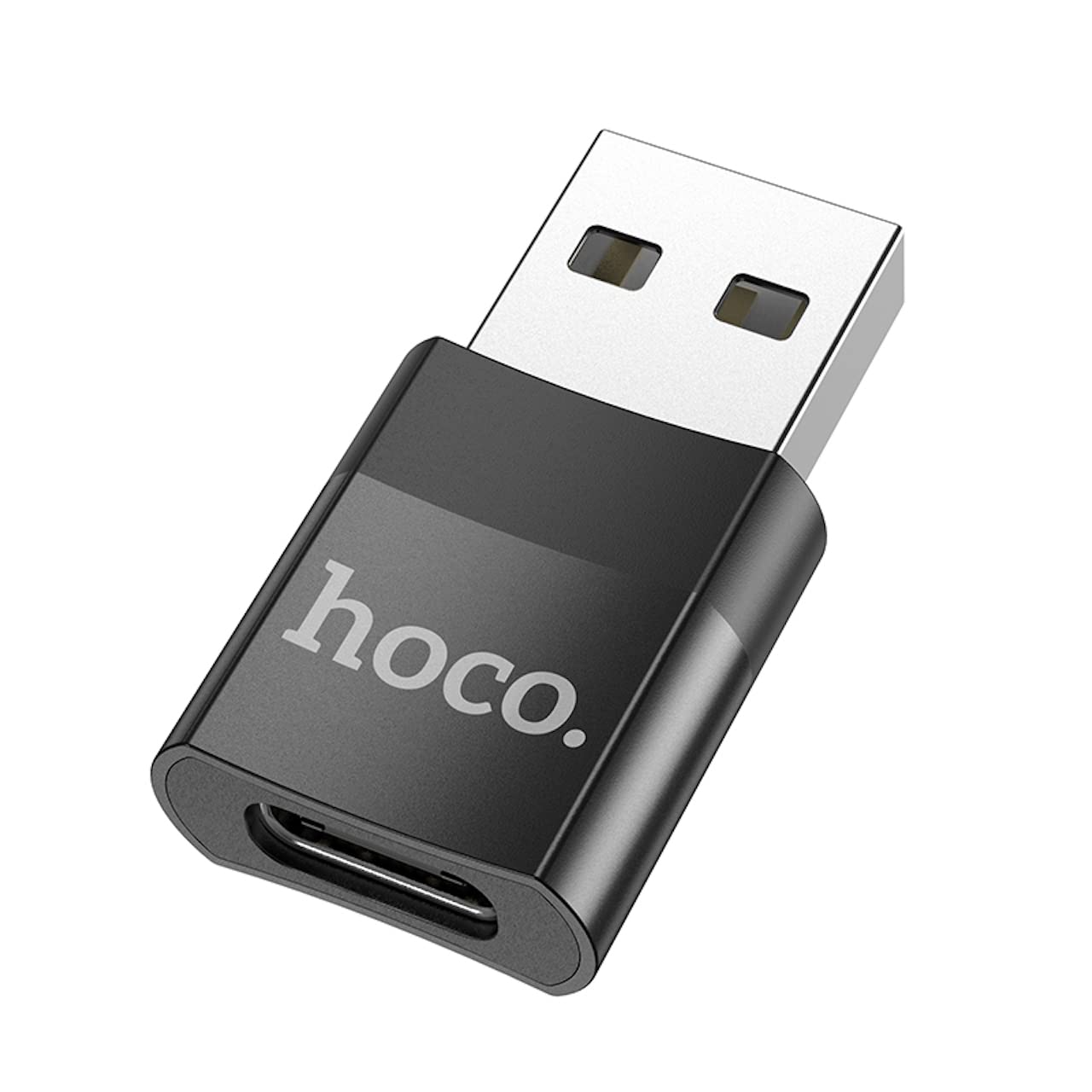
Image: The Hoco UA17 USB-A Male to Type-C Female adapter, showcasing its compact design and connectors.
Setup
Setting up the Hoco UA17 adapter is straightforward. It is a plug-and-play device that does not require any special drivers or software installation.
- Identify Ports: Locate an available USB-A port on your host device (e.g., computer, wall charger, power bank).
- Connect Adapter: Insert the USB-A male end of the Hoco UA17 adapter into the USB-A port of your host device. Ensure it is fully seated.
- Connect Type-C Cable/Device: Plug your Type-C cable or Type-C enabled device (e.g., smartphone, tablet, USB drive) into the Type-C female port of the adapter.

Image: A close-up view of the Hoco UA17 adapter, highlighting its Type-C female port for connecting Type-C cables or devices.
Operating Instructions
Charging Functionality
The Hoco UA17 adapter supports various charging scenarios:
- Standard Charging (Type-C to Lightning): When using a Type-C to Lightning cable, the adapter supports charging at 5V/2A for Lightning interface devices. Please note that this configuration does not support fast charging power delivery.
- Fast Charging (Type-C to Type-C): When paired with a Type-C to Type-C fast charging cable, the adapter supports up to 60W fast charging with a current of up to 3A. This is compatible with various mobile phone brands such as Huawei, Xiaomi, Samsung, and OPPO, enabling rapid charging for your devices.

Image: The Hoco UA17 adapter connected to a wall charger, providing power to a smartphone via a Type-C cable.
Data Transfer
The adapter facilitates data transfer between your USB-A host device and Type-C peripheral. Connect the adapter to a USB-A port on your computer, then connect your Type-C device (e.g., smartphone, external hard drive) using a Type-C cable. Your computer should recognize the connected device for data exchange.
OTG (On-The-Go) Function
The Hoco UA17 supports OTG functionality, allowing your Type-C smartphone or tablet (when connected to a USB-A host via the adapter) to act as a host for other USB devices. For example, you can connect a USB flash drive, keyboard, or mouse to your Type-C phone through this adapter, provided your phone supports OTG.

Image: The Hoco UA17 adapter connecting a smartphone to a laptop, demonstrating data transfer or OTG use.
Maintenance
To ensure the longevity and optimal performance of your Hoco UA17 adapter, follow these maintenance guidelines:
- Keep Clean: Regularly wipe the adapter with a soft, dry cloth to remove dust and debris. Avoid using liquid cleaners.
- Store Properly: When not in use, store the adapter in a cool, dry place away from direct sunlight and extreme temperatures.
- Handle with Care: Avoid bending or twisting the adapter excessively, especially at the connection points, to prevent internal damage.
- Protect Ports: Ensure the ports are free from foreign objects before connecting cables or devices.
Troubleshooting
If you encounter issues with your Hoco UA17 adapter, consider the following troubleshooting steps:
- Adapter Not Recognized:
- Ensure the adapter is fully inserted into the USB-A port of the host device.
- Try connecting the adapter to a different USB-A port on your host device.
- Test with a different Type-C cable or device to rule out issues with peripherals.
- Charging Not Working:
- Verify that both the host device (e.g., wall charger) and the connected Type-C device are functioning correctly.
- Check if the Type-C cable is capable of charging.
- Ensure the power source provides sufficient power for the connected device.
- Data Transfer Issues:
- Confirm that your host device's operating system recognizes the connected Type-C device.
- For smartphones, ensure the USB connection mode is set to 'File Transfer' or 'MTP' if applicable.
- Try restarting both the host and connected devices.
- OTG Function Not Working:
- Verify that your Type-C smartphone or tablet supports OTG functionality.
- Ensure the external USB device you are trying to connect is compatible and functioning.
Specifications
| Feature | Detail |
|---|---|
| Brand | Hoco |
| Model Number | UA17 |
| Connector Type | USB Type-A Male to USB Type-C Female |
| USB Standard | USB 2.0 |
| Charging Support | 5V/2A (Type-C to Lightning), up to 60W (Type-C to Type-C, max 3A) |
| Data Transfer | Supported |
| OTG Function | Supported |
| Compatible Devices | Mobile phones and other Type-C enabled devices |
| Color | Black |
| Product Dimensions | 3.5 x 2 x 1 cm (35 x 20 x 10 mm) |
| Item Weight | 3 grams |
| Number of Ports | 1 |
| Finish Type | Non-glossy |
Warranty and Support
For warranty information and technical support, please refer to the packaging of your Hoco UA17 adapter or visit the official Hoco website. Keep your proof of purchase for any warranty claims.
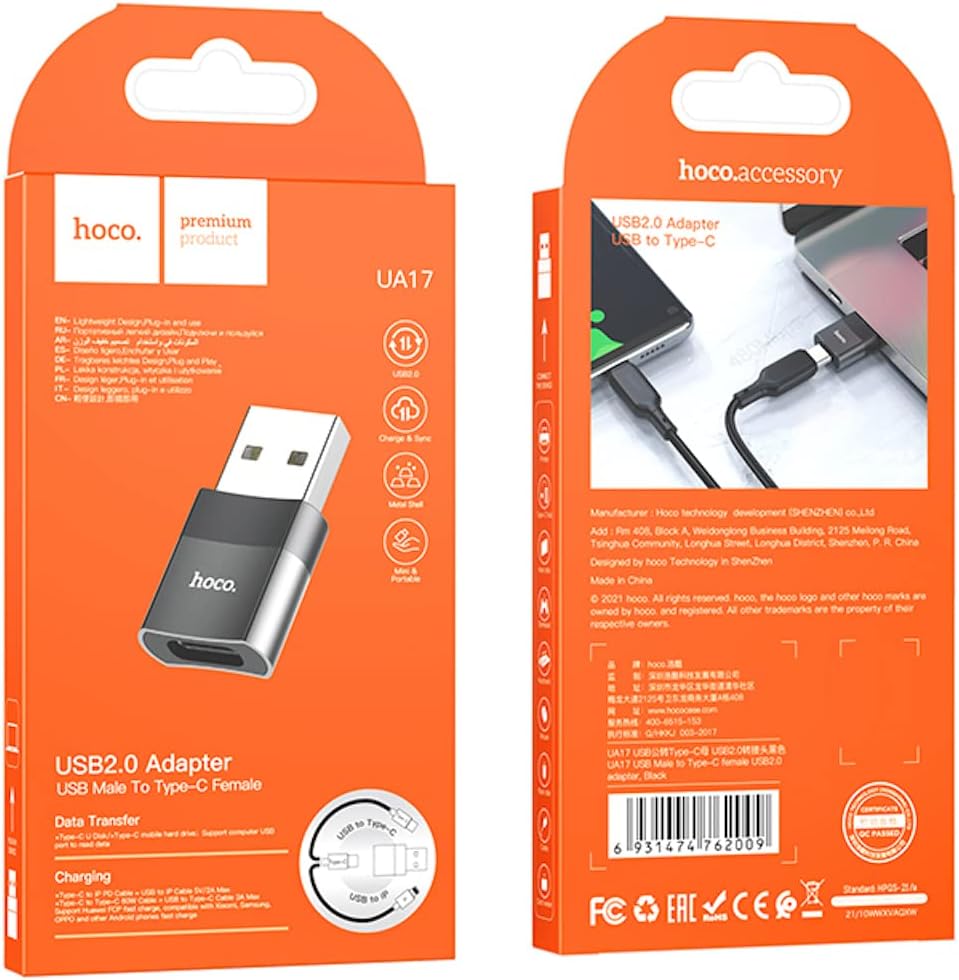
Image: The retail packaging for the Hoco UA17 adapter, which may contain additional warranty and support details.