
1. Product Overview
The BOBLOV 8-Port Body Camera Charging and Data Acquisition Dock Station is designed to efficiently charge and transfer data from up to eight body cameras simultaneously. This robust workstation is compatible with most body cameras featuring a 5-pin Micro USB port, making it an ideal solution for organizations managing multiple devices.
Key features include:
- Simultaneous charging and data upload for up to eight cameras.
- Input voltage: 100-240V; Output current per port: 12V 5A.
- Ability to copy and delete data from individual or multiple cameras independently.
- Durable alloy construction with a black paint finish.
- Integrated CPU for efficient data management.
- Designed for 5-pin Micro USB port body cameras.

Figure 1: The BOBLOV 8-Port Body Camera Charging and Data Acquisition Dock Station, shown on a wooden surface.
2. Package Contents
Please verify that all items are present and in good condition upon opening the package.
- 1x Camera Acquisition Workstation
- 1x Charging Cable (Power Adapter)
- 1x Data Cable (USB to PC)

Figure 2: Included components: the workstation, charging cable, and data cable.
3. Setup Instructions
- Connect Power: Connect the provided charging cable (power adapter) to the power input port on the back of the acquisition workstation. Plug the other end into a standard electrical outlet (100-240V).
- Power On: Locate the ON/OFF switch on the back of the workstation and switch it to the 'ON' position.
- Connect Body Cameras: Carefully insert your body cameras into the available charging slots on the workstation. Ensure the 5-pin Micro USB connector on the camera aligns with the corresponding cable in the slot. The camera should automatically begin charging.
- Connect to PC (for Data Transfer): If data transfer is required, connect the provided data cable (USB) from the workstation's data port to an available USB port on your computer. Your computer should automatically detect the connected cameras as storage devices.

Figure 3: Visual guide for connecting power, cameras, and the data cable to a PC.

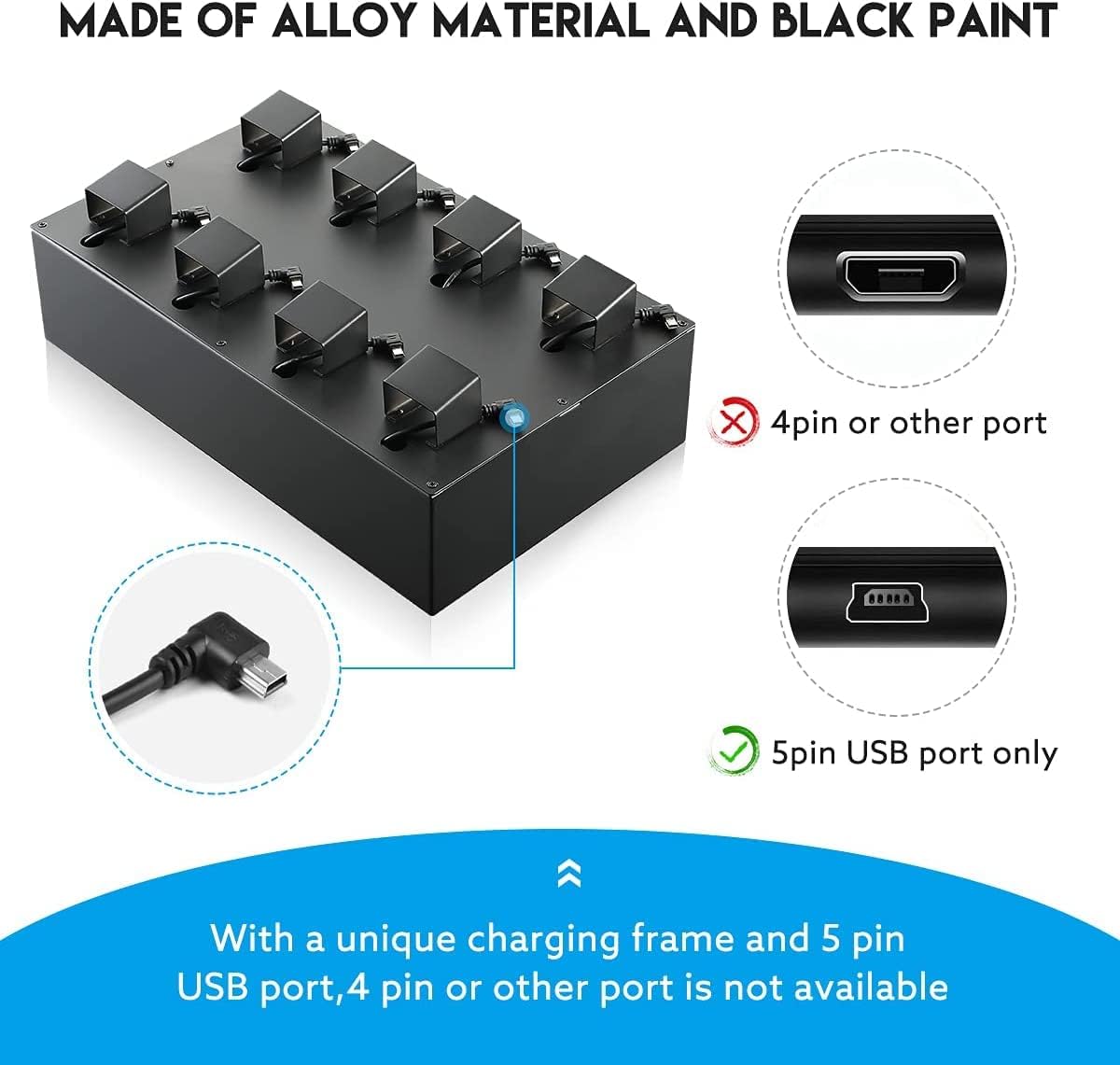
Figure 4: Details of the workstation's rear ports and the required 5-pin Micro USB connector, highlighting compatibility.
4. Operating Instructions
4.1. Charging Body Cameras
Once body cameras are properly connected to the charging slots and the workstation is powered on, they will automatically begin charging. The workstation supports simultaneous charging for all eight connected cameras. A full charge typically takes approximately 4-5 hours per camera.
4.2. Data Transfer to PC
To transfer data from the connected body cameras to a computer:
- Ensure the workstation is connected to your computer via the provided data cable.
- Your computer will recognize each connected camera as a separate removable disk drive.
- Navigate to the respective disk drives to access the camera's stored data (videos, images, etc.).
- You can copy, move, or delete files as needed. The workstation allows for independent data management for each camera.

Figure 5: Illustrates connecting the dock to a PC for data transfer from multiple cameras.
Important Note:
If a body camera is password-protected, you must enter the password on the camera itself when prompted by the computer to access its data.
5. Maintenance
To ensure the longevity and optimal performance of your BOBLOV 8-Port Charging and Data Acquisition Dock Station, please follow these maintenance guidelines:
- Cleaning: Use a soft, dry cloth to wipe down the exterior of the workstation. Avoid using abrasive cleaners, solvents, or harsh chemicals, as these can damage the finish.
- Port Care: Keep the charging slots and USB ports free from dust and debris. Use compressed air if necessary to clear any obstructions.
- Storage: When not in use, store the workstation in a cool, dry place away from direct sunlight and extreme temperatures.
- Cable Management: Avoid bending or crimping the power and data cables excessively to prevent internal damage.
6. Troubleshooting
If you encounter issues with your BOBLOV Charging and Data Acquisition Dock Station, refer to the following common problems and solutions:
- Issue: Cameras are not charging or data transfer is not working.
Solution:- Ensure the workstation is properly plugged into a power outlet and the ON/OFF switch is in the 'ON' position.
- Verify that the body cameras are securely connected to the 5-pin Micro USB cables in the charging slots.
- If transferring data, ensure the data cable is firmly connected between the workstation and your computer.
- Check if the camera requires a password to access its data. If so, enter the password on the camera when prompted by the computer.
- Issue: Computer does not recognize connected cameras.
Solution:- Confirm the data cable is connected correctly.
- Try connecting the workstation to a different USB port on your computer.
- Restart your computer and the workstation.
- Ensure your body cameras are compatible with a 5-pin Micro USB port. The workstation does not support 4-pin or other port types.
- Issue: Charging is slow or inconsistent.
Solution:- Ensure you are using the original power adapter provided with the workstation.
- Check for any damage to the charging cables or ports.
- Verify that the power outlet is functioning correctly.

Figure 6: Common questions and answers regarding the dock station's functionality.
7. Specifications
| Feature | Detail |
|---|---|
| Product Dimensions | 14.57 x 8.66 x 3.94 inches (36.5cm x 22cm x 9cm) |
| Item Weight | 6.82 pounds (3.1 Kilograms) |
| Brand | BOBLOV |
| Color | Black |
| Hardware Interface | USB (5-pin Micro USB compatible) |
| Compatible Devices | BOBLOV Body Cameras with 5-pin Mini USB Port |
| Total USB Ports | 8 (for camera connection) |
| Input Voltage | 100-240V |
| Output Current (per port) | 12V 5A |
| Charging Time | Approximately 4-5 hours per camera |
| Built-in CPU | Intel Haswell |

Figure 7: Physical dimensions and weight of the dock station.
8. Warranty and Support
For warranty information, technical support, or customer service inquiries, please contact BOBLOV directly through their official channels. You can often find contact details on the BOBLOV brand store on Amazon or their official website.
Visit the official BOBLOV Store: BOBLOV Amazon Store


