
DEKCO DC8L
DEKCO Wireless Outdoor Security Camera User Manual
Model: DC8L
Brand: DEKCO
1. Introduction
Thank you for choosing the DEKCO Wireless Outdoor Security Camera. This solar-powered 2K camera is designed to provide reliable and efficient home security with features like two-way audio, smart human detection, and clear night vision. This manual will guide you through the setup, operation, and maintenance of your new security system.

Image: Two DEKCO wireless outdoor security cameras, each with an attached solar panel, ready for installation.
2. Key Features
- 365-Day Non-Stop Solar Power: The integrated solar panel continuously charges the camera's battery, ensuring uninterrupted operation.
- 100% Wireless & Simple Setup: No complex wiring required, allowing for quick and flexible installation anywhere.
- 2K QHD Video Resolution: Captures clear and detailed footage for enhanced monitoring.
- Smart Human Detection: Advanced technology distinguishes human shapes from other movements, reducing false alerts.
- Two-Way Audio: Communicate directly with visitors or deter intruders through the built-in speaker and microphone.
- Clear Night Vision: Provides visibility in low-light conditions, ensuring round-the-clock surveillance.
- IP65 Weatherproof Rating: Designed to withstand various weather conditions, including rain, sleet, and snow.
- Flexible Storage Options: Supports both local Micro SD card storage (8-128GB) and optional cloud storage.

Image: A DEKCO security camera with its solar panel mounted on a wall, illustrating its continuous solar power capability.
3. Setup Guide
3.1 Package Contents
Verify that all components are present in your package:
- DEKCO Wireless Outdoor Security Camera(s)
- Solar Panel(s)
- Mounting Bracket(s) and Screws
- USB Charging Cable
- User Manual (this document)
3.2 Initial Charging
Although solar-powered, it is recommended to fully charge the camera's internal battery using the provided USB cable before the first use. Connect the camera to a 5V USB power adapter (not included).
3.3 App Download and Account Creation
Download the official DEKCO app from your smartphone's app store (iOS or Android). Follow the on-screen instructions to create an account and log in.
3.4 Camera Pairing
- Open the DEKCO app and tap 'Add Device' or the '+' icon.
- Select your camera model from the list.
- Follow the app's instructions to connect the camera to your 2.4GHz Wi-Fi network. (Note: This camera only supports 2.4GHz Wi-Fi. Refer to the Troubleshooting section if you have a 5GHz router.)
- Scan the QR code displayed on your phone with the camera lens.
- Once connected, you can name your camera and begin live viewing.
3.5 Mounting the Camera
Choose a suitable location for mounting, ensuring the solar panel receives adequate direct sunlight throughout the day. The camera is designed for wall mounting.
- Mark the drilling spots using the mounting bracket as a template.
- Drill holes and insert wall anchors if necessary.
- Secure the mounting bracket to the wall with screws.
- Attach the camera and solar panel to the bracket, adjusting the angle for optimal solar exposure and camera view.

Image: A DEKCO security camera with its solar panel securely mounted on a wooden wall, demonstrating a typical installation.
4. Operating Instructions
4.1 Live View and Playback
Access the DEKCO app to view live footage from your camera. You can also review recorded events from the history timeline.

Image: A visual comparison demonstrating the superior clarity of 2K QHD video, allowing for clear identification of details like a car's license plate.
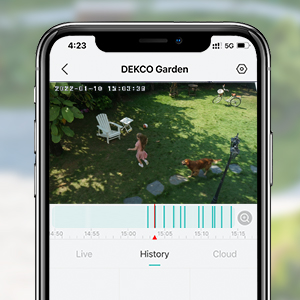
Image: A smartphone displaying the DEKCO app's interface, highlighting the video history timeline for reviewing past events.
4.2 Two-Way Audio
Tap the microphone icon in the live view to speak through the camera's speaker. Tap the speaker icon to hear audio from the camera's surroundings.

Image: A smartphone screen showing the DEKCO app's two-way audio feature in use, with speech bubbles indicating communication.
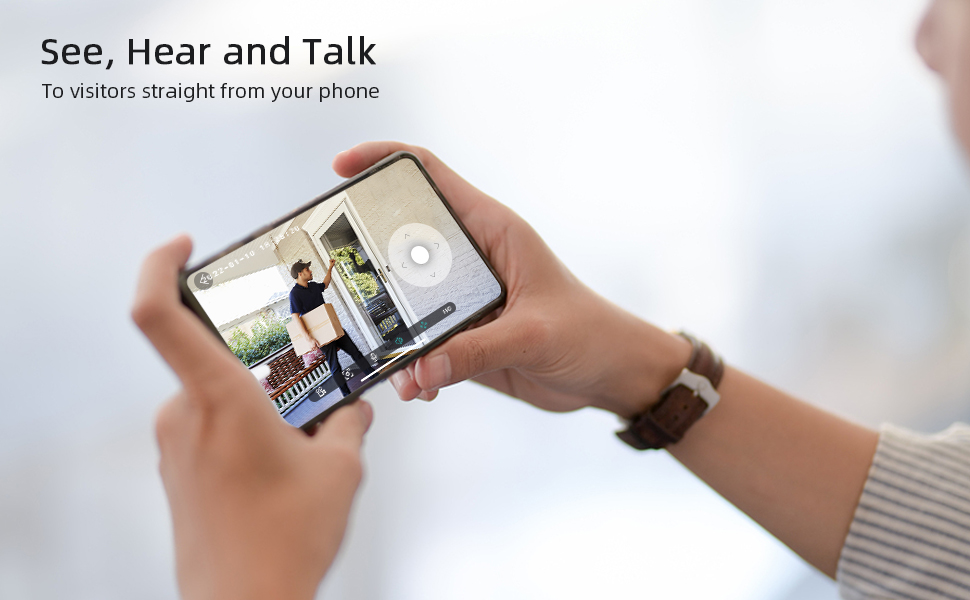
Image: A person holding a smartphone, viewing a live feed from their DEKCO camera showing a visitor at their door, demonstrating the 'See, Hear and Talk' feature.
4.3 Smart Human Detection & Notifications
The camera uses PIR (Passive Infrared) detection for motion sensing. Enable 'Human Detection' in the app settings to receive alerts only when a person is detected, minimizing notifications from pets or vehicles.

Image: A smartphone displaying a real-time notification from the DEKCO app, indicating human motion detection.
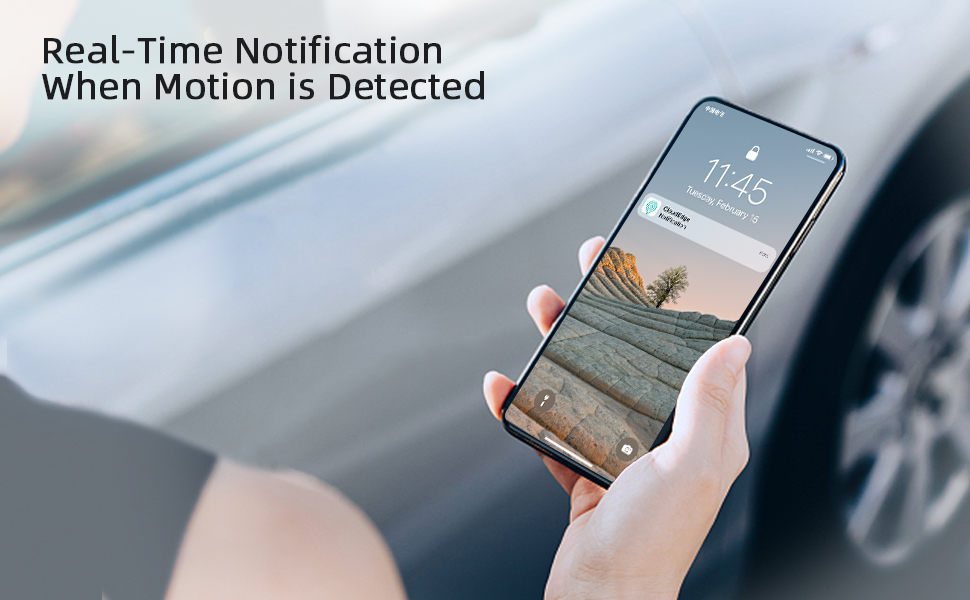
Image: A smartphone receiving a real-time notification, illustrating the camera's ability to alert users when motion is detected.
4.4 Night Vision
The camera automatically switches to night vision mode in low-light conditions, providing clear black-and-white or color night vision footage depending on the model and settings.

Image: A split image demonstrating the camera's 2K clear night mode, comparing a daytime view with an infrared night view.
4.5 Storage Management
The camera supports local storage via a Micro SD card (not included) and optional cloud storage. Insert a compatible Micro SD card (FAT32 format, Class 10, 8-128GB) into the camera's slot for local recording.

Image: A diagram illustrating the two types of storage available: no-fee local storage via an SD card and security cloud storage.
5. Maintenance
5.1 Solar Panel Efficiency
Ensure the solar panel is kept clean and free from obstructions (e.g., leaves, dirt) to maximize charging efficiency. Periodically wipe the panel with a soft, damp cloth.

Image: A DEKCO camera with its solar panel, emphasizing its non-stop power capability through solar charging and internal battery.
5.2 Weather Resistance
The camera has an IP65 weatherproof rating, meaning it is protected against dust and water jets. While designed for outdoor use, avoid submerging the camera in water or exposing it to extreme pressure washing.
5.3 Firmware Updates
Regularly check the DEKCO app for available firmware updates. Keeping your camera's firmware up-to-date ensures optimal performance, security, and access to new features.
6. Troubleshooting
Q1: Does this solar camera support 5G Wi-Fi?
A1: This camera only supports 2.4GHz Wi-Fi, similar to most security cameras on the market. If you are using a 5GHz router at home, you can:
- Search for tutorial videos on YouTube to learn how to split your router into 2.4GHz and 5GHz bands, then connect to the 2.4GHz network.
- Contact your network operator's phone service and ask them to split your router into 2.4GHz and 5GHz for you, then choose 2.4GHz to connect.
- You can contact DEKCO US local phone service for assistance with connecting your camera after network separation or for any other issues.
Note: The 2.4GHz band has a longer transmission range, though slower speeds. The 5GHz band covers shorter distances but offers faster speeds. Considering that most DEKCO cameras are installed outdoors, often far from the router, 2.4GHz Wi-Fi is recommended for its sufficient speed and better range.
Q2: Why won't this security camera hook up to my internet?
A2:
- This camera only supports 2.4GHz Wi-Fi. Please refer to Q1 for solutions if you have a 5GHz router.
- You can contact DEKCO US local phone service for step-by-step assistance with connecting your camera.
Q3: Which kind of SD card should I use?
A3: To prevent issues such as SD cards not being recognized, it is recommended to use genuine micro SD cards (e.g., Kingston, SanDisk) that meet the following conditions:
- Card capacity: 8-128GB.
- Read and write speed: Level 10.
- File format: FAT32.
If you prefer not to spend time choosing an SD card, please contact us directly for recommendations.
Q4: Why are there so many notifications?
A4: This camera features smart human detection. You can choose to detect human-only or human, cars, and animals with just one click in the app settings, as per your needs. Adjusting these settings will help reduce unwanted notifications.
7. Specifications
| Feature | Specification |
|---|---|
| Model Number | DC8L |
| Video Capture Resolution | 2K |
| Power Source | Battery Powered, Solar |
| Connectivity Technology | Wireless (Wi-Fi) |
| Wi-Fi Frequency | 2.4 GHz only |
| Mounting Type | Wall Mount |
| Indoor/Outdoor Usage | Outdoor |
| International Protection Rating | IP65 |
| Special Feature | Night Vision, Human Detection, Two-Way Audio |
| Compatible Devices | Smartphone (Android) |
| Item Dimensions L x W x H | 0.51 x 0.44 x 0.23 inches |
| Item Weight | 3.08 pounds |
| UPC | 679628534664 |
8. Warranty and Support
DEKCO products come with a standard manufacturer's warranty. Please refer to the product packaging or the official DEKCO website for specific warranty terms and conditions.
Customer Support
For technical assistance, troubleshooting, or any product-related inquiries, you can contact DEKCO US local phone service. Contact details are typically available on the product packaging or the DEKCO official website.
For the latest information and support resources, please visit the official DEKCO website: DEKCO Official Store
Related documentsDC8L


Ask a question about this manual
Ask about setup, troubleshooting, compatibility, parts, safety, or missing instructions. Manuals+ will review the question and use this page’s manual context to help answer it.