
1. Introduction
The Weyot 4G Elderly Positioning Smartwatch is designed to provide safety and peace of mind for seniors and their caregivers. This device integrates advanced features such as real-time GPS tracking, an emergency SOS button, automatic fall detection, and comprehensive health monitoring capabilities including heart rate, blood pressure, blood oxygen, and body temperature. It also functions as a communication device, allowing users to make and receive calls. This manual provides detailed instructions for setting up, operating, and maintaining your smartwatch.

Figure 1.1: Front view of the Weyot 4G Elderly Positioning Smartwatch, showing the black wristband and the main unit with red SOS and green call buttons.
2. Product Overview and Components
Before you begin, please ensure all components are present in the package.
- Weyot 4G Elderly Positioning Smartwatch
- Charging Cable
- User Manual (this document)
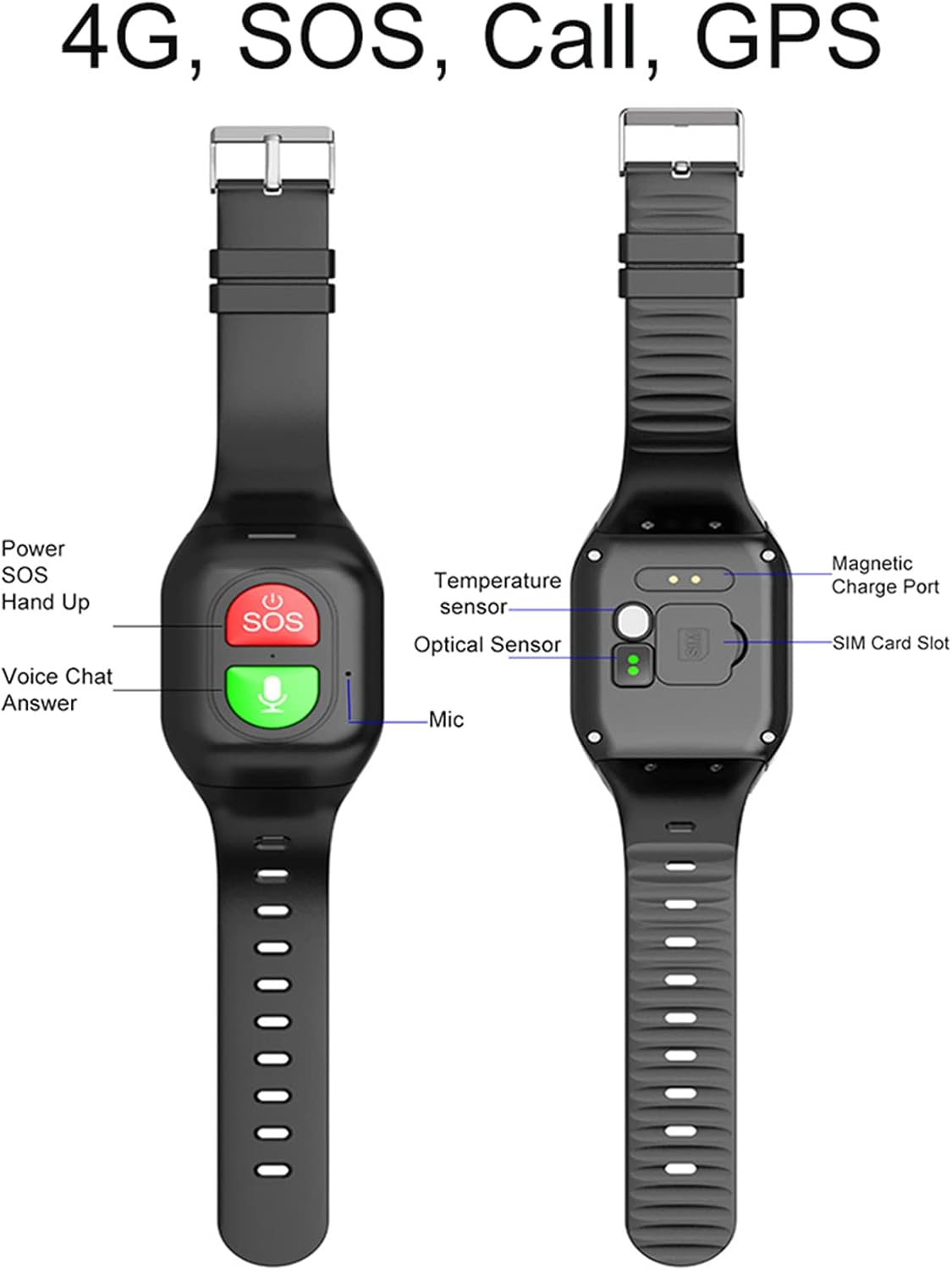
Figure 2.1: Labeled diagram of the smartwatch, highlighting the Power/SOS button, Voice Chat/Answer button, Microphone, Temperature sensor, Optical sensor, SIM Card Slot, and Magnetic Charge Port.
3. Setup Guide
3.1. Charging the Smartwatch
Before first use, fully charge the smartwatch.
- Connect the magnetic charging cable to the charging port on the back of the smartwatch.
- Connect the other end of the charging cable to a USB power adapter (not included) or a computer USB port.
- The watch display will indicate charging status. A full charge typically takes a few hours.
3.2. SIM Card Installation
The smartwatch requires a 4G SIM card for full functionality, including calls and real-time GPS tracking.
- Locate the SIM card slot on the back of the smartwatch (refer to Figure 2.1).
- Carefully insert a 4G Nano SIM card into the slot, ensuring the correct orientation.
- Close the SIM card slot cover securely to protect against dust and moisture.

Figure 3.1: Illustration showing the 4G SIM card functionality and the optical sensor for SPO2 detection.
3.3. Mobile Application Setup
To access advanced features like real-time tracking, GeoFence, and health data history, download and install the dedicated mobile application on your smartphone.
- Scan the QR code provided in the watch's packaging or search for the "Weyot Smartwatch" app in your device's app store (Google Play Store for Android, Apple App Store for iOS).
- Install the application and create an account if prompted.
- Follow the in-app instructions to pair your smartwatch with your smartphone. This typically involves scanning a QR code displayed on the watch or entering a device ID.
- Configure emergency contacts, GeoFence areas, and health monitoring settings within the app.
4. Operating Instructions
4.1. SOS Emergency Call
The oversized red SOS button is designed for quick access in emergencies.
- To activate: Press and hold the red SOS button for 3 seconds.
- The watch will automatically dial pre-set emergency contacts in sequence until one answers.
- An emergency alert will also be sent to the linked mobile application.

Figure 4.1: Visual representation of the SOS function, Medicine Reminder, and Fall Alarm features.
4.2. Fall Detection
The smartwatch is equipped with an intelligent fall detection system.
- If the watch detects a sudden fall, it will automatically initiate an alert to pre-set contacts via the mobile application.
- In some configurations, it may also attempt to make an emergency call.
- Ensure the watch is worn securely for accurate detection.
4.3. GPS Tracking and GeoFence
Utilize the GPS functionality for real-time location tracking and setting safe zones.
- Real-time Tracking: View the current location of the smartwatch on the mobile application map.
- Movement Record: The app records the daily movement track, providing a history of activity.
- GeoFence (Safe Area): Set virtual boundaries in the mobile app. You will receive notifications when the smartwatch enters or exits these designated safe areas.
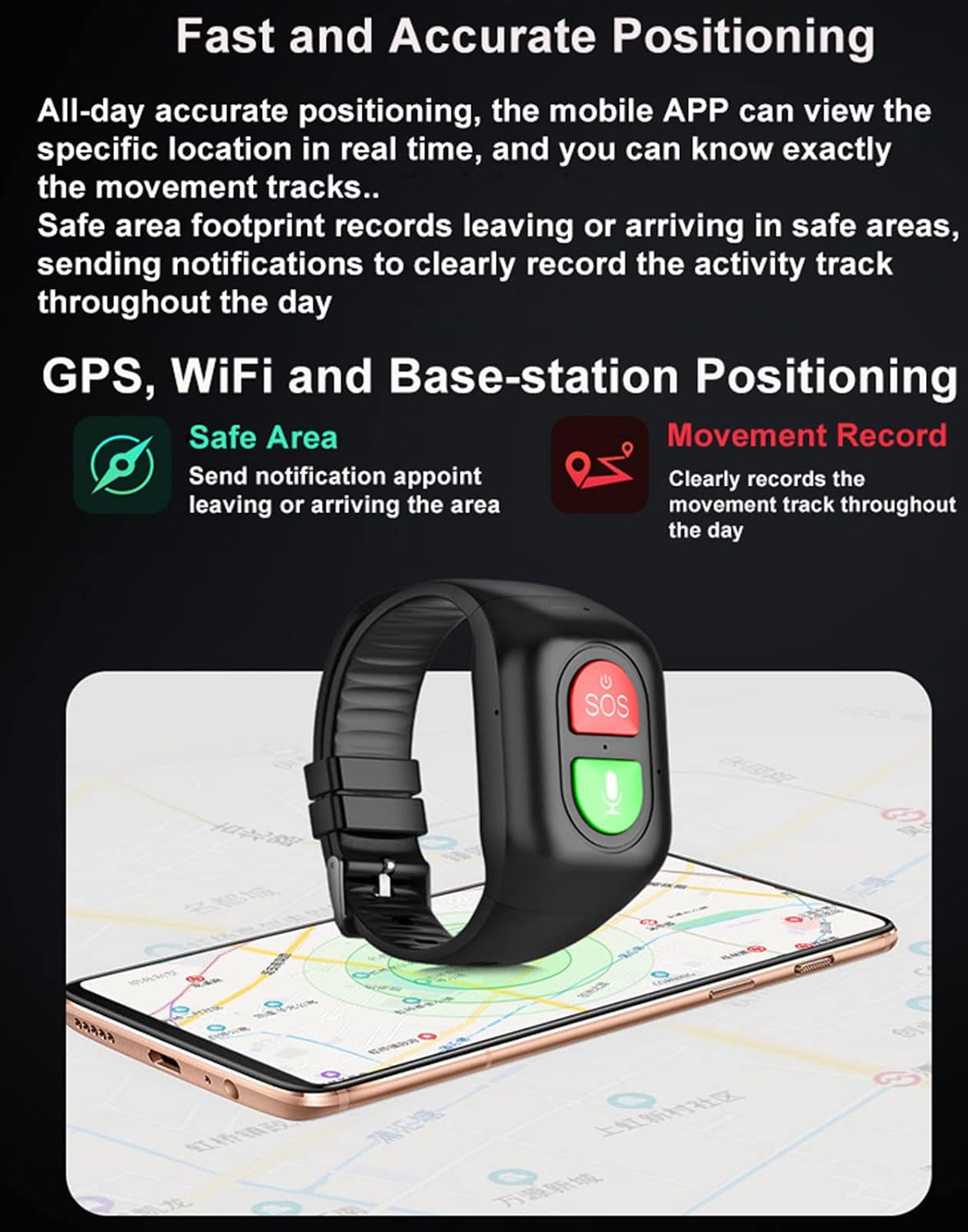
Figure 4.2: Depiction of the smartwatch's positioning capabilities, including GPS, WiFi, and base-station triangulation for accurate location tracking and GeoFence features.
4.4. Health Monitoring
The smartwatch provides various health monitoring features.
- Heart Rate & Blood Pressure: Equipped with a professional optical sensor for real-time measurement. Data is displayed in the mobile app.
- Blood Oxygen (SPO2): Records blood oxygen detection data, viewable in the app.
- Body Temperature: Features a high-precision body temperature sensor. The mobile app can be set to automatically measure body surface temperature at specified times.
- Scientific Sleep Monitor: Records complete sleep structure, including deep sleep, light sleep, and wakefulness, to help understand sleep quality.
- Pedometer: An integrated gravity sensor records all-day exercise data, helping you track daily steps and activity.

Figure 4.3: Display of heart rate and blood pressure measurement interface on the app, and the smartwatch vibrating for an incoming call.

Figure 4.4: Screenshots illustrating the body temperature measurement interface and the sleep monitoring data in the mobile application.
4.5. Communication Features
- Making/Receiving Calls: With a 4G SIM card inserted, the smartwatch can make and receive calls like a mobile phone. Use the green button to answer calls.
- Incoming Call Vibration Reminder: When an incoming call is received, the smartwatch will vibrate to alert the user, even in noisy environments.
4.6. Time Announcement
The smartwatch can announce the current time for ease of use.
- To activate: Simply press the SOS button briefly. The watch will audibly announce the current time.

Figure 4.5: Image showing the smartwatch displaying and announcing the current time (e.g., "NOW 11:23").
5. Maintenance and Care
- Cleaning: Wipe the smartwatch regularly with a soft, damp cloth. Avoid using harsh chemicals or abrasive materials.
- Water Resistance: The watch is designed for daily use and may be splash-resistant, but it is not suitable for swimming or showering. Avoid prolonged exposure to water.
- Battery Care: To prolong battery life, avoid extreme temperatures. Charge the watch regularly and avoid letting the battery completely drain for extended periods.
- Storage: When not in use for a long period, store the watch in a cool, dry place.
6. Troubleshooting
| Problem | Possible Cause | Solution |
|---|---|---|
| Watch does not power on. | Low battery. | Charge the watch for at least 30 minutes. |
| Cannot make/receive calls. | No SIM card, incorrect SIM card installation, no network signal, or SIM card not activated. | Ensure 4G SIM card is correctly inserted and activated. Check network coverage. |
| GPS tracking is inaccurate or not working. | Poor GPS signal (indoors/dense areas), SIM card data not active, or app not configured. | Move to an open area. Ensure SIM card has data plan. Verify app settings and permissions. |
| Fall detection not working. | Watch not worn securely, or settings not configured in app. | Ensure watch is worn snugly on the wrist. Check fall detection settings in the mobile app. |
| Health data (HR, BP, Temp) is inconsistent. | Watch not worn correctly, sensor dirty, or user movement during measurement. | Ensure watch is snug on wrist. Clean the optical sensor on the back. Remain still during measurements. |
7. Specifications
| Feature | Detail |
|---|---|
| Model Name | 4G Elderly Positioning Watch |
| Connectivity Technology | Bluetooth, 4G (SIM required) |
| Special Features | Activity Tracking, GPS, Notifications, SOS Call, Fall Detection, Heart Rate, Blood Pressure, SPO2, Body Temperature, Sleep Monitor |
| Operating System | Android Wear 2.6 (underlying system) |
| Battery Life | Up to 9 days (standby) |
| Included Components | Charging cable, User Manual |
| Attachment Type | Wrist Mount |
| Model Year | 2022 |
8. Warranty and Support
For warranty information and technical support, please refer to the contact details provided with your purchase or visit the official Weyot website. Keep your purchase receipt as proof of purchase.