
Introduction
This manual provides detailed instructions for the installation, operation, and maintenance of your GAMEMAX Master M905 Full Tower PC Chassis. Please read this manual thoroughly before beginning assembly or use to ensure proper functionality and longevity of your product.
The GAMEMAX Master M905 is a full tower chassis designed for high airflow and extensive hardware compatibility, supporting E-ATX, ATX, and M-ATX motherboards. It features ample storage options, efficient cooling with pre-installed LED fans, and a user-friendly design for system builders.
Package Contents
Verify that all components are present before proceeding with installation:
- GAMEMAX Master M905 Full Tower Chassis
- 3 x 12cm 32 LEDs Blue Cooling Fans (pre-installed)
- Accessory Kit (screws, standoffs, cable ties, etc.)
- User Manual (this document)
Setup and Installation
Follow these steps for initial setup and component installation:
1. Preparing the Chassis
Carefully remove the chassis from its packaging. Place it on a stable, flat surface. Remove the side panels by unscrewing the thumb screws at the rear of the chassis and sliding the panels backward.

Image: Internal view of the GAMEMAX Master M905 chassis with the side panel removed, illustrating the spacious interior and drive bays.
2. Motherboard Installation
Install the I/O shield into the rear opening of the chassis. Align your E-ATX, ATX, or M-ATX motherboard with the pre-installed standoffs. Secure the motherboard using the provided screws from the accessory kit.
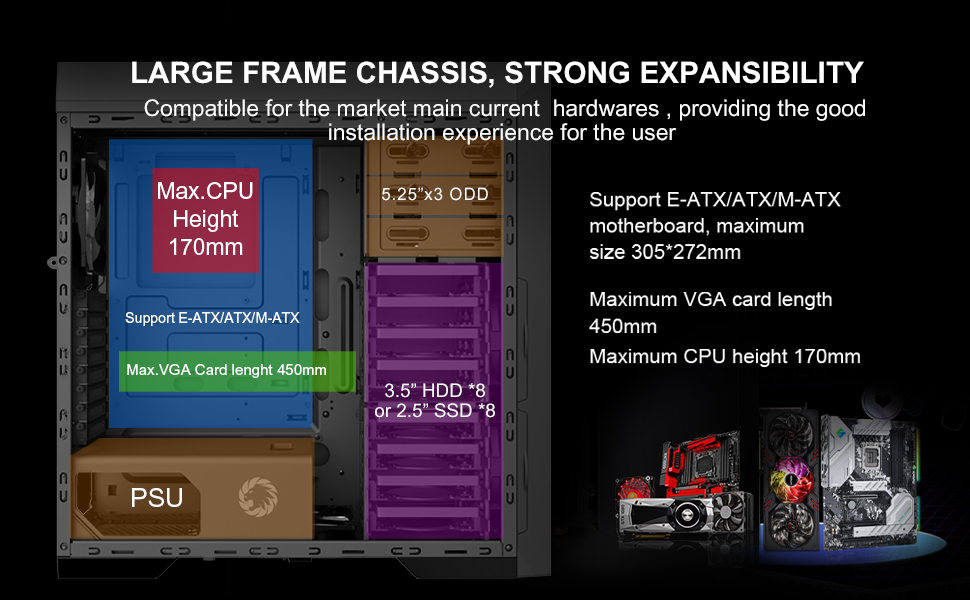
Image: Diagram illustrating the internal layout and compatibility for E-ATX/ATX/M-ATX motherboards, maximum VGA card length, and CPU cooler height.
3. Power Supply Unit (PSU) Installation
The Master M905 features a bottom-mounted PSU design. Install your power supply into the designated compartment at the bottom rear of the chassis. Secure it with screws from the outside rear of the case.
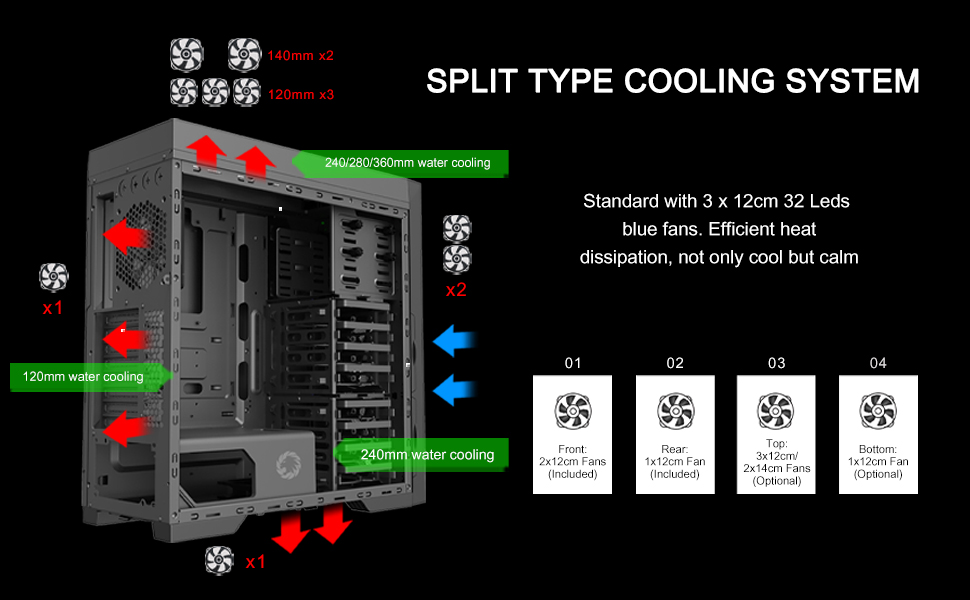
Image: Illustration of the bottom-mounted PSU design, highlighting the hidden compartment and cable management options for a cleaner build.
4. Storage Drive Installation
The chassis supports multiple storage configurations:
- 5.25" ODDs: Install up to three 5.25" optical disk drives in the front bays.
- 3.5" HDDs / 2.5" SSDs: Utilize the eight 3.5" HDD bays or eight 2.5" SSD bays. Note: Installing longer VGA cards may require removing the middle HDD bracket.
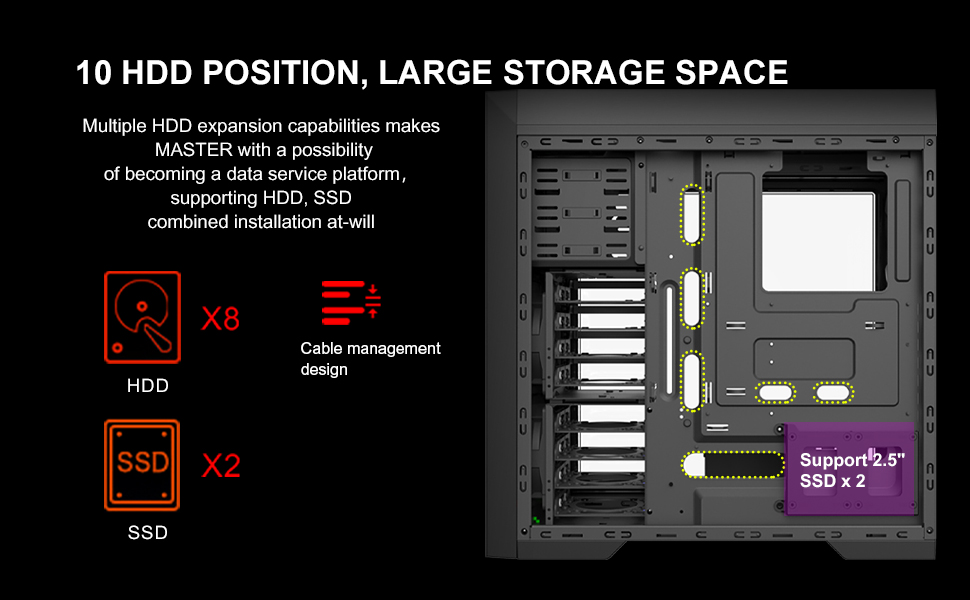
Image: Detailed diagram showcasing the extensive storage capabilities, including 8 HDD bays and 2 SSD positions, along with cable management features.
5. Graphics Card and Expansion Cards
Install your graphics card and other expansion cards into the appropriate PCIe slots on your motherboard. Ensure they are securely fastened. The chassis supports VGA cards up to 450mm in length.
6. Cable Management
Utilize the cable routing options behind the motherboard tray to organize and hide cables. This improves airflow and aesthetics.
7. Connecting Front Panel I/O
Connect the front panel cables (USB 3.0, USB 2.0, audio, power, reset, LED indicators) to the corresponding headers on your motherboard. Refer to your motherboard manual for specific header locations.

Image: A close-up view of the top panel, showing the USB 3.0, USB 2.0, audio ports, power button, reset button, and fan controller switches.
Operating Instructions
Powering On/Off
Press the power button located on the top panel to turn your system on or off. A short press typically initiates power on, while a longer press (usually 4-5 seconds) will force a shutdown.
Fan Control
The top panel includes a fan controller. Use the switches to adjust the speed of the connected fans, allowing you to balance cooling performance and noise levels according to your preference.
Front Panel Connectivity
Utilize the front panel USB 3.0 and USB 2.0 ports for connecting peripherals and external storage devices. The audio jacks provide convenient access for headphones and microphones.
Maintenance
Regular maintenance helps ensure optimal performance and extends the lifespan of your PC chassis.
Dust Filter Cleaning
The Master M905 features filtered front, top, and base air intakes with pull-out dust filters. Regularly remove and clean these filters to prevent dust buildup inside the chassis, which can impede airflow and component cooling.

Image: Rear and bottom view of the chassis, highlighting the easily accessible, pull-out dust filters for convenient cleaning.
Interior Cleaning
Periodically open the side panels and use compressed air to remove dust from internal components, especially fan blades and heatsinks. Ensure the system is powered off and unplugged before cleaning.
Troubleshooting
If you encounter issues with your chassis, refer to the following common problems and solutions:
- System does not power on:
- Ensure the power supply is properly connected to the wall outlet and the motherboard.
- Verify all front panel power switch cables are correctly connected to the motherboard headers.
- Check if the power supply unit (PSU) switch is in the "ON" position.
- Fans are not spinning or LEDs are off:
- Confirm fan power cables are securely connected to the motherboard or fan controller.
- Check the fan controller settings on the top panel.
- Ensure LED power cables are connected if applicable.
- Front panel USB/Audio ports not working:
- Verify that the front panel USB and audio cables are correctly connected to the corresponding headers on your motherboard.
- Check your motherboard's BIOS/UEFI settings to ensure USB/audio ports are enabled.
- Excessive dust buildup:
- Regularly clean the pull-out dust filters as described in the Maintenance section.
- Ensure proper airflow direction with intake and exhaust fans.
Specifications
| Feature | Detail |
|---|---|
| Model Name | Master M905 |
| Brand | GAMEMAX |
| Case Type | Full Tower |
| Motherboard Compatibility | E-ATX, ATX, M-ATX |
| Dimensions (LxWxH) | 20.16 x 8.26 x 20.75 inches (512 x 210 x 527 mm) |
| Item Weight | 23.4 pounds (10.6 kg) |
| Material | Alloy Steel |
| Color | Black |
| 5.25" Drive Bays | 3 |
| 3.5" HDD Bays | 8 |
| 2.5" SSD Bays | 8 |
| Front I/O Ports | 2 x USB 3.0, 2 x USB 2.0, HD Audio (Mic/Headphone), Fan Controller |
| Pre-installed Fans | 3 x 12cm 32 LEDs Blue Fans (Front) |
| Max VGA Card Length | 450mm |
| Max CPU Cooler Height | 170mm |
| PSU Mounting Type | Rear Mount (Bottom) |
| Cooling Method | Air, Water (supports 240/280/360mm radiators) |

Image: A diagram illustrating the key dimensions of the GAMEMAX Master M905 chassis.
Warranty and Support
GAMEMAX products are manufactured to the highest quality standards. For warranty information and technical support, please refer to the official GAMEMAX website or contact your local retailer.
For further assistance, please visit the GAMEMAX Store on Amazon or consult the manufacturer's official support channels.


