
1. Introduction
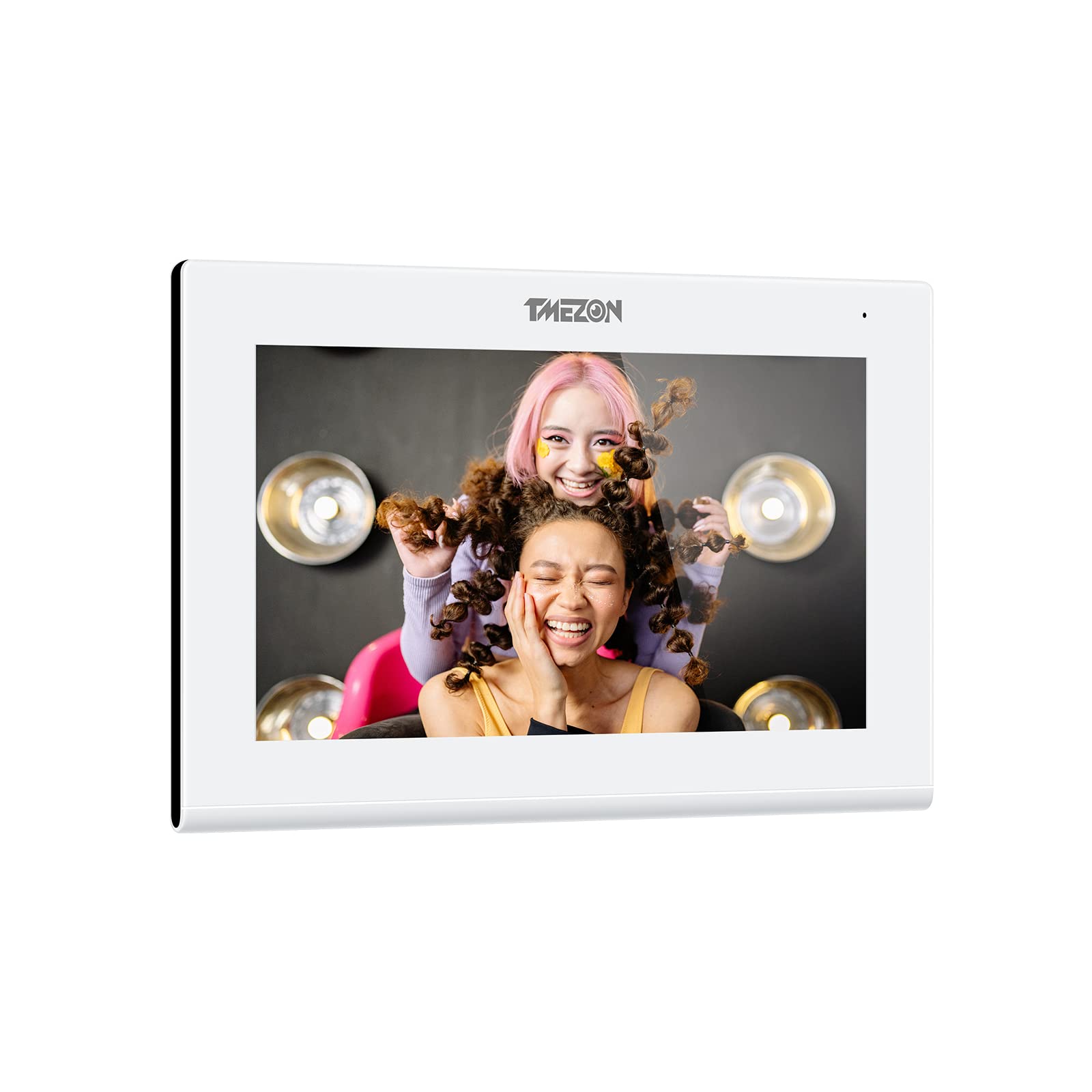
Thank you for choosing the TMEZON 718TW Intercom Monitor. This manual provides detailed instructions for the installation, operation, and maintenance of your new video intercom system. Please read this manual thoroughly before installation and use to ensure proper functionality and safety. The TMEZON 718TW is designed to enhance your home security and communication, allowing you to see and speak with visitors, and even unlock doors remotely via a mobile application.
2. Safety Information
- Electrical Safety: Ensure all wiring is performed by a qualified electrician and complies with local electrical codes. Disconnect power before performing any installation or maintenance.
- Environment: Do not expose the device to rain, moisture, direct sunlight, or extreme temperatures. Operate within the specified temperature and humidity ranges.
- Handling: Handle the monitor and outdoor unit with care. Avoid dropping or subjecting them to strong impacts.
- Cleaning: Use a soft, dry cloth for cleaning. Do not use liquid or aerosol cleaners.
- Modifications: Do not attempt to open or modify the device. Unauthorized modifications can void the warranty and pose safety risks.
3. Package Contents
Please check the package contents upon receipt. If any items are missing or damaged, contact your retailer immediately.
- Indoor Monitor (718TW)
- Outdoor Doorbell Unit
- Power Adapter
- Mounting Bracket for Indoor Monitor
- Mounting Screws and Wall Plugs
- Wiring Cables
- RFID Key Fobs (Quantity may vary)
- User Manual (This document)
This image displays the complete TMEZON 718TW intercom system, including the indoor monitor, outdoor doorbell unit, several RFID key fobs, and a smartphone screen showing the mobile application interface.
4. Product Overview
The TMEZON 718TW Intercom Monitor system consists of an indoor monitor and an outdoor doorbell unit. It features Wi-Fi connectivity, allowing remote viewing and control via a dedicated mobile application. The system supports two-way audio communication, video monitoring, and remote door unlocking.
Key Features:
- High-resolution display on the indoor monitor.
- Wide-angle camera on the outdoor unit for clear visitor identification.
- Wi-Fi connectivity for remote access via smartphone app.
- Two-way audio communication.
- Remote door unlocking (requires compatible electronic lock, not included).
- Motion detection and recording capabilities.

A smartphone displaying the Tuya application interface, which allows remote control and monitoring of the TMEZON 718TW intercom system. The app shows a live video feed from the outdoor unit.
5. Setup and Installation
Follow these steps carefully for proper installation of your TMEZON 718TW intercom system.
5.1 Outdoor Doorbell Unit Installation
- Choose Location: Select a suitable location near your entrance, typically at eye level, ensuring clear visibility of visitors and protection from direct weather exposure.
- Mounting: Use the provided screws and wall plugs to securely mount the outdoor unit to the wall. Ensure all wiring connections are accessible.
- Wiring: Connect the power, video, and audio cables from the outdoor unit to the indoor monitor according to the wiring diagram in the full manual (not provided here). If connecting to an electronic lock, ensure proper wiring for the unlock function.
5.2 Indoor Monitor Installation
- Choose Location: Select a central and easily accessible location inside your home.
- Mounting: Attach the mounting bracket to the wall using screws and wall plugs.
- Wiring: Connect the cables from the outdoor unit and the power adapter to the indoor monitor. Ensure all connections are secure.
- Mount Monitor: Carefully attach the indoor monitor to the mounting bracket.
5.3 Power On and Initial Configuration
- Power On: Plug in the power adapter to an electrical outlet. The indoor monitor should power on.
- Wi-Fi Connection: Follow the on-screen prompts on the indoor monitor to connect it to your home Wi-Fi network. This is crucial for mobile app functionality.
- App Download: Download the 'Tuya Smart' or 'Smart Life' application from your smartphone's app store (iOS or Android).
- Device Pairing: Open the app, create an account, and follow the in-app instructions to add your TMEZON 718TW intercom system. This typically involves scanning a QR code displayed on the indoor monitor.
6. Operating Instructions
Once installed and configured, your TMEZON 718TW intercom system is ready for use.
6.1 Answering a Call
- When a visitor presses the doorbell button, the indoor monitor will ring and display the visitor's video.
- On the indoor monitor, tap the 'Answer' button to establish two-way audio communication.
- If using the mobile app, you will receive a notification. Tap the notification to open the app and answer the call remotely.
6.2 Monitoring
- From the indoor monitor, you can manually activate the outdoor camera to view the entrance area at any time.
- Through the mobile app, you can access the live video feed from the outdoor unit remotely, allowing you to monitor your entrance from anywhere.
6.3 Unlocking the Door
- During a call or while monitoring, tap the 'Unlock' button on the indoor monitor or in the mobile app to open a connected electronic door lock.
- RFID key fobs can also be used to unlock the door by presenting them to the outdoor unit's reader (if equipped).
6.4 Settings and Customization
Access the settings menu on the indoor monitor to adjust:
- Ring volume and melody.
- Display brightness and contrast.
- Recording settings (motion detection, video duration).
- Network settings.
7. Maintenance
Regular maintenance ensures the longevity and optimal performance of your intercom system.
- Cleaning: Use a soft, slightly damp cloth to clean the surfaces of the indoor monitor and outdoor unit. Avoid abrasive cleaners or solvents.
- Firmware Updates: Periodically check for firmware updates through the mobile application or TMEZON's official website. Updates can improve performance and add new features.
- Cable Inspection: Regularly inspect all cables for any signs of wear or damage. Replace damaged cables immediately.
- Outdoor Unit Lens: Keep the camera lens on the outdoor unit clean and free from obstructions (dirt, spiderwebs) for clear video quality.
8. Troubleshooting
If you encounter issues with your TMEZON 718TW intercom system, refer to the following common problems and solutions.
8.1 No Power to Indoor Monitor
- Check Power Adapter: Ensure the power adapter is securely plugged into both the monitor and a working electrical outlet.
- Check Circuit Breaker: Verify that the circuit breaker for the outlet is not tripped.
8.2 No Video from Outdoor Unit
- Check Wiring: Ensure the video cable between the outdoor unit and indoor monitor is correctly and securely connected.
- Power Cycle: Disconnect and reconnect power to both units.
8.3 No Audio During Call
- Check Volume: Ensure the volume on the indoor monitor and your smartphone app is not muted or set too low.
- Check Wiring: Verify audio wiring connections between the outdoor unit and indoor monitor.
8.4 Mobile App Cannot Connect / Offline
- Wi-Fi Connection: Ensure the indoor monitor is connected to a stable 2.4GHz Wi-Fi network.
- Router: Restart your Wi-Fi router.
- App Permissions: Check that the mobile app has necessary network permissions on your smartphone.
- Re-pair Device: If issues persist, try removing the device from the app and re-pairing it.
9. Specifications
| Manufacturer | TMEZON |
| Model | 718TW |
| ASIN | B0B21782BN |
| Date first available on Amazon.fr | May 29, 2022 |
| Spare parts availability | Information unavailable on spare parts |
10. Warranty and Support
For warranty information, technical support, or further assistance, please contact TMEZON customer service through your purchase platform or the official TMEZON website. Please have your product model number (718TW) and purchase details ready when contacting support.


