
MARVUE M22
MARVUE Pad M22 Android 11 Tablet User Manual
Model: M22 | Brand: MARVUE
Introduction
Thank you for choosing the MARVUE Pad M22 Android 11 Tablet. This manual provides essential information for setting up, operating, and maintaining your device. The MARVUE Pad M22 features a 10-inch HD IPS display, an 8-core CPU, 4GB RAM, 64GB internal storage (expandable up to 256GB), dual-band Wi-Fi, dual cameras, and a 6000mAh battery, offering a versatile and powerful user experience.
Package Contents
Please check the box for the following items:
- MARVUE Pad M22 10-inch Tablet x 1
- USB Type-C Charging Cable x 1
- Power Adapter x 1
- User Manual x 1

Image: The MARVUE Pad M22 tablet and its included accessories: USB Type-C cable, power adapter, and user manual, laid out on a surface.
Device Layout
Familiarize yourself with the physical components of your MARVUE Pad M22 tablet.

Image: A detailed view of the MARVUE Pad M22 tablet, highlighting the front camera, rear camera with flash, volume buttons, power button, Type-C port, speaker, and Micro SD card slot.
- Front Camera: 5MP camera for video calls and selfies.
- Rear Camera: 13MP camera with flash for high-resolution photos and videos.
- Volume Buttons: Adjust the device's volume.
- Power Button: Press and hold to power on/off or restart. Press briefly to turn the screen on/off.
- Type-C Port: For charging and data transfer.
- Speakers: Dual speakers for enhanced audio output.
- Micro SD Card Slot: Insert a Micro SD card for expandable storage.
Setup
1. Charging the Tablet
Before first use, fully charge your tablet. Connect the provided USB Type-C cable to the tablet's Type-C port and the power adapter, then plug the adapter into a wall outlet. The battery indicator on the screen will show charging status.
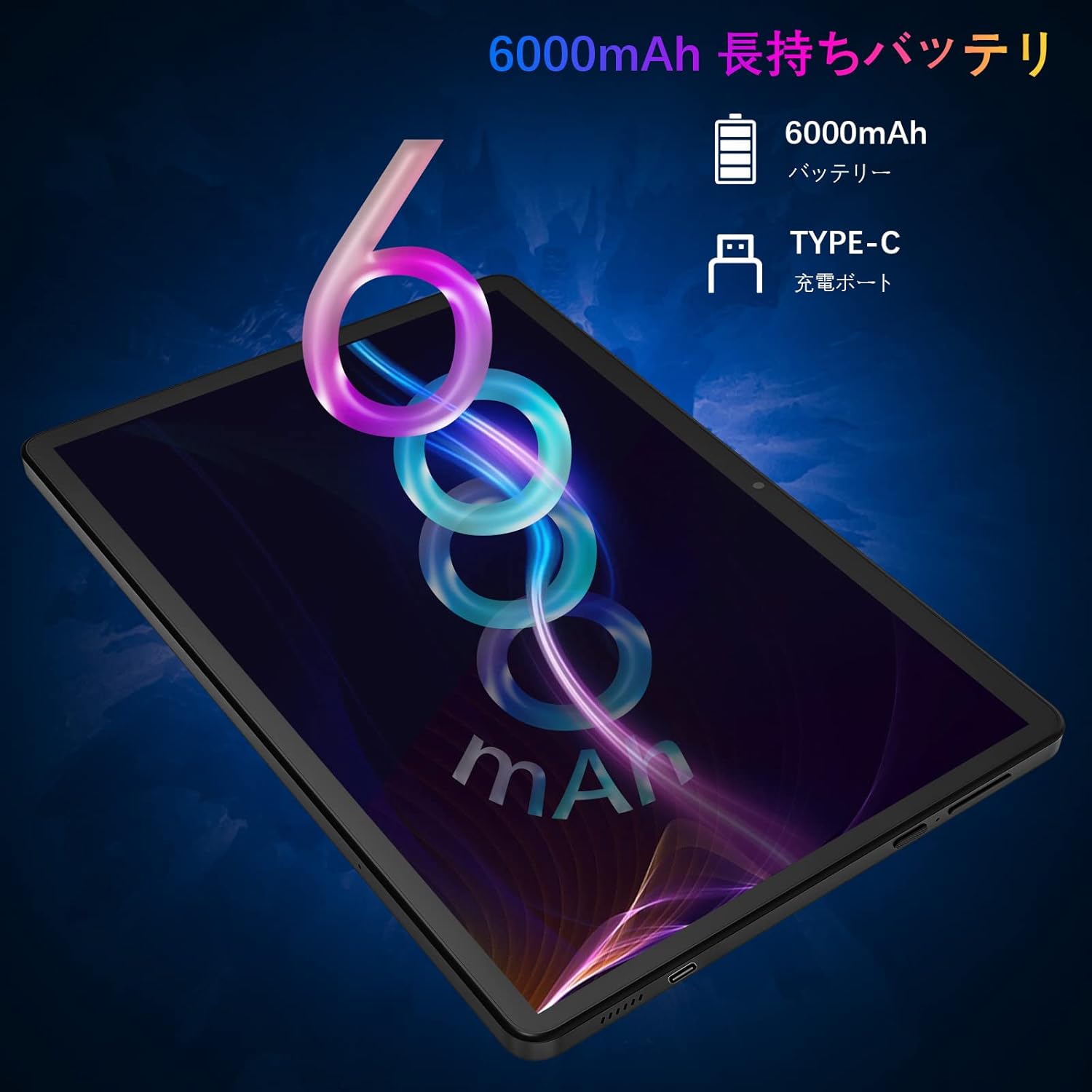
Image: A visual representation of the tablet being charged via its Type-C port, highlighting the 6000mAh battery capacity.
2. Powering On/Off
- To Power On: Press and hold the Power button until the MARVUE logo appears.
- To Power Off: Press and hold the Power button, then select "Power off" from the options on the screen.
- To Restart: Press and hold the Power button, then select "Restart" from the options.
3. Initial Setup
Upon first power-on, follow the on-screen prompts to complete the initial setup:
- Select your preferred language.
- Connect to a Wi-Fi network.
- Sign in with your Google account or create a new one.
- Set up screen lock and other security features.
4. Inserting a Micro SD Card
To expand storage, insert a Micro SD card (up to 256GB, sold separately) into the designated slot. Ensure the tablet is powered off before inserting or removing the card.
Operating Instructions
1. Basic Navigation
The MARVUE Pad M22 uses a responsive G+G multi-touch screen.
- Tap: Select an item or open an app.
- Tap and Hold: Access contextual menus or move icons.
- Swipe: Scroll through pages or lists.
- Pinch: Zoom in or out on images and web pages.

Image: The 10-inch HD IPS display of the MARVUE Pad M22, showcasing its 16:10 aspect ratio and smooth G+G touch screen for an immersive viewing experience.
2. Connecting to Wi-Fi
The tablet supports 2.4GHz and 5GHz dual-band Wi-Fi for stable and fast internet connectivity.
- Go to Settings > Network & internet > Wi-Fi.
- Turn on Wi-Fi.
- Select your desired network from the list and enter the password if prompted.

Image: The MARVUE Pad M22 tablet displaying a video conference, illustrating its dual 2.4G+5G Wi-Fi capability for stable online communication.
3. Using the Cameras
Capture moments with the 5MP front camera and 13MP rear camera.
- Open the Camera app.
- Tap the shutter button to take a photo.
- Switch between front and rear cameras using the camera switch icon.
4. GPS Navigation
The tablet includes GPS functionality. Google Maps is pre-installed for convenient navigation. Ensure you are connected to Wi-Fi or have downloaded offline maps for use without internet.

Image: The MARVUE Pad M22 tablet mounted in a car, displaying a map for GPS navigation, and a separate image showing the tablet wirelessly connected to a TV for screen mirroring.
5. Wireless Projection (Screen Mirroring)
Mirror your tablet's screen to a larger display, such as a TV, for an enhanced viewing experience.
- Ensure your TV or display supports wireless projection (Miracast, Chromecast, etc.).
- On your tablet, go to Settings > Connected devices > Connection preferences > Cast.
- Select your display device from the list to connect.
6. Connecting External Accessories
The tablet supports connecting wireless keyboards and mice via Bluetooth for increased productivity.
- Enable Bluetooth on your tablet via Settings > Connected devices > Bluetooth.
- Put your accessory into pairing mode.
- Select the accessory from the list of available devices on your tablet to pair.
Maintenance
1. Cleaning Your Tablet
- Use a soft, lint-free cloth to clean the screen and body.
- Do not use abrasive cleaners, alcohol, or solvents.
- Avoid getting moisture into openings.
2. Battery Care
- Avoid extreme temperatures, which can degrade battery life.
- For optimal battery longevity, avoid fully discharging the battery frequently.
- Use only the provided charger or a certified compatible charger.
3. Software Updates
Regularly check for and install software updates to ensure optimal performance and security. Go to Settings > System > System update.
Troubleshooting
| Problem | Solution |
|---|---|
| Tablet does not turn on. | Ensure the battery is charged. Connect the charger and try again. If it still doesn't turn on, press and hold the Power button for 10-15 seconds. |
| Cannot connect to Wi-Fi. | Check if Wi-Fi is enabled in Settings. Ensure the Wi-Fi password is correct. Restart your router and the tablet. Try connecting to a different Wi-Fi network. |
| Screen is unresponsive. | Restart the tablet by holding the Power button. If the issue persists, perform a factory reset (data will be lost). |
| Apps are crashing or running slowly. | Close unnecessary background apps. Clear app cache (Settings > Apps > [App Name] > Storage > Clear cache). Ensure sufficient storage space. Restart the tablet. |
| Battery drains quickly. | Reduce screen brightness. Close unused apps. Turn off Wi-Fi, Bluetooth, and GPS when not in use. Check battery usage in Settings to identify power-hungry apps. |
Specifications
| Feature | Detail |
|---|---|
| Brand | MARVUE |
| Model Name | M22 |
| Operating System | Android 11 |
| Screen Size | 10 Inches |
| Display Type | HD IPS |
| CPU Manufacturer | MediaTek (8-core, up to 2.0GHz) |
| RAM | 4 GB |
| Internal Storage | 64 GB |
| Expandable Storage | Up to 256 GB (MicroSD) |
| Rear Camera Resolution | 13 MP |
| Front Camera Resolution | 5 MP |
| Battery Capacity | 6000 mAh (Lithium Polymer) |
| Wireless Connectivity | Wi-Fi (2.4G/5G, 802.11a/b/g/n), Bluetooth |
| Ports | Type-C, MicroSD |
| Special Features | GPS, Dual Speakers, Metal Body, GMS Certified |
| Dimensions (LxWxH) | 29.2 x 20.1 x 0.9 cm |
| Weight | 0.43 kg |
Warranty and Support
The MARVUE Pad M22 tablet comes with a 12-month warranty from the date of purchase. This warranty covers manufacturing defects and ensures that our company will provide satisfactory support for any issues encountered within this period.
For technical support, warranty claims, or any questions regarding your device, please contact MARVUE customer service through the retailer where you purchased the product or visit the official MARVUE website for contact information. Please have your purchase receipt and product model number (M22) ready when contacting support.
Ask a question about this manual
Ask about setup, troubleshooting, compatibility, parts, safety, or missing instructions. Manuals+ will review the question and use this page’s manual context to help answer it.