1. Product Overview
The Croma 55-inch 4K Ultra HD Smart LED TV (Model CREL055USA024601) offers a high-resolution viewing experience with smart TV functionalities. This manual provides instructions for setup, operation, maintenance, and troubleshooting.

Image 1.1: Front view of the Croma 55-inch 4K Ultra HD Smart LED TV.
This television features a 55-inch LED display with 4K (3840x2160 pixels) resolution and a 60 Hz refresh rate. It operates on a Linux-based WebOS system, providing access to various streaming services and applications. The TV includes multiple connectivity options such as HDMI, USB, and Bluetooth.
2. Setup and Installation
2.1 Unpacking
Carefully remove all components from the packaging. Ensure the following items are present:
- 1 LED TV
- 2 Table Top Stands
- 1 User Manual (this document)
- 1 Remote Control (with 2 AAA batteries included)
- 1 Wall Mount kit
2.2 Stand Installation (Table Top)
If placing the TV on a surface, attach the two provided table-top stands to the bottom of the television. Refer to the markings on the TV and stands for correct orientation. Secure them using the screws provided in the packaging.
2.3 Wall Mounting
If wall-mounting the TV, use the included wall mount kit. It is recommended to seek professional assistance for wall mounting to ensure proper and secure installation. Follow the instructions provided with the wall mount kit for safe installation.
2.4 Connecting Peripherals
The TV features various ports for connecting external devices:
- HDMI Ports: Connect Blu-ray players, gaming consoles, set-top boxes, or other HDMI-enabled devices.
- USB Ports: Connect USB storage devices for media playback.
- Headphone Jack: Connect headphones for private listening.

Image 2.1: Rear view of the television displaying various connectivity ports.
2.5 Initial Power On and Network Connection
After connecting the power cord, press the power button on the remote control or the TV. Follow the on-screen instructions to complete the initial setup, including language selection, time zone, and network configuration. The TV supports dual-band Wi-Fi for internet connectivity.
3. Operating the Television
3.1 Remote Control
The television comes with an Intelligent Motion Remote. This remote allows for intuitive navigation using a pointer function, similar to a mouse. Key features include:
- Voice Assistant Button: Activates the built-in voice recognition system.
- Quick Access Buttons: Dedicated buttons for popular streaming services like Netflix and Prime Video.

Image 3.1: The Intelligent Motion Remote control with highlighted Voice Assistant and Quick Access buttons.
3.2 Smart TV Features (WebOS)
The TV runs on WebOS, providing a user-friendly interface for accessing various applications and content. The Home Dashboard allows you to manage connected devices and access streaming platforms. Supported internet services include Amazon Instant Video, Netflix, YouTube, and a web browser.
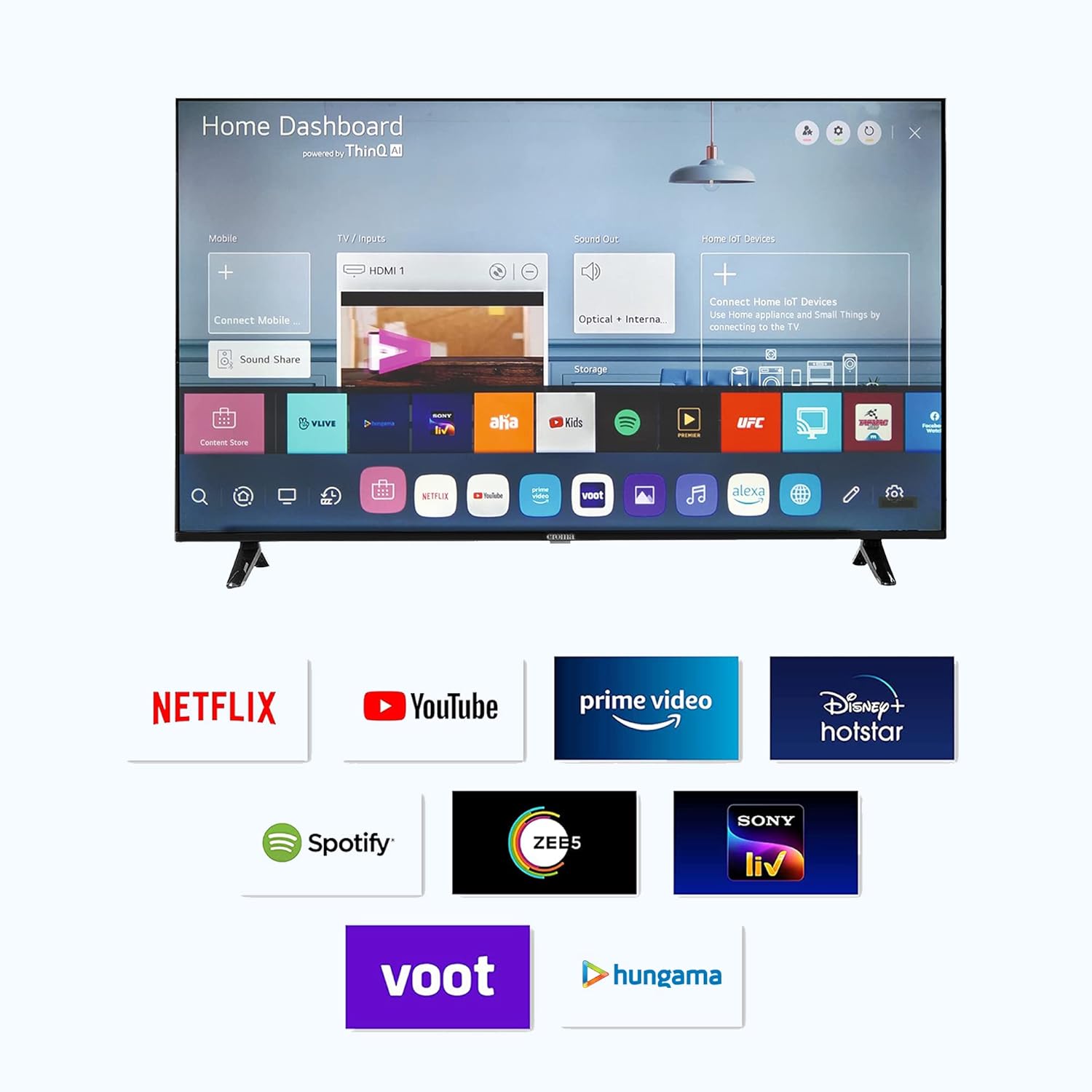
Image 3.2: The Smart TV Home Dashboard displaying available applications and services.
3.3 Picture and Audio Settings
Customize your viewing and listening experience through the TV's settings menu:
- Picture Settings: Adjust brightness, contrast, color, and sharpness. The TV features a 4K LED display with a 178-degree viewing angle and a 5000:1 contrast ratio.
- Audio Settings: Modify sound modes, equalizer settings, and output options. The TV has 20 Watts audio output with 2.0 speaker surround sound channel configuration and supports MP3 audio format.

Image 3.3: Illustration of Dolby Audio feature for enhanced sound experience.
3.4 Voice Control and Alexa Integration
The TV includes a built-in voice recognition assistant accessible via the remote control. It also supports Amazon Alexa integration. While the TV can function as a standalone Alexa device (using the remote's microphone), its control over other Alexa smart devices may be limited. You can turn the TV off using Alexa, but turning it on via Alexa is not supported.
3.5 Bluetooth Connectivity
The television supports Bluetooth 5.0 for connecting wireless audio devices such as soundbars or headphones. To pair a device, navigate to the Bluetooth settings in the TV menu and follow the on-screen instructions.
4. Maintenance
4.1 Cleaning the Screen
To clean the screen, gently wipe it with a soft, dry, lint-free cloth. For stubborn marks, slightly dampen the cloth with water or a specialized screen cleaner. Avoid using harsh chemicals, abrasive materials, or excessive pressure, as these can damage the screen.
4.2 General Care
Keep the television in a well-ventilated area, away from direct sunlight, heat sources, and moisture. Do not block the ventilation openings on the back of the TV. Unplug the TV from the power outlet during lightning storms or when it will be unused for extended periods.
5. Troubleshooting
This section addresses common issues you might encounter. If the problem persists, contact customer support.
- No Power:
- Ensure the power cord is securely plugged into both the TV and a working electrical outlet.
- Check if the power outlet is functioning by plugging in another device.
- Press the power button on the TV itself, not just the remote.
- No Picture/Sound:
- Verify that the correct input source (HDMI 1, HDMI 2, etc.) is selected.
- Check all cable connections (HDMI, antenna, etc.) to ensure they are secure.
- Adjust the volume and ensure the TV is not muted.
- Remote Control Not Working:
- Replace the AAA batteries in the remote control.
- Ensure there are no obstructions between the remote and the TV's sensor.
- Wi-Fi Connectivity Issues:
- Restart your Wi-Fi router and the TV.
- Ensure the TV is within range of your Wi-Fi network.
- Check network settings on the TV to ensure correct password and connection type.
- Bluetooth Audio Lag:
- Ensure the Bluetooth device is fully charged and within close proximity to the TV.
- Try disconnecting and re-pairing the Bluetooth device.
- Test with a different Bluetooth audio device to determine if the issue is with the TV or the external device.
6. Specifications
| Feature | Specification |
|---|---|
| Brand | CROMA |
| Model Name | CREL055USA024601 |
| Model Year | 2022 |
| Screen Size | 55 Inches (140 cm) |
| Display Technology | LED |
| Resolution | 4K Ultra HD (3840 x 2160 Pixels) |
| Refresh Rate | 60 Hz |
| Viewing Angle | 178 Degrees |
| Image Contrast Ratio | 5000:01 |
| Operating System | Linux (WebOS) |
| RAM Memory Installed Size | 1.5 GB |
| Memory Storage Capacity | 8 GB |
| Audio Output Mode | Surround |
| Audio Wattage | 20 Watts |
| Speaker Surround Sound Channel Configuration | 2.0 |
| Supported Audio Formats | MP3 |
| Hardware Interface | HDMI, Headphone, USB |
| Total USB Ports | 2 |
| Connectivity Technology | HDMI, Bluetooth, Wi-Fi |
| Supported Internet Services | Amazon Instant Video, Browser, Netflix, YouTube |
| Product Dimensions (LxWxH) | 123 x 27 x 77 cm |
| Item Weight | 7.3 kg |
| Power Source | Corded Electric |
| On-mode Power Consumption | 140.00 watts |

Image 6.1: Diagram illustrating the dimensions of the Croma 55-inch TV.
7. Warranty and Support
The Croma 55-inch 4K Ultra HD Smart LED TV comes with a 1-year warranty from the date of purchase. For warranty claims or technical assistance, please contact Croma customer support.
Croma offers Assured Lifetime Service and has over 160+ stores that can serve as service centers. For detailed support information, visit the official Croma website or refer to the warranty card included with your product.

Image 7.1: Overview of Croma's customer support advantages.


