1. Introduction
The TP-Link EAP670 is an Omada WiFi 6 AX5400 Wireless 2.5G Ceiling Mount Access Point designed to provide high-speed, reliable wireless connectivity. This device integrates into the Omada Software Defined Networking (SDN) platform, offering centralized cloud management for various network environments. It supports advanced Wi-Fi 6 technologies such as OFDMA, MU-MIMO, and HE160 for enhanced performance and capacity.
Key features include:
- Ultra-Fast Wi-Fi 6 Speeds: Delivers dual-band Wi-Fi speeds up to 5400 Mbps, utilizing 1024-QAM, HE160, and Long OFDM Symbol technologies.
- 2.5 Gigabit Ethernet Port: Equipped with a 2.5GE port for multi-gigabit performance and increased internet throughput.
- Power over Ethernet (PoE+): Supports 802.3at PoE+ for flexible and simplified installation, eliminating the need for nearby power outlets.
- Omada SDN Integration: Seamlessly integrates with the Omada SDN platform for centralized management of access points, switches, and gateways.
- Cloud Access & Omada App: Offers remote cloud access and management via the Omada app, allowing control from anywhere, anytime.
- Advanced Wireless Technologies: Features Mesh WiFi, Seamless Roaming, Band Steering, Load Balancing, Airtime Fairness, and Beamforming.

Image 1: TP-Link EAP670 Omada WiFi 6 AX5400 Wireless Access Point, front view with LED indicator.
2. Package Contents
Verify that your package contains the following items:
- TP-Link EAP670 Access Point
- Power Adapter (12V/1.5A DC)
- Ceiling/Wall Mounting Kits
- Installation Guide
3. Setup and Installation
The EAP670 can be powered via Power over Ethernet (PoE+) or a standard DC power adapter. It supports both ceiling and wall mounting.
3.1 Device Overview
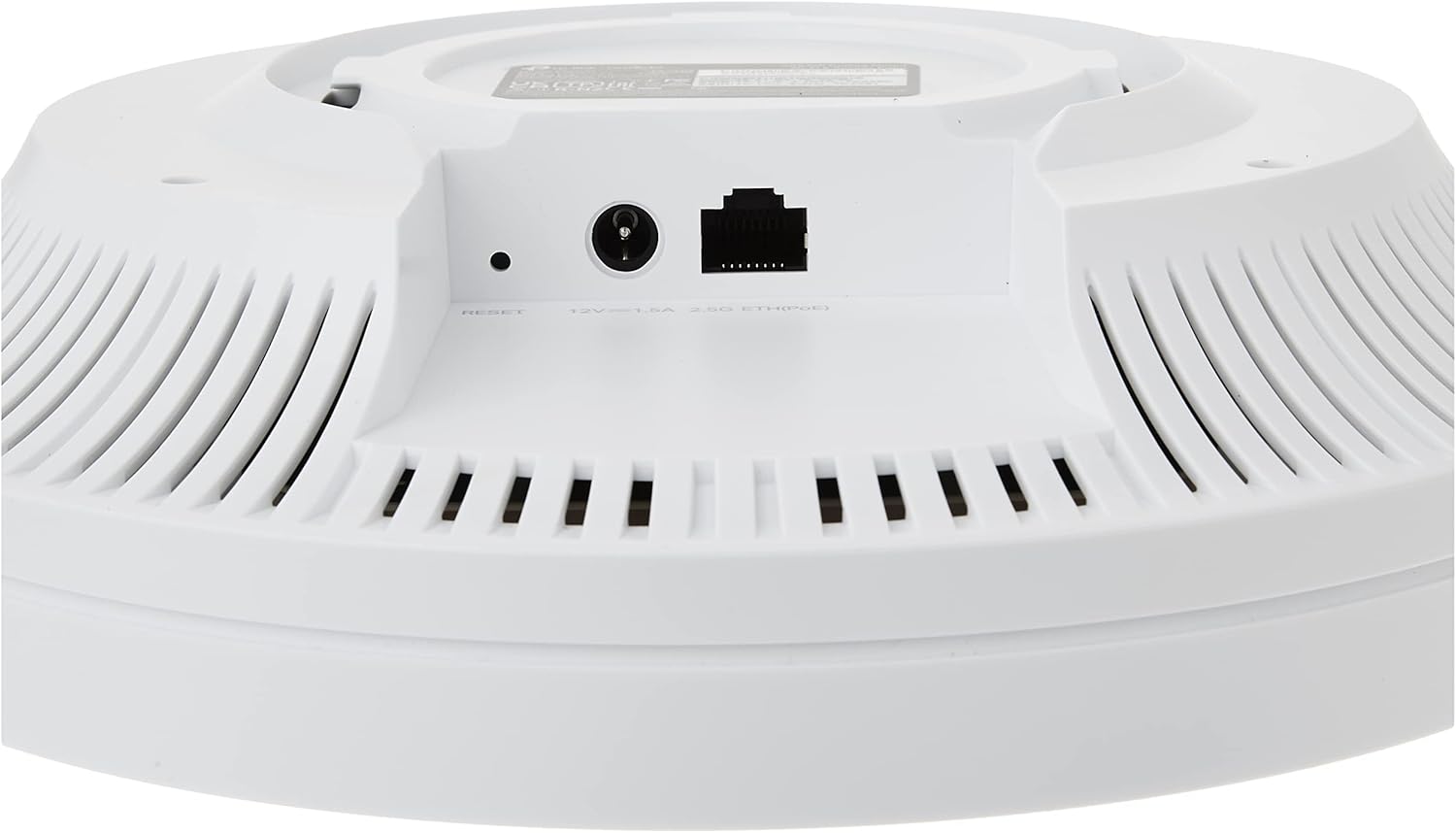
Image 2: Rear view of the EAP670 showing the 2.5 Gigabit Ethernet port (PoE+ compatible), 12V/1.5A DC power input, and reset button.
3.2 Powering the Device
- PoE+ (Recommended): Connect an Ethernet cable from a PoE+ switch (802.3at compliant) to the 2.5G Ethernet port on the EAP670. The device will receive both power and data through this single cable.
- DC Power Adapter: Connect the provided 12V/1.5A DC power adapter to the DC power input port on the EAP670, then plug the adapter into a power outlet. Connect an Ethernet cable from your network to the 2.5G Ethernet port for data.
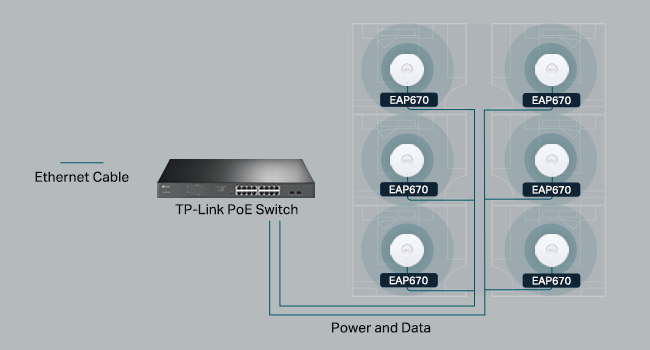
Image 3: Diagram illustrating the deployment of EAP670 units powered by a TP-Link PoE switch, providing both power and data.
3.3 Mounting the Device
Refer to the included Installation Guide for detailed instructions on using the ceiling/wall mounting kits to securely install your EAP670.
3.4 Initial Configuration
The EAP670 can be configured in standalone mode or integrated into the Omada SDN platform. For initial setup, you can use the Omada app or a web browser.
- Omada App: Download the Omada app from your mobile app store. Scan the S/N code on the device packaging to quickly add and configure your EAP670.
- Web Browser: Connect a computer to the EAP670's network. Open a web browser and navigate to the default management IP address (refer to the Installation Guide for details) to access the web-based management interface.
4. Operating the EAP670
The EAP670 offers flexible management options, including standalone mode, software controller, hardware controller, or cloud-based controller within the Omada SDN ecosystem.
4.1 Omada SDN Integration
The Omada Software Defined Networking (SDN) platform allows for centralized management of your network devices. This includes access points, switches, and gateways, all controlled from a single interface.

Image 4: Diagram illustrating the Omada SDN platform, showing various access point types, Jetstream switches, Omada Security Gateways, and unified management interfaces (hardware, software, and cloud controllers).
4.2 Cloud Access and Omada App
Remote cloud access and the Omada app facilitate centralized cloud management of your entire network across different sites. This allows for control from a single interface, anytime and anywhere.

Image 5: Overview of the Omada cloud solution for business networking, demonstrating centralized management via tablet and smartphone apps, integrating various Omada devices.
Download the Omada app for convenient management: TP-Link Omada App
4.3 Advanced Wireless Features
The EAP670 supports several advanced wireless technologies to optimize network performance:
- Mesh WiFi: Creates a seamless mesh network for extended coverage (requires Omada SDN controllers).
- Seamless Roaming: Allows devices to automatically switch between access points for uninterrupted connections (requires Omada SDN controllers).
- Band Steering: Guides dual-band clients to the less congested 5 GHz band.
- Load Balancing: Distributes client connections across multiple access points to prevent overload.
- Airtime Fairness: Ensures that slower clients do not monopolize airtime, improving overall network efficiency.
- Beamforming: Focuses Wi-Fi signals towards connected devices for stronger, more reliable connections.

Image 6: Diagram illustrating seamless roaming functionality, where devices automatically switch between multiple access points for continuous connectivity throughout a building.

Image 7: Chart comparing Wi-Fi speeds of the EAP670 (Wi-Fi 6) against older Wi-Fi 5 and Wi-Fi 6 (HE80) devices, highlighting its AX5400 performance.
5. Maintenance
To ensure optimal performance and longevity of your EAP670, consider the following maintenance practices:
- Firmware Updates: Regularly check for and install the latest firmware updates from the TP-Link website or via your Omada controller. Firmware updates often include performance improvements, security patches, and new features.
- Physical Cleaning: Keep the device clean and free from dust. Use a soft, dry cloth to wipe the exterior. Ensure ventilation holes are not obstructed.
- Environmental Conditions: Operate the device within its specified temperature and humidity ranges. Avoid exposing it to direct sunlight, excessive heat, or moisture.
- Network Monitoring: Utilize the Omada controller or app to monitor network health and device status, addressing any alerts promptly.
6. Troubleshooting
If you encounter issues with your EAP670, consider the following troubleshooting steps:
- No Power: Verify that the power adapter is securely connected to both the EAP670 and a working power outlet, or that the PoE+ source is active and connected correctly.
- No Internet Access: Check the Ethernet cable connection to your router or switch. Ensure your router has an active internet connection. If using an Omada controller, check its status and configuration.
- Weak Wi-Fi Signal or Slow Speeds: Ensure the EAP670 is mounted in an optimal location, away from obstructions and sources of interference (e.g., microwaves, cordless phones). Check for environmental factors mentioned in the legal disclaimer that might affect wireless performance.
- Cannot Access Management Interface: Ensure your computer is connected to the same network as the EAP670. Verify the IP address or hostname used to access the interface. Try restarting the EAP670.
- Resetting the Device: If issues persist, you may need to reset the EAP670 to factory default settings. Locate the reset button (refer to Image 2) and press and hold it for approximately 5-10 seconds until the LED indicator changes. Warning: This will erase all custom configurations.
Legal Disclaimer: Actual wireless transmission rate and wireless coverage are not guaranteed and will vary due to environmental factors (building materials, physical objects, obstacles), network conditions (interference, traffic, product location, network complexity), and client limitations (rated performance, location, connection quality).
7. Specifications
Below are the technical specifications for the TP-Link EAP670 Omada WiFi 6 AX5400 Wireless Access Point:
| Feature | Specification |
|---|---|
| Model Name | EAP670 |
| Wireless Type | 802.11ax (Wi-Fi 6) |
| Frequency Band Class | Dual-Band (2.4 GHz & 5 GHz) |
| Ethernet Port | 1x 2.5 Gigabit Ethernet Port |
| Power Supply | 802.3at PoE+ or 12V/1.5A DC |
| Operating System | Omada OS |
| Dimensions (LxWxH) | 9.59 x 9.59 x 2.59 inches (243 x 243 x 66 mm) |
| Item Weight | 1.74 pounds (0.79 kg) |
| Color | White |
| Special Feature | WPS (Wi-Fi Protected Setup) |
| Included Components | EAP670, Power Adapter, Ceiling/Wall Mounting Kits, Installation Guide |
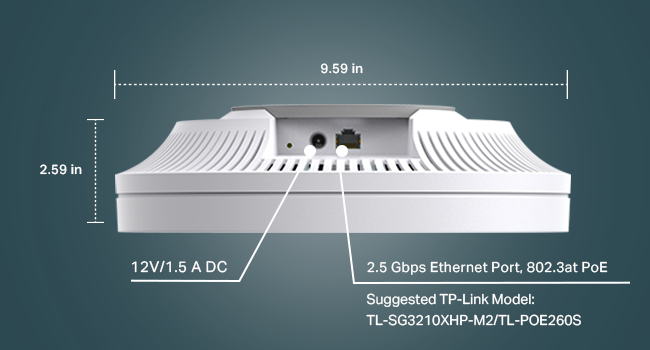
Image 8: Detailed view of the EAP670's dimensions and port labels, including 12V/1.5A DC input and 2.5 Gbps Ethernet Port (802.3at PoE).
8. Warranty and Support
8.1 Warranty Information
The TP-Link EAP670 comes with an industry-leading 5-year warranty.
8.2 Technical Support
For technical assistance, please contact TP-Link support:
- Phone: (866) 225-8139 (Available Monday to Friday, 6 AM to 6 PM PST)
- Support Website: myproducts.tp-link.com/us
- Email: support.USA@tp-link.com