
Introduction
This manual provides essential information for setting up, operating, maintaining, and troubleshooting your Dell Latitude 5521 Laptop. Please read this guide thoroughly to ensure optimal performance and longevity of your device.
Setup
1. Unboxing and Initial Inspection
Carefully remove your laptop and all accessories from the packaging. Inspect the device for any signs of damage. Retain the packaging for future transport or service needs.
2. Connecting to Power
Connect the power adapter to the laptop's power port and then plug it into a wall outlet. It is recommended to fully charge the battery before initial use.
3. Initial Boot and Windows Setup
Press the power button to turn on your laptop. Follow the on-screen instructions to complete the Windows 11 Pro setup, including language selection, network connection, and user account creation.
4. Port Identification
Familiarize yourself with the various ports on your Dell Latitude 5521 Laptop.
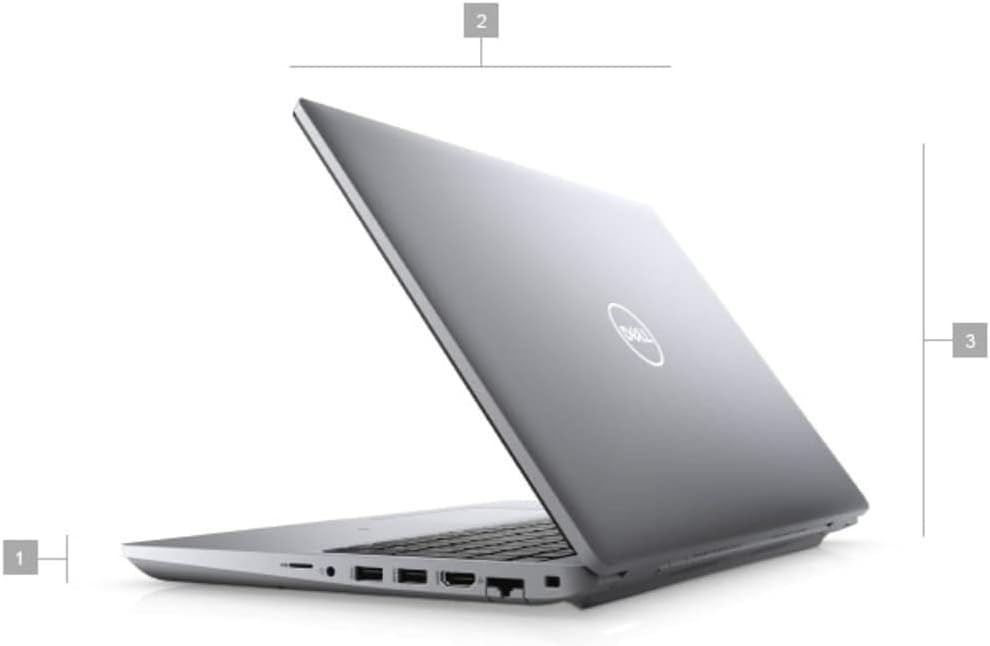
Image: Left side view of the Dell Latitude 5521 Laptop. This image displays the various ports available on the left side of the device, including the power input, USB ports, HDMI port, and Ethernet port.

Image: Right side view of the Dell Latitude 5521 Laptop. This image highlights the ports located on the right side of the laptop, such as USB-C ports and the SD card reader.
- Left Side: Power connector, USB ports, HDMI port, Ethernet port, Audio jack.
- Right Side: USB-C ports, SD card reader, Security cable slot.
Operating Instructions
1. Power On/Off and Sleep Mode
- Power On: Press the power button located on the top-right of the keyboard.
- Shut Down: Click the Start button, then Power > Shut down.
- Sleep Mode: Click the Start button, then Power > Sleep, or close the laptop lid.
2. Keyboard and Touchpad Usage

Image: Top-down view of the Dell Latitude 5521 Laptop's keyboard and touchpad. This image shows the full keyboard layout, including the numeric keypad, and the central touchpad.
- Keyboard: The laptop features a full-size keyboard with a numeric keypad. Use function keys (Fn) in combination with F1-F12 for special functions like volume control, brightness adjustment, and external display toggling.
- Touchpad: The integrated touchpad supports multi-touch gestures for navigation. Tap to click, use two fingers to scroll, and pinch to zoom.
3. Connecting to Networks
- Wi-Fi: Click the Wi-Fi icon in the taskbar, select your desired network, enter the password, and click Connect.
- Bluetooth: Go to Settings > Bluetooth & devices to pair with Bluetooth accessories.
- Ethernet: Connect an Ethernet cable to the Ethernet port for a wired network connection.
4. External Display Connection
Use the HDMI port or a USB-C adapter to connect an external monitor. Press Windows key + P to select display modes (Duplicate, Extend, Second screen only).
Maintenance
1. Cleaning the Laptop
- Screen: Use a soft, lint-free cloth lightly dampened with water or a screen cleaner. Do not spray liquid directly onto the screen.
- Keyboard and Chassis: Use a soft cloth to wipe surfaces. For stubborn dirt, a slightly damp cloth with mild soap solution can be used, ensuring no liquid enters openings.
- Ports: Use compressed air to clear dust from ports, holding the can upright to prevent liquid propellant discharge.
2. Battery Care
- Avoid extreme temperatures.
- Do not fully discharge the battery frequently.
- For long-term storage, charge the battery to about 50-60%.
3. Software Updates
Regularly update your Windows operating system and Dell drivers to ensure security and optimal performance. Access Windows updates via Settings > Windows Update. Dell drivers can be found on the official Dell support website.
4. Data Backup
Periodically back up your important data to an external drive or cloud storage to prevent data loss.
Troubleshooting
1. Laptop Does Not Power On
- Ensure the power adapter is securely connected to both the laptop and a working power outlet.
- Check if the power adapter's indicator light is on.
- Try a different power outlet.
- If the battery is completely drained, it may take a few minutes of charging before the laptop can power on.
2. Display Issues
- No Display: Connect an external monitor to check if the issue is with the laptop's internal screen.
- Dim Display: Adjust screen brightness using the function keys (Fn + F11/F12) or through Windows display settings.
- Flickering: Update your graphics drivers.
3. Network Connectivity Problems
- Wi-Fi: Ensure Wi-Fi is enabled. Restart your router and modem. Run Windows Network Troubleshooter.
- Bluetooth: Ensure Bluetooth is enabled and the device is in pairing mode. Remove and re-pair the device.
4. Slow Performance
- Close unnecessary applications.
- Check Task Manager for resource-intensive processes.
- Ensure sufficient free space on your SSD.
- Run a virus scan.
Specifications
Below are the key technical specifications for the Dell Latitude 5521 Laptop:
| Feature | Detail |
|---|---|
| Brand | Dell |
| Model Name | Latitude 5521 Laptop |
| Screen Size | 15.6 Inches |
| Display Resolution | 1920x1080 FHD |
| Processor | Intel Core i5-11400H (6 cores, 2.7 GHz, up to 4.5 GHz with Turbo Boost) |
| RAM Memory | 16 GB DDR4 (2666 MHz) |
| Storage | 512 GB SSD |
| Operating System | Windows 11 Pro |
| Graphics | Intel Integrated Graphics |
| Connectivity | Wi-Fi, Bluetooth, HDMI, USB, MicroSD |
| Dimensions (L x W x Th) | 9.19"L x 14.09"W x 0.89"Th |
Warranty and Support
1. Warranty Information
Your Dell Latitude 5521 Laptop comes with a 90-day limited warranty. This warranty covers manufacturing defects and hardware malfunctions under normal use. Please refer to the warranty documentation included with your purchase for full terms and conditions.
2. Technical Support
For technical assistance, driver downloads, or further support, please visit the official Dell Support website. You will need your laptop's service tag (usually found on a sticker on the bottom of the laptop) to access specific support resources.
Dell Support Website: www.dell.com/support


