
CamGo B09Z7DS7TY
CamGo 4K 30FPS WiFi HD Underwater Waterproof Action Camera User Manual
Model: B09Z7DS7TY
1. Introduction
This manual provides detailed instructions for the operation and maintenance of your CamGo 4K 30FPS WiFi HD Underwater Waterproof Action Camera. Please read this manual thoroughly before using the camera to ensure proper function and to maximize your experience. This camera is designed for capturing high-quality video and photos in various environments, including underwater up to 30 meters.
2. Safety Information
- Ensure the waterproof case is properly sealed before submerging the camera in water. Failure to do so will result in water damage and void the warranty.
- Do not expose the camera to extreme temperatures or direct sunlight for extended periods.
- Use only approved chargers and accessories.
- Keep the camera and accessories out of reach of children.
- Avoid dropping or subjecting the camera to severe impacts.
- After underwater use, rinse the waterproof case with fresh water and allow it to dry completely before opening.
3. Package Contents
Verify that all items are present in your package:
- CamGo 4K Action Camera
- Waterproof Case
- Rechargeable Lithium-Ion Battery
- USB Cable
- Various Mounts and Accessories (e.g., helmet mount, bicycle mount, adhesive mounts, bandages, cleaning cloth)
- User Manual

Figure 3.1: Included accessories for the CamGo 4K Action Camera. This image displays the camera's waterproof housing, various mounting brackets, straps, a USB charging cable, and a cleaning cloth, illustrating the comprehensive set of tools provided for diverse usage scenarios.
4. Product Overview
Familiarize yourself with the camera's components and controls.
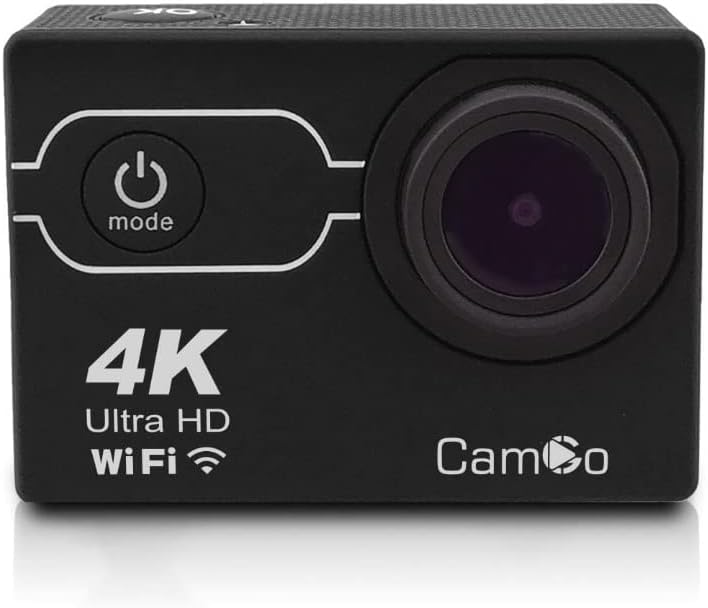
Figure 4.1: Front view of the CamGo 4K Action Camera. This image shows the camera's lens, power/mode button, and the '4K Ultra HD WiFi' branding on the front panel, indicating its core features.
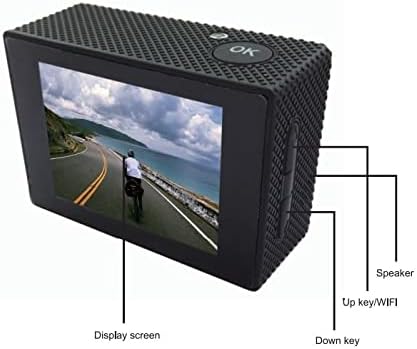
Figure 4.2: Back view of the CamGo 4K Action Camera. This image highlights the display screen, the 'OK' button, and labels for the 'Up key/WiFi' and 'Down key' on the side, along with the speaker, providing a clear guide to the camera's rear controls and display.

Figure 4.3: Side view diagram of the CamGo 4K Action Camera. This technical drawing illustrates the placement of the Micro SD card slot, USB port, HD OUT port, and MIC input, along with the Up/WiFi and Down buttons and speaker, detailing the camera's connectivity and controls.
4.1. Buttons and Ports
- Power/Mode Button: Located on the front. Press to power on/off, short press to switch modes.
- OK Button: Located on top. Press to confirm selections or start/stop recording.
- Up/WiFi Button: Located on the side. Used for navigation in menus and to activate WiFi.
- Down Button: Located on the side. Used for navigation in menus.
- Micro SD Card Slot: For inserting the memory card.
- USB Port: For charging and data transfer.
- HDMI Port: For connecting to a TV or monitor.
- Speaker: For audio playback.
5. Setup
5.1. Battery Installation and Charging
- Open the battery compartment cover on the bottom of the camera.
- Insert the Lithium-Ion battery, ensuring correct polarity.
- Close the battery compartment cover securely.
- Connect the camera to a power source using the provided USB cable for charging. The charging indicator will illuminate during charging and turn off when fully charged.
5.2. MicroSD Card Installation
A Class 10 or higher MicroSD card (up to 64GB) is required for recording. The card is not included.
- Locate the MicroSD card slot on the side of the camera.
- Insert the MicroSD card with the gold contacts facing the back of the camera until it clicks into place.
- To remove, gently push the card until it springs out.
5.3. Using the Waterproof Case
The waterproof case allows the camera to be submerged up to 30 meters.
- Ensure the camera is clean and dry before placing it inside the case.
- Carefully place the camera into the waterproof case.
- Close the latch securely. Ensure the rubber seal is clean and free of debris to prevent leaks.
- Before first use, or after any maintenance, it is recommended to test the waterproof case without the camera inside by submerging it in water for a short period to check for leaks.

Figure 5.1: CamGo 4K Action Camera in its waterproof case. This image displays the camera securely housed within its transparent waterproof casing, ready for underwater use, highlighting the protective design.
6. Operating Instructions
6.1. Power On/Off
- Power On: Press and hold the Power/Mode button for 3-5 seconds.
- Power Off: Press and hold the Power/Mode button for 3-5 seconds.
6.2. Mode Selection
After powering on, short press the Power/Mode button to cycle through the main modes:
- Video Recording Mode
- Photo Mode
- Playback Mode
- Settings Menu
6.3. Recording Video
- Switch to Video Recording Mode. The video icon will appear on the screen.
- Press the OK button to start recording. A red dot or timer will indicate recording is in progress.
- Press the OK button again to stop recording.
6.4. Taking Photos
- Switch to Photo Mode. The camera icon will appear on the screen.
- Press the OK button to take a photo.
6.5. WiFi Connectivity (XDV App)
The camera features built-in WiFi for remote control and file transfer via the XDV app.
- Download the 'XDV' app from your smartphone's app store (available for Android and iOS).
- On the camera, short press the Up/WiFi button to activate WiFi. The WiFi icon will appear on the screen.
- On your smartphone, go to WiFi settings and connect to the camera's WiFi network (e.g., 'CamGo_XXXX'). The default password is usually '1234567890'.
- Open the XDV app to control the camera, view live footage, and download files.
6.6. Connecting to TV/PC
- HDMI Output: Connect the camera to a TV or monitor using an HDMI cable (not included) to view photos and videos on a larger screen.
- USB Connection: Connect the camera to a computer using the USB cable. The camera will appear as a removable disk, allowing you to transfer files.
6.7. Special Recording Modes
Access these modes via the Settings Menu:
- Loop Recording: Records video in segments, overwriting the oldest files when the memory card is full.
- Time-Lapse: Captures photos at set intervals to create a time-lapse video.
- Slow Motion: Records video at a higher frame rate for slow-motion playback.
- Diving Mode: Adjusts color balance for underwater shooting to compensate for blue/green hues.
- Car Mode: Functions as a dashcam, starting recording automatically when powered on.
7. Maintenance
- Cleaning: Use a soft, lint-free cloth to clean the camera lens and screen. For the waterproof case, rinse with fresh water after saltwater use and allow to air dry.
- Storage: Store the camera in a cool, dry place away from direct sunlight. Remove the battery if storing for extended periods.
- Battery Care: Fully charge the battery before first use. Avoid completely draining the battery frequently to prolong its lifespan.
8. Troubleshooting
| Problem | Possible Solution |
|---|---|
| Camera does not power on. | Ensure the battery is charged and correctly inserted. Try charging the camera. |
| Cannot record video/take photos. | Check if a MicroSD card is inserted and has sufficient free space. Ensure the card is Class 10 or higher. Format the MicroSD card if necessary (this will erase all data). |
| Water leakage in waterproof case. | Ensure the rubber seal is clean and free of debris. Verify the latch is securely closed. Do not use the camera underwater if leaks persist. |
| WiFi connection issues. | Ensure WiFi is enabled on the camera. Check your smartphone's WiFi settings and reconnect. Verify the correct password. |
| Poor image/video quality. | Clean the camera lens. Ensure adequate lighting. Check resolution settings in the camera menu. |
9. Specifications
| Feature | Specification |
|---|---|
| Video Resolution | 4K (30FPS) |
| Photo Resolution | 16MP (Sony 179 CMOS) |
| Lens | 170° Wide Angle |
| Chipset | Allwinner V3 |
| Waterproof Depth | Up to 30 meters (with waterproof case) |
| Display Screen | 2.0 inch LCD |
| Storage | Micro SD Card, Class 10 or higher, up to 64GB |
| Connectivity | WiFi (Android & iOS App: XDV), HDMI, USB |
| Battery | 1 Lithium Ion (included) |
| Special Features | Loop Recording, Diving Mode, Slow Motion, Time-Lapse, Car Mode |
10. Warranty and Support
Your CamGo Action Camera is covered by a standard manufacturer's warranty against defects in materials and workmanship. Please refer to the warranty card included in your package for specific terms and conditions. For technical support or warranty claims, please contact your retailer or visit the official CamGo website for assistance.
For further information or to download the XDV app, please visit the CamGo Store on Amazon.
Ask a question about this manual
Ask about setup, troubleshooting, compatibility, parts, safety, or missing instructions. Manuals+ will review the question and use this page’s manual context to help answer it.