
1. Introduction
Thank you for choosing the Dracool Keyboard Case for iPad Pro 12.9". This manual provides essential information for setting up, operating, and maintaining your new keyboard case. Please read it carefully to ensure optimal performance and longevity of your device.
2. Compatibility
This keyboard case is designed to be compatible with the following iPad Pro 12.9" models:
- iPad Pro 12.9" 5th Generation (2021): Models A2378, A2379, A2461, A2462
- iPad Pro 12.9" 4th Generation (2020): Models A2229, A2069, A2232, A2233
- iPad Pro 12.9" 3rd Generation (2018): Models A1876, A2014, A1895, A1983
To verify your iPad model number, please check the back of your iPad device.

Image: Compatibility chart for Dracool Keyboard Case with various iPad Pro 12.9 inch models and their respective model numbers.
3. Package Contents
Please ensure all items are present in the package:
- 1x Dracool Bluetooth Keyboard Case
- 1x USB-C Charging Cable
- 1x User Manual (this document)
4. Key Features
- Magnetic Attachment: Securely holds your iPad Pro 12.9" in place.
- Multi-Touch Trackpad: Supports multi-finger gestures for precise navigation.
- Backlit Keys: 7 color options and 3 adjustable brightness levels for comfortable typing in various lighting conditions.
- Adjustable Viewing Angle: Offers a floating design with continuous angle adjustment up to 135 degrees.
- Full Body Protection: Provides front and back protection for your iPad.
- Bluetooth 5.2 Connectivity: Ensures a stable and efficient wireless connection.
- Scissor-Switch Keys: Designed for a responsive and quiet typing experience.
- Splash-Resistant: Protects against accidental spills (do not immerse in water).
- Long Battery Life: Up to 320 hours of working time without backlight.
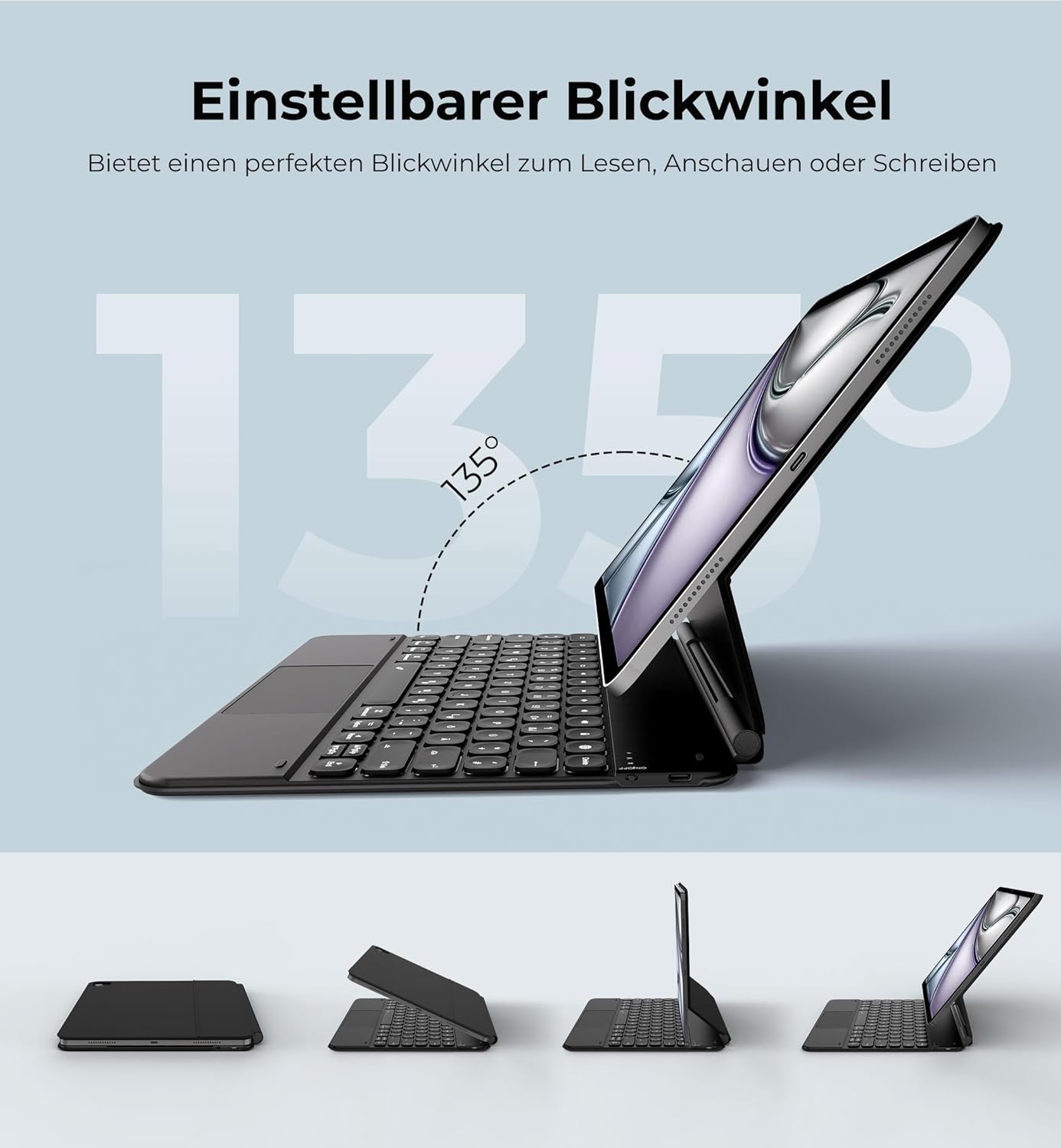
Image: The iPad Pro 12.9 inch is shown securely attached to the keyboard case via strong magnets, illustrating the magnetic attachment feature.
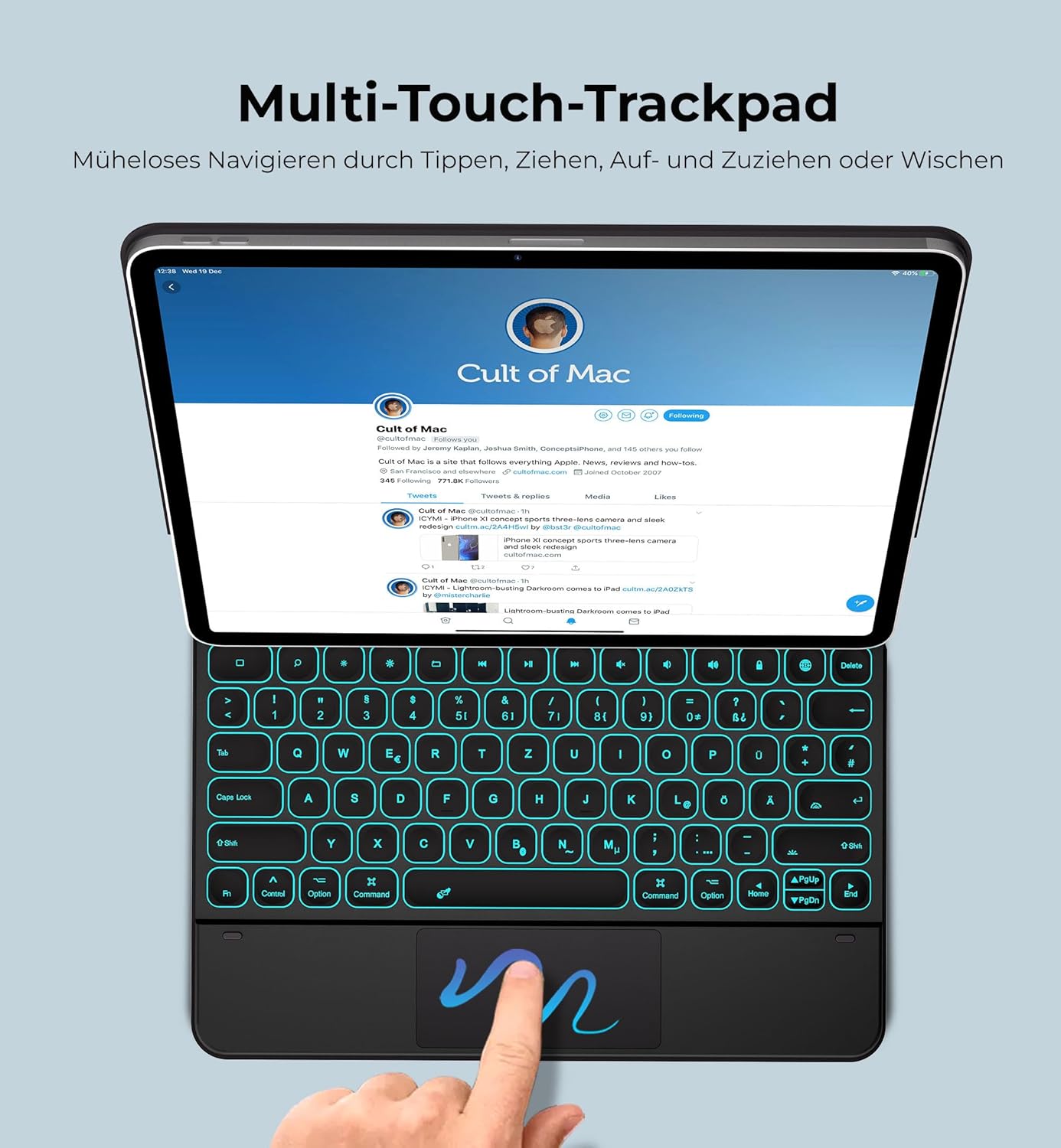
Image: The keyboard case with an iPad Pro 12.9 inch demonstrates its adjustable viewing angles, highlighting the 135-degree range for optimal screen positioning.

Image: The keyboard case displays its backlit keys in a low-light setting, with additional graphics indicating 7 backlight colors, 3 brightness levels, 1500 hours standby, and 320 hours working time.
5. Setup Instructions
5.1 Charging the Keyboard
- Locate the USB-C charging port on the keyboard case.
- Connect the provided USB-C charging cable to the keyboard and a suitable USB power adapter (not included).
- The charging indicator light will illuminate. A full charge takes approximately 4 hours.
- Once fully charged, the indicator light will change or turn off (refer to LED status in Operating Instructions).

Image: A USB-C charging cable is shown, illustrating the connection point for charging the keyboard case.
5.2 Attaching Your iPad
- Open the keyboard case.
- Align your iPad Pro 12.9" with the magnetic back panel of the case. Ensure the iPad's camera aligns with the camera cutout on the case.
- The strong magnets will securely hold your iPad in place.
- Adjust the viewing angle as desired.
Important Note: Ensure the iPad's camera and the case's camera hole are perfectly aligned. Misalignment may affect the magnetic hold.
5.3 Bluetooth Pairing
- Turn on the keyboard by sliding the power switch (usually located on the side or top edge of the keyboard). The indicator light will flash.
- On your iPad, go to Settings > Bluetooth.
- Ensure Bluetooth is turned On.
- Your iPad will search for available devices. Look for "Dracool Keyboard" or a similar name in the list of devices.
- Tap on the keyboard name to pair. If prompted, enter the pairing code displayed on your iPad using the keyboard, then press Enter.
- Once paired, the indicator light on the keyboard will stop flashing and remain solid or turn off, and your iPad will show the keyboard as "Connected".
6. Operating Instructions
6.1 Using the Keyboard
The keyboard features a QWERTZ layout (German) with scissor-switch keys for a comfortable typing experience. It includes a full row of iPadOS shortcut keys for quick access to media controls, volume, and more.
6.2 Adjusting Backlight
The keyboard offers 7 backlight colors and 3 brightness levels:
- Press the Light Bulb key (often located near the function keys) to cycle through backlight colors.
- Press the Light Bulb key combined with the Up/Down Arrow keys (or similar dedicated brightness keys) to adjust brightness levels (Brightest - Medium - Low - Off).
6.3 Using the Multi-Touch Trackpad
The integrated trackpad supports various multi-touch gestures for seamless navigation on your iPad. These gestures mimic mouse functions and enhance productivity.
- Tap: Single tap for click, double tap for double click.
- Scroll: Two-finger swipe up or down.
- Zoom: Pinch with two fingers.
- Swipe between apps: Three-finger swipe left or right.
- Go to Home Screen: Three-finger swipe up.
- Open App Switcher: Three-finger swipe up and hold.

Image: An iPad Pro 12.9 inch is shown in the Dracool keyboard case, with a hand demonstrating the use of the multi-touch trackpad for navigation.
6.4 Power Saving Mode
The keyboard will automatically enter sleep mode after a period of inactivity to conserve battery. Press any key to wake it up.
7. Maintenance
- Cleaning: Use a soft, damp cloth to clean the surface of the keyboard case. Avoid harsh chemicals or abrasive materials.
- Storage: When not in use for extended periods, store the keyboard case in a cool, dry place. Ensure it is fully charged before long-term storage.
- Water Resistance: The keyboard is splash-resistant. Do not immerse it in water or expose it to heavy rain.
- Avoid Extreme Temperatures: Do not expose the device to extreme heat or cold, as this can damage the battery and internal components.
8. Troubleshooting
| Problem | Possible Solution |
|---|---|
| Keyboard not pairing with iPad |
|
| Keys not responding |
|
| Trackpad not working correctly |
|
| Backlight not working |
|
| iPad not holding magnetically |
|
9. Specifications
| Feature | Detail |
|---|---|
| Brand | Dracool |
| Model Number | A2764 |
| Compatible Devices | iPad Pro 12.9" (2021, 2020, 2018) |
| Connectivity Technology | Bluetooth 5.2 |
| Keyboard Layout | QWERTZ (German) |
| Number of Keys | 78 |
| Switch Type | Scissor Switches |
| Backlight | 7 Colors, 3 Brightness Levels (RGB) |
| Special Features | Magnetic Attachment, Multi-Touch Trackpad, Adjustable Viewing Angle, Splash-Resistant |
| Battery Capacity | 800 mAh |
| Charging Port | USB-C |
| Charging Time | Approx. 4 hours |
| Working Time (without backlight) | Up to 320 hours |
| Working Time (brightest backlight) | Up to 8 hours |
| Operating Range | Up to 10 meters |
| Product Dimensions (L x W x H) | 28.7 x 23 x 1.3 cm |
| Item Weight | 970 Grams |
| Material | ABS, PU Leather |
10. Warranty and Support
For warranty information, technical support, or customer service inquiries, please refer to the product packaging or visit the official Dracool website. Keep your purchase receipt for warranty claims.

