
1. Introduction
This manual provides essential information for the safe and efficient use of your Bmobile B60 Pro smartphone. Please read this manual carefully before using your device to ensure optimal performance and longevity. The Bmobile B60 Pro is designed to offer reliable network access, camera capabilities, and seamless communication.
2. Setup
2.1 Package Contents
- Bmobile B60 Pro Smartphone
- USB Cable
- Lithium Ion Battery (pre-installed or included)
2.2 SIM Card Insertion (Movistar)
To activate your Movistar Prepaid service, follow these steps:
- Insert the Movistar SIM card into the designated slot on your smartphone.
- Power on the device. You will receive an SMS with your new phone number.
- Make an activation call to *611.
- Dial *ALTA (*2582) from your new line and follow the on-screen instructions.
- You will receive an SMS confirming your benefits, which can be enjoyed for 14 days at no cost.

Figure 2.2: Side view of the Bmobile B60 Pro, illustrating the location of the SIM card tray and physical buttons.
2.3 Initial Power On
Press and hold the power button located on the side of the device until the screen lights up. Follow the on-screen prompts to complete the initial setup, including language selection, Wi-Fi connection, and Google account setup.
2.4 SIM Unlock Process
If you need to unlock your smartphone for use with other carriers, follow these steps:
- Go to the official Movistar Store website.
- Navigate to 'Customer Service' > 'Unlock Code'.
- Enter your email address.
- Enter your device's 15-digit IMEI number. You can obtain your IMEI by dialing *#06# in the Phone application.
- Click the 'Consult' button.
- You will receive the unlock code or a support ticket for tracking the process.
3. Operating Your Smartphone
3.1 Basic Navigation (Android 10.0)
Your Bmobile B60 Pro runs on Android 10.0. Use touch gestures to navigate: tap to select, swipe to scroll, pinch to zoom. The home screen provides quick access to your favorite apps and widgets.
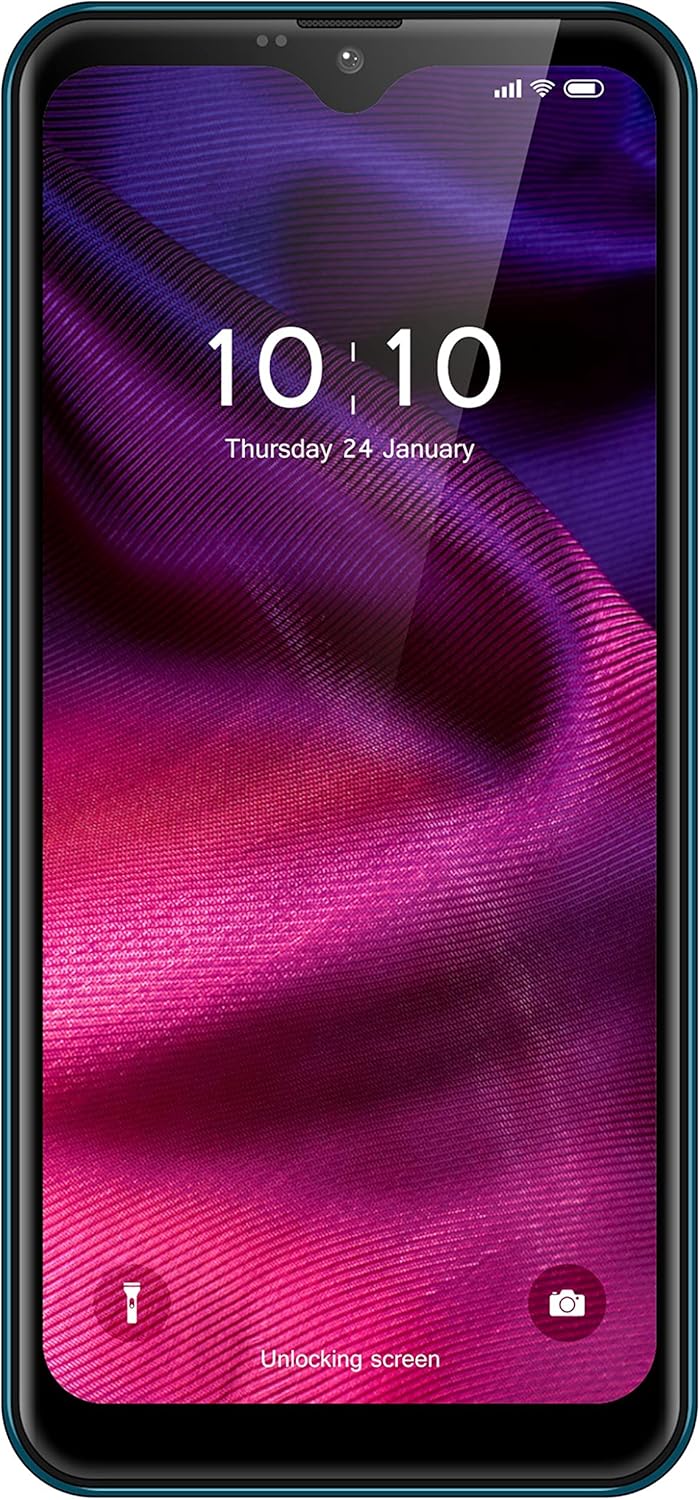
Figure 3.1: Front view of the Bmobile B60 Pro, showing the display and user interface.
3.2 Making Calls and Sending Messages
To make a call, open the 'Phone' app, enter the number, and tap the call icon. To send a message, open the 'Messages' app, start a new conversation, enter the recipient's number or select from contacts, type your message, and tap send.
3.3 Camera Usage
Your device features a camera for capturing photos and videos. Open the 'Camera' app from your home screen or app drawer. Tap the shutter button to take a photo or switch to video mode to record. Explore various settings for different modes and effects.

Figure 3.3: Back view of the Bmobile B60 Pro, highlighting the camera system.
3.4 Connectivity
The Bmobile B60 Pro supports Wi-Fi and 4G cellular connectivity. Access Wi-Fi settings from the 'Settings' menu to connect to available networks. Ensure your SIM card is properly inserted and activated for 4G services.
4. Maintenance
4.1 Battery Management
The device is equipped with a 3000 mAh Lithium Ion battery. To maximize battery life:
- Avoid extreme temperatures.
- Adjust screen brightness.
- Close unused applications running in the background.
- Use power-saving modes when available.
4.2 Software Updates
Periodically check for software updates in 'Settings' > 'System' > 'System update' to ensure your device has the latest features and security patches.
4.3 Cleaning Your Device
Use a soft, lint-free cloth to clean the screen and body of your smartphone. Avoid using harsh chemicals or abrasive materials.
5. Troubleshooting
5.1 Common Issues
- Device not powering on: Ensure the battery is charged. Connect the device to a charger for at least 15 minutes before attempting to power on.
- Slow performance: Close unused apps, clear cache, or restart the device. Consider performing a factory reset if the issue persists (see section 5.2).
- Network connectivity issues: Check SIM card insertion, ensure mobile data is enabled, or try restarting the device. For Wi-Fi, ensure the password is correct and the router is functioning.
5.2 Factory Reset
A factory reset will erase all data from your device and restore it to its original factory settings. Back up important data before proceeding. To perform a factory reset, go to 'Settings' > 'System' > 'Reset options' > 'Erase all data (factory reset)'.
6. Specifications
| Feature | Specification |
|---|---|
| Model Name | B60 Pro |
| Product Model Number | TMGMXBMB60PRAZ00 |
| Operating System | Android 10.0 |
| Processor | QuadCore |
| Internal Storage Capacity | 32 GB |
| Battery Capacity | 3000 mAh |
| Wireless Carrier | Movistar |
| Connectivity Technologies | 4G, Wi-Fi |
| Cellular Technology | 4G |
| Wireless Network Technology | LTE |
| SIM Card Slot Count | Dual SIM |
| Special Features | Email, Camera, WiFi |
| Color | Blue |
| Product Weight | 330 g |
| Box Contents | USB Cable |
7. Warranty and Support
For warranty information and customer support, please refer to the documentation provided with your purchase or visit the official Bmobile website. Keep your proof of purchase for warranty claims.


