
Product Overview
The johgee WiFi Irrigation Controller APP and Automatic Watering Timer is designed to provide smart and efficient watering for your garden and lawn. This system includes a watering timer and a smart Wi-Fi gateway, allowing you to manage your irrigation schedules conveniently from anywhere via a mobile application.
Key features include:
- APP Control: Program and manage watering schedules (frequency and duration) easily through the dedicated app (Android or iOS).
- IP55 Waterproof: Constructed from durable PC + anti-UV silicone material, ensuring reliable outdoor performance.
- Three Watering Modes:
- Manual Mode: Initiate watering instantly without affecting programmed schedules.
- Automatic Mode: Set customized watering plans.
- Rain Delay Mode: Automatically postpone watering for 24, 48, or 72 hours based on local weather detection.
- Low Battery Reminder: The app provides an alarm when battery level drops below 5% and automatically shuts off the timer to prevent overwatering.

Image: The johgee WiFi Irrigation Controller, its Wi-Fi gateway, and a smartphone displaying the control application.
Setup Guide
1. Package Contents
Before starting, please verify that all components are present in the package:
- 1x johgee WiFi Irrigation Timer
- 1x johgee Wi-Fi Gateway (Hub)
- Various adapters and connectors (e.g., 3/4" and 1/2" faucet adapters, quick connector)
- Teflon tape
- User Manual

Image: The complete package contents, showing the smart water timer, Wi-Fi hub, various hose adapters, Teflon tape, and the user manual.
2. Battery Installation
The irrigation timer requires 2 AA batteries (not included). Locate the battery compartment on the timer, open it, and insert the batteries, ensuring correct polarity. Close the compartment securely to maintain the IP55 waterproof rating.
3. Physical Installation
Attach the johgee WiFi Irrigation Timer to your outdoor faucet. Use the appropriate adapter (3/4" or 1/2") for your faucet type. Ensure a tight connection to prevent leaks. Teflon tape can be used for a better seal. Connect your garden hose to the bottom outlet of the timer.
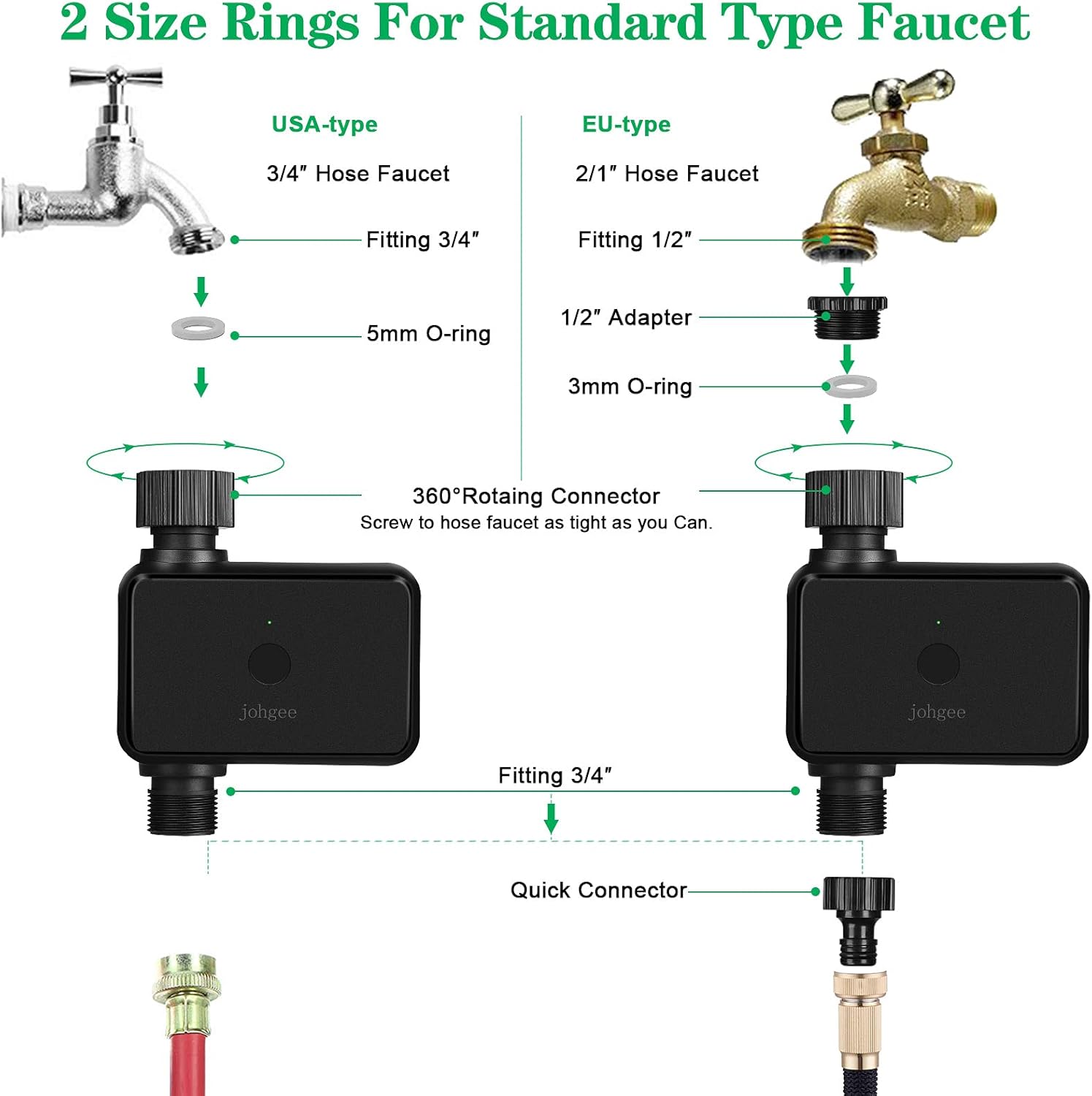
Image: Detailed diagram illustrating the connection of the water timer to both USA-type (3/4" hose faucet) and EU-type (2/1" hose faucet) standards, including the use of O-rings and adapters.
Plug the Wi-Fi Gateway (hub) into a power outlet indoors, ideally within 15 meters (49.2 ft) of the irrigation timer for optimal signal strength. The gateway acts as the bridge between your timer and your home Wi-Fi network.

Image: Illustration demonstrating the recommended maximum distance of 15 meters (49.2 ft) between the Wi-Fi hub, plugged into an indoor outlet, and the outdoor watering timer connected to a faucet.
4. App Installation and Pairing
Download the "Smart Life" or "Tuya Smart" app from your smartphone's app store (available for Android and iOS). Register an account or log in if you already have one.
- Add Gateway: In the app, add the Wi-Fi Gateway first. Follow the in-app instructions to connect the gateway to your home Wi-Fi network. The gateway's indicator light will confirm successful connection.
- Add Irrigation Timer: Once the gateway is connected, add the irrigation timer through the app. The app will guide you through the pairing process, which typically involves activating the timer's pairing mode (refer to the specific instructions in your app if needed).

Image: A smartphone screen showing the "Smart Life" application, which allows remote control of the irrigation timer, depicted here connected to an outdoor faucet.
Operating Instructions
1. App Control and Scheduling
The app provides comprehensive control over your watering schedules:
- Manual Mode: From the app's main screen for the timer, you can manually turn the water on or off. This action will not interfere with any pre-set automatic schedules.
- Automatic Mode: Create custom watering programs by setting specific start times, durations, and frequencies (e.g., daily, specific days of the week). You can set multiple schedules to meet different watering needs.
- Rain Delay Mode: If rain is expected or occurring, you can activate the rain delay feature. The app can automatically detect local weather conditions and allow you to delay watering for 24, 48, or 72 hours, conserving water and preventing overwatering.

Image: The mobile application interface for setting custom watering schedules, allowing users to define watering duration and frequency, and receive real-time notifications.

Image: Visual representation of automatic irrigation schedules, demonstrating how the system can water regularly at set times like 10:00, 6:00, and 16:00, regardless of user activity.

Image: The app's interface for setting rain delay, allowing postponement of watering for 24, 48, or 72 hours. The image also highlights the IP55 waterproof rating of the device.
2. Low Battery Reminder
The system monitors the battery level of the irrigation timer. When the battery level drops below 5%, the app will send an alarm notification. To prevent overwatering due to battery depletion, the timer will automatically shut off.
3. Manual Watering Button
In addition to app control, the irrigation timer features a physical button for manual watering. Pressing this button will initiate watering without disturbing your programmed schedules. The duration of this manual watering might be limited to the last set duration in the app.

Image: The manual watering function in action, showing the timer connected to a faucet while water is being manually dispensed through a hose nozzle.
Maintenance
- Battery Replacement: Replace the 2 AA batteries in the irrigation timer approximately every 6 months, or when the low battery alarm is triggered by the app. Ensure the battery compartment is sealed tightly after replacement.
- Cleaning: Periodically clean the exterior of the timer and gateway with a soft, damp cloth. Do not use abrasive cleaners or solvents. Ensure no debris obstructs the water inlet or outlet.
- Winterization: Before the first frost, disconnect the irrigation timer from the faucet and drain any remaining water. Store the timer and gateway indoors in a dry, protected area to prevent damage from freezing temperatures.
Troubleshooting
| Problem | Possible Cause | Solution |
|---|---|---|
| Timer not responding to app commands. |
|
|
| Water leaks from connections. |
|
|
| Timer not watering according to schedule. |
|
|
Specifications
| Feature | Detail |
|---|---|
| Model Number | #002 |
| Brand | johgee |
| Dimensions (L x W x H) | 5 x 17 x 12 cm |
| Weight | 480 Grams |
| Material | Polycarbonate |
| Color | Wifi (Black) |
| Waterproof Rating | IP55 |
| Power Source (Timer) | 2 AA Batteries (not included) |
| Connectivity | Wi-Fi (via Gateway) |
| App Compatibility | Android, iOS (Smart Life / Tuya Smart App) |
Warranty and Support
johgee is committed to providing excellent after-sales service. If you have any questions regarding your order or product, please do not hesitate to contact us immediately. Our support team is ready to assist you with any issues or inquiries.
For support, please refer to the contact information provided in your purchase documentation or on the official johgee website.