
Introduction
This manual provides essential information for setting up, operating, maintaining, and troubleshooting your HP EliteDesk 800 G3 Gaming Tower. This system is a renewed tower form factor computer, designed for performance and upgradability, featuring an Intel Quad Core i5-6500 processor and NVIDIA GeForce GT 1030 graphics.
Package Contents
Before proceeding with the setup, please ensure all items listed below are present in your package:
- 1 x HP EliteDesk 800 G3 Tower Desktop
- 1 x Wireless Keyboard
- 1 x Wireless Mouse
- 1 x Power Cord
Note: Additional accessories such as a monitor, speakers, or a DP to HDMI adapter may need to be acquired separately.
Setup Instructions
1. Unpacking and Placement
Carefully remove the HP EliteDesk 800 G3 Tower from its packaging. Place the tower on a stable, flat surface with adequate ventilation. Ensure that the air vents are not obstructed to prevent overheating.

Image: Angled front view of the HP EliteDesk 800 G3 Tower desktop computer, showcasing its sleek black and silver design.
2. Connecting Peripherals
Connect your monitor, keyboard, mouse, and other peripherals to the appropriate ports on the desktop tower.
- Monitor: Connect your monitor to one of the available DisplayPort or HDMI ports on the graphics card. An adapter may be required for HDMI connectivity.
- Wireless Keyboard & Mouse: Insert the wireless USB receiver (typically found with the keyboard/mouse combo) into an available USB port on the front or rear of the tower. Ensure the keyboard and mouse have batteries installed.
- Network: For wired internet, connect an Ethernet cable to the Ethernet port on the rear of the tower. For wireless internet, the system has built-in Wi-Fi.
- Audio: Connect speakers or headphones to the audio output port on the front or rear.
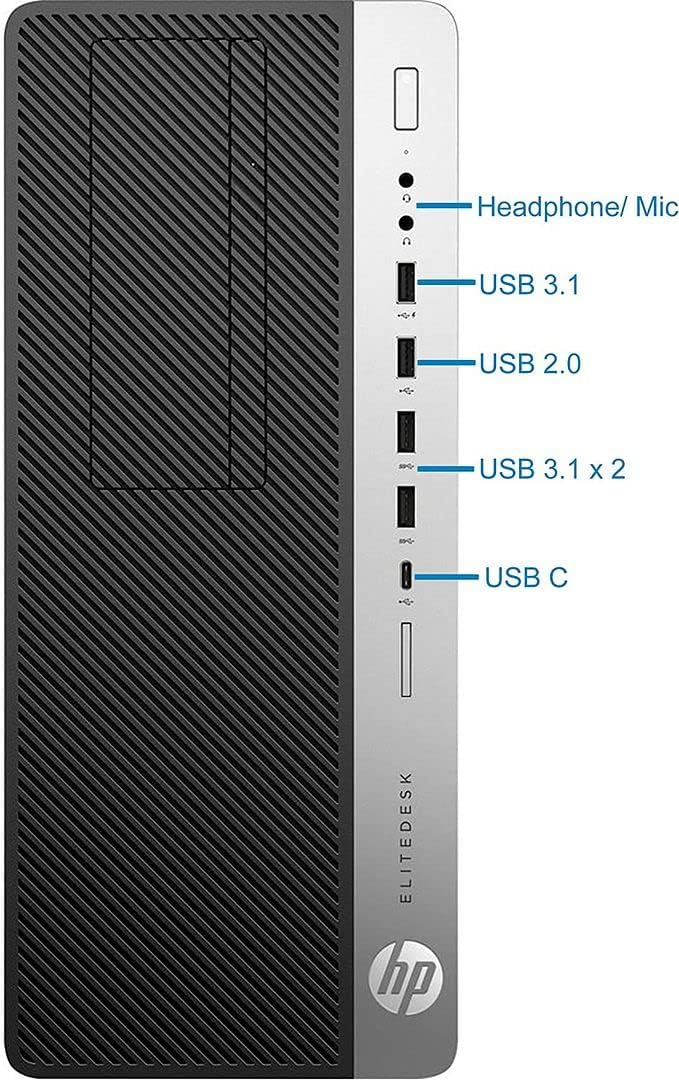
Image: Detailed front view of the HP EliteDesk 800 G3 Tower, highlighting the various front-facing ports including headphone/microphone jack, USB 3.1, USB 2.0, two additional USB 3.1 ports, and a USB-C port.
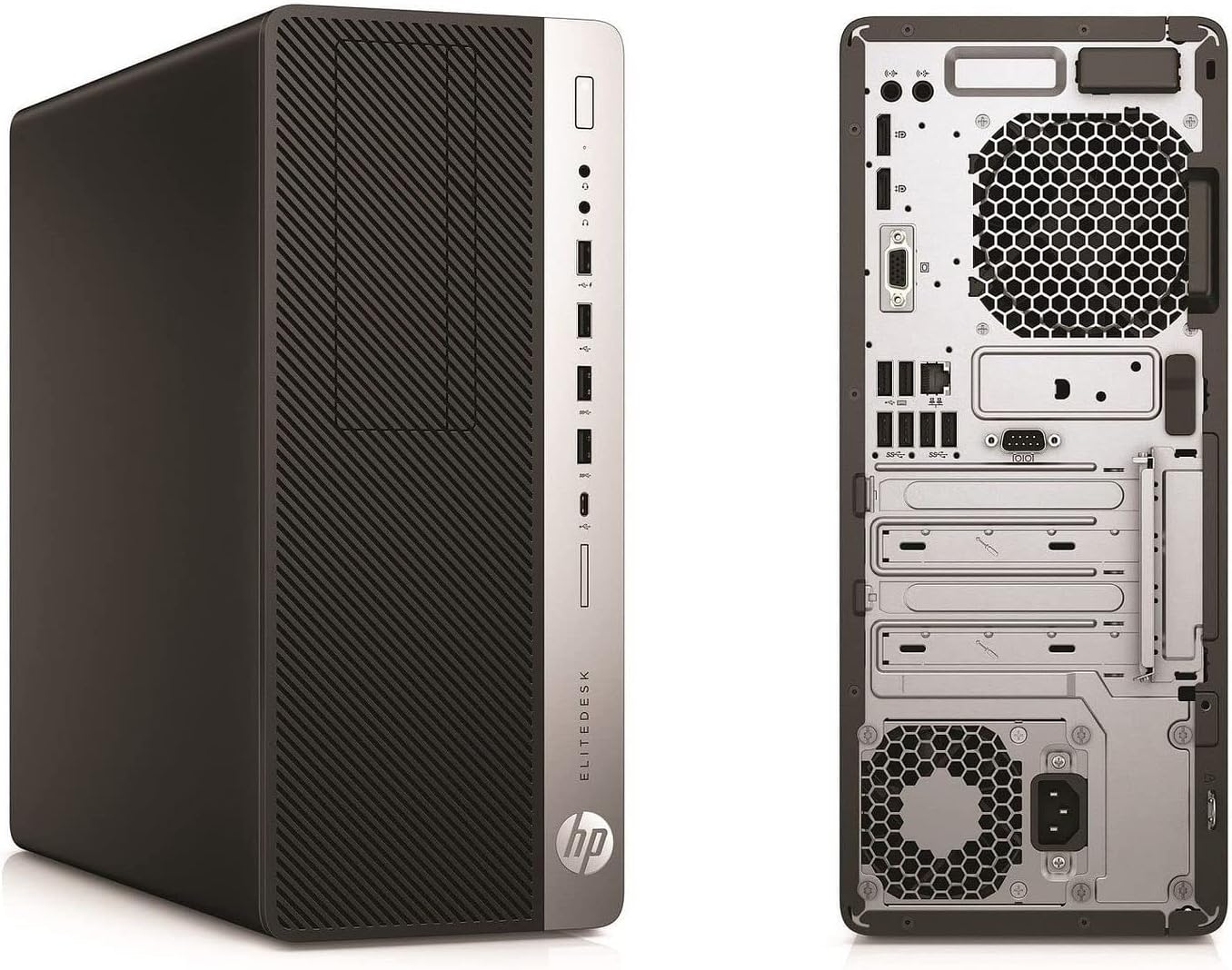
Image: Dual view of the HP EliteDesk 800 G3 Tower, displaying both the front panel with its ports and the rear panel with its extensive connectivity options, including DisplayPorts, USB ports, Ethernet, and power input.
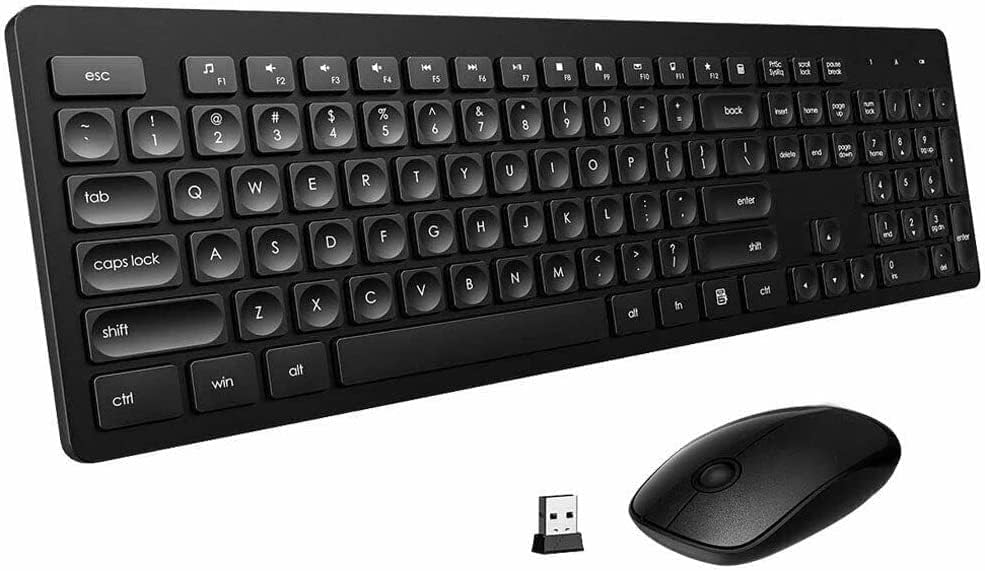
Image: The included black wireless keyboard and mouse, along with their compact USB receiver, ready for connection to the desktop.
3. Power Connection
Connect the power cord to the power supply unit (PSU) on the rear of the tower, then plug the other end into a grounded electrical outlet.
4. Initial Power On
Press the power button located on the front of the tower. The system will boot into Windows 11. Follow the on-screen instructions for any initial setup or personalization steps.
Operating Instructions
Power On/Off
- To Power On: Press the power button on the front of the tower.
- To Shut Down: Click the Start button in Windows 11, then select Power > Shut down.
- To Restart: Click the Start button, then select Power > Restart.
Network Connectivity
- Wi-Fi: The system has built-in Wi-Fi. To connect, click the network icon in the taskbar, select your desired Wi-Fi network, and enter the password.
- Ethernet: If an Ethernet cable is connected, the system should automatically establish a wired network connection.
Using the Operating System
Your HP EliteDesk 800 G3 comes with Windows 11 Pro pre-installed. Familiarize yourself with the Windows 11 interface for managing files, installing applications, and customizing settings. For detailed guidance on Windows 11, refer to Microsoft's official documentation.
Maintenance
Regular maintenance helps ensure the longevity and optimal performance of your computer.
- Keep Vents Clear: Ensure that the air intake and exhaust vents on the tower are free from dust and obstructions. Periodically clean them with compressed air.
- Software Updates: Regularly check for and install Windows updates and driver updates for your graphics card and other components to maintain security and performance.
- Dust Removal: Every few months, carefully open the computer case (if comfortable doing so and aware of static discharge precautions) to gently remove accumulated dust from internal components using compressed air.
- Data Backup: Regularly back up important data to an external drive or cloud storage to prevent data loss.
Troubleshooting
This section addresses common issues you might encounter.
No Power
- Check if the power cord is securely connected to both the computer and the electrical outlet.
- Ensure the power outlet is functional by testing it with another device.
- Verify that the power supply switch (if present on the PSU) is in the 'On' position.
No Display on Monitor
- Ensure the monitor is powered on and its video cable is securely connected to the graphics card port on the computer.
- Try connecting the monitor to a different video port on the computer, if available.
- Confirm the monitor's input source is correctly selected (e.g., DisplayPort, HDMI).
Keyboard or Mouse Not Responding
- Check if the wireless USB receiver is properly inserted into a USB port.
- Ensure the keyboard and mouse have fresh batteries.
- Try the USB receiver in a different USB port.
System Slow Performance
- Close unnecessary applications running in the background.
- Check for and install any pending Windows or driver updates.
- Ensure adequate free space on your primary drive (SSD).
- Run a virus and malware scan.
Specifications
Below are the key technical specifications for the HP EliteDesk 800 G3 Tower:
| Component | Specification |
|---|---|
| Brand | HP |
| Model Name | EliteDesk 800 G3 |
| CPU Model | Intel Core i5-6500 (Quad Core, 3.20GHz up to 3.60GHz) |
| RAM Memory | 16GB DDR4 SDRAM |
| Storage | 128GB NVMe SSD + 2TB HDD |
| Video Card | NVIDIA GeForce GT 1030 2GB (Dedicated) |
| Operating System | Windows 11 Pro |
| USB 3.0 Ports | 7 |
| USB 2.0 Ports | 4 |
| Display Ports | 2 |
| Connectivity | Ethernet, HDMI, USB, Wi-Fi, Bluetooth |
| Dimensions (Item) | 6.06 x 14.37 x 14.57 inches |
| Built-In Media | Keyboard, Mouse |
Warranty and Support
As a renewed product, this HP EliteDesk 800 G3 Gaming Tower is typically covered by a specific return and replacement policy. Please refer to your purchase documentation for exact terms.
- Return Policy: This product includes a 90-day refund/replacement policy from the date of purchase.
- Technical Support: For any technical issues or support inquiries, please contact the seller, Tech Magnet, directly through your purchase platform.


