
1. Introduction
This manual provides detailed instructions for the installation, operation, and maintenance of the MokerLink 4-Port Gigabit PoE Switch, Model POE-G042GS. This device is designed to provide Power over Ethernet (PoE) and data connectivity for various network devices, offering a reliable and efficient solution for network expansion.
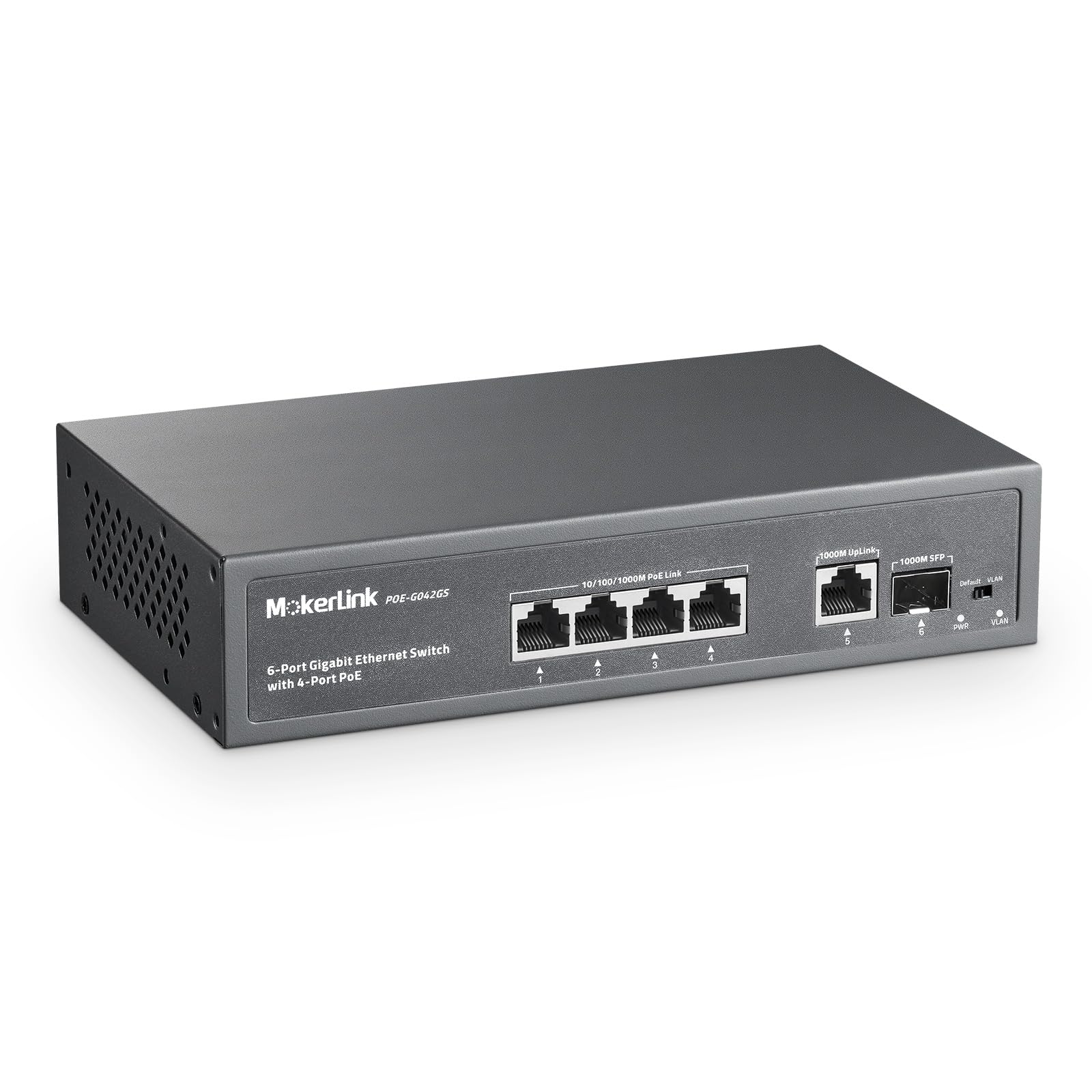
Figure 1: MokerLink 4-Port Gigabit PoE Switch, front view.
2. Product Features
The MokerLink 4-Port Gigabit PoE Switch offers a range of features designed for robust network performance:
- 6 Gigabit Ports: Includes 4 Gigabit PoE ports, 1 Gigabit Uplink port, and 1 Gigabit SFP port, all supporting 100/1000Mbps speeds for increased bandwidth. The SFP port enables optical fiber connections for distances exceeding 100 meters.
- High PoE Power: Provides a maximum of 75W total power output, with each PoE port supporting up to 30W (IEEE 802.3af/at compliant). Features a built-in power supply for simplified installation. Note: This switch does not support passive 24V PoE.
- Plug & Play with AI Detection: Requires no configuration; simply connect the power cord and Ethernet cables. AI intelligent detection automatically monitors port data and restarts devices if a disconnection is detected, ensuring stable operation.
- QoS and VLAN Isolation: Ports 1-2 support Quality of Service (QoS) to prioritize critical network traffic and prevent data loss during congestion. Ports 1-4 support VLAN isolation, segmenting traffic from each other while allowing communication with uplink ports 5-6 to reduce network congestion.
- Durable Design: Features a fanless metal housing for quiet operation and enhanced durability. Includes 4KV lightning protection.
- Versatile Applications: Suitable for IP cameras, Wireless Access Points, computer networks, and various other PoE-powered devices.

Figure 2: Key features of the MokerLink PoE Switch.

Figure 3: PoE+ IEEE802.3af/at Power Support.
3. Package Contents
Verify that all items are present in the package:
- MokerLink 4-Port Gigabit PoE Switch
- Instruction Manual (this document)
- Power Cable
- Mount Kit
4. Setup
4.1 Physical Installation
The switch can be placed on a desktop or mounted to a wall using the included mount kit. Ensure the installation location is well-ventilated and within the specified operating temperature range.
- Desktop Placement: Place the switch on a stable, flat surface.
- Wall Mounting: Use the provided mount kit to secure the switch to a wall. Refer to the mounting instructions included with the kit for detailed steps.
4.2 Connecting Devices
The MokerLink PoE Switch is designed for plug-and-play operation, requiring no complex configuration for basic use.
- Power Connection: Connect the provided power cable to the AC IN port on the switch and then to a standard power outlet.
- PoE Devices: Connect your PoE-powered devices (e.g., IP cameras, Wireless Access Points, IP phones) to any of the 4 PoE ports (ports 1-4) using standard Ethernet cables. The switch will automatically detect and provide power to compliant devices.
- Uplink Connection: Connect your router, NVR, or main network to the Gigabit Uplink port (RJ45) or the Gigabit SFP port using an appropriate cable or SFP module.
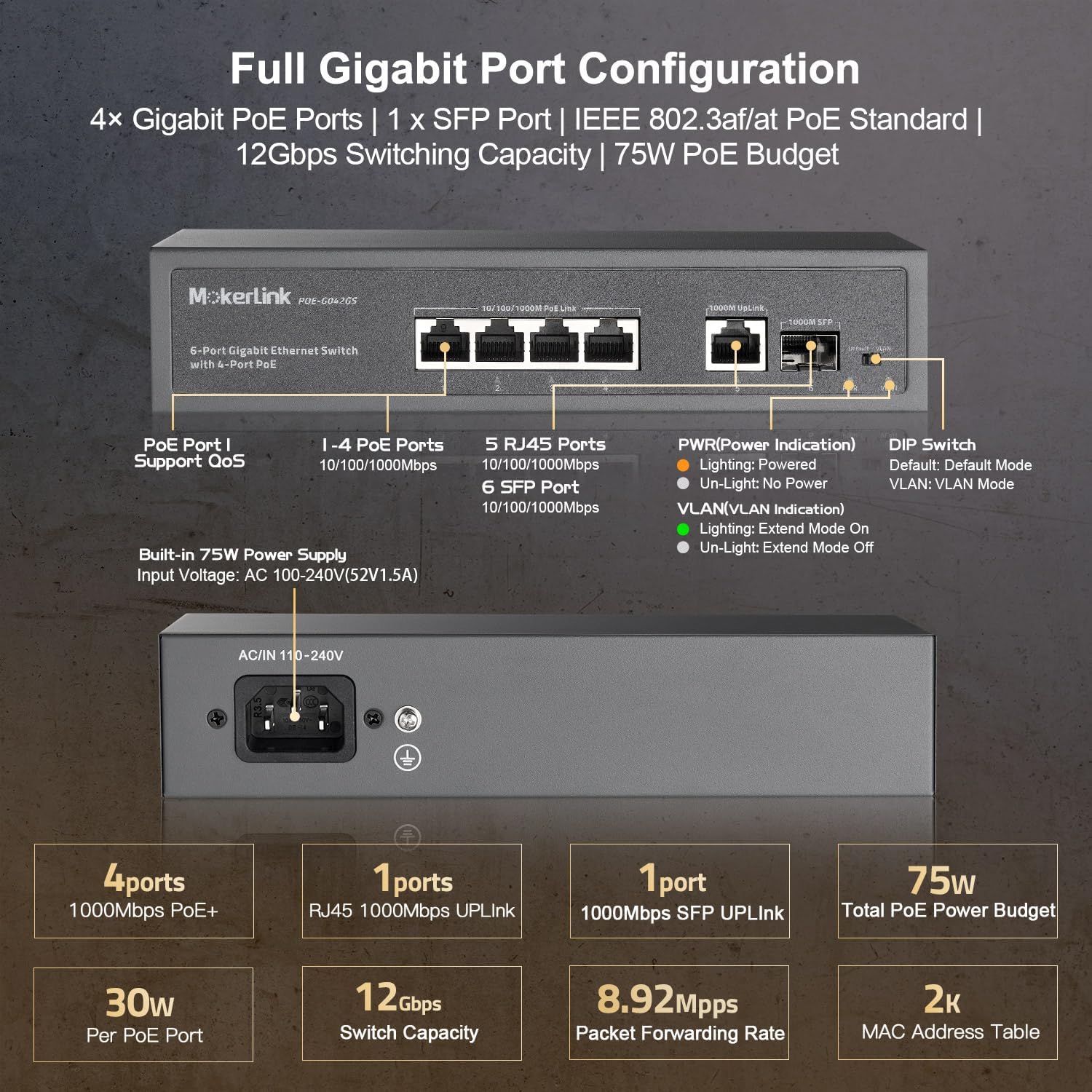
Figure 4: Full Gigabit Port Configuration and Connections.
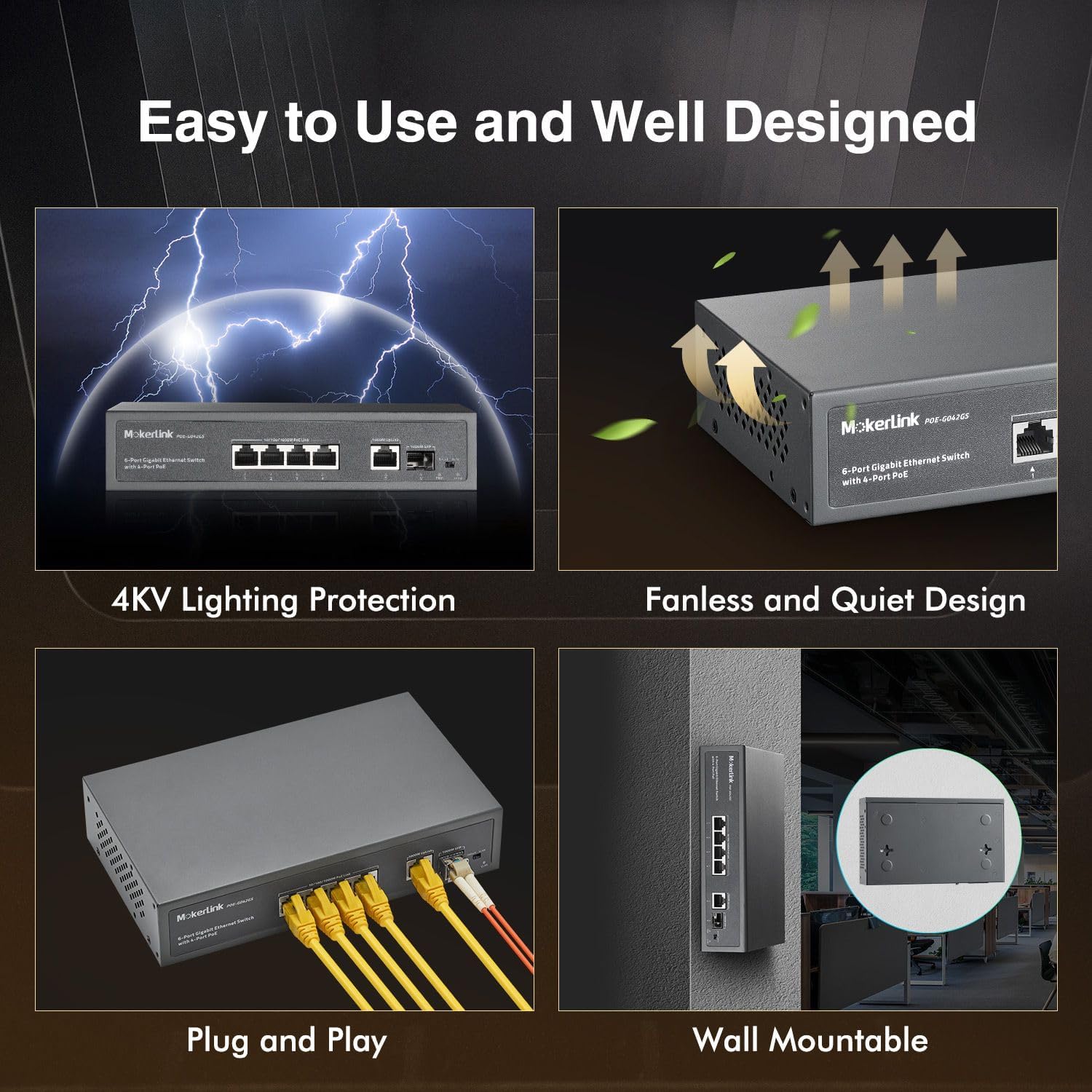
Figure 5: Plug and Play setup and Wall Mountable design.
5. Operating Instructions
5.1 LED Indicators
The switch features LED indicators to provide status information:
- PWR (Power Indication):
- Lighting: Switch is powered on.
- Un-Light: No power.
- VLAN (VLAN Indication):
- Lighting: Extend Mode On.
- Un-Light: Extend Mode Off.
- Port Status LEDs: (Typically located above each port)
- Solid Green: Link established.
- Flashing Green: Data activity.
- Solid Amber (PoE ports): PoE power being supplied.
5.2 PoE Watchdog (AI Detection)
The integrated PoE Watchdog function continuously monitors the status of connected PoE devices. If a device becomes unresponsive or disconnects, the switch will automatically restart the corresponding port to restore functionality, ensuring continuous operation without manual intervention.
5.3 Quality of Service (QoS)
Ports 1 and 2 support QoS functionality. Connecting important network devices to these ports ensures that their data traffic receives priority. This helps prevent data loss and maintains performance for critical applications, even during periods of high network congestion.
5.4 Port-based VLAN Isolation
The switch features a DIP switch for VLAN mode. When VLAN mode is enabled, PoE ports 1-4 are isolated from each other, meaning devices connected to these ports cannot directly communicate with each other. However, all isolated ports can still communicate with the uplink ports (5-6). This feature helps to prevent multicast or broadcast storms and enhances network security by segmenting traffic.
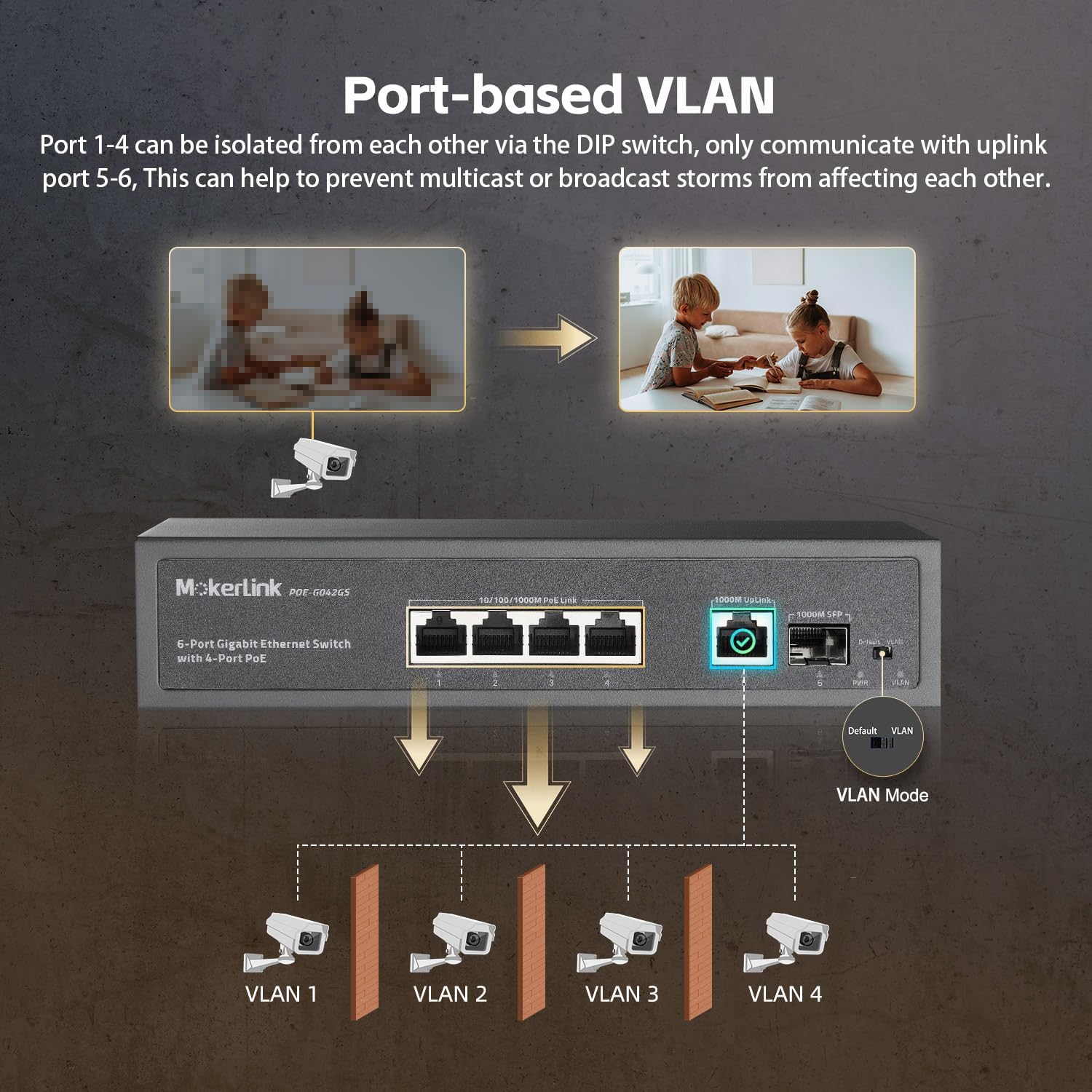
Figure 6: Port-based VLAN Isolation.

Figure 7: PoE Watchdog and Hardware QoS functions.
6. Maintenance
The MokerLink PoE Switch is designed for low maintenance due to its fanless and durable metal housing.
- Cleaning: Keep the device clean and free from dust. Use a soft, dry cloth for cleaning. Do not use liquid or aerosol cleaners.
- Environment: Ensure the switch operates within its specified temperature range of -10°C to +55°C. Avoid exposing the device to extreme temperatures or humidity.
- Ventilation: Although fanless, ensure adequate airflow around the device to prevent heat buildup.
7. Troubleshooting
If you encounter issues with your MokerLink PoE Switch, consider the following troubleshooting steps:
- No Power: Ensure the power cable is securely connected to both the switch and a working power outlet. Check the PWR LED indicator.
- No Link/Connectivity: Verify that Ethernet cables are properly connected to both the switch and the network device. Check the port status LEDs. Try a different cable or port.
- PoE Device Not Powering On: Confirm that your device is IEEE 802.3af/at compliant. Ensure the cable length is within specifications. The PoE Watchdog feature should automatically attempt to restart the port if a device becomes unresponsive.
- Network Congestion/Performance Issues: If QoS is enabled, ensure critical devices are connected to ports 1-2. If VLAN isolation is active, ensure devices are communicating with the uplink ports as intended.
- Device Unresponsive After Power Failure: In some cases, after a power outage, the PoE function may not immediately resume. Unplug the switch's power cable for one minute, then plug it back in to perform a power cycle.
8. Specifications
| Specification | Value |
|---|---|
| Brand | MokerLink |
| Model Number | POE-G042GS |
| Number of Ports | 4 PoE Ports, 1 Gigabit Uplink, 1 SFP Port (Total 6 Gigabit Ports) |
| Data Transfer Rate | 1 Gigabits Per Second (10/100/1000Mbps) |
| PoE Standard | IEEE 802.3af/at |
| Total PoE Power Budget | 75W |
| Max Power Per PoE Port | 30W |
| Switch Type | Unmanaged |
| Interface | RJ45, SFP |
| Operating Temperature | -10°C to 55°C (14°F to 131°F) |
| Housing | Fanless Metal |
| Compatible Devices | Camera, Desktop, Laptop, Printer |
9. Warranty and Support
The MokerLink 4-Port Gigabit PoE Switch (Model: POE-G042GS) comes with a 1-Year Warranty from the date of purchase.
For technical support, troubleshooting assistance, or warranty claims, please contact MokerLink customer service. Our support team is available to provide assistance and ensure your product operates correctly.
Please refer to the contact information provided on the official MokerLink website or your purchase documentation for the most current support channels.


