
1. Introduction
The eLinkSmart Biometric Smart Padlock offers advanced security with multiple unlocking methods, including fingerprint recognition, mobile application control, and remote authorization. Designed for durability and convenience, this padlock is suitable for various applications such as gym lockers, field boxes, footlockers, toolboxes, and gun cases. Its waterproof design ensures reliable performance in diverse environments.
This manual provides detailed instructions to help you set up, operate, and maintain your smart padlock effectively.

2. What's in the Box
- eLinkSmart Biometric Smart Padlock
- Type-C Charging Cable
- User Manual
3. Product Overview
The eLinkSmart Smart Padlock features a robust design with a zinc alloy lock body and a stainless steel lock shackle for superior cut resistance. It integrates a fingerprint sensor, LED indicators for status and battery, and a Type-C charging port.


4. Setup
4.1 Initial Charging
Before first use, fully charge the padlock using the provided Type-C charging cable. Connect the cable to the charging port located at the bottom of the padlock and plug the other end into a USB power source. The LED indicators will show charging status.
4.2 App Installation
Download the eSmartLock App from your device's app store (available for iOS and Android). Follow the on-screen instructions to create an account and log in.
4.3 Pairing the Lock with the App
- Ensure Bluetooth is enabled on your smartphone.
- Open the eSmartLock App and select the option to add a new device.
- Wake up the padlock by touching the fingerprint sensor. The blue light should be on.
- The app will detect the padlock. Select it from the list to pair.
- Follow any additional prompts in the app to complete the pairing process.
4.4 Adding Administrator Fingerprints
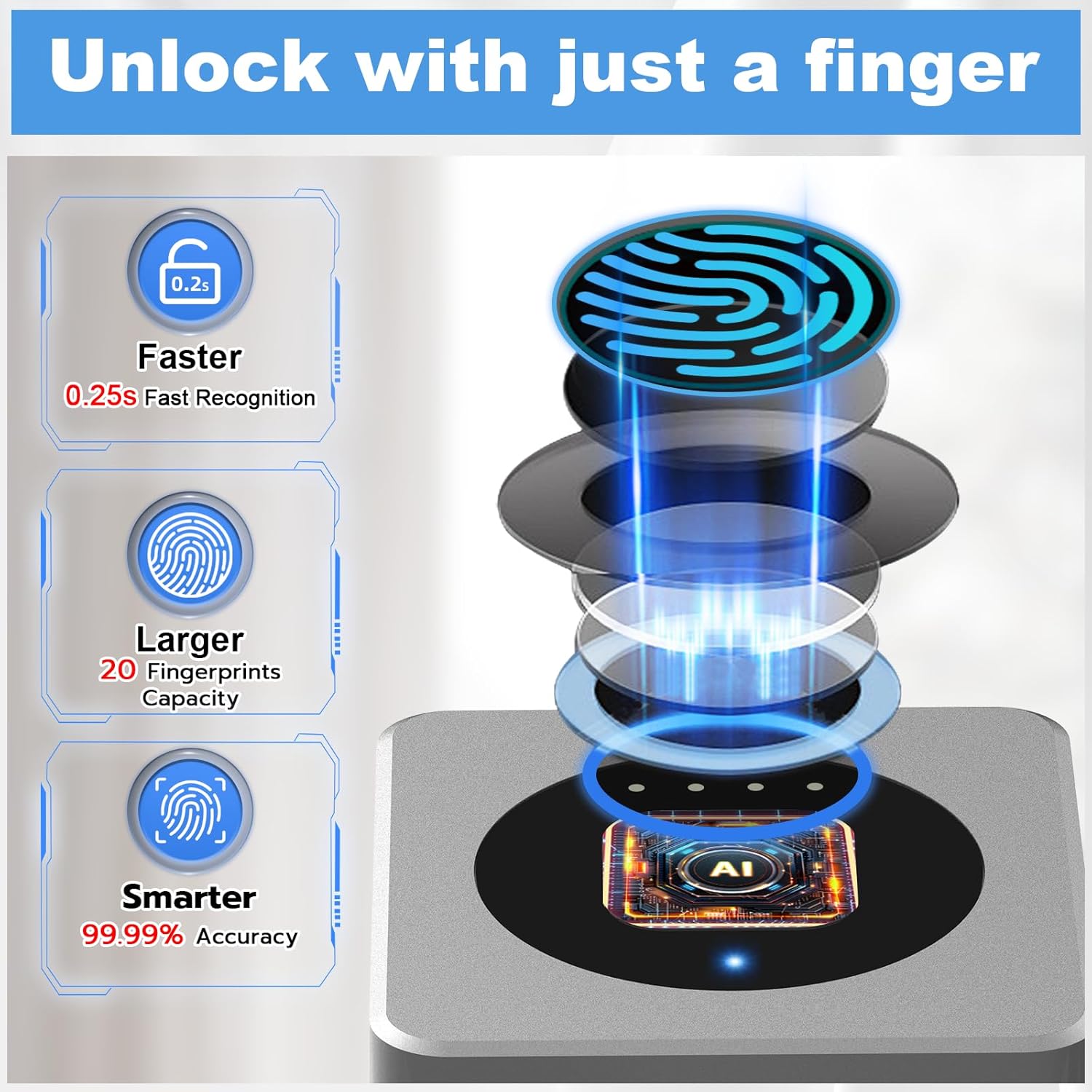
After pairing, you can add administrator fingerprints through the app. The padlock supports 2 administrator fingerprints and 18 normal user fingerprints.
- In the eSmartLock App, navigate to 'Fingerprint Management'.
- Select 'Add Fingerprint' and follow the on-screen instructions.
- Place your finger on the padlock's fingerprint sensor multiple times as prompted by the app to register it. Ensure your finger is clean and dry for accurate registration.
5. Operating Instructions
5.1 Fingerprint Unlock
Once your fingerprint is registered, simply place your registered finger on the fingerprint sensor. The padlock will unlock within 0.5 seconds if the fingerprint is recognized.
5.2 App Unlock
To unlock the padlock using the mobile app:
- Ensure your smartphone's Bluetooth is on and within range of the padlock.
- Open the eSmartLock App.
- Wake up the padlock by touching the fingerprint sensor.
- Tap the 'Unlock' button within the app.
The padlock also supports unlocking via Apple Watch when connected to the app.


5.3 User Management and Remote Authorization
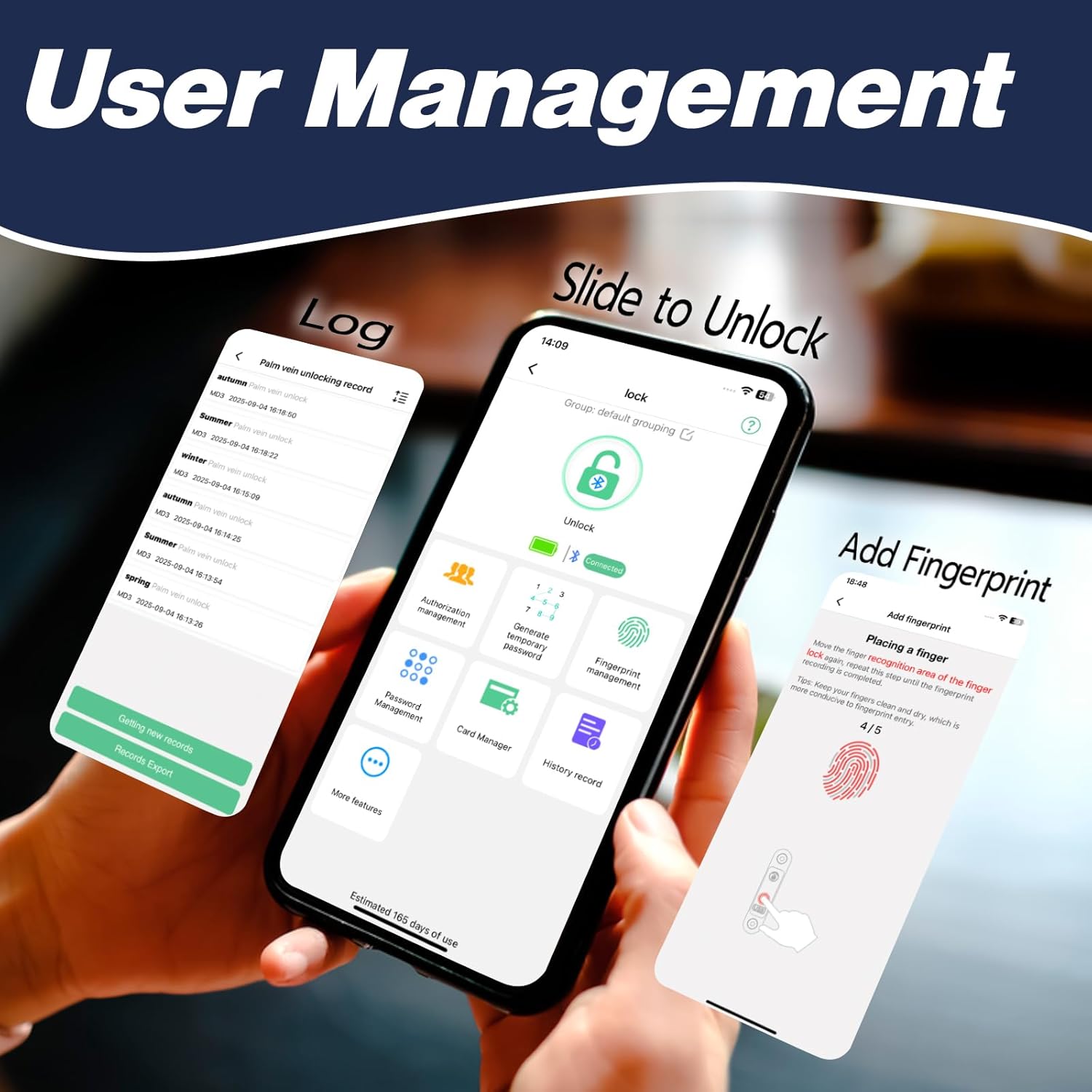
The eSmartLock App allows the administrator to manage multiple users and authorize remote unlocking:
- Add/Remove Users: The administrator can add up to 1000+ general users and manage their access.
- Set Unlock Periods: Authorize specific unlock periods and schedules for individual users.
- Remote Unlock: Grant temporary or permanent remote access to family, friends, or colleagues.
5.4 Unlock Records
The app maintains a detailed record of all unlock events, including the unlock time, method (fingerprint or app), and the user who performed the unlock. This feature allows you to monitor access to your secured items.
6. Maintenance
6.1 Battery Charging
The padlock is equipped with a rechargeable lithium battery that provides long-lasting power. A full charge can support up to 6 months of standby time or over 2000 unlocks. When the battery is low, the padlock will provide a low battery reminder.

6.2 Low Battery Reminder
The padlock features battery indicators to alert you when the power is low. When the battery is completely depleted, the smart lock will remain in a locked state. To unlock, simply plug in a USB power source or a portable power bank to provide temporary power for unlocking, then fully recharge the device.
6.3 Care and Cleaning
To ensure optimal performance and longevity, keep the padlock's fingerprint sensor clean and dry. Avoid exposing the device to extreme temperatures or harsh chemicals. The IP67 waterproof rating protects against water immersion up to 1 meter for 30 minutes, but prolonged exposure to water should be avoided.
7. Troubleshooting
- Padlock not unlocking with fingerprint: Ensure your finger is clean and dry. Try re-registering your fingerprint through the app. If multiple fingerprints are registered, try another one.
- App not connecting to padlock: Ensure Bluetooth is enabled on your phone and the padlock is awake (blue light on). Try restarting the app or your phone.
- Padlock not responding: The battery might be depleted. Connect the padlock to a Type-C charger or power bank to provide power.
- Forgotten administrator fingerprint: If you are the administrator and cannot unlock with your fingerprint, use the eSmartLock app to unlock and manage fingerprints.
- Resetting the padlock: If you need to return the item or perform a full reset, ensure all administrator fingerprints are deleted from the device via the app. This is crucial as there is no other way to open the lock once administrator access is removed.
8. Specifications
| Feature | Description |
|---|---|
| Brand | eLinkSmart |
| Model | B09WZSCRM9 |
| Lock Type | Biometric |
| Material | Zinc Alloy (body), Stainless Steel (shackle) |
| Dimensions (L x W x H) | 3 x 1.7 x 0.75 inches |
| Shackle Diameter | 0.6 CM |
| Waterproof Rating | IP67 |
| Battery Life | Up to 6 months standby / 2000+ unlocks per charge |
| Charging Port | Type-C |
| Fingerprint Capacity | 2 Administrators, 18 Normal Users |
| App Support | eSmartLock App (iOS & Android), iOS Watch |
9. Warranty and Support
For any questions or support regarding your eLinkSmart Biometric Smart Padlock, please refer to the contact information provided with your purchase or visit the official eLinkSmart website. The manufacturer typically offers a quality guarantee and customer service to address product-related inquiries.