
Introduction
This manual provides instructions for setting up, operating, and troubleshooting your Smartby Universal Remote Control. This remote is designed to control your Xbox One, Xbox One S, or Xbox One X console, and can also be programmed to control various televisions and soundbars.
Package Contents
- Smartby Universal Remote Control
- User Instruction Manual (this document)
Note: Batteries are not included and must be purchased separately.
Setup
1. Battery Installation
The remote requires two AAA batteries (not included). To install:
- Locate the battery compartment on the back of the remote control.
- Slide the battery cover downwards to open.
- Insert two AAA batteries, ensuring the positive (+) and negative (-) terminals align with the indicators inside the compartment.
- Slide the battery cover back into place until it clicks securely.
Always use fresh batteries for optimal performance. Replace batteries when the remote's response becomes inconsistent.
2. Initial Xbox Setup
The Smartby Universal Remote is pre-programmed for Xbox One systems (Xbox One, Xbox One S, Xbox One X). No setup or pairing is required for basic Xbox control. Ensure your Xbox console is powered on and has a direct line of sight to the remote.
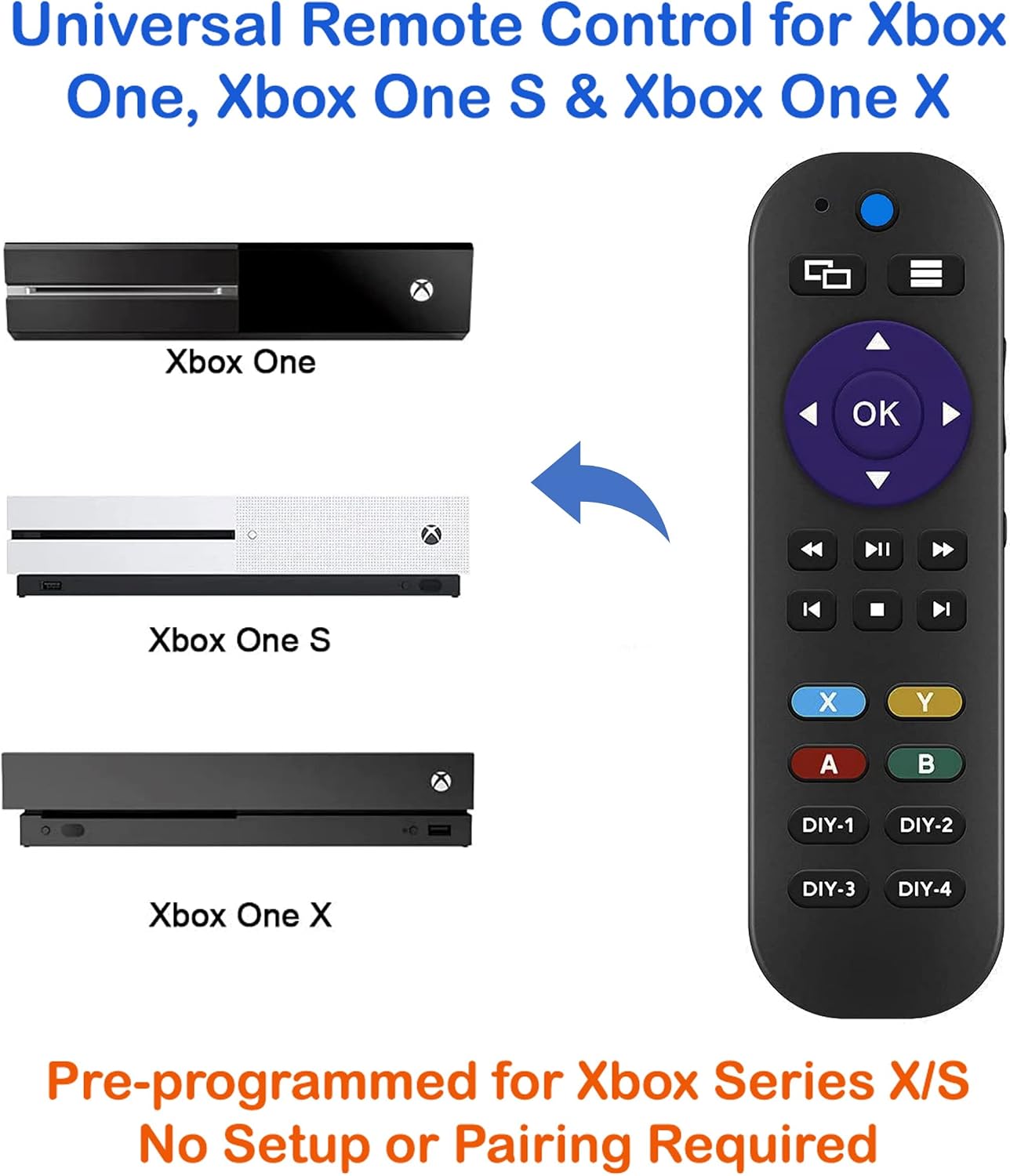
Image: The Smartby Universal Remote is shown alongside images of the Xbox One, Xbox One S, and Xbox One X consoles, indicating its compatibility. The remote is ready for use with these consoles without additional setup.
3. Pre-programmed TV Control (LG and VIZIO)
This remote is also pre-programmed for basic control of LG and VIZIO brand televisions. This includes Power, Mute, and Volume functions. No additional setup is required for these specific TV brands.
Operating Instructions
Controlling Your Xbox Console
The remote provides essential controls for your Xbox One, Xbox One S, or Xbox One X. Point the remote directly at your Xbox console for best performance.
- Directional Pad (OK button in center): Navigate menus and select items.
- Media Playback Buttons: Play, Pause, Fast Forward, Rewind, Skip Track.
- X, Y, A, B Buttons: Perform corresponding actions within games and menus.
- Menu Button (three horizontal lines): Access game or app menus.
- View Button (two overlapping squares): Access context-sensitive menus or change views.
Controlling Your TV/Soundbar (Learning Function)
The remote features 7 programmable buttons (Vol+/-, Mute, and DIY-1/2/3/4) that can learn functions from your original TV or soundbar remote. This allows you to consolidate control of multiple devices into one remote.

Image: A close-up of the Smartby Universal Remote highlighting the "TV-Vol+", "TV-Vol-", "TV Mute", and "DIY Keys" (DIY-1, DIY-2, DIY-3, DIY-4) as the 7 learnable buttons.
Learning Function Programming
To program the 7 learnable buttons (Vol+/-, Mute, DIY-1/2/3/4) to control your TV or soundbar, follow these steps:
- Preparation: Place the Smartby Universal Remote and your original TV/soundbar remote head-to-head on a flat surface, approximately 1-3 cm apart. Ensure both remotes have fresh batteries.
- Enter Learning Mode: Press and hold the "DIY-1" button on the Smartby remote for approximately 3-5 seconds until the red LED indicator light stays solid. This indicates the remote is in learning mode.
- Select Button to Program: Press the specific button on the Smartby remote that you wish to program (e.g., "Vol+", "Mute", "DIY-2"). The red LED will start blinking slowly.
- Transmit Signal: While the LED is blinking, press and hold the corresponding button on your original TV/soundbar remote (e.g., the original "Volume Up" button for the Smartby "Vol+" button).
- Confirmation: The red LED on the Smartby remote will blink rapidly three times and then stay solid, indicating successful learning.
- Program More Buttons: Repeat steps 3-5 for any other buttons you wish to program.
- Exit Learning Mode: Once all desired buttons are programmed, press the "DIY-1" button again on the Smartby remote to exit learning mode. The red LED will turn off.
If the LED does not blink rapidly or turns off during the process, the learning may have failed. Repeat the steps, ensuring a clear line of sight between the remotes and proper button presses.
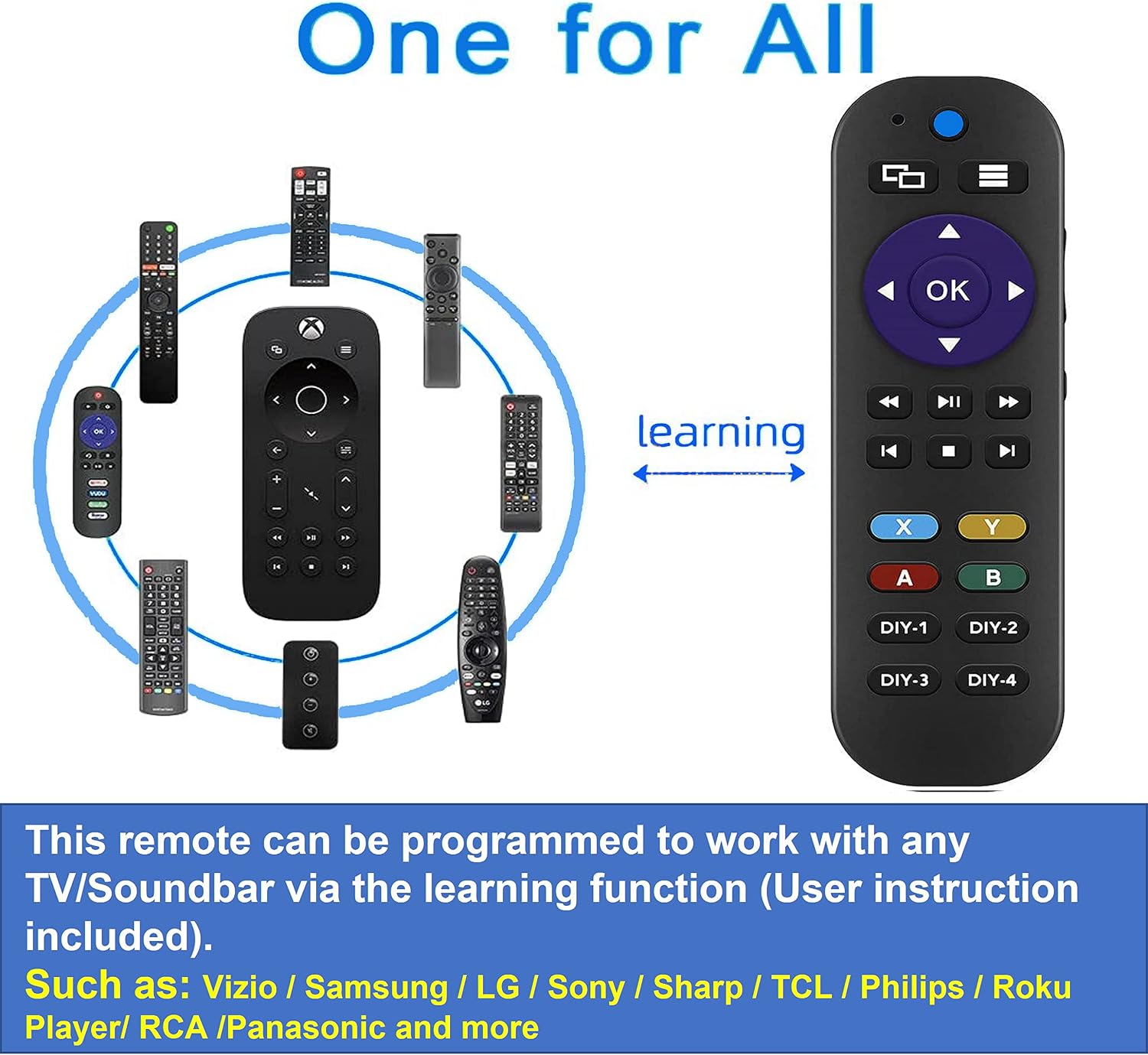
Image: The Smartby Universal Remote is depicted with an arrow pointing towards it from a collection of various other remote controls, illustrating its learning capability to consolidate functions from multiple devices.
Maintenance
- Battery Replacement: Replace batteries when the remote's performance degrades. Always replace both batteries at the same time with new ones of the same type (AAA).
- Cleaning: Use a soft, dry cloth to clean the remote's surface. Do not use liquid cleaners or abrasive materials, as these can damage the remote.
- Storage: Store the remote in a cool, dry place away from direct sunlight and extreme temperatures when not in use for extended periods.
Troubleshooting
- Remote is not responding to Xbox:
- Ensure batteries are correctly installed and not depleted. Replace if necessary.
- Verify there is a clear line of sight between the remote and the Xbox console. Obstructions can block the infrared signal.
- Confirm your Xbox console is powered on and configured to accept remote input.
- Learning function is not working or difficult to program:
- Ensure the original remote has fresh batteries and is functioning correctly.
- Position the remotes head-to-head, 1-3 cm apart, during the learning process.
- Press and hold the buttons firmly and for the correct duration as described in the "Learning Function Programming" section.
- Avoid bright light sources (like direct sunlight) during programming, as they can interfere with infrared signals.
- If a button fails to program, try repeating the steps for that specific button.
- Specific buttons (e.g., OK button) stop working or require excessive force:
- This may indicate wear and tear. Ensure the remote is clean and free of debris around the buttons.
- If the issue persists, the remote may need to be replaced.
Specifications
| Product Dimensions | 5.8 x 1.7 x 0.7 inches |
| Item Weight | 2 ounces |
| Model Number | SMTB-Xbox-Remote-1 |
| Brand | Smartby |
| Compatible Devices | Xbox One system, Xbox One X, Xbox One S, LG TVs, VIZIO TVs, various TV brands (e.g., Samsung, Sony, Sharp, Roku, RCA, Panasonic), DVD/Blu-ray players (via learning function) |
| Max Number of Supported Devices | 1 (controls Xbox directly, plus multiple devices via learning function) |
| Special Feature | Universal, Learning Function |
Warranty Information
Smartby products are typically covered by a limited warranty. For specific warranty terms and conditions, please refer to the product packaging or contact Smartby customer support. Keep your purchase receipt as proof of purchase for warranty claims.
Customer Support
If you encounter any issues or have questions not covered in this manual, please contact Smartby customer support. Contact information can usually be found on the product packaging or the official Smartby website.
For online support, you may visit the Smartby store on Amazon: Smartby Amazon Store