
1. Introduction
The EMEET OfficeCore M1A is a Zoom Certified USB speakerphone designed for clear and efficient audio conferencing. Featuring AI-powered microphones with 360° voice pickup, noise reduction, and echo cancellation, it ensures all participants are heard clearly. Its plug-and-play functionality and broad compatibility make it suitable for various professional and personal communication needs.
2. What's in the Box
- EMEET OfficeCore M1A USB Speakerphone
- USB Type C-A Cable
- User Manual
3. Key Features
- Zoom Certified: Officially recognized for compatibility with Zoom, and works seamlessly with other platforms like Skype, Microsoft Teams, Google Hangout, and more.
- 360° Smart Voice Pickup: Equipped with EMEET's exclusive VoiceIA Tech, featuring 2 omnidirectional microphones for 360° voice coverage.
- AI-Powered Audio Enhancement: Includes noise reduction, echo cancellation, voice amplification, and full duplex audio for crystal-clear communication.
- Smart Speaker: Delivers sound in 9 adjustable volumes, indicated by blue LED lights on the control panel.
- Plug & Play Connectivity: Connects easily via USB-C or USB-A adapter for a stable wired connection.
- Privacy Protection: Fast mute function for microphone and speaker to ensure privacy during calls.
- Universal Compatibility: Supports various operating systems including Windows, Mac OS, Vista, and Linux.
4. Setup Instructions
4.1 Connecting the Speakerphone
The EMEET OfficeCore M1A is designed for simple plug-and-play setup. No driver installation is typically required.
- Locate the USB-C connector on the speakerphone.
- Connect the provided USB-C cable to the speakerphone.
- Plug the other end of the USB cable into an available USB-C port on your computer. If your computer only has USB-A ports, use the included USB-A adapter.
- The device will automatically be recognized by your operating system.

Image: EMEET OfficeCore M1A connected to a laptop via USB-C cable, illustrating the plug-and-play setup with an optional USB-A adapter.
4.2 Initial Power On
Once connected, the speakerphone should power on automatically. Indicators on the device will confirm its status.

Image: The convenient control panel of the EMEET OfficeCore M1A, showing blue/red indicators for various operations like calls, volume adjustment, and microphone mute.
5. Operating Instructions
5.1 Making and Receiving Calls
After connecting, select the EMEET OfficeCore M1A as your audio input and output device in your preferred conferencing software (e.g., Zoom, Skype, Teams).
5.2 Adjusting Volume
Use the '+' and '-' buttons on the control panel to adjust the speaker volume. The blue LED lights will indicate the current volume level (9 levels available).
5.3 Muting the Microphone
Press the microphone mute button on the control panel to mute or unmute your microphone. Red LED indicators will light up when the microphone is muted, ensuring your privacy.
5.4 VoiceIA Technology
The integrated VoiceIA technology automatically handles noise reduction, echo cancellation, and voice amplification to provide clear audio for all participants, even in noisy environments.

Image: Visual representation of the VoiceIA technology's benefits, including noise reduction, echo cancellation, voice enhancing, and full duplex capabilities.
5.5 360° Voice Pickup
The two omnidirectional microphones ensure that voices are picked up from all directions within a 360° radius, making it ideal for huddle rooms and small to medium-sized meetings.
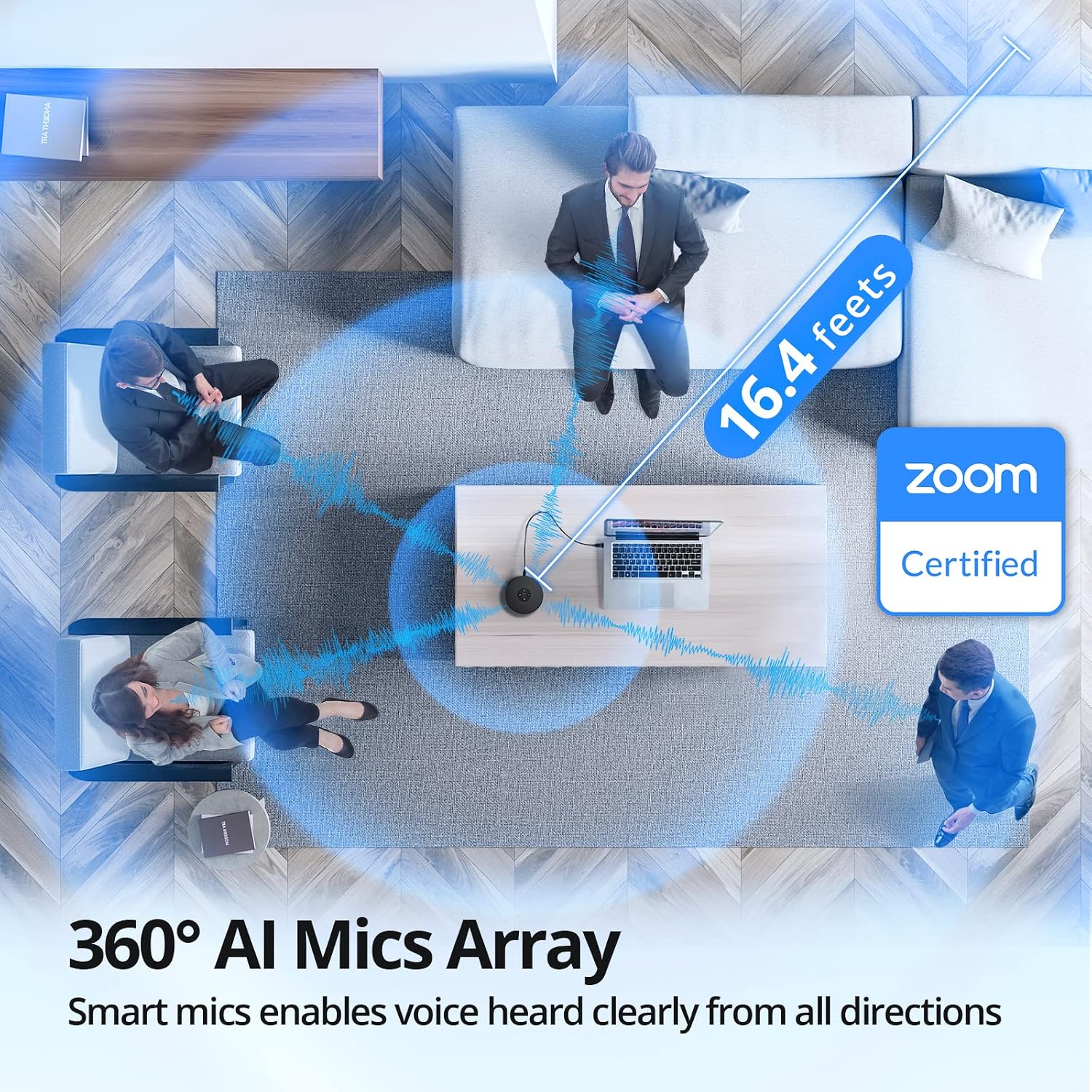
Image: An aerial view demonstrating the 360° AI Mics Array of the EMEET OfficeCore M1A, capturing voices clearly from all directions within a 16.4 feet range, Zoom Certified.
6. Maintenance
To ensure the longevity and optimal performance of your EMEET OfficeCore M1A speakerphone, follow these simple maintenance guidelines:
- Cleaning: Use a soft, dry cloth to clean the exterior of the device. Avoid using liquid cleaners or aerosols, as they may damage the components.
- Storage: When not in use, store the speakerphone in a cool, dry place, away from direct sunlight and extreme temperatures.
- Handling: Handle the device with care to prevent drops or impacts that could damage internal components.
7. Troubleshooting
7.1 Audio Issues with Docking Station
Some users may experience audio disconnection issues when the EMEET OfficeCore M1A is connected via a docking station, particularly when both speaker and microphone functions are active during calls.
Solution:
- Connect the EMEET OfficeCore M1A to your laptop via Bluetooth.
- Ensure the USB cable is also connected to the docking station.
- On Windows, navigate to System > Sound > Output.
- You should see two EMEET sources: one labeled


