
Introduction
Welcome to the user manual for your AKIYO O4 Projector. This guide provides essential information for setting up, operating, and maintaining your device. The AKIYO O4 is a portable projector designed for a versatile home theater experience, featuring native 1080P resolution with 4K support, automatic focus, automatic keystone correction, WiFi 6, and Bluetooth 5.2 connectivity.
What's in the Box
- O4 Projector
- HDMI Cable
- Remote Control
- User Manual
Product Overview
Familiarize yourself with the components and ports of your AKIYO O4 Projector.

This image shows the front of the AKIYO O4 projector, highlighting the projection lens and the auto-focus/keystone sensor.

This image displays the side panel of the projector, featuring various input/output ports including HDMI, USB, AV, and power input.
Setup
Power Connection
- Connect the power adapter to the "POWER" port on the projector.
- Plug the power adapter into a suitable electrical outlet.
Initial Placement
Place the projector on a stable, flat surface. For optimal image quality, ensure the projector is perpendicular to the projection surface (wall or screen) during initial setup. The device features a 120° rotatable stand for flexible positioning.
Operating Instructions
Power On/Off
Press the power button on the projector or the remote control to turn the device on or off.
Navigation
Use the directional buttons (Up, Down, Left, Right) and the "OK" button on the projector's top panel or the remote control to navigate through menus and select options.
Integrated Apps and Streaming
The AKIYO O4 projector comes with an integrated Android 11.0 system, providing access to over 7000 apps.
- Connect the projector to your Wi-Fi network via Settings > Network > Wireless Network. Enter your Wi-Fi password to connect.
- From the home screen, select "APP Store".
- Browse or search for desired streaming applications (e.g., Netflix, YouTube, Disney+).
- Select an app and click "Install". Once installed, click "Launch" to open the application.
- If a specific app is not found in the "APP Store", navigate to "Play Store" from the shortcut editor (accessible by pressing the "Home" button and navigating through pages) and sign in with your Google account to download additional applications.
Automatic Focus and Keystone Correction
The O4 features automatic focus and vertical keystone correction for a clear and perfectly aligned image within seconds.
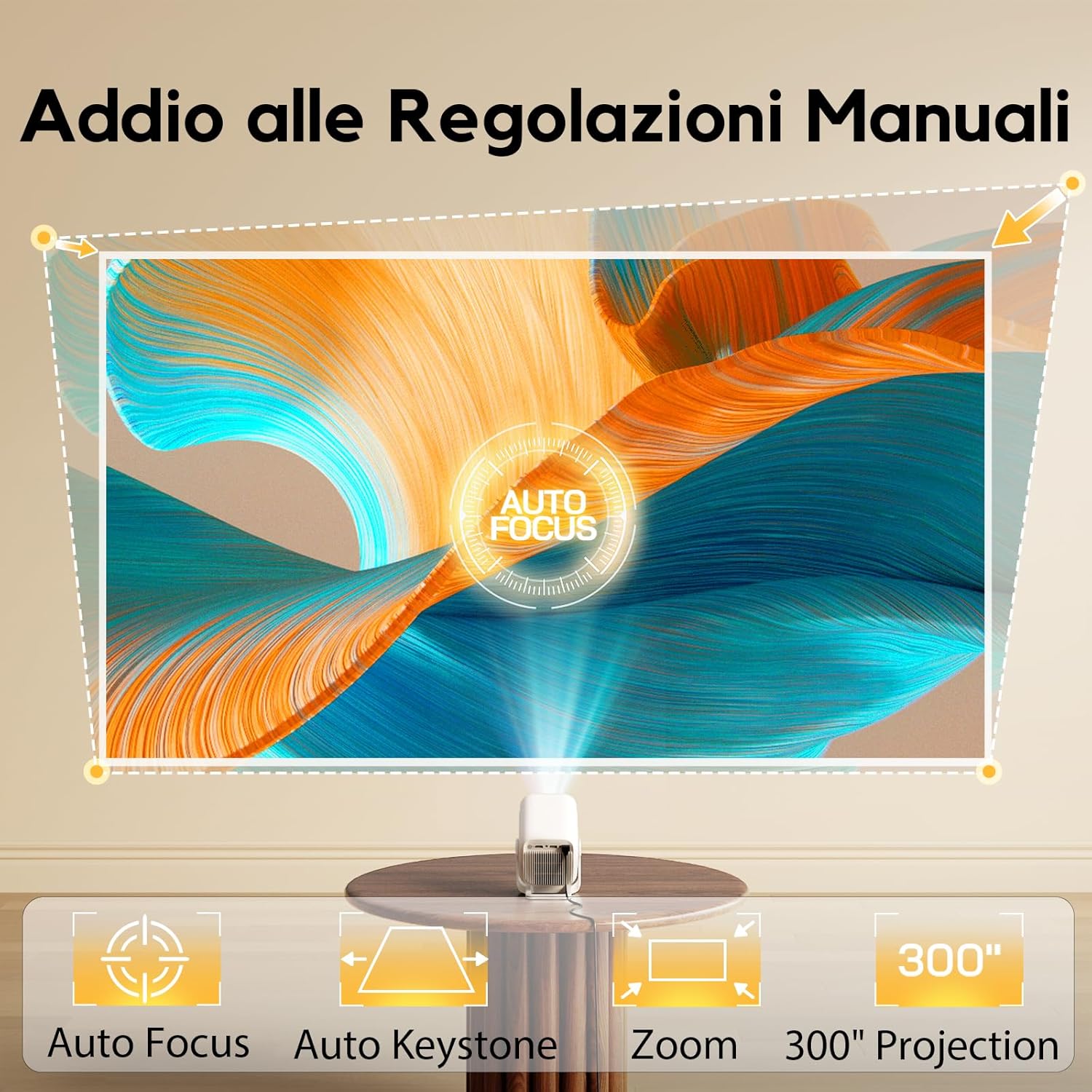
This image illustrates the automatic focus and keystone correction features, ensuring a sharp and rectangular projection.
- Ensure the "Auto Keystone Correction" and "Auto Focus" options are enabled in Settings > Projection.
- For initial angle correction, select "Initial Angle Correction" and follow the on-screen instructions. Place the device horizontally on a table with the projection perpendicular to the wall or screen. Adjust the device's angle vertically to ensure the projection forms a standard rectangle, then click "Start" to calibrate. After calibration, the projector can be rotated freely.
Manual Keystone Correction (4P Correction)
If automatic correction is not precise or for specific adjustments, manual 4P correction is available.
- Go to Settings > Projection.
- Disable "Auto Keystone Correction".
- Select "Manual Keystone".
- Adjust each corner individually using the directional buttons on the remote. Press "OK" to confirm the angle.
Projection Size and Distance
The projector supports a projection size from 35 inches at 0.6 meters to 200 inches at 3.5 meters, with a maximum projection size of 300 inches. The unique 0.8:1 projection ratio allows for short-throw projection.
You can adjust the digital zoom in Settings > Projection > Digital Zoom to fine-tune the image size.
This image illustrates the flexible projection sizes and distances achievable with the AKIYO O4 projector, ranging from 40" to 300".
Bluetooth Connectivity
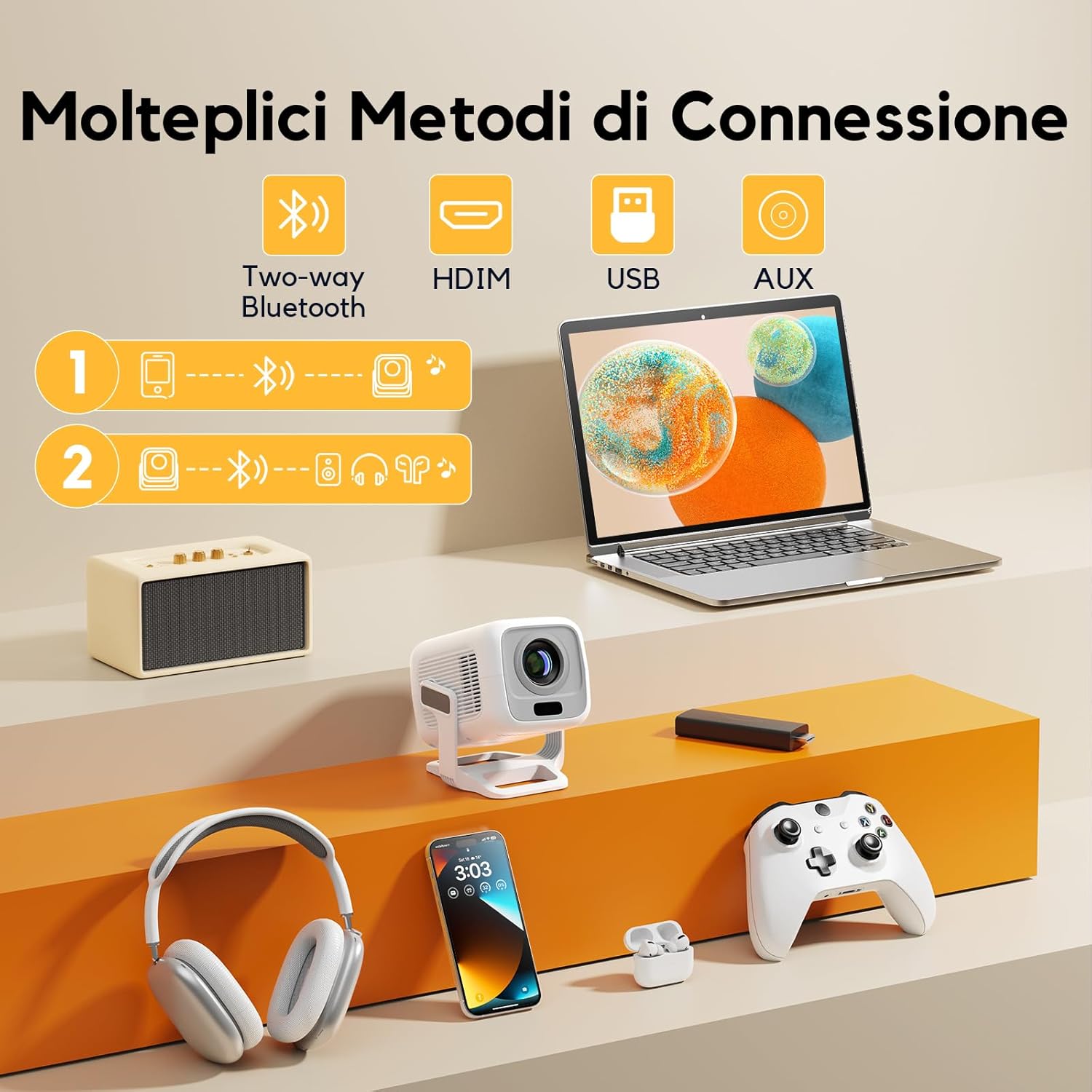
The O4 features two-way Bluetooth 5.4, allowing it to function as a standalone Bluetooth speaker or connect to external Bluetooth audio devices.
- Using as a Bluetooth Speaker: Lightly press the power button on the remote control and select "Bluetooth Speaker". Connect your phone via Bluetooth to the projector.
- Connecting to External Bluetooth Speakers/Headphones: Go to Settings > Bluetooth Settings. Search for and connect to your desired Bluetooth speaker or headphones.
Screen Mirroring (Android & iOS)
Share content from your smartphone or tablet directly to the projector.
- For Android Devices:
- Select "ScreenCast" from the main interface.
- Click "Start" under "Miracast".
- On your Android device, open the screen mirroring settings (often called "Wireless Projection", "Smart View", "Screen Cast", etc.).
- Find and connect to the projector (e.g., "O4-xxxx").
- For iOS Devices:
- Ensure both your iOS device and the projector are connected to the same Wi-Fi network.
- Select "ScreenCast" from the main interface.
- Choose "AirPlay".
- On your iOS device, open the Control Center and select "Screen Mirroring".
- Find and connect to the projector (e.g., "O4-xxxx").
Controlling the Projector
In addition to the remote control, you can use a wired USB mouse or a smartphone app.
- Wired USB Mouse: Connect a wired USB mouse to the USB port on the projector. The mouse cursor will appear on the screen, allowing for easier navigation, especially within apps.
- Smartphone App (tranScreen):
- Download the "tranScreen" app from your smartphone's app store.
- Ensure your phone and the projector are connected to the same Wi-Fi network.
- Open the app and it will detect the projector (e.g., "O4-xxxx"). Connect to it.
- The app provides touch, button, and mouse control options, eliminating the need for the physical remote.
Maintenance
Cleaning the Lens
Use a soft, lint-free cloth or lens cleaning paper to gently wipe the projector lens. Avoid using abrasive cleaners or excessive force.
Dust Removal
Regularly clean the ventilation grilles to prevent dust buildup, which can affect performance and lifespan. Use a soft brush or compressed air.
This image shows cotton swabs, which can be used for delicate cleaning of hard-to-reach areas on the projector.
Troubleshooting
- No Image/Power: Check power connections. Ensure the power adapter is securely plugged into both the projector and the outlet.
- Blurry Image: Adjust the focus using the auto-focus feature or manual focus. Ensure the projection surface is flat.
- Distorted Image (Trapezoid Shape): Use the automatic keystone correction or manual 4P correction feature in the settings.
- No Sound: Check volume levels on both the projector and the connected source. Ensure external speakers are properly connected or Bluetooth is paired correctly.
- Wi-Fi/Bluetooth Connection Issues: Ensure the projector and your device are within range. Restart both devices. Check Wi-Fi password.
- Apps Not Working: Ensure a stable internet connection. Try clearing the app's cache or reinstalling it.
Specifications
| Feature | Detail |
|---|---|
| Brand | AKIYO |
| Model | O4 |
| Native Resolution | 1920 x 1080 (1080P) |
| Supported Resolution | 4K |
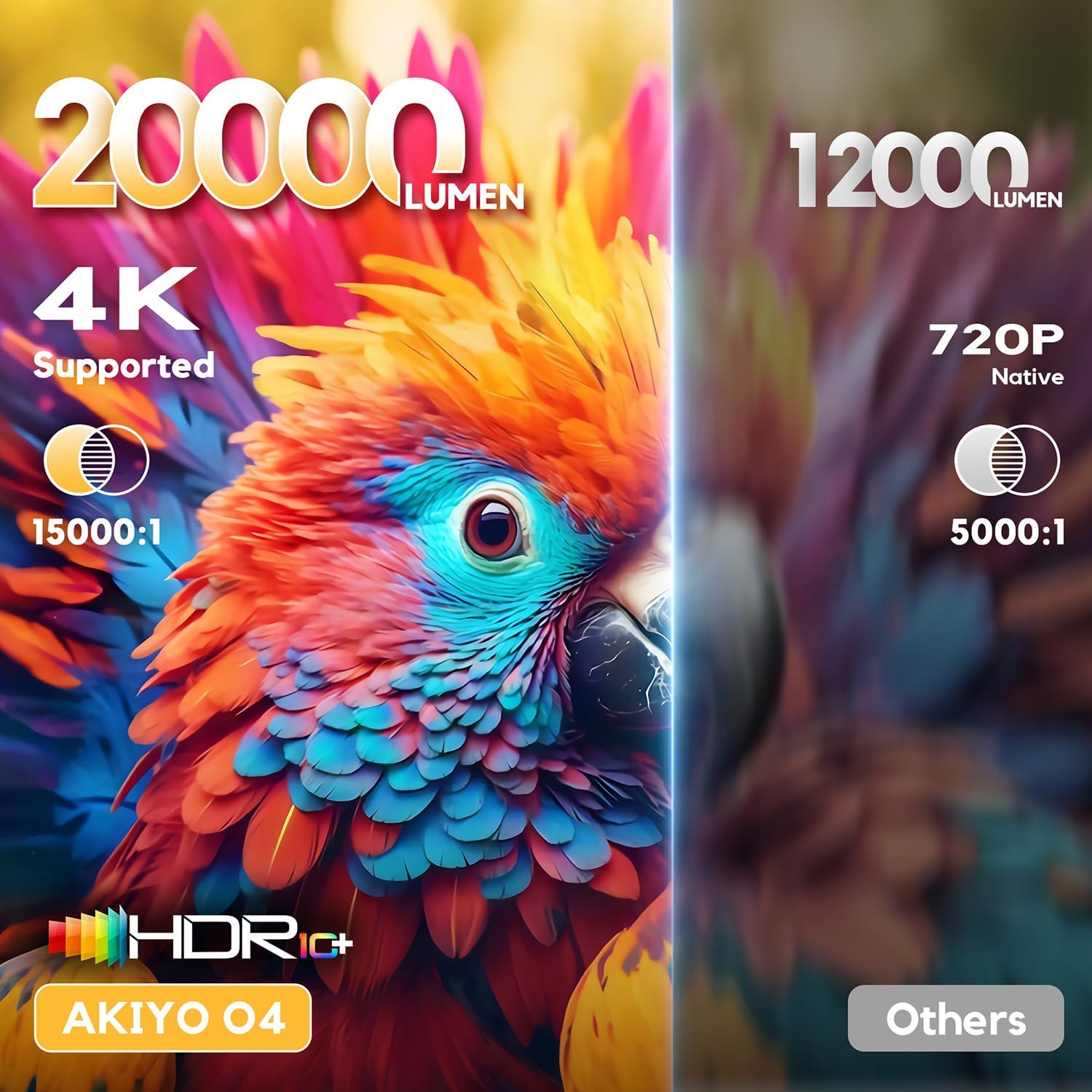
| Brightness | 20000 Lumens (600 ANSI) |
| Contrast Ratio | 5000:1 |
| Connectivity | HDMI, USB, Wi-Fi 6, Bluetooth 5.4 (Bidirectional) |
| Additional Features | Android 11.0, Auto Focus, Auto Keystone Correction, 180° Rotation, Digital Zoom |
| Compatible Devices | iOS/Android devices, TVs with HDMI, Bluetooth 5.1 devices, USB devices, 3.5mm audio output devices, TV Stick |
| Product Dimensions | 13.6 x 11 x 5.8 cm |
| Weight | 420 g |
| Screen Size | Up to 300 inches |
| Remote Control | IR |
| Power Consumption | 37.8 watts |
Warranty and Support
For warranty information, technical support, or service inquiries, please refer to the contact details provided in the original packaging or visit the official AKIYO website.

