
Prechen 19.5-inch 1600x900 LED Monitor
Prechen 19.5-inch 1600x900 LED Monitor User Manual
Model: 19.5-inch 1600x900 LED Monitor (ASIN: B09WTNZJP2)
1. Introduction
Thank you for choosing the Prechen 19.5-inch 1600x900 LED Monitor. This monitor is designed to provide a high-quality visual experience for various applications, including office work, multimedia, and gaming. Featuring a 1600x900 resolution TN panel, 60Hz refresh rate, and built-in speakers, it offers a versatile display solution. This manual provides detailed instructions for setup, operation, maintenance, and troubleshooting to ensure optimal performance and longevity of your device.

Figure 1: Front view of the Prechen 19.5-inch LED Monitor.
2. Important Safety Information
Please read all safety warnings and instructions carefully before using this monitor to prevent damage or injury.
- Do not expose the monitor to rain or moisture to avoid fire or electric shock.
- Do not open the monitor casing. There are no user-serviceable parts inside. Refer all servicing to qualified service personnel.
- Place the monitor on a stable, flat surface to prevent it from falling.
- Ensure proper ventilation around the monitor. Do not block ventilation openings.
- Use only the power adapter supplied with the monitor.
- Disconnect the power plug from the outlet if the monitor will not be used for an extended period.
- Avoid placing the monitor near heat sources such as radiators, heat registers, stoves, or other products (including amplifiers) that produce heat.
3. Package Contents
Please check the package contents to ensure all items are present and undamaged:
- Prechen 19.5-inch LED Monitor
- Power Adapter
- HDMI Cable
- User Manual

Figure 2: Included accessories: Monitor, Power Adapter, HDMI Cable, and User Manual.
4. Setup Guide
4.1 Assembling the Stand
- Carefully remove the monitor and stand components from the packaging.
- Attach the stand base to the stand neck, securing it with the provided screw (if applicable).
- Align the assembled stand with the mounting slot on the back of the monitor and gently push until it clicks into place or secure with screws as per the stand design.
4.2 Connecting the Monitor
The monitor supports both HDMI and VGA connections.
- Power Connection: Connect the power adapter to the monitor's DC IN port, then plug the adapter into a power outlet.
- Video Connection (HDMI): Connect one end of the HDMI cable to the HDMI port on your computer or device, and the other end to the HDMI port on the monitor.
- Video Connection (VGA): Connect one end of the VGA cable to the VGA port on your computer or device, and the other end to the VGA port on the monitor.
- Audio Connection: If using a VGA connection and external speakers, connect an audio cable from your computer's audio output to the monitor's audio input port. The built-in speakers will function automatically with HDMI.

Figure 3: Monitor back panel with input ports and control buttons.

Figure 4: Multiple connection options for the monitor.
5. Operating Instructions
5.1 Powering On/Off
Press the power button located on the back of the monitor to turn it on or off. The power indicator light will illuminate when the monitor is on.
5.2 Using the OSD Menu
The On-Screen Display (OSD) menu allows you to adjust various monitor settings. The control buttons are located on the back of the monitor (refer to Figure 3).
- MENU: Press to open the OSD menu.
- UP/DOWN (Volume Up/Down): Use to navigate through menu options or adjust values.
- ENTER (Switch): Press to confirm a selection or enter a sub-menu.
- EXIT (Return): Press to exit the current menu or return to the previous level.
5.3 Adjusting Display Settings
Navigate the OSD menu to adjust settings such as:
- Brightness/Contrast: Adjust the overall luminance and contrast of the display.
- Color Settings: Modify color temperature, RGB levels, or select preset color modes.
- Input Select: Manually switch between HDMI and VGA input sources.
- Aspect Ratio: Choose between 16:9 (widescreen) or 4:3 (standard) display modes.
- Sharpness: Adjust the clarity of the image.
5.4 Audio Settings
The monitor features two built-in speakers. You can adjust the volume using the OSD menu or the dedicated volume buttons on the back of the monitor.
6. Maintenance and Care
Proper care and maintenance will extend the life of your monitor.
- Cleaning the Screen: Gently wipe the screen with a soft, lint-free cloth. For stubborn marks, dampen the cloth slightly with water or a non-ammonia, non-alcohol based screen cleaner. Never spray cleaner directly onto the screen.
- Cleaning the Casing: Use a soft, dry cloth to wipe the monitor casing. Avoid using abrasive cleaners or solvents.
- Storage: If storing the monitor for an extended period, disconnect it from power and store it in a cool, dry place, preferably in its original packaging.
7. Troubleshooting
If you encounter problems with your monitor, please refer to the following table for common issues and solutions.
| Problem | Possible Cause | Solution |
|---|---|---|
| No power | Power cable not connected; Power outlet faulty; Monitor off. | Ensure power cable is securely connected. Try a different power outlet. Press the power button on the monitor. |
| No signal | Video cable not connected; Incorrect input source selected; Computer not outputting signal. | Check HDMI/VGA cable connection. Select the correct input source via the OSD menu. Ensure your computer is on and outputting video. |
| No sound from built-in speakers | Volume too low/muted; Incorrect audio output selected on PC; Audio cable not connected (for VGA). | Increase monitor volume. Check PC audio settings to ensure monitor is selected as output. For VGA, ensure audio cable is connected. |
| Image is blurry or distorted | Incorrect resolution; Cable issue. | Set your computer's display resolution to 1600x900. Try a different video cable. |
8. Product Specifications
| Feature | Specification |
|---|---|
| Brand | Prechen |
| Screen Size | 19.5 Inches |
| Display Type | LED |
| Maximum Display Resolution | 1600 x 900 |
| Refresh Rate | 60 Hz |
| Response Time | 5 Milliseconds |
| Aspect Ratio | 16:9 |
| Connectivity Technology | HDMI, VGA |
| Special Features | Built-in Speakers |
| VESA Mount Compatibility | 100 x 100 mm |
9. VESA Mounting
The Prechen monitor supports VESA standard mounting (100 x 100 mm), allowing you to mount it on a wall or an articulating arm for flexible viewing options. This feature makes the monitor lightweight and easy to install in various setups.
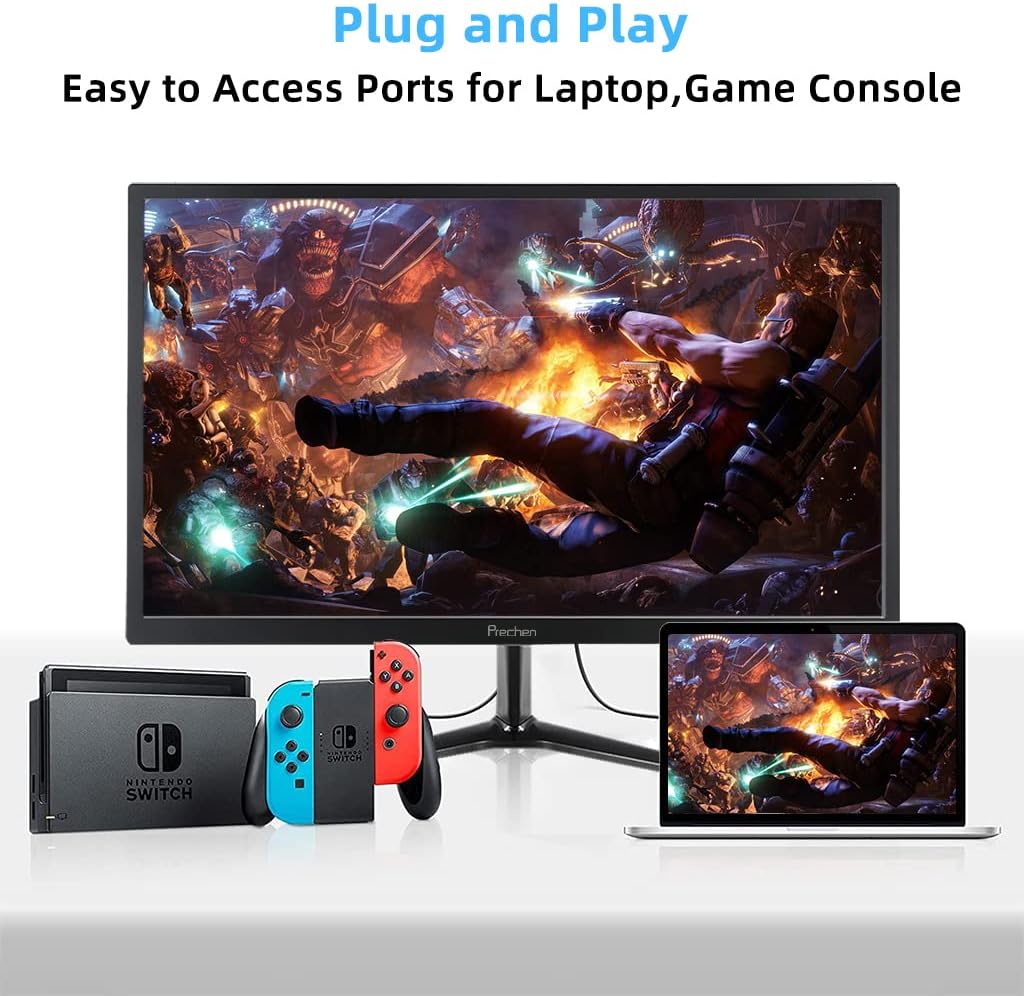
Figure 5: VESA mount dimensions on the monitor back.

Figure 6: Example of VESA mounting with an articulating arm.
10. Warranty and Support
Each Prechen product is covered by a one-year warranty from the date of purchase, which includes a one-month refund and exchange policy. This warranty covers manufacturing defects and issues arising from normal use.
For any questions, technical support, or warranty claims, please contact Prechen customer service. Please have your product model and purchase information ready when contacting support.
Contact information for customer service can typically be found on the product packaging or the official Prechen website.
Related documents19.5-inch 1600x900 LED Monitor

Ask a question about this manual
Ask about setup, troubleshooting, compatibility, parts, safety, or missing instructions. Manuals+ will review the question and use this page’s manual context to help answer it.