
1. Introduction
This manual provides detailed instructions for the ZOWEETEK Smart Card Reader, Model B09WK9NJQ4. This device is designed to read various smart cards, including Government ID, CAC, and other chip cards, offering convenience and security for digital transactions and access.
Key Features:
- Driver-free installation for Windows, Mac OS, and Linux.
- Broad compatibility with various smart card types and government applications.
- Plug and Play functionality.
- Reliable performance with PIV, EMS, ISO-7816 & EMV2 2000 Level 1 certifications.
2. Package Contents
Please verify that all items are present:
- ZOWEETEK Smart Card Reader (USB)
- Integrated USB Cable
3. Setup
3.1 System Requirements
- Operating System: Windows (10/11 and earlier), Mac OS (10.15 or later), Linux
- Available USB-A Port
3.2 Installation
- Connect the USB cable of the ZOWEETEK Smart Card Reader to an available USB-A port on your computer.
- The device is designed for driver-free operation. Your operating system should automatically recognize and configure the reader.
- For Mac OS users: Java is required for certain smart card applications. Please ensure Java is installed from Java's official website if you encounter issues.

Image 3.2.1: The ZOWEETEK Smart Card Reader with its integrated USB cable, ready for connection to a computer.

Image 3.2.2: Visual representation of the smart card reader's compatibility with Windows, Mac OS, and Linux operating systems.
4. Operating Instructions
4.1 Inserting a Smart Card
- Ensure the smart card reader is connected to your computer.
- Locate the smart card slot on the reader. The slot is typically marked with a card icon.
- Insert your smart card (e.g., CAC card, national ID, credit card with chip) into the slot with the chip facing upwards and towards the reader, until it is fully seated.

Image 4.1.1: Examples of various smart card types supported by the reader, including credit cards, national ID cards, and generic smart cards.
4.2 LED Indicator Status
The smart card reader features an LED indicator to show its status:
- No Card Inserted: The LED will typically be red or off, indicating no card is detected.
- Card Inserted and Detected: The LED will turn green (or a combination of green and red), indicating that a card has been successfully inserted and is being read.

Image 4.2.1: Comparison showing the smart card reader's LED status: red when no card is present, and green/red when a smart card is inserted and detected.
4.3 Using with Mac OS
For Mac OS users, specific system settings may need to be adjusted to allow the smart card reader to function correctly with certain applications. Follow these general steps:
- Navigate to System Settings (or System Preferences on older macOS versions).
- Click on Security & Privacy.
- If prompted, click the lock icon at the bottom left and enter your administrator password to make changes.
- Ensure that the smart card reader is recognized and that necessary permissions are granted for applications to access it.

Image 4.3.1: Flowchart detailing the steps to configure Mac OS settings for smart card reader functionality, including accessing System Preferences and Security & Privacy settings.
5. Maintenance
5.1 Cleaning
- Disconnect the device from your computer before cleaning.
- Use a soft, dry, lint-free cloth to wipe the exterior of the reader.
- Do not use liquid cleaners, aerosols, or abrasive materials, as these can damage the device.
5.2 Storage
- Store the smart card reader in a cool, dry place away from direct sunlight and extreme temperatures.
- Avoid placing heavy objects on the reader or bending the cable excessively.
6. Troubleshooting
If you encounter issues with your ZOWEETEK Smart Card Reader, please refer to the following common solutions:
- Reader Not Detected:
- Ensure the USB cable is securely connected to both the reader and your computer.
- Try connecting the reader to a different USB port on your computer.
- Restart your computer.
- Card Not Read:
- Ensure the smart card is inserted correctly with the chip facing upwards and fully seated in the slot.
- Check if the card itself is damaged or dirty. Clean the card's chip with a soft cloth if necessary.
- Verify that the LED indicator changes status when the card is inserted.
- Mac OS Specific Issues:
- As mentioned in Section 3.2, Java is necessary for many smart card applications on Mac OS. Ensure Java is installed and up to date.
- Check System Settings > Security & Privacy for any blocked access or permissions related to the card reader or smart card applications.
- Note: Some older Mac OS versions or specific MacBook models might have compatibility limitations with certain smart card applications, even if the reader itself is recognized.
- Application Errors:
- If you are using a specific application (e.g., for government ID, banking), ensure the application is correctly configured to use the smart card reader.
- Update the application to its latest version.
7. Specifications
| Brand | ZOWEETEK |
| Model | B09WK9NJQ4 |
| Operating System Compatibility | Windows, Linux, Mac OS |
| Connectivity Technology | USB Type A |
| Special Feature | Plug & Play |
| Item Weight | 2.39 ounces |
| Package Dimensions | 4.69 x 4.21 x 1.26 inches |
| Certifications | PIV, EMS, ISO-7816 & EMV2 2000 Level 1, CE, FCC, VCCI, Microsoft WHQL |
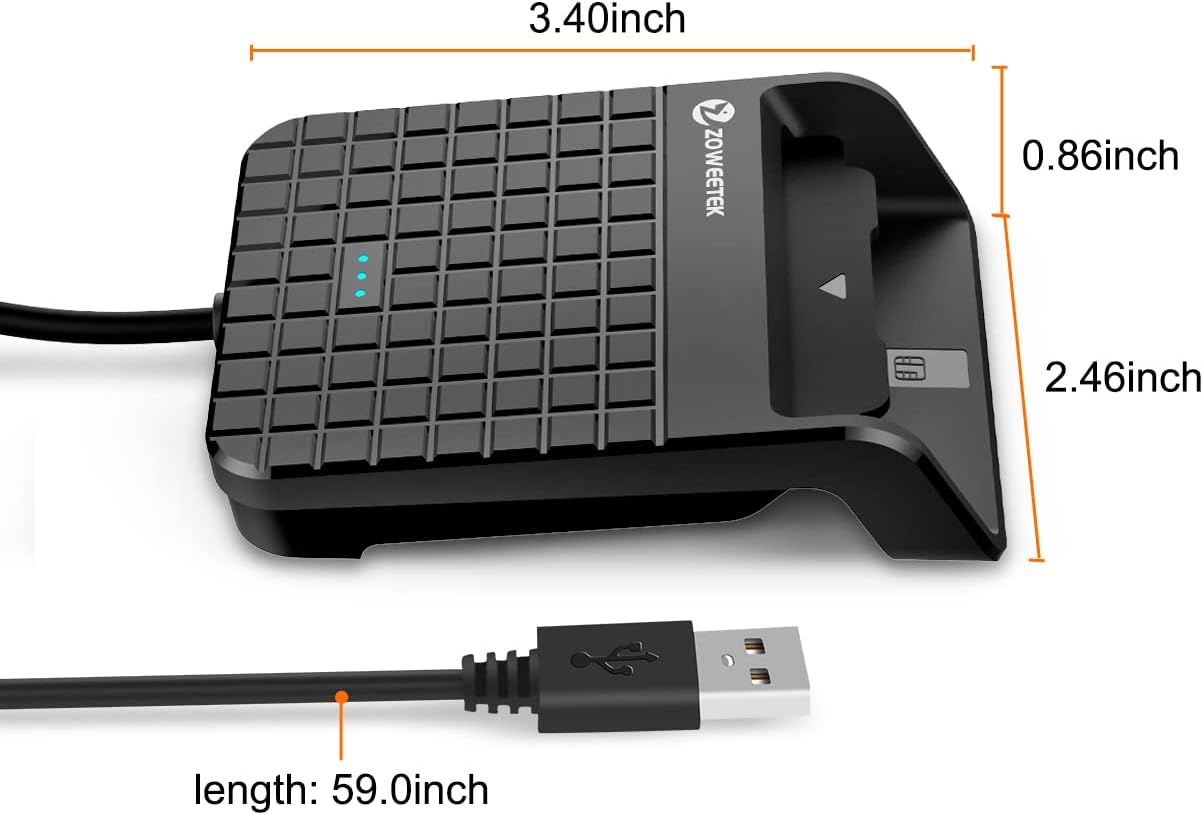
Image 7.1.1: Physical dimensions of the ZOWEETEK Smart Card Reader, including length, width, and height.
8. Warranty Information
ZOWEETEK products are designed for reliability and performance. For specific warranty terms and conditions, please refer to the product packaging or contact ZOWEETEK customer support. Keep your purchase receipt for warranty claims.
9. Support
For further assistance, technical support, or inquiries, please visit the official ZOWEETEK brand store or contact their customer service channels.

