
1. Introduction
This manual provides essential information for the installation, operation, and maintenance of your AWESAFE Car Radio Stereo. Please read this manual thoroughly before using the product to ensure proper function and safety. This device integrates advanced features such as Wireless CarPlay, Android Auto, GPS Navigation, and a 10-inch HD Touch Screen to enhance your driving experience.
2. Package Contents
Verify that all items listed below are included in your package. If any items are missing or damaged, please contact customer support.
- AWESAFE Car Radio Stereo Unit
- Screwdriver
- Reversing Line
- Crowbar
- Antenna Adapter Cable
- USB Cables (multiple)
- Can Bus Decoder
- Microphone
- GPS Module
- RCA Cable
- Power Cable

Figure 2.1: Included Components of the AWESAFE Car Radio Stereo.
3. Applicable Car Models
This AWESAFE Car Radio Stereo is compatible with the following vehicle models:
- Jeep Wrangler/Unlimited: 2007-2018
- Jeep Compass: 2009-2016
- Jeep Patriot: 2009-2016
- Jeep Grand Cherokee: 2005-2011
- Jeep Liberty: 2008-2011
- Jeep Commander: 2008-2011
- Chrysler Sebring: 2007-2010
- Chrysler Town&Country: 2007-2010
- Dodge Grand Caravan: 2011-2014
- Dodge Charger: 2008-2010
- Dodge Ram Pickup 1500/2500/3500: 2009-2012
4. Key Features
4.1. Wireless CarPlay & Android Auto
Connect your iPhone or Android phone wirelessly via Bluetooth or USB cable to access smart features. Utilize voice assistants for navigation, calls, messages, and music, ensuring a safer and more focused driving experience.

Figure 4.1: Wireless CarPlay and Android Auto Interface.
4.2. GPS Navigation & WiFi Connectivity
The unit includes a built-in offline map for North America. Connect to WiFi to use online maps and download or delete Android applications from the Application Store, similar to a smartphone.

Figure 4.2: WiFi Applications and Features.
4.3. Bluetooth Functionality
Make and receive calls hands-free with the built-in microphone and car speakers. Stream music and control applications wirelessly from your paired device.

Figure 4.3: Bluetooth Music and Call Interface.
4.4. 10-Inch HD Touch Screen
Experience sensitive touch response, fast operation, and accurate color display. Customize background brightness for optimal viewing day or night.
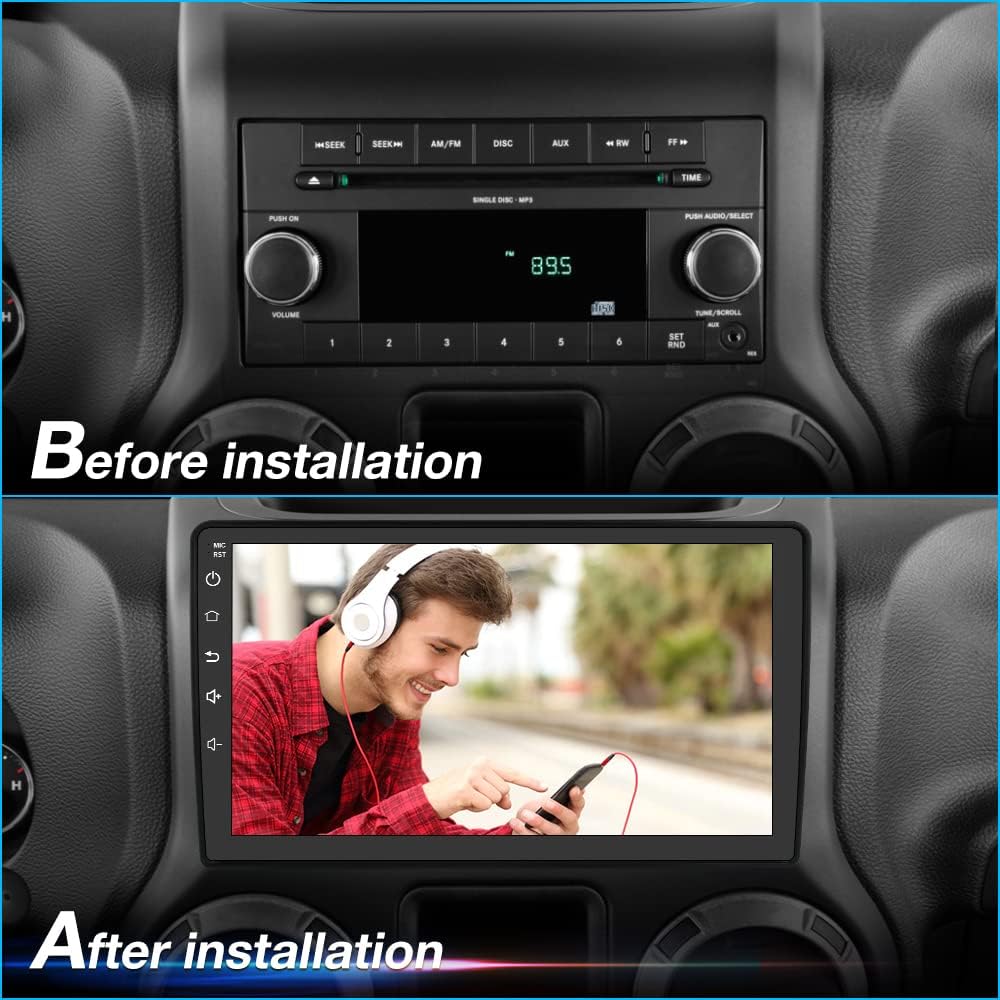
Figure 4.4: Before and After Installation of the 10-inch HD Touch Screen.
4.5. Full RCA Output
Connect external displays, such as headrest monitors, to mirror the content from your car radio stereo, providing entertainment for rear passengers.

Figure 4.5: Full RCA Output to External Displays.
4.6. Powerful Chipset
Equipped with an 8-Core 1.8 GHz MTK 8667 CPU, 4GB RAM, and 64GB ROM, ensuring smooth performance and ample storage for applications and media.

Figure 4.6: Internal Hardware Specifications.
4.7. Ultra-clear Picture Quality
The display features a 1280*720P resolution, providing a significantly clearer and more vibrant image compared to standard 1024*600P or 800*480P screens.

Figure 4.7: Display Resolution Comparison.
4.8. Support for More Applications
Access a wide range of applications including YouTube, Netflix, Spotify, and various communication apps, expanding your in-car entertainment and utility options.

Figure 4.8: Supported Applications.
4.9. Steering Wheel Control
Integrate with your vehicle's existing steering wheel controls for convenient and safe operation of the radio's functions without taking your hands off the wheel.

Figure 4.9: Steering Wheel Control Interface.
5. Installation Guide
Professional installation is recommended. Ensure the vehicle's power is disconnected before beginning installation.
- Preparation: Gather all necessary tools (screwdriver, crowbar, etc.) and ensure all components are present.
- Remove Old Unit: Carefully remove the existing car radio stereo from the dashboard using appropriate tools to avoid damage.
- Connect Wiring: Connect the provided power cable, RCA cables, USB cables, GPS module, and microphone to the new AWESAFE unit. Utilize the Can Bus decoder if required by your vehicle model for steering wheel controls and other vehicle data.
- Antenna Connection: Connect the antenna adapter cable to ensure proper radio reception.
- Test Functionality: Before fully securing the unit, temporarily connect the vehicle's power and test all functions (power on, audio, touch screen, CarPlay/Android Auto, GPS, Bluetooth, steering wheel controls).
- Secure Unit: Once all functions are verified, carefully mount and secure the new car radio stereo into the dashboard.
- Final Assembly: Reassemble any removed dashboard panels or trim.
6. Setup and Operation
6.1. Initial Power On
After installation, turn on your vehicle's ignition. The unit should power on automatically. Follow any on-screen prompts for initial setup, such as language selection and time zone.
6.2. Wireless CarPlay / Android Auto Connection
- Ensure Bluetooth is enabled on your smartphone and the car radio.
- On the car radio, navigate to the CarPlay or Android Auto application.
- Search for and select your car radio's Bluetooth name on your smartphone.
- Confirm the pairing code on both devices.
- Once paired, CarPlay or Android Auto should launch automatically.
6.3. GPS Navigation
The unit comes with pre-installed offline maps. For online navigation:
- Connect the unit to a WiFi network (e.g., your phone's hotspot).
- Open your preferred navigation app (e.g., Google Maps, Waze).
- Enter your destination and follow the on-screen directions.
6.4. Bluetooth Audio and Hands-Free Calling
- Enable Bluetooth on your phone and the car radio.
- On the car radio, go to the Bluetooth settings and search for devices.
- Select your phone from the list and pair them.
- Once connected, you can play music from your phone or make/receive calls directly through the car radio.
6.5. FM Radio Tuning
Access the FM Radio application. Use the on-screen controls to scan for stations, manually tune, or save your favorite frequencies.
6.6. DSP Audio Settings
Navigate to the DSP (Digital Sound Processor) settings to customize your audio experience. Adjust equalizer presets, balance, fader, and subwoofer output to match your preferences.
6.7. Steering Wheel Control Configuration
If your vehicle supports steering wheel controls and the Can Bus decoder is correctly installed, you may need to configure the buttons:
- Go to the 'Steering Wheel Control' settings in the unit's menu.
- Follow the on-screen instructions to map each physical button on your steering wheel to its corresponding function on the radio.
7. Troubleshooting
If you encounter issues, refer to the following common solutions:
- No Power: Check all power connections and the vehicle's fuse box. Ensure the ignition is on.
- No Sound: Verify speaker connections, volume levels, and DSP settings. Check if the mute function is active.
- Touch Screen Unresponsive: Try restarting the unit. If the issue persists, a factory reset might be necessary (note: this will erase all custom settings).
- CarPlay/Android Auto Not Connecting: Ensure Bluetooth is on, both devices are discoverable, and try reconnecting. Check for software updates for both your phone and the car radio.
- GPS Signal Lost: Ensure the GPS antenna is properly installed and has a clear view of the sky.
- Steering Wheel Controls Not Working: Verify Can Bus decoder connection and ensure the controls are correctly configured in the settings.
For persistent issues, please contact AWESAFE customer support.
8. Specifications
| Feature | Specification |
|---|---|
| Brand | AWESAFE |
| Vehicle Service Type | Car |
| Screen Size | 10 inches |
| Special Feature | Touchscreen |
| Connectivity Technology | USB, Wi-Fi |
| Map Type | North America |
| Audio Output Mode | Stereo |
| Mounting Type | Dashboard Mount |
| Operating System | Android |
| Memory Storage Capacity | 64 GB |
| Touch Screen Type | Capacitive |
| Display Type | LCD |
| Human-Interface Input | Microphone |
| Compatible Devices | Smartphone |
| Control Method | Voice |
| Supported Satellite Navigation System | GPS |
| Connectivity Protocol | Wi-Fi |
| Item Dimensions L x W x H | 7.87"L x 3.94"W x 7.09"H |
9. Warranty and Support
Your AWESAFE Car Radio Stereo comes with a standard manufacturer's warranty. For detailed warranty information, product support, or technical assistance, please contact AWESAFE customer service.
Customer Support Email: us.support@awesafeinc.com

Figure 9.1: AWESAFE Customer Support Information.


