
Introduction
This manual provides comprehensive instructions for the Apple iPad Air (5th Generation). It covers essential information regarding setup, operation, maintenance, and troubleshooting to ensure optimal use of your device. The iPad Air (5th Generation) features the powerful Apple M1 chip, a vibrant 10.9-inch Liquid Retina display, Wi-Fi 6 connectivity, and Touch ID for secure authentication.
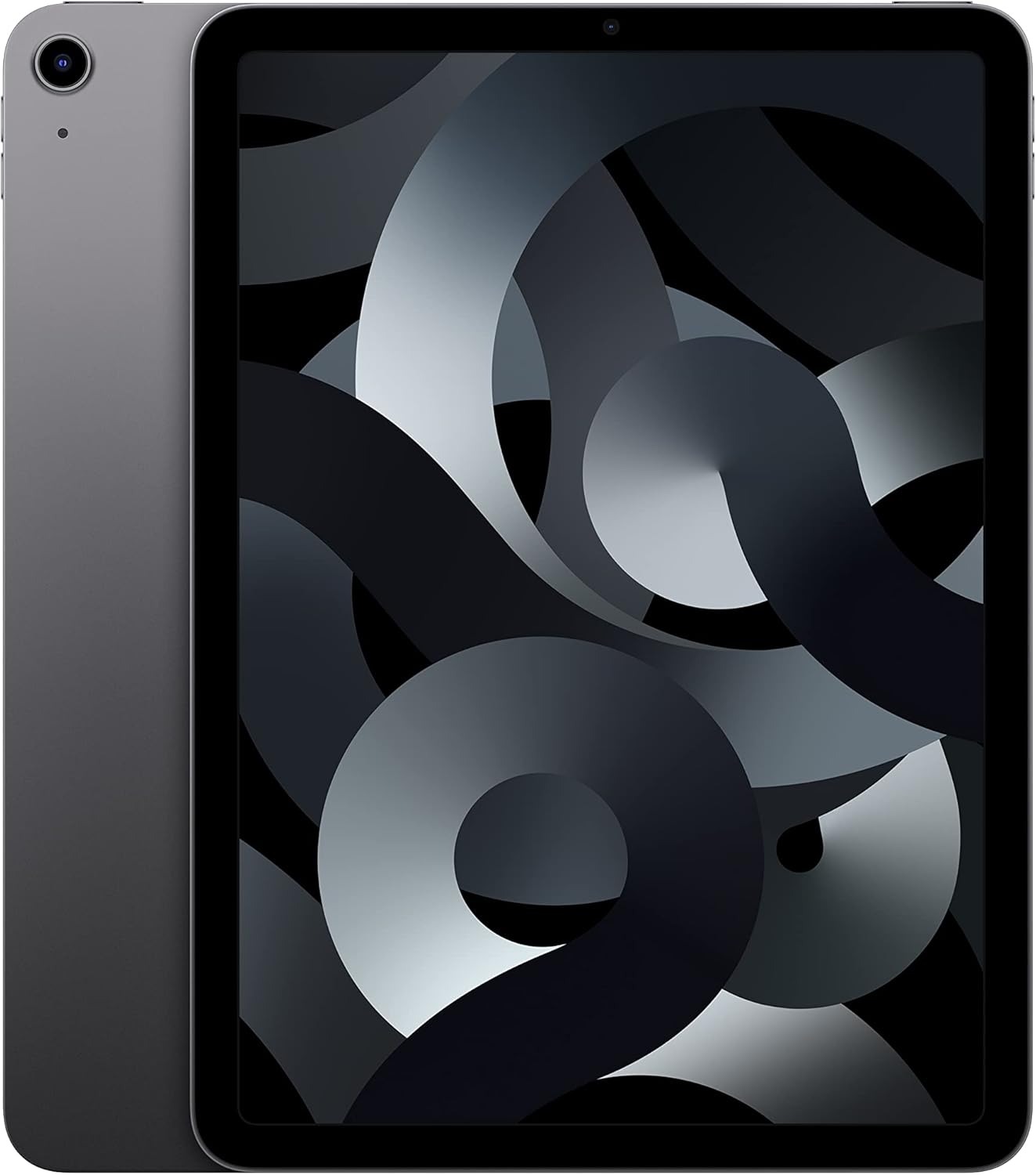
Image: Front view of the Apple iPad Air (5th Generation) in Space Gray, showcasing its full-screen display.
Setup
What's in the Box
- 10.9-inch iPad Air
- USB-C Charge Cable (1 meter)
- 20W USB-C Power Adapter

Image: The contents of the iPad Air box, including the iPad, USB-C charging cable, and 20W USB-C power adapter.
Initial Device Activation
- Charge the iPad: Connect the USB-C Charge Cable to the iPad's USB-C port and the 20W USB-C Power Adapter, then plug it into a power outlet.
- Power On: Press and hold the top button until the Apple logo appears.
- Follow On-Screen Instructions: The iPad will guide you through the initial setup process, including language selection, Wi-Fi network connection, and setting up Touch ID.
- Apple ID: Sign in with your Apple ID or create a new one. This is essential for downloading apps, using iCloud, and other Apple services.
Operating Your iPad Air
Navigating iPadOS
iPadOS provides an intuitive and versatile user experience. You can run multiple applications simultaneously, utilize Split View or Slide Over for multitasking, and interact with the device using touch gestures.
- Home Screen: Swipe up from the bottom edge to return to the Home Screen.
- App Switcher: Swipe up from the bottom edge and pause in the middle of the screen to view open apps.
- Control Center: Swipe down from the top-right corner to access quick settings.
- Notifications: Swipe down from the top-left corner to view notifications.
Touch ID
Touch ID is integrated into the top button. It allows you to securely unlock your iPad, sign into apps, and authorize purchases with Apple Pay using your fingerprint.
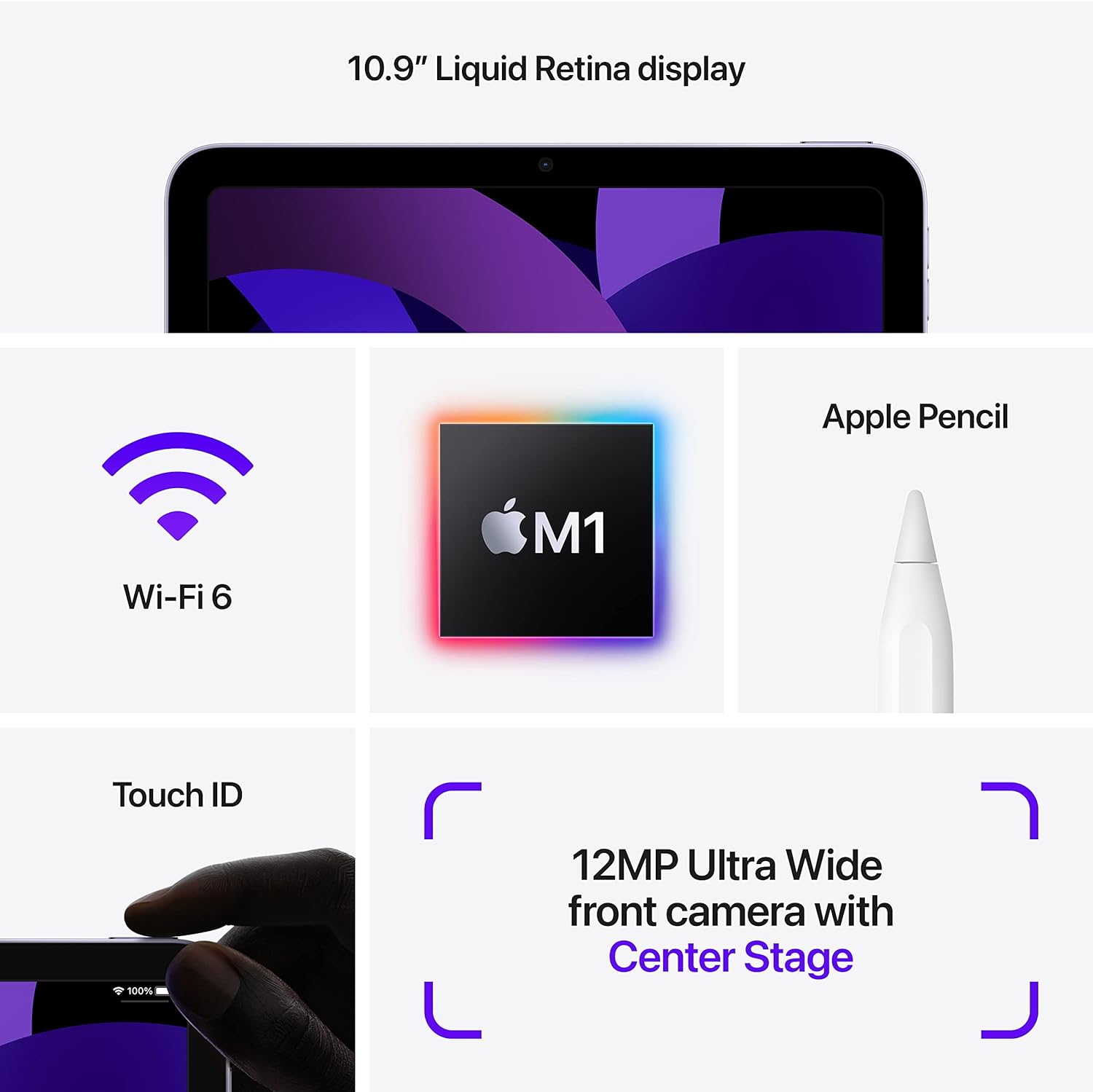
Image: A close-up view of the iPad Air's top button, highlighting the integrated Touch ID sensor for secure authentication.
Cameras
The iPad Air features a 12MP Ultra Wide front camera with Center Stage, ideal for video conferencing and selfies, and a 12MP Wide back camera with True Tone flash for capturing photos and 4K videos.

Image: An iPad Air displaying a video call, demonstrating the Center Stage feature which keeps the subject framed.
Connectivity
The iPad Air supports Wi-Fi 6 for fast and reliable internet access. For models with cellular capability, you can also connect to mobile data networks. The USB-C port allows for charging, data transfer, and connecting various accessories.
Accessories (Sold Separately)
- Apple Pencil (2nd Generation): For drawing, note-taking, and marking up documents.
- Magic Keyboard: Provides a comfortable typing experience with a built-in trackpad and acts as a protective cover.

Image: An iPad Air attached to a Magic Keyboard, with an Apple Pencil resting beside it, illustrating its productivity potential.
Maintenance
- Cleaning: Use a soft, lint-free cloth to clean the screen and exterior. Avoid abrasive materials or harsh chemicals.
- Software Updates: Regularly update iPadOS to ensure optimal performance, security, and access to new features. Go to Settings > General > Software Update.
- Battery Care: For optimal battery longevity, avoid extreme temperatures and keep the battery charged between 20% and 80% when possible.
- Storage Management: Periodically review and delete unnecessary apps, photos, and files to free up storage space.
Troubleshooting
Common Issues and Solutions
- Device Unresponsive: If your iPad is unresponsive, force restart it by pressing and quickly releasing the volume up button, then the volume down button, then press and hold the top button until the Apple logo appears.
- Wi-Fi Connectivity Issues: Ensure Wi-Fi is enabled in Control Center or Settings. Try restarting your Wi-Fi router and the iPad.
- App Crashing: Close and reopen the app. If the issue persists, check for app updates in the App Store or reinstall the app.
- Battery Draining Quickly: Review battery usage in Settings > Battery to identify apps consuming significant power. Adjust settings like screen brightness or background app refresh.
For more detailed troubleshooting, refer to the official Apple Support website or contact Apple Support directly.
Specifications
| Feature | Detail |
|---|---|
| Model Name | iPad Air (5th Generation) |
| Model Number | MM9C3LL/A |
| Display | 10.9-inch Liquid Retina display with True Tone |
| Chip | Apple M1 chip with 8-core CPU, 8-core GPU, Next-generation Neural Engine |
| Storage Capacity | 64GB (as per current product variant) or 256GB |
| Front Camera | 12MP Ultra Wide with Center Stage |
| Rear Camera | 12MP Wide with Smart HDR 3 and 4K video recording |
| Connectivity | Wi-Fi 6 (802.11ax) |
| Battery Life | Up to 10 hours of web surfing on Wi-Fi or video watching |
| Connector | USB-C |
| Dimensions (H x W x D) | 9.74 x 7.02 x 0.24 inches (247.6 x 178.5 x 6.1 mm) |
| Weight (Wi-Fi model) | 1.0 pound (458 grams) |
Warranty and Support
Your Apple iPad Air (5th Generation) is covered by Apple's standard limited warranty. For detailed information regarding warranty terms, coverage, and service options, please visit the official Apple Support website.
Online Support: support.apple.com/ipad
Additional support resources, including user guides, community forums, and service scheduling, are available through the Apple Support website.


