
Introduction
The Apple iPad Air (5th Generation) is a versatile tablet featuring the M1 chip, a 10.9-inch Liquid Retina display, and advanced capabilities for productivity and entertainment. This manual provides instructions for setting up, operating, maintaining, and troubleshooting your device.
Key features include:
- M1 Chip: Provides enhanced performance for demanding applications and graphics-intensive tasks.
- 10.9-inch Liquid Retina Display: Features True Tone, P3 wide color, and ultralow reflectivity for a clear viewing experience.
- Wi-Fi 6: Offers fast wireless connectivity for internet access and data transfer.
- Touch ID: Integrated into the top button for secure authentication and Apple Pay.
- Advanced Cameras: Includes a 12MP Ultra Wide front camera with Center Stage and a 12MP Wide back camera with 4K video recording.
- USB-C Connector: For charging and connecting accessories.

Image: The Apple iPad Air (5th Generation) in Space Gray.
What's in the Box
Verify that all items are present in the packaging:
- 10.9-inch iPad Air
- USB-C Charge Cable (1 meter)
- 20W USB-C Power Adapter

Image: Contents of the iPad Air packaging, including the device, USB-C cable, and power adapter.
Setup
1. Initial Power On and Charging
To power on your iPad Air, press and hold the top button until the Apple logo appears. If the device does not power on, connect it to the 20W USB-C Power Adapter using the provided USB-C Charge Cable and allow it to charge for at least 30 minutes before attempting to power on again.
2. Basic iPadOS Setup
Follow the on-screen instructions to complete the initial setup. This includes selecting your language and region, connecting to a Wi-Fi network, and setting up Touch ID.
3. Wi-Fi Connection
During setup, select your preferred Wi-Fi network from the list and enter the password if required. To connect to Wi-Fi later, go to Settings > Wi-Fi and select your network.
4. Touch ID Setup
Touch ID allows you to unlock your iPad Air and make purchases securely using your fingerprint. During setup, you will be prompted to register your fingerprint by placing your finger on the top button. You can add more fingerprints later via Settings > Touch ID & Passcode.
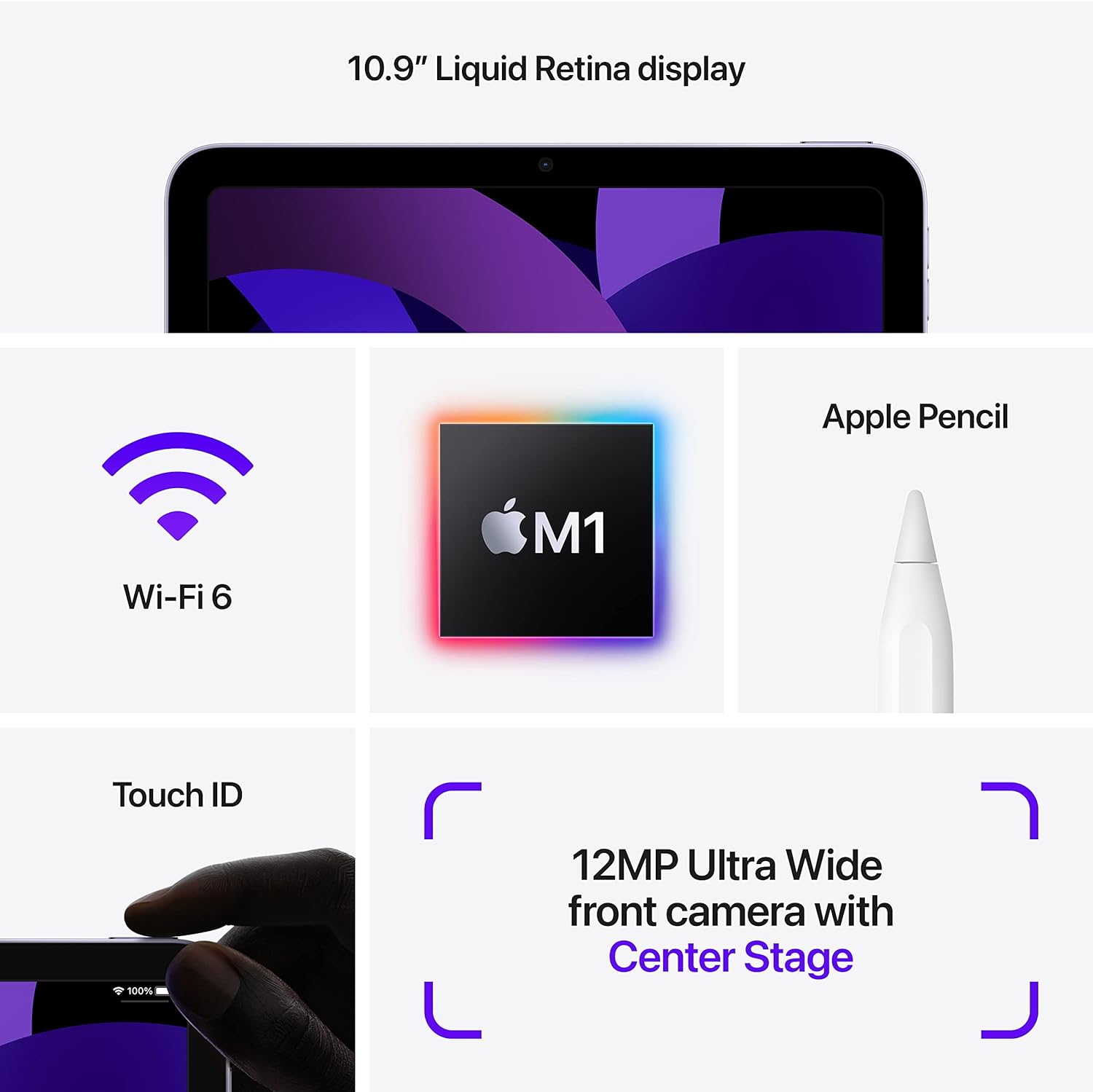
Image: Visual representation of iPad Air features, including Touch ID on the top button.
Operating Instructions
1. Navigating iPadOS
The iPad Air operates using touch gestures on its Liquid Retina display. Swipe up from the bottom to go to the Home screen, swipe down from the top-right for Control Center, and swipe down from the top-center for Notifications. Multitasking is supported, allowing you to run multiple apps simultaneously.

Image: Two iPad Airs demonstrating app usage, including gaming and 3D design.
2. Using Cameras
The iPad Air features a 12MP Ultra Wide front camera and a 12MP Wide back camera. Open the Camera app to take photos or record 4K videos. The front camera supports Center Stage, which automatically keeps you centered during video calls.
3. Apple Pencil (2nd Generation) and Magic Keyboard (Accessories)
The iPad Air is compatible with the Apple Pencil (2nd Generation) for drawing, note-taking, and marking up documents. It also supports the Magic Keyboard for a laptop-like typing experience and trackpad functionality. These accessories are sold separately.

Image: iPad Air with Magic Keyboard and Apple Pencil, demonstrating accessory compatibility.

Image: A user interacting with the iPad Air using an Apple Pencil.
4. Apple Pay
Use Touch ID to securely authorize purchases with Apple Pay within apps and on websites. Set up Apple Pay in Settings > Wallet & Apple Pay.
Maintenance
1. Cleaning Your iPad Air
To clean the display, use a soft, lint-free cloth. Avoid abrasive materials, aerosols, solvents, or ammonia-based cleaners. For the enclosure, use a soft, damp cloth. Do not submerge the device in water.
2. Battery Care
The iPad Air uses a rechargeable lithium-ion battery. For optimal battery life, avoid exposing the device to extreme temperatures. Charge the device using the provided USB-C Power Adapter and cable. Periodically update iPadOS to ensure efficient battery management.
3. Software Updates
Keep your iPad Air's software up to date to benefit from the latest features, security enhancements, and performance improvements. Go to Settings > General > Software Update to check for and install updates.
Troubleshooting
1. Device Not Responding
If your iPad Air is unresponsive, force restart it: Press and quickly release the Volume Up button, press and quickly release the Volume Down button, then press and hold the Top button until the Apple logo appears.
2. Wi-Fi Connectivity Issues
If you experience issues connecting to Wi-Fi, try the following:
- Ensure Wi-Fi is enabled in Settings.
- Restart your Wi-Fi router.
- Forget the network and reconnect: Go to Settings > Wi-Fi, tap the "i" next to your network, then tap Forget This Network.
3. App Performance Issues
If an app is not functioning correctly, try closing and reopening it. If the issue persists, check the App Store for updates to the app. As a last resort, delete and reinstall the app.
4. Battery Draining Quickly
Check battery usage in Settings > Battery to identify apps consuming significant power. Adjust screen brightness, disable background app refresh for non-essential apps, and ensure iPadOS is updated.
Specifications
| Model Name | iPad Air (5th Generation) |
| Item Model Number | MM9L3LL/A |
| Display | 10.9-inch Liquid Retina display with True Tone |
| Display Resolution | 2360 x 1640 Pixels |
| Chip | Apple M1 chip with 8-core CPU, 8-core GPU, Next-generation Neural Engine |
| Memory Storage Capacity | 256 GB (variant shown, also available in 64GB) |
| Front Camera | 12MP Ultra Wide with Center Stage |
| Back Camera | 12MP Wide with Smart HDR 3 and 4K video recording |
| Battery Life | Up to 10 hours (Wi-Fi), Up to 9 hours (cellular data) |
| Connector | USB-C |
| Dimensions (H x W x D) | 9.74 x 7.02 x 0.24 inches (247.6 x 178.5 x 6.1 mm) |
| Weight | 1.0 pound (458 grams) Wi-Fi model; 1.02 pounds (462 grams) Wi-Fi + Cellular model |
| Date First Available | March 11, 2022 |
Warranty and Support
For detailed warranty information and technical support, please refer to Apple's official website or contact Apple Support directly. Warranty terms and conditions may vary by region and purchase date.
You can find additional resources and support at support.apple.com/ipad.


