Introduction
This manual provides comprehensive instructions for the FreedConn KY PRO Motorcycle Bluetooth Headset. It covers essential information regarding setup, operation, maintenance, and troubleshooting to ensure optimal performance and a seamless communication experience while riding. The KY PRO features Bluetooth 5.0, group intercom for up to 4 riders, high-fidelity audio, 8th-generation CVC intelligent noise reduction, FM radio, voice assistant support, and IP65 waterproofing.
Package Contents
Please verify that all items are present in your package:
- Bluetooth Kit (Main Unit)
- 2-in-1 Soft & Hard Mic Earphone
- Hook Clip and Velcro Clip
- Headphone Velcro
- USB Cable
- User Manual (this document)

Image: FreedConn KY PRO package contents, showing the main unit, microphone/earphone set, mounting clips, velcro pads, and USB cable.
Setup
1. Charging the Device
Before initial use, fully charge the FreedConn KY PRO headset. Connect the provided USB Type-C cable to the charging port on the device and to a suitable USB power source. A full charge takes approximately 2 hours. The device offers up to 12 hours of intercom talk time, 25 hours of call time, and 168 hours of standby time.

Image: Illustration showing the FreedConn KY PRO headset with battery life indicators and charging time details.
2. Mounting to Helmet
The FreedConn KY PRO is designed for easy installation on most full-face and half-face motorcycle helmets. Use either the hook clip or velcro clip to securely attach the main unit to the side of your helmet. Position the speakers inside the helmet's ear pockets and the microphone near your mouth for clear communication. Ensure all cables are neatly tucked away to avoid obstruction.

Image: A FreedConn KY PRO unit mounted on the side of a motorcycle helmet.
3. Pairing with Mobile Phone
To connect your FreedConn KY PRO to your mobile phone:
- Ensure the headset is powered off.
- Long press the "on/off" button for 8 seconds until the red and blue lights flash alternately. This indicates the product is in pairing mode.
- On your mobile phone, go to Bluetooth settings and enable Bluetooth.
- Search for available devices and select "KY Pro" to connect. Once connected, the blue light will flash slowly.
Video: Demonstrates how to pair the FreedConn KY PRO headset with a mobile phone, including activating pairing mode and connecting via Bluetooth settings. This video also covers music playback, call management, voice commands, and FM radio.
4. Intercom Pairing (Two Units)
To establish an intercom connection between two FreedConn KY PRO units:
- Ensure both devices are powered off.
- Long press the "on/off" button on both devices for 8 seconds until the red and blue lights flash alternately. Both devices are now in pairing state.
- Press the "on/off" button on one of the devices (Device A) once. It will search for the other device (Device B).
- When the red and blue flash on both devices turns to a blue flash, it means the two devices have been successfully paired, and intercom communication can begin.
Video: Instructions on how to pair two FreedConn KY PRO units for intercom communication, showing the button presses and light indicators.
Operating Instructions
1. Power On/Off
- Power On: Long press the "on/off" button until you hear a power-on tone and the blue light flashes.
- Power Off: Long press the "on/off" button until you hear a power-off tone and the red light flashes before turning off.
2. Music Playback
Once paired with your mobile phone, you can control music playback:
- Play/Pause: Press the multifunction button once.
- Volume Adjustment: Turn the knob clockwise to increase volume, counter-clockwise to decrease volume.
- Next Song: Turn the knob clockwise and hold briefly.
- Previous Song: Turn the knob counter-clockwise and hold briefly.
3. Call Management
Manage incoming and outgoing calls with ease:
- Answer Automatically: A call will be automatically answered if it is ringing for 15 seconds without any operation.
- Answer Manually: Press the multifunction button once to answer an incoming call.
- Hang Up: Press the multifunction button once during a call to hang up.
- Reject Call: Press the multifunction button for 2 seconds to reject an incoming call.
4. Intercom Communication
After pairing two units (refer to Setup section 4), you can initiate and manage intercom calls:
- Start Intercom: Press the "on/off" button on either paired device once.
- End Intercom: Press the "on/off" button on either device once during an intercom call.
- Group Intercom: The KY PRO supports group intercom for up to 4 riders simultaneously. Follow the specific instructions in the full manual for multi-unit pairing.
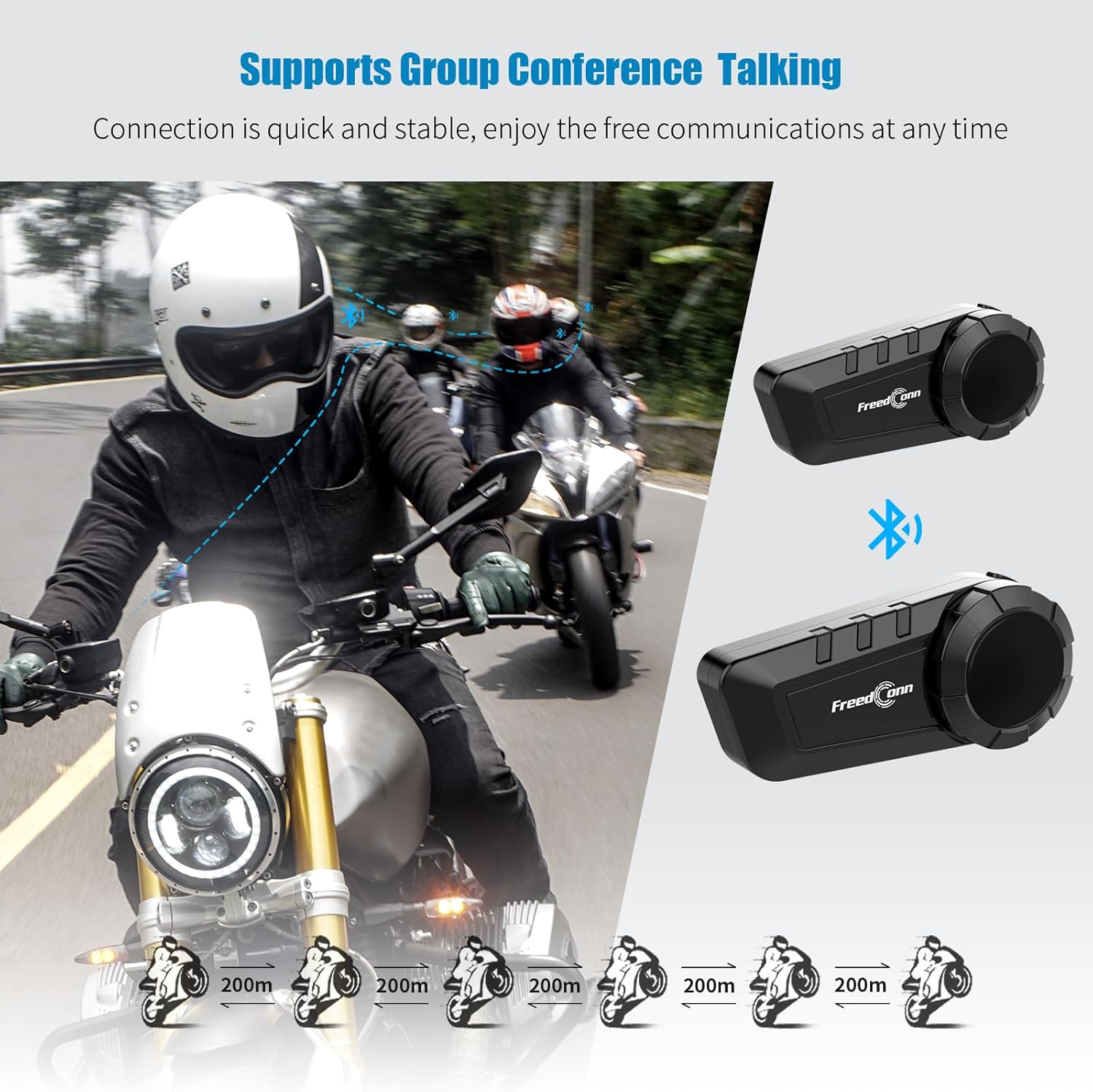
Image: Diagram illustrating the group intercom capability of the FreedConn KY PRO, showing multiple riders connected.
5. FM Radio
The device includes an FM radio function:
- Initiate FM Radio: In music mode or standby mode, double press the multifunction button to turn on the radio function.
- Adjust Channel: Turn the knob clockwise or counter-clockwise to change the radio channel.
- Adjust Volume: Turn the knob clockwise to increase volume, counter-clockwise to decrease volume.
- Pause/Resume Radio: Press the multifunction button once to pause, press again to resume.
- Exit FM Radio: Double press the multifunction button to switch back to music playing state or standby state.
6. Voice Commands
Activate your mobile phone's voice assistant:
- When the product is connected to your mobile phone, long press the multifunction button for 2 seconds to activate the voice control function (e.g., Siri, Google Assistant).

Image: A smartphone displaying a voice assistant interface next to the FreedConn KY PRO headset, illustrating the voice command feature.
7. Music Sharing
Share your music with another FreedConn KY PRO user:
- Under the premise that the two devices have been paired, press the "on/off" button of one of them to exit the intercom state.
- If the headset is playing music, press the multifunction button to pause the music.
- Double press the "on/off" button on the device that needs to share music to start music sharing mode. After 1-2 seconds, you will hear the sound "Turn on Share". Now you have successfully entered the music sharing mode.
- In the music sharing mode, press the multifunction button to continue playing the music, and the other device starts playing the same song.
- To stop music sharing, press the multifunction button again to pause the music. Then press the "on/off" button twice. When you hear the prompt of "Turn off Share", it means that the music sharing mode has been closed successfully.
Video: Detailed steps on how to activate and deactivate the music sharing feature between two FreedConn KY PRO headsets.
Maintenance
- Cleaning: Use a soft, damp cloth to clean the exterior of the device. Avoid using harsh chemicals or abrasive cleaners.
- Water Resistance: The FreedConn KY PRO is IP65 waterproof, meaning it is protected against dust and low-pressure water jets. It is suitable for use in rain but should not be submerged in water.
- Storage: Store the device in a cool, dry place when not in use. Avoid extreme temperatures.
Troubleshooting
| Problem | Possible Cause | Solution |
|---|---|---|
| Device does not power on. | Low battery. | Charge the device fully. |
| Cannot pair with phone/another unit. | Not in pairing mode; too far apart; interference. | Ensure device is in pairing mode (red/blue flashing). Move closer. Clear pairing records (see below) and try again. |
| No sound or low volume. | Volume too low; speakers not positioned correctly; loose connection. | Adjust volume. Check speaker placement. Ensure all connections are secure. |
| Intercom disconnects frequently. | Out of range; interference. | Stay within the specified intercom range. Avoid areas with high electromagnetic interference. |
Clearing Pairing Records
If you experience persistent pairing issues, clearing the device's pairing records may help:
- Ensure the device is powered off.
- Press and hold the "on/off" button for 8 seconds until you see the red light flash quickly 3 times.
- At this point, the pairing record is cleared successfully. You can now attempt to pair the device again.
Specifications
- Model Name: KY Pro
- Connectivity Technology: Wireless (Bluetooth 5.0)
- Noise Control: Active Noise Cancellation (8th-generation CVC)
- Water Resistance Level: IP65 Water Resistant
- Battery Capacity: 1100mAh
- Charging Time: Approximately 2 hours (Type-C fast charging)
- Intercom Talk Time: Up to 12 hours
- Call Time: Up to 25 hours
- Standby Time: Up to 168 hours
- Bluetooth Range: 10 Meters (for phone connection)
- Intercom Range: Up to 400 meters (between units, line of sight)
- Compatible Devices: Bluetooth-enabled devices (smartphones, tablets, other intercom brands)
- Control Type: Media Control, Voice Control
- Item Weight: 10.8 ounces (0.31 Kilograms)
- Material: Plastic
Warranty and Support
The FreedConn KY PRO Motorcycle Bluetooth Headset comes with a 1-year warranty from the date of purchase. This warranty covers manufacturing defects and ensures reliable operation under normal use conditions.
For technical support, warranty claims, or any questions regarding your product, please contact FreedConn customer service. Our dedicated support team is available to assist you promptly.
Please refer to the official FreedConn website or your purchase documentation for the most up-to-date contact information.


