1. Introduction
This manual provides detailed instructions for the Razer Viper Ultimate Lightweight Wireless Gaming Mouse and its accompanying RGB Charging Dock. This high-performance device is designed for precision and speed, featuring advanced wireless technology and a lightweight build. Please read this manual thoroughly to ensure proper setup, operation, and maintenance of your device.

Image 1.1: Razer Viper Ultimate Wireless Gaming Mouse and RGB Charging Dock (Mercury White).
2. What's in the Box
- Razer Viper Ultimate Wireless Gaming Mouse
- Razer RGB Charging Dock
- Speedflex USB Charging Cable
- USB Wireless Dongle
- User Manual & Important Product Information Guide
3. Setup
3.1 Connecting the Mouse
The Razer Viper Ultimate can be connected wirelessly or via a wired connection.
Wireless Connection (Razer Hyperspeed)
- Locate the USB wireless dongle, typically stored in a compartment on the underside of the mouse.
- Plug the USB wireless dongle into an available USB port on your computer.
- Turn on the mouse using the power switch located on its underside.
- The mouse should automatically connect to your computer.
Wired Connection
- Connect the Speedflex USB charging cable to the micro-USB port on the front of the mouse.
- Plug the other end of the cable into an available USB port on your computer.
- The mouse will function as a wired mouse and charge simultaneously.

Image 3.1: Razer Viper Ultimate Mouse and Charging Dock. The mouse can be used wirelessly via the USB dongle or wired via the included cable.
3.2 Using the RGB Charging Dock
The RGB Charging Dock provides a convenient way to charge your Razer Viper Ultimate mouse and also serves as a receiver for the wireless dongle.
- Connect the Speedflex USB charging cable to the port on the back of the charging dock.
- Plug the other end of the cable into an available USB port on your computer.
- Insert the USB wireless dongle into the dedicated slot on the charging dock.
- Place the Razer Viper Ultimate mouse onto the charging contacts of the dock. The mouse will begin charging, and the dock's RGB lighting will indicate charging status.

Image 3.2: Razer Viper Ultimate Mouse on its RGB Charging Dock. The dock provides a stable charging point and houses the wireless dongle.
3.3 Software Installation (Razer Synapse)
For full customization of your mouse's performance, lighting, and programmable buttons, install the Razer Synapse software. This software allows you to adjust DPI settings, create custom profiles, and manage RGB lighting effects.
- Download Razer Synapse from the official Razer website.
- Follow the on-screen instructions to complete the installation.
- Once installed, connect your mouse to your computer, and Razer Synapse should automatically detect it.
4. Operating the Mouse
4.1 Razer Hyperspeed Wireless Technology
The mouse utilizes Razer Hyperspeed Wireless Technology, which is engineered to provide low-latency performance and reduce interference, ensuring a stable and responsive wireless connection.
4.2 Lightweight Design and Optical Sensor
Weighing 74g, the Razer Viper Ultimate features a lightweight design without compromising structural integrity. It incorporates a 20K DPI optical sensor for precise tracking and movement detection.
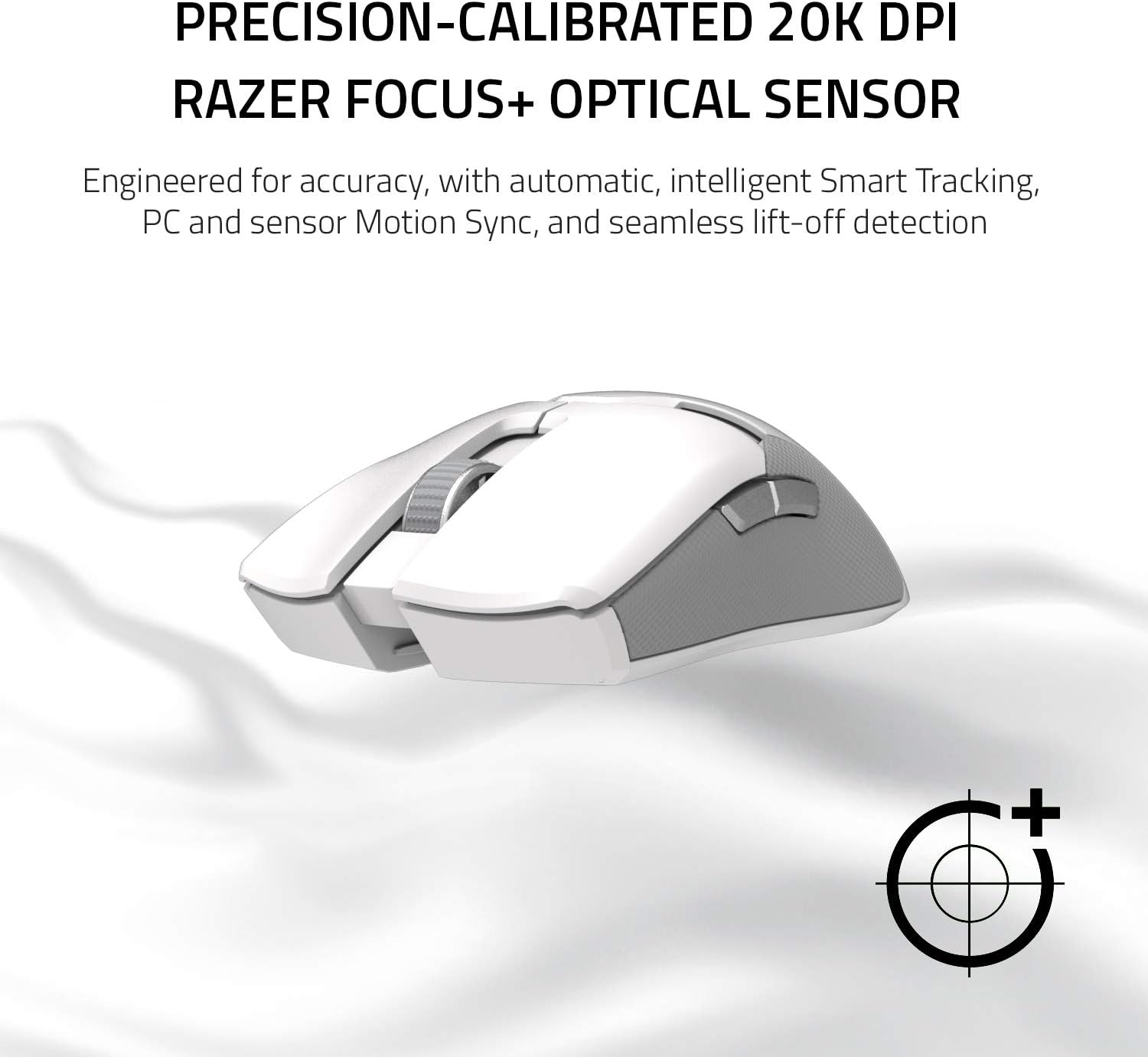
Image 4.1: Underside of the Razer Viper Ultimate Mouse, highlighting the 20K DPI optical sensor.
4.3 Optical Mouse Switches
The mouse is equipped with Razer optical mouse switches. These switches use light beam-based actuation, which registers button presses at high speed, minimizing signal delay.

Image 4.2: Close-up of the Razer Viper Ultimate Mouse, illustrating the optical switch mechanism.
4.4 Ambidextrous Design and Programmable Buttons
The mouse features an ambidextrous design, making it suitable for both left-handed and right-handed users. It includes accessible, programmable buttons on both sides, which can be customized via Razer Synapse.
4.5 Battery Life
The Razer Viper Ultimate offers up to 70 hours of battery life on a single charge, allowing for extended periods of use.
5. Maintenance
5.1 Cleaning
- Use a soft, dry cloth to wipe down the mouse and charging dock regularly.
- For stubborn dirt, lightly dampen the cloth with water. Avoid harsh chemicals or abrasive materials.
- Ensure no liquid enters the device openings.
5.2 Charging
- Charge the mouse using the provided RGB Charging Dock or directly via the Speedflex USB cable.
- Avoid overcharging by disconnecting the mouse once fully charged, especially if not using the dock.
- Store the mouse and dock in a cool, dry place when not in use.
6. Troubleshooting
If you encounter issues with your Razer Viper Ultimate mouse, consider the following general troubleshooting steps:
- No Power/Not Responding: Ensure the mouse is charged. Connect it via the USB cable to confirm if it powers on. Check the power switch on the underside of the mouse.
- Wireless Connectivity Issues: Ensure the USB wireless dongle is securely plugged into a working USB port. Try a different USB port. Ensure the mouse is within range of the dongle. Re-pair the mouse with the dongle if necessary (refer to Razer Synapse for pairing instructions).
- Inaccurate Tracking: Clean the optical sensor on the underside of the mouse. Ensure you are using the mouse on a suitable surface (e.g., a mouse pad). Adjust DPI settings in Razer Synapse.
- Buttons Not Working: Check button assignments in Razer Synapse. Ensure no physical obstructions are preventing button presses.
- Software Issues: Ensure Razer Synapse is updated to the latest version. Try reinstalling the software if problems persist.
For more specific issues, refer to the official Razer support website or contact their customer service.
7. Specifications
| Feature | Specification |
|---|---|
| Brand | Razer |
| Model Name | Viper Ultimate |
| Item Model Number | RZ01-03050400-R3U1 |
| Color | Mercury White |
| Connectivity Technology | Wireless |
| Movement Detection Technology | Optical |
| Special Features | Lightweight, Programmable Buttons, Wireless |
| Item Weight | 2.72 ounces |
| Product Dimensions (LxWxH) | 2.6 x 5 x 1.5 inches |
| Average Battery Life | 70 Hours |
| Power Source | Battery Powered (1 Lithium Ion battery included) |
| Hardware Platform | PC |
| Operating System | Windows |
8. Warranty and Support
For detailed warranty information, product registration, and technical support, please visit the official Razer support website. Keep your proof of purchase for any warranty claims.
No official product videos from the seller were available for embedding in this manual.


