Introduction
This manual provides essential instructions for setting up, operating, maintaining, and troubleshooting your MSI Katana GF66 Gaming Laptop. Please read this manual thoroughly before using your device to ensure proper function and longevity.

Image: The MSI Katana GF66 Gaming Laptop, showcasing its display and keyboard.
Package Contents
Upon opening the package, verify that all items are present and in good condition:
- MSI Katana GF66 Gaming Laptop
- AC Power Adapter
If any items are missing or damaged, contact your retailer or MSI customer support immediately.
Setup
1. Initial Power-On
- Connect the AC power adapter to the laptop's power input port and then to a power outlet.
- Open the laptop lid.
- Press the power button to turn on the laptop.
- Follow the on-screen instructions to complete the Windows 10 Home setup process.
2. Connecting Peripherals
The MSI Katana GF66 offers various ports for connecting external devices:
- USB Ports: Connect USB devices such as mice, keyboards, or external storage drives.
- 1x Type-C USB 3.2 Gen 1
- 2x Type-A USB 3.2 Gen 1
- 1x Type-A USB 2.0
- HDMI Port: Connect an external monitor or TV for extended display.
- Audio Jack: Connect headphones or external speakers using the Mic-in/Headphone-out Combo Jack.
- RJ-45 Port: Connect an Ethernet cable for a wired network connection.

Image: Left side of the MSI Katana GF66, displaying the USB-C, USB 3.2 Gen 1 Type-A, HDMI, and power input ports.

Image: Right side of the MSI Katana GF66, showing the USB 3.2 Gen 1 Type-A, USB 2.0 Type-A, and the Mic-in/Headphone-out Combo Jack.
Operating Instructions
1. Keyboard Functions
The laptop features an RGB backlit keyboard. To control the backlight:
- Enable/Disable Backlight: Press the Fn + F8 keys simultaneously.
The keyboard also includes a numeric keypad for convenient data entry.
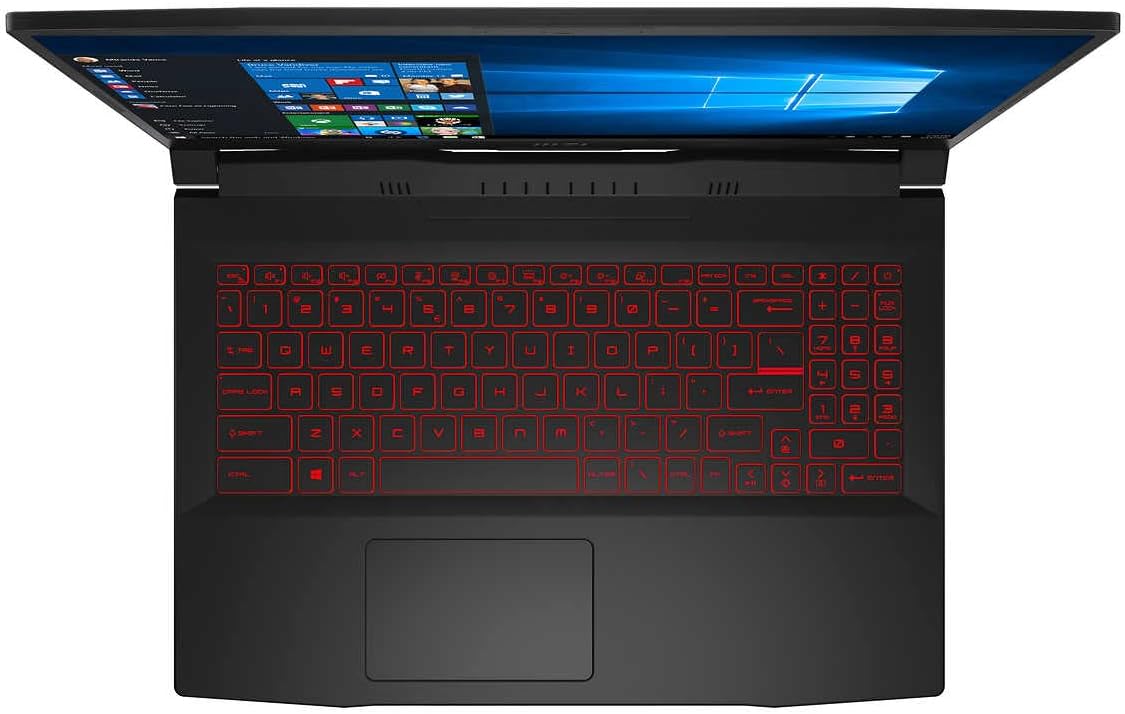
Image: Top view of the MSI Katana GF66, highlighting the red backlit keyboard and integrated touchpad.
2. Display Settings
The laptop features a 15.6-inch Full HD (1920 x 1080) IPS-Level 144Hz display. You can adjust display settings through Windows 10:
- Right-click on the desktop and select "Display settings" to adjust resolution, orientation, and multiple displays.
- For advanced graphics settings, right-click on the desktop and select "NVIDIA Control Panel" to configure your NVIDIA GeForce RTX 3060.

Image: The MSI Katana GF66 displaying the Windows 10 Home operating system desktop.
3. Wireless Connectivity
The laptop supports Wi-Fi 6 and Bluetooth 5.1 Combo for wireless connections.
- Wi-Fi: Access network settings in Windows 10 to connect to available Wi-Fi networks.
- Bluetooth: Pair Bluetooth devices such as headphones, speakers, or game controllers through Windows 10 Bluetooth settings.
Maintenance
1. Cleaning
- Use a soft, lint-free cloth to clean the screen and exterior surfaces.
- Avoid using harsh chemicals or abrasive materials.
- Periodically clean the ventilation grilles (located on the bottom and sides) to prevent dust buildup, which can affect cooling performance.

Image: Underside of the MSI Katana GF66, illustrating the hexagonal ventilation design for optimal airflow.
2. Software Updates
Regularly update your operating system and drivers to ensure optimal performance and security:
- Windows Updates: Go to Settings > Update & Security > Windows Update.
- Driver Updates: Visit the official MSI website for the latest drivers for your Katana GF66 model.
3. Storage Management
The laptop is equipped with a 512GB + 1TB PCIe NVMe M.2 SSD. To maintain performance:
- Regularly delete unnecessary files and applications.
- Utilize disk cleanup tools provided by Windows.
Troubleshooting
This section addresses common issues you might encounter.
1. Laptop Does Not Power On
- Ensure the AC adapter is securely connected to both the laptop and a working power outlet.
- Verify the power outlet is functional by plugging in another device.
- If the battery is completely drained, allow it to charge for a few minutes before attempting to power on again.
2. No Display on Screen
- Check if the laptop is powered on.
- If an external monitor is connected, try disconnecting it or pressing Fn + F2 (or similar display toggle key) to switch display output.
- Adjust screen brightness using the function keys (e.g., Fn + F3/F4).
3. Keyboard Backlight Not Working
- Ensure the backlight is enabled by pressing Fn + F8.
- Check MSI Dragon Center software for keyboard lighting settings.
4. Wi-Fi Connectivity Issues
- Ensure Wi-Fi is enabled in Windows settings.
- Restart your router and modem.
- Update your Wi-Fi drivers from the MSI support website.
Specifications
| Component | Detail |
|---|---|
| Model Name | MSI Katana GF66 |
| Processor | Intel Core i7-11800H (2.30 GHz to 4.60 GHz, 8 Cores, 16 Threads) |
| Graphics | NVIDIA GeForce RTX 3060 (Dedicated) |
| Display | 15.6" Full HD (1920 x 1080), IPS-Level 144Hz, Non-Touch |
| RAM | 16GB DDR4 (Upgradable to 64GB) |
| Storage | 512GB + 1TB PCIe NVMe M.2 SSD (Total 1.5TB SSD) |
| Operating System | Windows 10 Home |
| Ports | 1x Type-C USB 3.2 Gen 1, 2x Type-A USB 3.2 Gen 1, 1x Type-A USB 2.0, 1x HDMI, 1x Mic-in/Headphone-out Combo Jack, 1x RJ-45 |
| Wireless Connectivity | Wi-Fi 6 + Bluetooth 5.1 Combo |
| Audio | 2x 2W Speakers |
| Camera | 720p HD Webcam |
| Power Supply | 150W AC Power Adapter |
| Weight | 4.63 pounds (approx. 2.1 kg) |
| Dimensions (LxWxH) | 15 x 11 x 1 inches (approx. 38.1 x 27.9 x 2.5 cm) |
| Color | Black |
Support and Warranty
For technical assistance, warranty information, or to download the latest drivers and utilities, please visit the official MSI support website.
MSI Support Website: www.msi.com/support
Refer to your purchase documentation for specific warranty terms and conditions applicable to your region.