
Introduction
This manual provides essential information for setting up, operating, maintaining, and troubleshooting your Acer Veriton X4680G Desktop Computer. Please read this document thoroughly before using the product to ensure proper function and longevity. Keep this manual for future reference.
Package Contents
Verify that all items are present in the package:
- Acer Veriton X4680G Desktop PC
- USB Keyboard
- USB Mouse
- Power Cord
- Documentation (Quick Start Guide, Warranty Card)
Product Overview
Familiarize yourself with the physical components of your desktop computer.
Front View
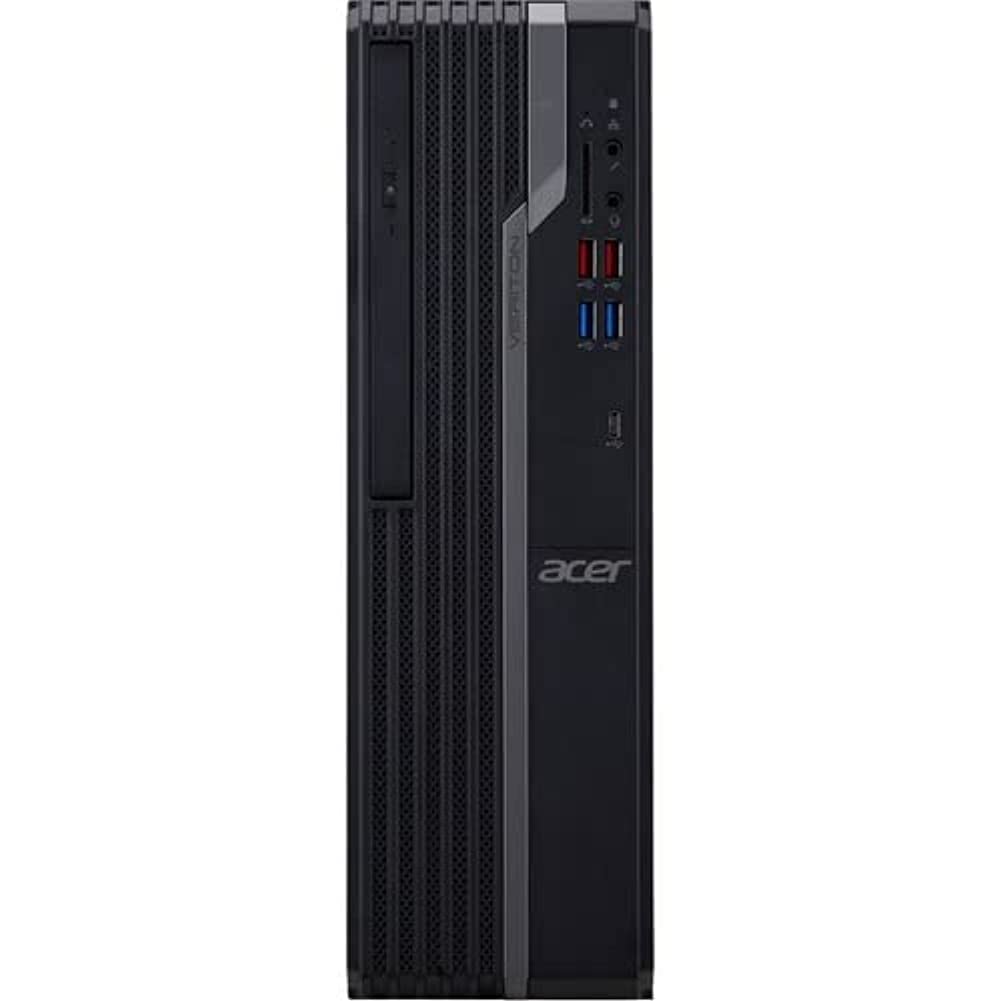
This image displays the front of the Acer Veriton X4680G desktop computer, highlighting the optical drive, front USB ports (including USB 3.2 and USB 2.0), audio jacks, and the power button. The 'Veriton' branding and Acer logo are visible on the chassis.
Rear View

This image shows the rear panel of the Acer Veriton X4680G, detailing the various input/output ports. These include multiple USB ports, Ethernet port, audio jacks, video output ports (VGA, DisplayPort), and the power input connector. Expansion slots are also visible.
Setup
Follow these steps to set up your new desktop computer.
1. Connecting Peripherals
- Monitor: Connect your monitor to one of the video output ports (VGA or DisplayPort) on the rear of the computer using the appropriate cable.
- Keyboard and Mouse: Connect the USB keyboard and mouse to any available USB ports on the front or rear of the computer.
- Network: For a wired internet connection, connect an Ethernet cable from your router or modem to the Ethernet port on the rear of the computer. For wireless, ensure your system has Wi-Fi enabled.
- Audio: Connect speakers or headphones to the audio output jack on the front or rear panel.
2. Power Connection
- Connect the power cord to the power input on the rear of the computer.
- Plug the other end of the power cord into a grounded electrical outlet.
3. Initial Power On
- Press the power button located on the front panel of the computer.
- The computer will boot up, and the Windows 10 Pro operating system will load. Follow any on-screen instructions for initial setup, such as language selection and user account creation.
Operating Instructions
Guidance for basic operation of your Acer Veriton X4680G.
Windows 10 Pro
Your computer comes pre-installed with Windows 10 Pro. This operating system provides a familiar interface for managing files, running applications, and browsing the internet. Utilize the Start Menu for quick access to programs and settings.
Using the Optical Drive (DVD-Writer)
The integrated DVD-Writer allows you to read and write CDs and DVDs.
- To open the tray, press the eject button on the drive face.
- Place a disc onto the tray with the label side facing up.
- Gently push the tray back into the computer until it clicks shut.
- The operating system will typically prompt you for action or automatically play media.
USB Ports
The computer features multiple USB 2.0 and USB 3.2 ports for connecting external devices such as external hard drives, printers, and other peripherals. USB 3.2 ports offer faster data transfer speeds.
Maintenance
Regular maintenance helps ensure optimal performance and extends the lifespan of your computer.
Cleaning
- Exterior: Use a soft, damp cloth to wipe the exterior surfaces. Avoid harsh chemicals.
- Vents: Periodically use compressed air to clear dust from the ventilation grilles to prevent overheating.
- Screen: For monitors, use a specialized screen cleaner and a microfiber cloth.
Software Updates
Keep your operating system and drivers updated to ensure security and performance.
- Windows Updates: Regularly check for and install Windows updates via the Settings app.
- Driver Updates: Visit the Acer support website for the latest drivers for your specific model.
Data Backup
Regularly back up your important files to an external drive or cloud storage to prevent data loss.
Troubleshooting
This section addresses common issues you might encounter.
No Power
- Ensure the power cord is securely connected to both the computer and the electrical outlet.
- Verify the electrical outlet is functional by plugging in another device.
- Check the power supply unit (PSU) switch on the rear of the computer, if present, to ensure it is in the 'On' position.
No Display on Monitor
- Confirm the monitor's power cable is connected and the monitor is turned on.
- Check that the video cable (VGA or DisplayPort) is securely connected to both the computer and the monitor.
- Ensure the monitor's input source is set correctly (e.g., VGA, DisplayPort).
System Slowdown
- Close unnecessary applications running in the background.
- Check disk space; a full drive can impact performance.
- Run a virus scan to check for malware.
- Ensure Windows and drivers are up to date.
Specifications
Detailed technical specifications for the Acer Veriton X4680G Desktop Computer.
| Feature | Specification |
|---|---|
| Processor | Intel Core i7-11700 Octa-core (8 Core) 2.50 GHz |
| RAM | 8 GB DDR4 SDRAM |
| Storage | 256 GB PCI Express SSD |
| Operating System | Windows 10 Pro |
| Graphics Card | Intel Iris Xe Graphics |
| Optical Drive | DVD-Writer |
| Wireless Connectivity | 802.11ax, Bluetooth |
| USB 2.0 Ports | 4 |
| Dimensions (LxWxH) | 16.34 x 19.49 x 6.69 inches |
| Item Weight | 14.52 pounds |
| Color | Black |
Warranty and Support
Your Acer Veriton X4680G Desktop Computer is covered by a limited warranty. Please refer to the warranty card included in your package for specific terms and conditions, including warranty period and coverage details.
For technical support, driver downloads, or further assistance, please visit the official Acer support website or contact Acer customer service. Have your product model number (DT.VWEAA.003) and serial number ready when seeking support.
Note: Warranty terms may vary by region.


