
Introduction
Thank you for choosing the Hoco J41 Pro 10000mAh Fast Charging Power Bank. This manual provides essential information for the safe and efficient use of your device. Please read it thoroughly before operation and retain it for future reference.
Package Contents
- Hoco J41 Pro 10000mAh Power Bank
- USB Charging Cable (Type-C)
- User Manual
Note: The specific type of USB cable included may vary.
Product Overview
The Hoco J41 Pro is a portable power bank designed for fast charging of various electronic devices. It features multiple output ports and an LED digital display for battery status.

Image 1: Front view of the Hoco J41 Pro Power Bank, showcasing its sleek black design and the LED digital display indicating a 100% charge level. A wrist strap is visible on the left side.

Image 2: Angled view of the Hoco J41 Pro Power Bank, highlighting the USB-A output port (22.5W) and the USB-C input/output port (PD 20W). The LED display shows the current battery percentage.
Key Features:
- High Capacity: 10000mAh (37Wh) for extended use.
- Fast Charging Protocols: Supports PD20W, QC, FCP/SCP, AFC, VOOC, DASH for wide compatibility.
- Multiple Ports: USB-A output (22.5W) and Type-C input/output (PD 20W).
- Digital Display: LED screen shows real-time battery percentage and fast charge indicator.
- Compact Design: Portable and easy to carry.
Setup
Initial Charging of the Power Bank:
- Connect the provided USB charging cable (Type-C) to the Type-C input port on the Hoco J41 Pro power bank.
- Connect the other end of the cable to a compatible USB wall adapter (not included) or a computer's USB port. For fastest charging, use a PD-compatible wall adapter.
- The LED digital display will show the charging progress. When the display shows "100%", the power bank is fully charged.
- Disconnect the cable once charging is complete.
It is recommended to fully charge the power bank before its first use.
Operating Instructions
Charging Your Devices:
- Ensure your Hoco J41 Pro power bank has sufficient charge. Check the LED display for the current battery percentage.
- Connect your device's charging cable to the appropriate output port on the power bank (USB-A or Type-C).
- Connect the other end of the cable to your electronic device (e.g., smartphone, tablet).
- The power bank will automatically begin charging your device. The LED display may show a fast charge indicator if a compatible device and cable are used.
- Once your device is fully charged, disconnect it from the power bank.
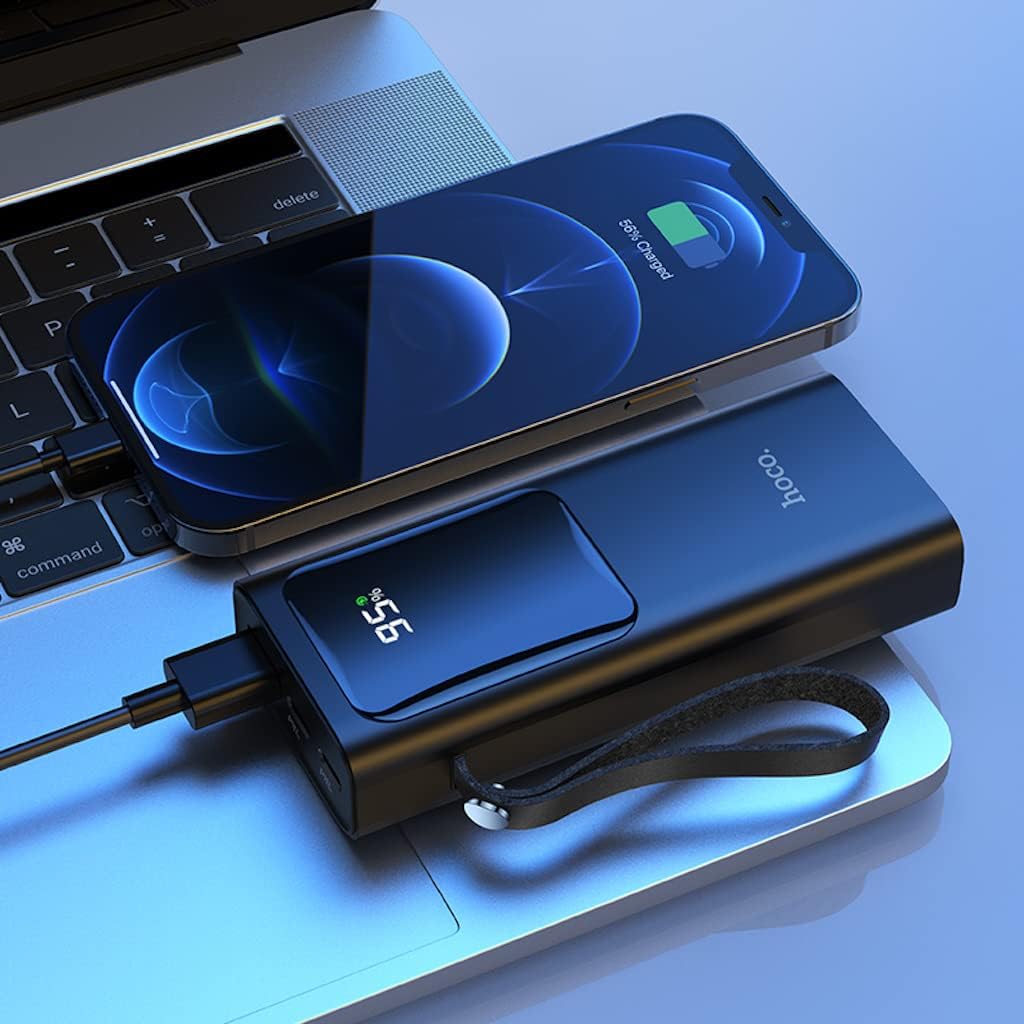
Image 3: The Hoco J41 Pro Power Bank actively charging an iPhone, positioned next to a laptop. The power bank's LED display shows a 95% charge, indicating its readiness for use.

Image 4: The Hoco J41 Pro Power Bank simultaneously charging two smartphones, demonstrating its multi-device charging capability. The power bank's display shows 100% charge.
Understanding the LED Digital Display:
- The display shows the remaining battery percentage of the power bank.
- During charging, the percentage will increase.
- When a device is being fast-charged, a specific indicator (e.g., a lightning bolt icon or "PD" / "QC" text) may appear on the display.
Maintenance
- Cleaning: Use a soft, dry cloth to clean the power bank. Do not use liquid cleaners or aerosols.
- Storage: Store the power bank in a cool, dry place away from direct sunlight, extreme temperatures, and humidity.
- Battery Care: To prolong battery life, fully charge the power bank at least once every three months if not in regular use.
- Avoid Drops: Do not drop or subject the power bank to strong impacts.
Troubleshooting
| Problem | Possible Cause | Solution |
|---|---|---|
| Power bank not charging. |
|
|
| Device not charging from power bank. |
|
|
| Slow charging. |
|
|
Specifications
| Feature | Detail |
|---|---|
| Model Name | J41 Pro |
| Brand | HOCO |
| Battery Capacity | 10000mAh (37Wh) |
| Rated Capacity | 5900mAh |
| Battery Cell Composition | Lithium Polymer |
| Input (Lightning/Type-C) | 18W (PD) |
| Output (Type-C) | PD 20W |
| Output (USB-A) | 22.5W (full compatible) |
| Total Output | 5V/3A |
| Supported Protocols | PD 20W, QC, FCP/SCP, AFC, VOOC, DASH |
| Display | LED Digital Display (Power, Fast Charge Indicator) |
| Connector Type | Lightning, USB Type C |
| Voltage | 5 Volts |
| Dimensions | 21.8 x 14.5 x 4.4 cm |
| Weight | 206 g |
| Color | Black |
Safety Information
Please read and follow these safety guidelines to prevent damage to your device or personal injury:
- Do not expose the power bank to water, moisture, or extreme temperatures.
- Do not disassemble, modify, or attempt to repair the power bank.
- Keep away from children.
- Do not use if the power bank is damaged, swollen, or leaking.
- Avoid dropping or subjecting the power bank to heavy impacts.
- Use only certified charging cables and adapters.
- Do not place heavy objects on the power bank.
- Dispose of the power bank responsibly according to local regulations.
Warranty and Support
Hoco products are manufactured to high-quality standards. For warranty information or technical support, please refer to the warranty card included in your package or contact your local retailer or Hoco customer service. Please have your product model number (J41 Pro) and purchase details ready when seeking support.
