
Introduction
This manual provides detailed instructions for the installation, operation, and maintenance of your Sonew 8 Zones Smart Sprinkler Controller. This device is designed to intelligently manage your garden's irrigation system, offering remote control via the TUYA application and compatibility with voice assistants for efficient water management.
Product Overview
Key Features
- Intelligent Control: Remote management via the TUYA APP and compatibility with voice control devices such as Google Assistant.
- Timed Watering: Customizable watering schedules for each of the 8 zones, with options for uniform timing across all zones. Includes manual control and countdown functions.
- Water Saving: Integrates with intelligent weather forecasts through the mobile application to prevent unnecessary watering during rain or snow.
- Easy Installation: Simple setup process requiring a 24V 1A power adapter (not included) and configuration through the mobile application.
- Power Outage Resilience: Automatic reconnection to the network after power restoration.
Package Contents
Upon unpacking, please verify that all items listed below are present:
- 1 x Sprinkler Controller
- 1 x Wiring Harness
- 3 x Screws
- 3 x Expansion Tubes
- 1 x User Manual (this document)
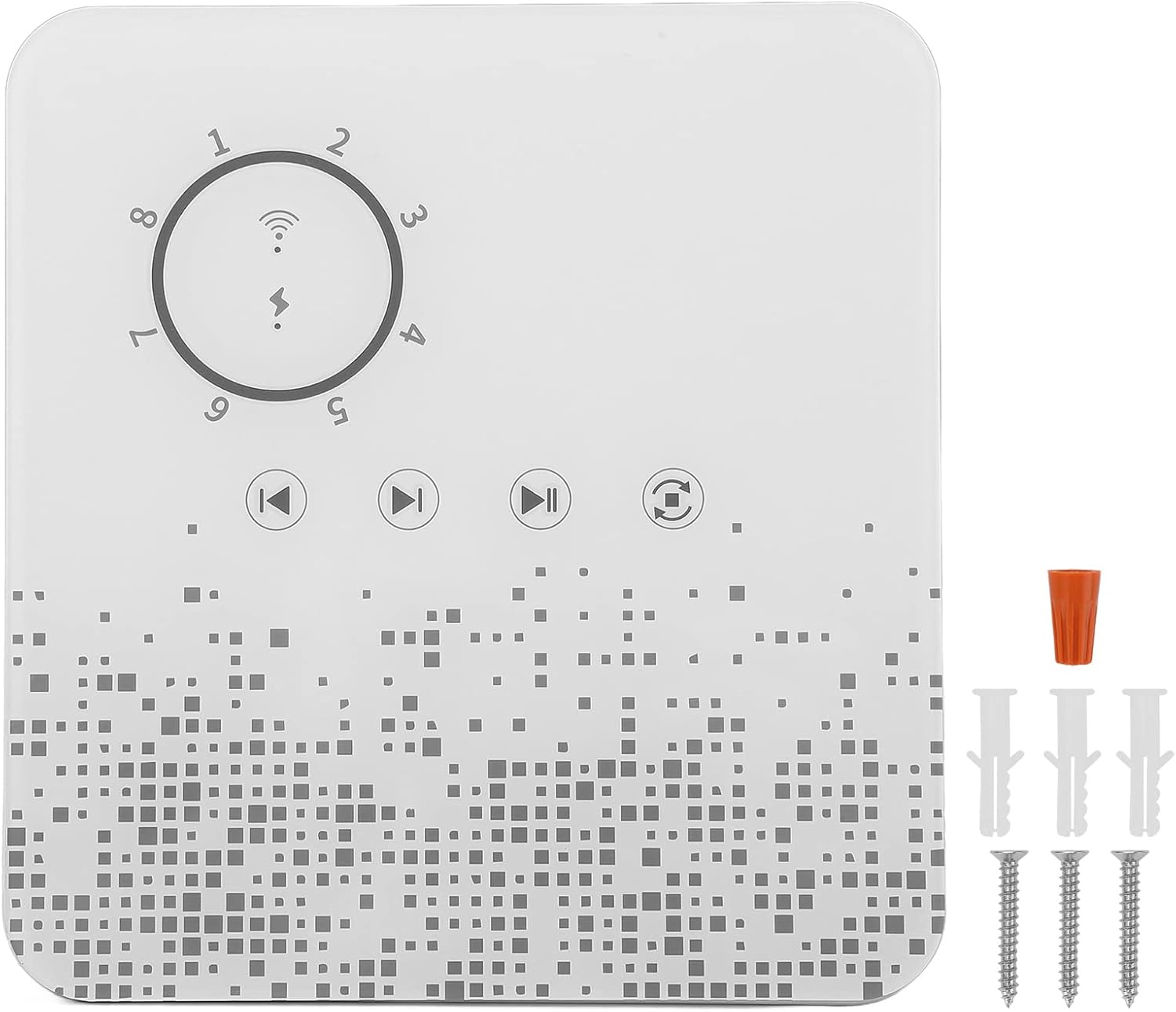
Image: The Sonew 8 Zones Smart Sprinkler Controller shown with its included wiring, screws, and expansion tubes.
Setup
1. Preparation
- Ensure you have a 24V 1A AC power adapter (not included) available.
- Choose a suitable outdoor location for the controller with good Wi-Fi signal coverage.
2. Physical Installation
- Mount the sprinkler controller securely using the provided screws and expansion tubes in your chosen location.
- Connect the wiring harness to your irrigation valves according to the diagram provided in the physical manual (if applicable) or general irrigation system wiring standards.
- Connect the 24V 1A power adapter to the smart irrigation controller.
3. App Connection
- Download the TUYA Smart or TUYA application from your mobile device's app store.
- Open the app and follow the on-screen instructions to add a new device.
- Ensure your mobile device is connected to a 2.4GHz Wi-Fi network (5GHz networks are not supported by the controller).
- Follow the app's prompts to bind the sprinkler controller to your account. This typically involves putting the controller into pairing mode (refer to the controller's indicator lights for status).

Image: A close-up view of the Sonew Smart Sprinkler Controller's top panel, showing the zone indicators and control buttons.
Operating Instructions
1. Remote Control via TUYA APP
Once the controller is successfully connected to the TUYA app:
- You can remotely turn on/off individual zones or the entire system.
- Set up customized watering schedules for each of the 8 zones. Each zone can have different start times, durations, and days of the week.
- Configure all 8 zones to run for the same watering duration if desired.
- Utilize the app's integration with intelligent weather forecasts to automatically adjust watering schedules, conserving water on rainy or snowy days.
2. Manual Control
The controller supports manual operation directly from the device:
- Use the physical buttons on the controller to manually start or stop watering for specific zones.
- A countdown function is available for manual watering sessions.
3. Voice Control
The Sonew Smart Sprinkler Controller is compatible with voice assistants such as Google Assistant:
- Integrate the TUYA app with your voice assistant platform.
- Use voice commands to control the sprinkler system (e.g., "Hey Google, turn on sprinkler zone 1").
- Note: While individual zones can be controlled via the app, direct voice control for individual zones may have limitations depending on the voice assistant integration.

Image: The Sonew Smart Sprinkler Controller positioned in a garden, with a sprinkler actively watering the lawn in the background, demonstrating its intended use.
Maintenance
To ensure the longevity and optimal performance of your Sonew Smart Sprinkler Controller, follow these general maintenance guidelines:
- Cleaning: Periodically wipe the exterior of the controller with a soft, dry cloth to remove dust and dirt. Avoid using abrasive cleaners or solvents.
- Environmental Protection: While designed for outdoor use, protect the controller from extreme weather conditions, direct prolonged sunlight, and heavy precipitation if possible, to extend its lifespan.
- Wiring Inspection: Annually inspect all wiring connections for any signs of wear, corrosion, or damage. Ensure all connections remain secure.
- Software Updates: Regularly check the TUYA app for any available firmware updates for the controller. Keeping the software updated can improve performance and add new features.
Troubleshooting
If you encounter issues with your Sonew Smart Sprinkler Controller, refer to the following common problems and solutions:
| Problem | Possible Cause / Solution |
|---|---|
| Controller loses connection to Wi-Fi. |
|
| Sprinklers do not activate. |
|
| Voice control not working. |
|
| Watering occurs during rain/snow. |
|
Specifications
| Feature | Specification |
|---|---|
| Voltage | AC 24V |
| Current | 1A |
| Working Frequency | 50/60Hz |
| Network Communication | 2.4GHz IEEE 802.11b/g/n |
| Compatible APP | TUYA Smart or TUYA |
| Voice Assistant Support | Google Assistant |
| Irrigation Zones | 8 Channels |
| Manual Control | Supported |
| Timing Function | Supported |
| Countdown Function | Supported |
| Material | ABS |
| Item Weight | 14.4 ounces |
| Package Dimensions | 8.15 x 7.05 x 4.21 inches |
Warranty and Support
For warranty information and technical support, please refer to the documentation included with your purchase or contact Sonew customer service directly. Details for contacting support are typically available on the manufacturer's official website or through the retailer where the product was purchased.