
TMEZON J7
TMEZON Doorbell Camera Wireless User Manual
Model: J7
Introduction
The TMEZON Smart Video Doorbell with Chime provides advanced home security features including 2K night vision, PIR motion detection, and two-way audio communication. This battery-powered wireless doorbell connects via 2.4GHz WiFi, offering convenient monitoring and interaction from your smartphone. This manual provides comprehensive instructions for setup, operation, and maintenance of your TMEZON Doorbell Camera.

Image: TMEZON Wireless Doorbell Camera and Chime. The doorbell camera is black and grey, shown next to a black wireless chime unit. A smartphone screen displays a live view from the doorbell camera.
What's in the Box
- Doorbell Camera
- Doorbell Chime
- Mounting Hardware (screws, anchors)
- USB Charging Cable
- User Manual (this document)
- Reset Pin
Key Features
- PIR Detection & Real-time Alert: Detects human motion up to 16ft, sending instant alerts to your phone within 2 seconds.
- Two-Way Audio & Pre-record Voice Message: Allows safe communication with visitors. Supports up to 3 pre-recorded voice messages.
- Local/Cloud Storage & Multiple-User Sharing: Supports Micro SD card up to 128GB (not included) and encrypted cloud storage (7-day free trial). Share access with family members.
- 2K IR Night Vision & Anti-theft Tamper Alert: Provides real-time 2K FHD night vision up to 33ft. An intelligent IR sensor automatically switches night vision mode. An alarm sounds if the doorbell is removed.
- No Wire Hassle & Rechargeable Battery Powered: Easy installation in under 5 minutes. Rechargeable battery lasts 2-3 months with typical use.
- IP65 Weatherproof: Designed to withstand various weather conditions.

Image: Illustration of the two-way audio feature, showing a person interacting with the doorbell and a smartphone displaying the conversation.

Image: Depiction of the tamper alarm feature, showing the doorbell being removed and a notification on a smartphone.
Specifications
| Feature | Detail |
|---|---|
| Model Number | J7 |
| Brand | TMEZON |
| Power Source | Battery Powered (Built-in 4500mAh Rechargeable Battery) |
| Connectivity Technology | Wireless (2.4GHz Wi-Fi) |
| Video Capture Resolution | 2K FHD |
| Night Vision Range | Up to 33 Feet |
| Viewing Angle | 140 Degrees |
| Motion Detection | PIR (Passive Infrared) |
| Storage Options | Micro SD Card (up to 128GB, not included), Cloud Storage (7-day free trial) |
| Weather Resistance | IP65 Water Resistant |
| Dimensions (L x W x H) | 3.94 x 3.94 x 3.94 inches |
| Item Weight | 15.1 ounces |
| Included Components | Doorbell camera, doorbell chime |
Setup Guide
1. Charging the Doorbell Camera
Before initial use, fully charge the doorbell camera using the provided USB cable. The battery lasts up to 2-3 months with typical activation (20 times a day).

Image: The TMEZON doorbell camera showing its internal rechargeable battery and mounting bracket.
2. App Installation and Device Pairing
Download and install the "CloudEdge" app on your smartphone. Follow the in-app instructions to pair your doorbell camera. Ensure your phone and the doorbell are connected to a 2.4GHz Wi-Fi network for optimal performance.
Video: Official TMEZON Wireless Doorbell Camera Setup Guide. This video demonstrates the step-by-step process of installing the CloudEdge app, pairing the doorbell, and connecting it to your Wi-Fi network.
Key steps for pairing:
- Download and install the CloudEdge App.
- Register and log in to the App.
- Click "Add Device" and select "Smart Doorbell" then "Smart Video Doorbell".
- Power on the device. If the device won't turn on due to low battery, connect the USB power cable to charge.
- Press the "Bell" button on the doorbell and tap "Next" in the app.
- Confirm the LED indicator flashes RED. If not, reset the device using the supplied reset pin (refer to the user manual for more details on resetting).
- Select your 2.4GHz Wi-Fi network and enter the password.
- Show the QR code displayed on your phone screen to the doorbell camera at a distance of 5-8 inches. A tone will be heard when successfully scanned.
- Wait for the connection to complete. Once successful, you can begin monitoring.
3. Physical Installation
The doorbell is designed for easy, wire-free installation. Mount the bracket to your desired location using the provided screws and anchors, then slide the doorbell camera onto the bracket.

Image: Three-step illustration showing how to install the TMEZON doorbell: 1. Screw the mounting plate to the wall. 2. Slide the doorbell onto the plate. 3. Secure with a bottom screw.
Operating Instructions
Live View and Two-Way Talk
Access the live feed from your doorbell camera via the CloudEdge app. You can see, hear, and speak to visitors in real-time. Use the pre-recorded voice messages for quick responses when you are unavailable.
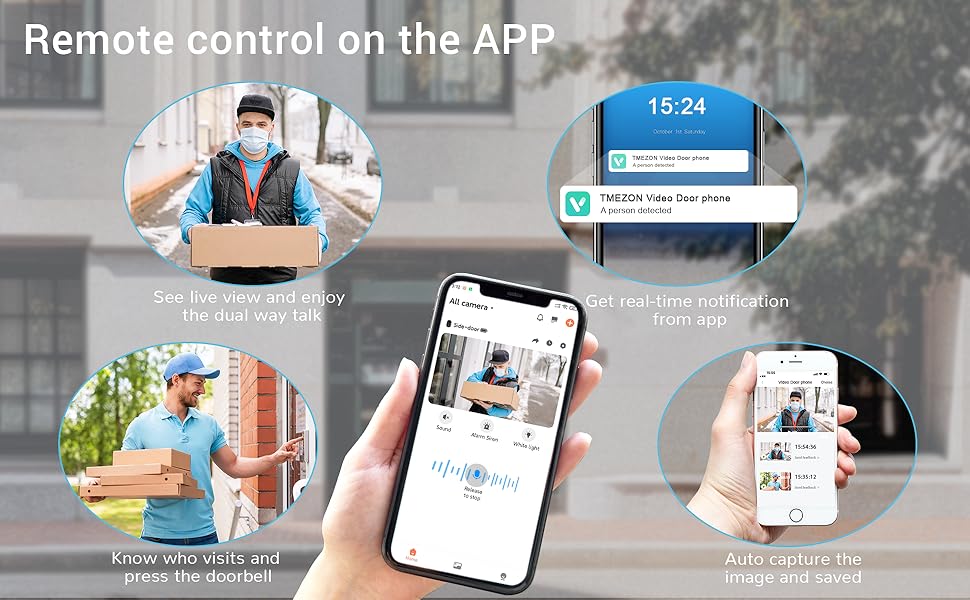
Image: A collage illustrating remote control features via the app, including live view, real-time notifications, and image capture.
Motion Detection and Alerts
The PIR sensor detects human motion and sends immediate alerts to your smartphone. You can adjust the sensitivity settings within the app to minimize false alarms.
Night Vision
The doorbell automatically switches to 2K FHD infrared night vision in low-light conditions, ensuring clear visibility up to 33 feet.

Image: A split image showing the doorbell's view in daylight (color) and at night (black and white infrared).
Storage Options
Recordings can be stored locally on a Micro SD card (up to 128GB, not included) or via the encrypted cloud storage service (7-day free trial available).

Image: Icons representing TF-Card Storage and Cloud Storage options for the doorbell camera.
Wireless Chime
The included wireless chime can be powered by a DC5V charger or 3 AA batteries. It offers 4 types of doorbell chimes and 4-level adjustable volume.

Image: The wireless chime unit, showing its compact design and indicating adjustable volume and chime types.
Maintenance
Battery Charging
When the battery level is low, the doorbell will indicate this via the app and potentially an LED indicator. Recharge the doorbell using the provided USB cable. A full charge typically takes several hours.
Cleaning
Wipe the camera lens and the doorbell's exterior with a soft, damp cloth. Avoid using harsh chemicals or abrasive materials that could damage the device.
Firmware Updates
Periodically check the CloudEdge app for available firmware updates. Keeping your device's firmware up-to-date ensures optimal performance and security.
Troubleshooting
| Problem | Possible Cause / Solution |
|---|---|
| Doorbell not connecting to Wi-Fi. |
|
| No motion detection alerts. |
|
| Poor video quality or lag. |
|
| Doorbell not holding charge or suddenly stopped working. |
|
Warranty and Support
TMEZON is committed to providing high-quality security monitoring products. If any item is not as described or is found to be faulty, it will be replaced or refunded without question. For technical support, warranty claims, or any inquiries, please refer to the contact information provided with your product packaging or visit the official TMEZON website.
Additional protection plans may be available for purchase to extend coverage beyond the standard warranty. Please check with your retailer for details.
Related documentsJ7


Ask a question about this manual
Ask about setup, troubleshooting, compatibility, parts, safety, or missing instructions. Manuals+ will review the question and use this page’s manual context to help answer it.