
1. Introduction
This manual provides instructions for the NETVIP Bluetooth Car Speaker, a wireless hands-free device designed for in-car communication and media playback. It supports Bluetooth connectivity, voice assistants, and TF card playback, offering a convenient and safe way to manage calls and audio while driving.
2. Package Contents
Verify that all items listed below are included in your package:
- Bluetooth In-Car Speakerphone x 1
- USB Cable x 1
- Magnetic Basement (Clip) x 1
- Lanyard x 1
- User Manual x 1
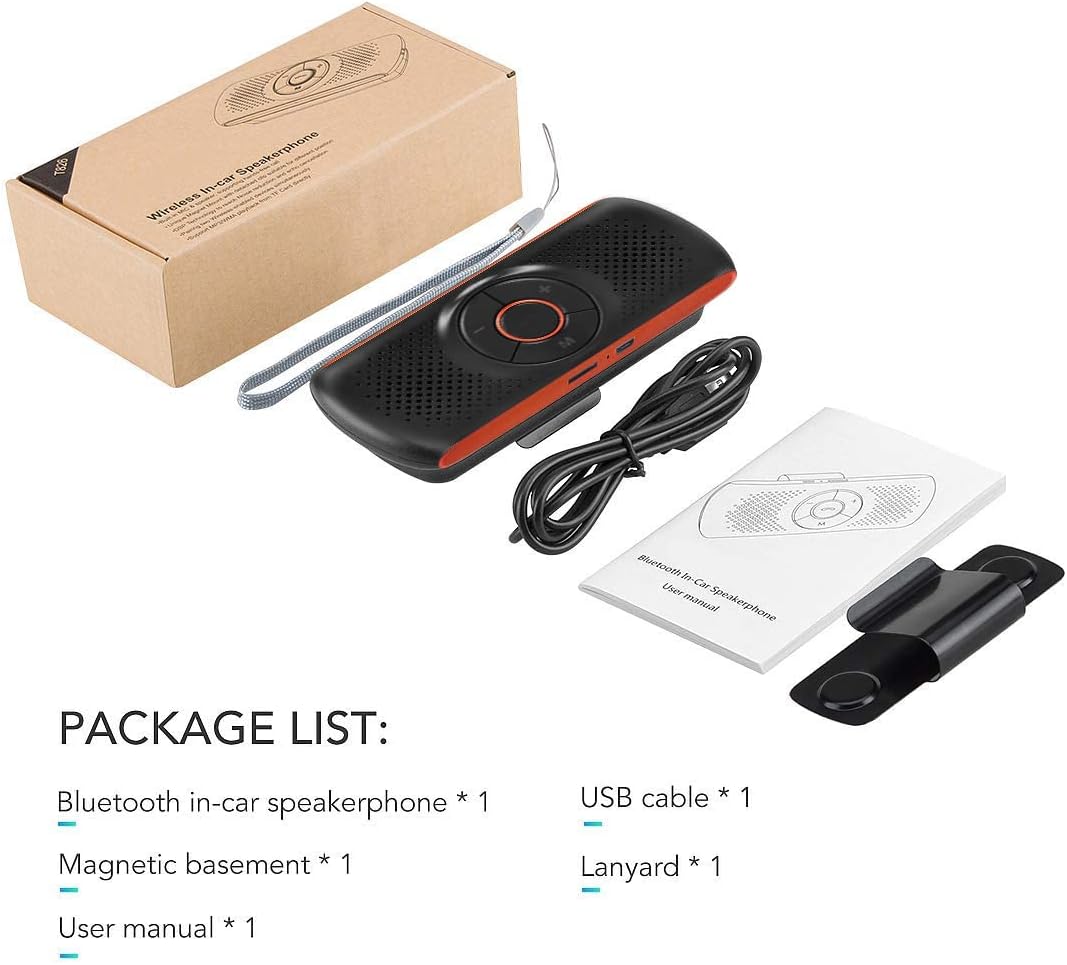
Image: Contents of the NETVIP Bluetooth Car Speaker package.
3. Product Features
- Hands-free Calling: Designed for safe communication while driving, allowing one-click call answering.
- Enhanced Bluetooth Connectivity: Features Bluetooth V4.2+EDR with echo noise reduction technology for clear audio.
- Voice Control Support: Compatible with Siri and Google Assistant for voice commands.
- Automatic Reconnection: Automatically reconnects to your paired phone upon power-on.
- Easy Installation: Back-clip design with a durable magnetic base for sun visor mounting.
- Multiple Media Options: Supports music playback via Bluetooth, TF card, or USB cable.
- Dual Phone Connection: Capable of connecting to two phones simultaneously.
4. Setup
4.1 Charging the Device
Before initial use, fully charge the speakerphone using the provided USB cable. Connect the USB cable to the device's charging port and a standard USB power source (e.g., car charger, computer USB port). The charging indicator light will show the charging status.
4.2 Mounting the Speakerphone
The speakerphone features a magnetic clip for easy attachment to your car's sun visor.
- Attach the magnetic basement clip to the back of the speakerphone.
- Slide the clip onto your car's sun visor. The magnetic connection allows for easy removal and reattachment.
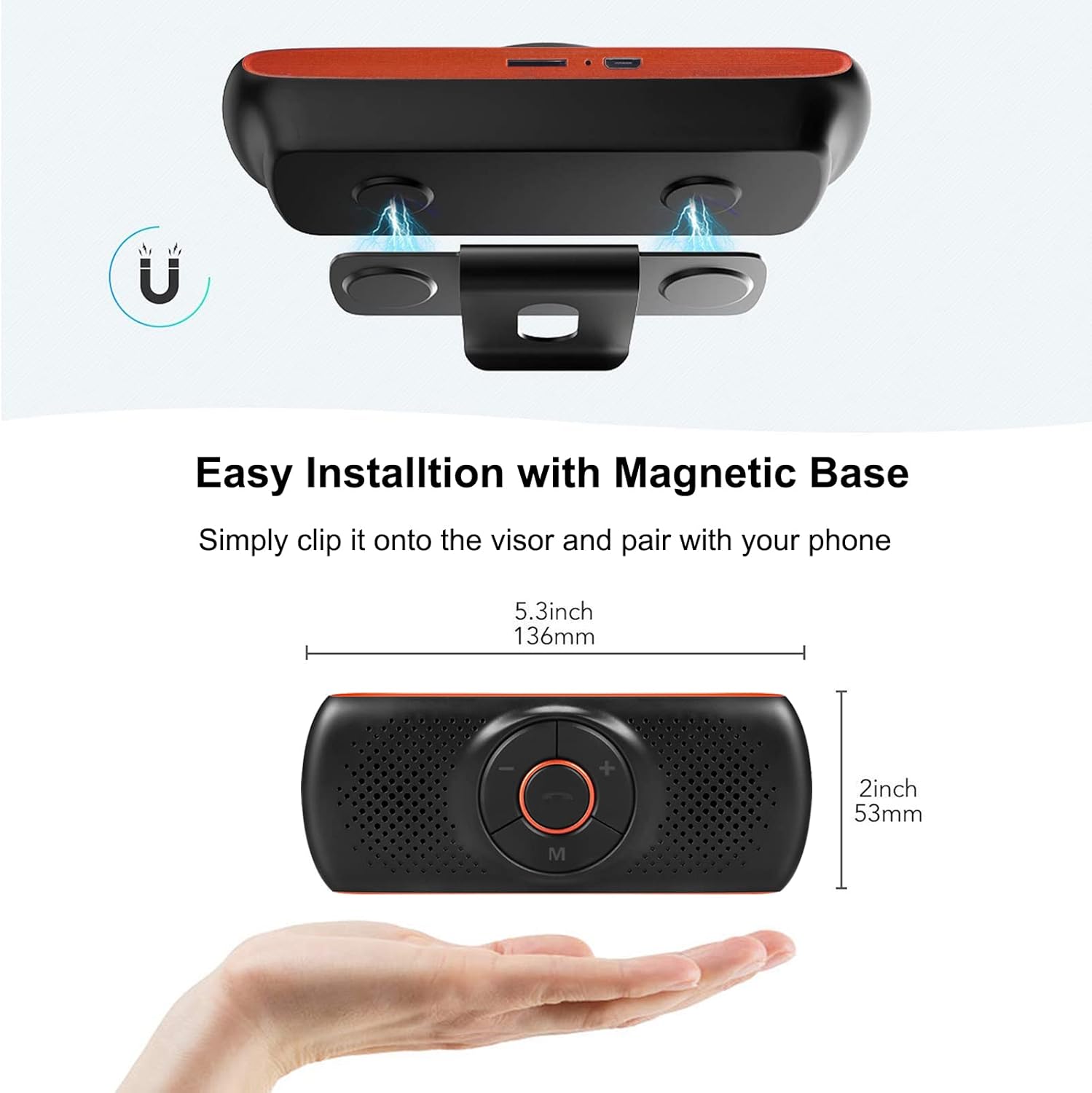
Image: Magnetic installation of the speakerphone on a car sun visor.
4.3 Bluetooth Pairing
To connect the speakerphone to your mobile phone:
- Ensure the speakerphone is charged and powered on.
- Activate Bluetooth on your mobile phone.
- Search for available Bluetooth devices. The speakerphone will appear as "NETVIP" or a similar name.
- Select the speakerphone from the list to pair. A confirmation tone or voice prompt will indicate successful pairing.
- The device will automatically reconnect to the last paired phone when powered on and within range.
5. Operating Instructions
5.1 Power On/Off
- To power on, press and hold the power button until the indicator light illuminates.
- To power off, press and hold the power button until the indicator light turns off.
5.2 Hands-Free Calling
When a call comes in, the speakerphone will announce the incoming call.
- Answer Call: Press the phone button once.
- End Call: Press the phone button once during a call.
- Reject Call: Press and hold the phone button for 2 seconds.
- Redial Last Number: Double-press the phone button.

Image: Driver using the NETVIP Bluetooth Car Speaker for hands-free communication.
5.3 Voice Assistant (Siri/Google Assistant)
The speakerphone supports voice commands through Siri or Google Assistant.
- Activate Voice Assistant: Double-click the 'M' button to activate Siri or Google Assistant on your connected phone.
- Once activated, you can issue voice commands for tasks like making calls, sending messages, or getting directions.

Image: Illustrates using voice commands with Google Assistant and Siri via the speakerphone.
5.4 Music Playback
The speakerphone can play music from your phone via Bluetooth or directly from a TF card.
- Bluetooth Music: Once paired, play music from your phone, and it will stream through the speakerphone.
- TF Card Playback: Insert a TF card with audio files into the designated slot. The speakerphone will automatically switch to TF card mode and begin playback.
- Volume Control: Use the '+' and '-' buttons on the speakerphone to adjust the volume.

Image: Detail of the TF card slot on the speakerphone for direct music playback.
5.5 Connecting Two Phones Simultaneously
The speakerphone can maintain a connection with two mobile phones at the same time.
- Pair the first phone as described in Section 4.3.
- After the first phone is paired, disable Bluetooth on the first phone.
- Pair the second phone to the speakerphone.
- Re-enable Bluetooth on the first phone. Both phones should now be connected.
- The speakerphone will prioritize incoming calls from either connected device.

Image: Demonstrates the speakerphone's ability to connect to two mobile phones concurrently.
6. Maintenance
To ensure the longevity and optimal performance of your NETVIP Bluetooth Car Speaker, follow these maintenance guidelines:
- Cleaning: Use a soft, dry cloth to clean the device. Avoid using abrasive cleaners, solvents, or harsh chemicals.
- Storage: Store the device in a cool, dry place away from direct sunlight and extreme temperatures.
- Battery Care: Do not expose the battery to extreme heat or cold. Charge the device regularly, even if not in frequent use, to maintain battery health.
- Avoid Water: This device is not waterproof. Keep it away from liquids and moisture.
7. Troubleshooting
If you encounter issues with your speakerphone, refer to the following common problems and solutions:
| Problem | Possible Cause | Solution |
|---|---|---|
| Device does not power on | Low battery | Charge the device fully. |
| Cannot pair with phone | Bluetooth not enabled on phone; device not in pairing mode; too far from phone | Ensure phone Bluetooth is on. Power cycle the speakerphone. Move phone closer to device. |
| No audio during calls/music | Volume too low; device not connected; incorrect audio output selected on phone | Increase volume on both speakerphone and phone. Re-pair the device. Check phone's audio output settings. |
| Voice assistant not responding | Not activated correctly; phone's voice assistant not enabled | Double-click 'M' button. Ensure Siri/Google Assistant is enabled on your phone. |
| TF card music not playing | TF card not inserted correctly; unsupported file format | Reinsert TF card. Ensure audio files are in a supported format. |
8. Specifications
| Feature | Specification |
|---|---|
| Brand | NETVIP |
| Connectivity Technology | Bluetooth, USB |
| Bluetooth Version | 4.2 + EDR |
| Power Source | Battery Powered |
| Speaker Output | 3W |
| Battery Capacity | 500 mAh Lithium-ion |
| Battery Charge Time | Approximately 3 Hours |
| Supported Media Type | TF Card |
| Mounting Type | Spoke Clip (Magnetic) |
| Control Type | Voice Control, Buttons |
| Compatible Devices | Smartphones, Car Stereo Systems |
| Input Voltage | 5 Volts (DC) |
9. Safety Information
Please read and adhere to the following safety guidelines:
- Avoid using the device near other wireless devices to prevent potential interference.
- Keep the battery away from extreme temperatures and high humidity.
- Dispose of the battery and product responsibly according to local regulations.
- Do not attempt to disassemble, repair, or modify the device yourself. Contact qualified service personnel for assistance.
- Ensure the device is securely mounted to avoid obstruction of vision or interference with vehicle controls.
10. Product Video
Watch this video for an introduction to the NETVIP Wireless In-Car Speakerphone:
Video: An introductory overview of the NETVIP Wireless In-Car Speakerphone, demonstrating its features and usage.
11. Warranty and Support
For warranty information or technical support, please contact NETVIP customer service through the retailer's platform or the official NETVIP website. Keep your purchase receipt for warranty claims.


