
1. Introduction
The onn. USB-C to HDMI Adapter allows you to connect your USB-C enabled device, such as a PC, laptop, notebook, or mobile device, to an HDMI-equipped monitor or display. This adapter facilitates the display of digital content from your small screen device onto a larger display, supporting resolutions up to 4K at 60Hz.
This manual provides essential information on setting up, operating, maintaining, and troubleshooting your onn. USB-C to HDMI Adapter. Please read it thoroughly before use to ensure optimal performance and longevity of the product.
2. Product Overview
The onn. USB-C to HDMI Adapter is a compact and portable device designed for seamless connectivity. It features a USB-C connector on one end and an HDMI port on the other.
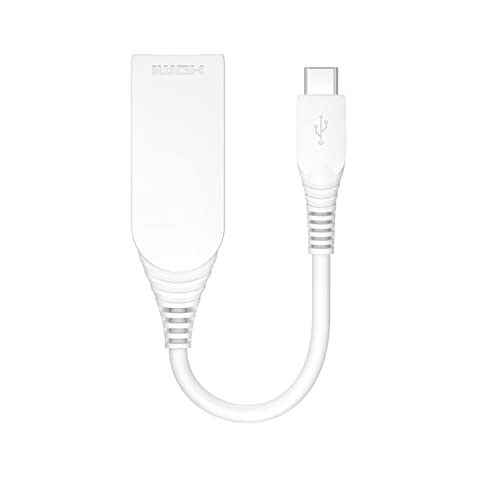
Figure 2.1: onn. USB-C to HDMI Adapter. This image shows the compact white adapter with its USB-C plug and HDMI port, ready for connection.
2.1 Components
- USB-C Connector: Connects to your source device (laptop, smartphone, etc.).
- HDMI Port: Connects to your display device (monitor, TV, projector).
- Adapter Body: Houses the internal circuitry for signal conversion.
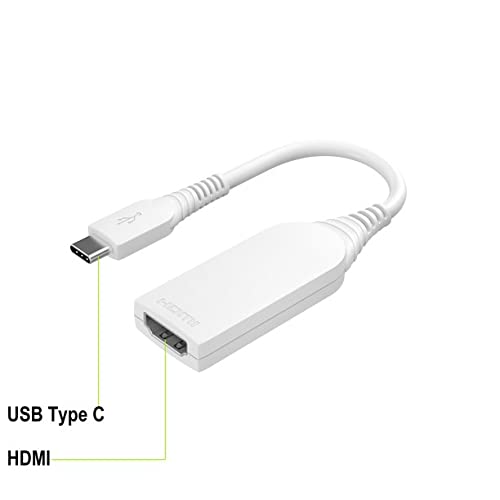
Figure 2.2: Labeled components of the onn. USB-C to HDMI Adapter. This image highlights the USB Type C connector and the HDMI port on the adapter.
3. Setup Instructions
Setting up your onn. USB-C to HDMI Adapter is a straightforward process. Follow these steps to connect your devices:
- Prepare your devices: Ensure your source device (e.g., laptop, smartphone) has a functional USB-C port that supports video output (DisplayPort Alternate Mode) and your display device (e.g., TV, monitor) has an available HDMI input.
- Connect the HDMI cable: Take a standard HDMI cable (not included) and plug one end into the HDMI port on your display device (TV, monitor, projector).
- Connect to the adapter: Plug the other end of the HDMI cable into the HDMI port on the onn. USB-C to HDMI Adapter.
- Connect the USB-C adapter to your source device: Insert the USB-C connector of the onn. adapter into the USB-C port of your source device.
- Select input on display: Turn on your display device and select the correct HDMI input source using your display's remote control or on-screen menu.
Your source device's screen should now be mirrored or extended to your display.
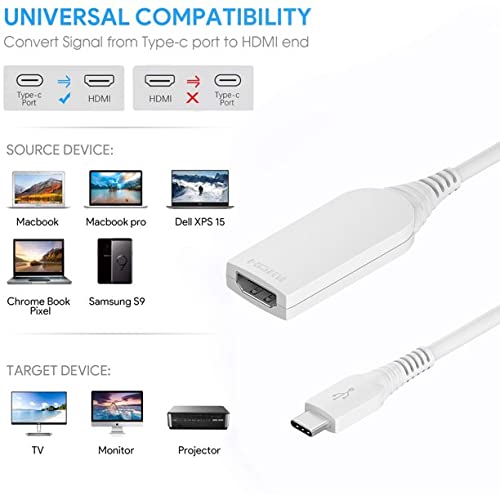
Figure 3.1: Universal Compatibility Diagram. This image illustrates how the USB-C to HDMI adapter converts signals, showing compatible source devices like MacBooks and Dell XPS, and target devices such as TVs, monitors, and projectors.
4. Operating Instructions
Once connected, the onn. USB-C to HDMI Adapter operates automatically.
- Automatic Detection: Most modern operating systems will automatically detect the connected display and configure the display settings.
- Display Modes: You can typically choose between "Duplicate" (mirroring your primary screen), "Extend" (using the external display as an additional desktop space), or "Second screen only" (displaying only on the external monitor) modes through your device's display settings.
- Audio Output: Audio is usually transmitted along with video through the HDMI connection. You may need to select the HDMI output as your preferred audio device in your source device's sound settings.
- Resolution: The adapter supports up to 4K resolution at 60Hz. Ensure your source device and display also support this resolution for optimal quality.
5. Maintenance
To ensure the longevity and proper functioning of your onn. USB-C to HDMI Adapter, follow these simple maintenance guidelines:
- Cleaning: Use a soft, dry cloth to clean the adapter. Do not use liquid cleaners or aerosols, as they may damage the device.
- Storage: Store the adapter in a cool, dry place away from direct sunlight and extreme temperatures.
- Handling: Avoid bending or twisting the cable excessively. Do not pull on the cable to disconnect it; always grasp the connector ends.
- Protection: Keep the adapter away from water, moisture, and corrosive materials.
6. Troubleshooting
If you encounter issues with your onn. USB-C to HDMI Adapter, refer to the following common problems and solutions:
- No display on the monitor:
- Ensure both the source device and the display are powered on.
- Verify that the HDMI cable is securely connected to both the adapter and the display.
- Confirm that the display's input source is set to the correct HDMI port.
- Check if your source device's USB-C port supports video output (DisplayPort Alternate Mode). Not all USB-C ports support this feature.
- Try restarting your source device.
- Flickering or unstable display:
- Ensure all connections are secure.
- Try a different HDMI cable.
- Reduce the display resolution or refresh rate in your source device's display settings.
- No audio from the display:
- Check your source device's sound settings and ensure the HDMI output is selected as the default audio device.
- Verify that the display's volume is turned up and not muted.
- Resolution not as expected (e.g., not 4K):
- Confirm that both your source device and your display support the desired resolution (e.g., 4K).
- Check your source device's display settings to ensure the resolution is set correctly.
- Ensure you are using a high-speed HDMI cable capable of supporting 4K resolution.
If the problem persists after trying these solutions, please contact customer support.
7. Specifications
| Feature | Description |
|---|---|
| Model Number | 681131291026 |
| Brand | onn. |
| Connector Type | USB Type C (Male) to HDMI (Female) |
| Supported Resolution | Up to 4K (3840 x 2160) at 60Hz |
| Compatible Devices | Laptops, PCs, Monitors, Televisions, Mobile Devices (e.g., Apple MacBook Pro, ChromeBook pixel, Samsung Galaxy TabPro S, Samsung Galaxy S8/S8 Plus/Note 8) with USB-C ports supporting DisplayPort Alternate Mode. |
| Color | White |
8. Warranty and Support
For warranty information or technical support, please refer to the documentation included with your purchase or visit the official onn. website.
If you require further assistance, please contact onn. customer service.


