1. Introduction
This manual provides detailed instructions for the installation, operation, and maintenance of your EONON GA2195J Car Navigation System. Please read this manual thoroughly before using the product to ensure proper and safe operation. Keep this manual for future reference.
2. Product Overview
The EONON GA2195J is a 7-inch IPS touch panel car navigation system running on Android 10. It offers seamless integration with wireless CarPlay and Android Auto, providing a smart and connected driving experience. Equipped with an 8-core processor, 3GB RAM, and 32GB ROM, it ensures fast and smooth performance for all your in-car entertainment and navigation needs.

Figure 2.1: EONON GA2195J Car Navigation System with its main interface showing CarPlay and Android Auto connectivity.
Key Features:
- Wireless/Wired CarPlay & Android Auto: Connect your smartphone for navigation, calls, and music.
- Powerful Performance: 8-core processor, 3GB RAM, 32GB ROM for smooth operation.
- Connectivity: Built-in Wi-Fi/4G module and Bluetooth 5.0 for versatile network and device connections.
- High-Resolution IPS Touch Screen: 7-inch, 1024x600P display with wide viewing angles and customizable UI.
- Advanced Audio: Built-in DSP for enhanced sound quality and adjustment.
- Expandability: Supports various optional accessories like external map cards, digital TV tuners, drive recorders, and rear cameras.
3. Setup and Installation
Proper installation is crucial for the optimal performance and safety of your EONON GA2195J. It is recommended that installation be performed by a qualified professional. Refer to the wiring diagram and physical dimensions for proper fitment.
3.1 Package Contents and Dimensions
Verify that all items listed below are included in your package:
- GPS Antenna x 1
- Power Cable x 1
- AV Cable 1 x 1
- AV Cable 2 x 1
- Rear Camera Input Cable x 1
- USB Cable 1 x 1
- USB Cable for CarPlay & Android Auto x 1
- 4G Antenna x 1
- Microphone x 1
- 10A Fuse x 1
- Mounting Screws x 8
- SIM Card Holder x 1
- User Manual x 1

Figure 3.1: Panel and Installation Dimensions, and Included Accessories. Panel size: 178(W) x 102(H) mm. Installation size: 178(W) x 80(D) x 100(H) mm.
3.2 Wiring Diagram

Figure 3.2: Wiring Diagram. This diagram illustrates the connections for power, speakers, GPS, 4G, USB, CarPlay/Android Auto, reverse light, brake, illumination, steering wheel control, and various optional accessories.
3.3 Initial Power On
After successful installation, turn on your vehicle's ignition. The unit should power on automatically. The initial boot-up may take longer as the system initializes. For GPS functionality, the first cold start may require up to 15 minutes to acquire satellite signals.
4. Operating Instructions
4.1 Basic Operation
The unit features a responsive 7-inch IPS touch screen. Navigate through menus and applications by tapping and swiping, similar to a smartphone.

Figure 4.1: High-Resolution IPS Touch Screen. The 1024x600P display provides clear visuals from various viewing angles.
4.2 Wireless/Wired CarPlay & Android Auto
Connect your iPhone or Android smartphone to access CarPlay or Android Auto. This allows you to use voice commands for navigation, make calls, send messages, and enjoy music directly from your phone's interface displayed on the unit.
- Wireless Connection: For compatible smartphones, connect wirelessly for a clutter-free experience.
- Wired Connection: Use the provided USB cable for a stable wired connection.

Figure 4.2: Wireless/Wired CarPlay & Android Auto Compatibility. The unit supports both wireless and wired connections for Apple CarPlay and Android Auto, enabling seamless smartphone integration.
4.3 Internet and Bluetooth Connectivity
The unit features built-in Wi-Fi and a 4G module for internet access. You can connect via a smartphone hotspot or by inserting a 4G SIM card directly into the unit (check compatibility for frequency bands in your region).
Bluetooth 5.0 provides faster data transfer speeds, wider communication range, and improved anti-interference capabilities. Connect your phone for hands-free calling and audio streaming from apps like Spotify and Apple Music.

Figure 4.3: Wi-Fi/4G Module and Bluetooth 5.0. The unit supports various internet connection methods and offers advanced Bluetooth capabilities for audio and calls.
4.4 Audio Settings (DSP)
The integrated Digital Sound Field Processing (DSP) with a 56-bit double precision mode allows for precise adjustment of audio signals from various angles. With a maximum output of 4*48W, it delivers a wide and realistic sound experience.

Figure 4.4: DSP Audio Adjustment. Customize your sound experience with the built-in DSP, offering graphic equalizer and optimal sound field selection.
4.5 Navigation and Multimedia
Utilize online maps via internet connection or offline maps with a dedicated map card (EONON G3048, sold separately). The system supports various map applications for up-to-date traffic information and routing.
The unit supports various internet services like Netflix, Skype, Apple Music, Spotify, and YouTube. You can also connect optional accessories for expanded multimedia capabilities.

Figure 4.5: Navigation and TV Viewing. The unit supports online and offline navigation, and with an optional EONON V0050 digital TV tuner, you can watch TV.
4.6 Optional Accessories Integration
The EONON GA2195J is designed to work with a range of optional accessories to enhance your driving experience:
- Rear Camera (EONON A0126J/A0119N, sold separately): Automatically switches to the rear camera view when reverse gear is engaged. Supports AHD (1920x1080) cameras.
- Drive Recorder (EONON R0015/R0020, sold separately): Record driving footage and monitor traffic conditions on the large screen.
- OBD2 (EONON V0056, sold separately): Monitor vehicle performance data such as engine speed, vehicle speed, voltage, and water temperature via the Torque app.
- Multi-Window Display: Split the screen to display two applications simultaneously.
- Steering Wheel Control: Register frequently used operations to steering wheel buttons for safe control while driving.
- RCA Full Screen Share (EONON A0595, sold separately): Output video and image displays to external monitors like headrest monitors for rear passenger entertainment. Requires a separate USB-RCA video output adapter.
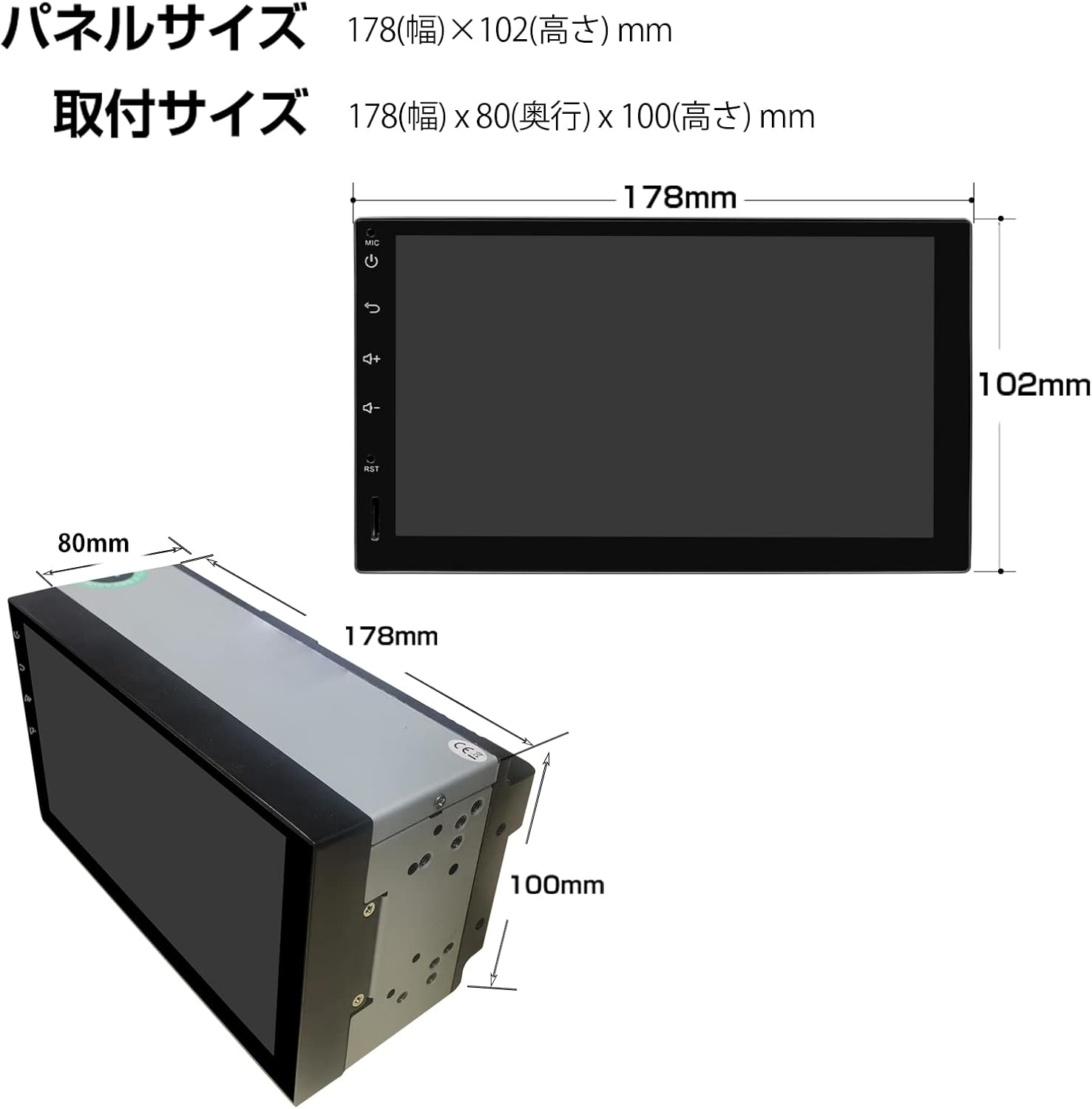
Figure 4.6: Optional Accessories and Features. This image illustrates the integration of a rear camera, drive recorder, OBD2, multi-window display, steering wheel control, and RCA output for expanded functionality.
5. Maintenance
To ensure the longevity and optimal performance of your EONON GA2195J, follow these maintenance guidelines:
- Screen Cleaning: Use a soft, lint-free cloth to gently wipe the touch screen. For stubborn smudges, slightly dampen the cloth with water or a screen-safe cleaner. Avoid abrasive materials or harsh chemicals.
- General Cleaning: Keep the unit free from dust and debris. Use a soft brush or compressed air to clean vents and ports.
- Software Updates: Periodically check for and install software updates provided by EONON to ensure the system runs efficiently and has the latest features and security patches.
- Avoid Extreme Temperatures: Do not expose the unit to extreme heat or cold for prolonged periods, as this can affect its electronic components.
- Power Management: Ensure the vehicle's electrical system is stable. Avoid frequent power interruptions.
6. Troubleshooting
If you encounter issues with your EONON GA2195J, refer to the following common problems and their solutions:
| Problem | Possible Cause | Solution |
|---|---|---|
| Unit does not power on. | No power supply; incorrect wiring; blown fuse. | Check power connections. Verify wiring according to the diagram. Check and replace the 10A fuse if necessary. |
| Touch screen is unresponsive or inaccurate. | Screen calibration issue; system freeze. | Restart the unit. If the problem persists, perform a factory reset (refer to system settings). |
| CarPlay/Android Auto not connecting. | Incorrect USB cable; phone settings; app issues. | Ensure you are using the correct USB cable. Check phone settings for CarPlay/Android Auto permissions. Restart both the unit and your phone. |
| No sound or distorted audio. | Speaker wiring issue; volume too low; DSP settings. | Check speaker connections. Adjust volume. Reset DSP settings to default. |
| GPS signal weak or inaccurate. | GPS antenna placement; environmental interference. | Ensure GPS antenna is placed in an unobstructed location. Allow time for cold start signal acquisition. |
| Slow performance or app crashes. | Too many apps running; low storage; software bug. | Close unused applications. Clear cache. Consider a factory reset if issues persist. |
If the problem persists after attempting these solutions, please contact EONON customer support for further assistance.
7. Specifications
| Feature | Detail |
|---|---|
| Screen Size | 7 inches |
| Resolution | 1024 x 600P |
| Operating System | Android 10 |
| Processor | 8-core |
| RAM | 3GB |
| ROM | 32GB |
| Connectivity | Bluetooth 5.0, Wi-Fi, 4G (SIM card support), USB |
| Audio Output | Max 4*48W, Built-in DSP |
| Compatible Services | Netflix, Skype, Apple Music, Spotify, YouTube |
| Control Method | Touch Screen |
| Dimensions (Package) | 26.3 x 22.8 x 17.1 cm |
| Weight (Package) | 1.57 kg |
8. Warranty and Support
EONON provides warranty coverage for its products. Please review the following terms carefully.
8.1 Warranty Coverage
- Product Damage during Transport: Report within 7 days of arrival.
- Customer Returns/Exchanges: Only for unopened products, report within 7 days of arrival.
8.2 Warranty Period
- Main Product: 1 year from the product arrival date.
- Specific Parts (Rear Camera, Smartphone Goods, Other Parts): 6 months from the product arrival date.
Note: This product is designed for DIY installation. The warranty covers the product itself and does not extend to installation/removal costs, replacement vehicle costs, or any third-party damages incurred during installation. Damages or malfunctions due to incorrect wiring during installation are also not covered.
8.3 Warranty Claim Procedure
- Report Issue: Contact EONON customer support with a detailed description of the symptoms and your purchase history (order number, date). Provide the serial number found on the product or its packaging.
- Confirmation & Return Number: Our customer support will consult with the technical department. If the issue cannot be resolved remotely, a return number will be issued.
- Product Return: Write the return number on the shipping slip and send the main unit along with all included accessories back to EONON. Ensure all non-EONON accessories are removed before shipping. If items like discs cannot be removed, inform us in advance.
- Return Timeline: Defective products must be returned within 7 days of receiving the return number.
8.4 Specific Response Based on Reporting Period
- Within 14 Days of Product Arrival: If a defect is confirmed and cannot be resolved, EONON will cover round-trip shipping costs for an exchange.
- 15 Days to 1 Year (or 6 months for specific parts) After Product Arrival: If a defect is confirmed, the customer will bear the round-trip shipping costs for an exchange.
8.5 Warranty Exclusions
The warranty does not cover issues arising from:
- Human-caused damage (e.g., drops, impacts).
- Malfunctions due to incorrect operation or failure to follow the instruction manual.
- Connection to non-compatible voltage power sources.
- Disassembly, repair, or modification of the product.
- LCD monitors with 3 or fewer dead pixels.
- Damage to consumables or accessories (e.g., antenna, remote control).
- Indirect damages caused by product malfunction.
- Tampered or broken warranty seals on the unit.
- Products beyond their warranty period.
- Damage caused by natural disasters or human-made disasters.


