
1. Introduction
The Ezcap VHSDigitizer is a portable video to digital converter designed to easily convert analog video and audio from sources like VHS, VCRs, DVD Players, DVRs, Camcorders, and Hi8 to digital MP4/MP3 formats. Featuring a 4.3-inch LCD screen, it allows for direct recording and playback without the need for a computer. This manual provides detailed instructions for setting up, operating, and maintaining your device.

Figure 1: Ezcap VHSDigitizer Device
2. What's in the Box
- ezcap180 VHSDigitizer
- AV cable
- USB-A to C power data cable
- Manual

Figure 2: Package Contents
3. Setup
3.1 Powering the Device
Connect the supplied USB-A to C power data cable to the USB-C port on the device and plug the other end into a 5V/2A DC power adapter (not included) or a powered USB port. The device contains a 1500mAh lithium battery, providing approximately 2 hours of operation on a full charge.

Figure 3: USB-C Port for Power and Data Transfer
3.2 Inserting Storage Media
The device supports both USB drives and Micro SD cards (up to 32GB) for saving recorded files. Ensure the storage media is formatted to FAT32 or exFAT. NTFS format is not supported.
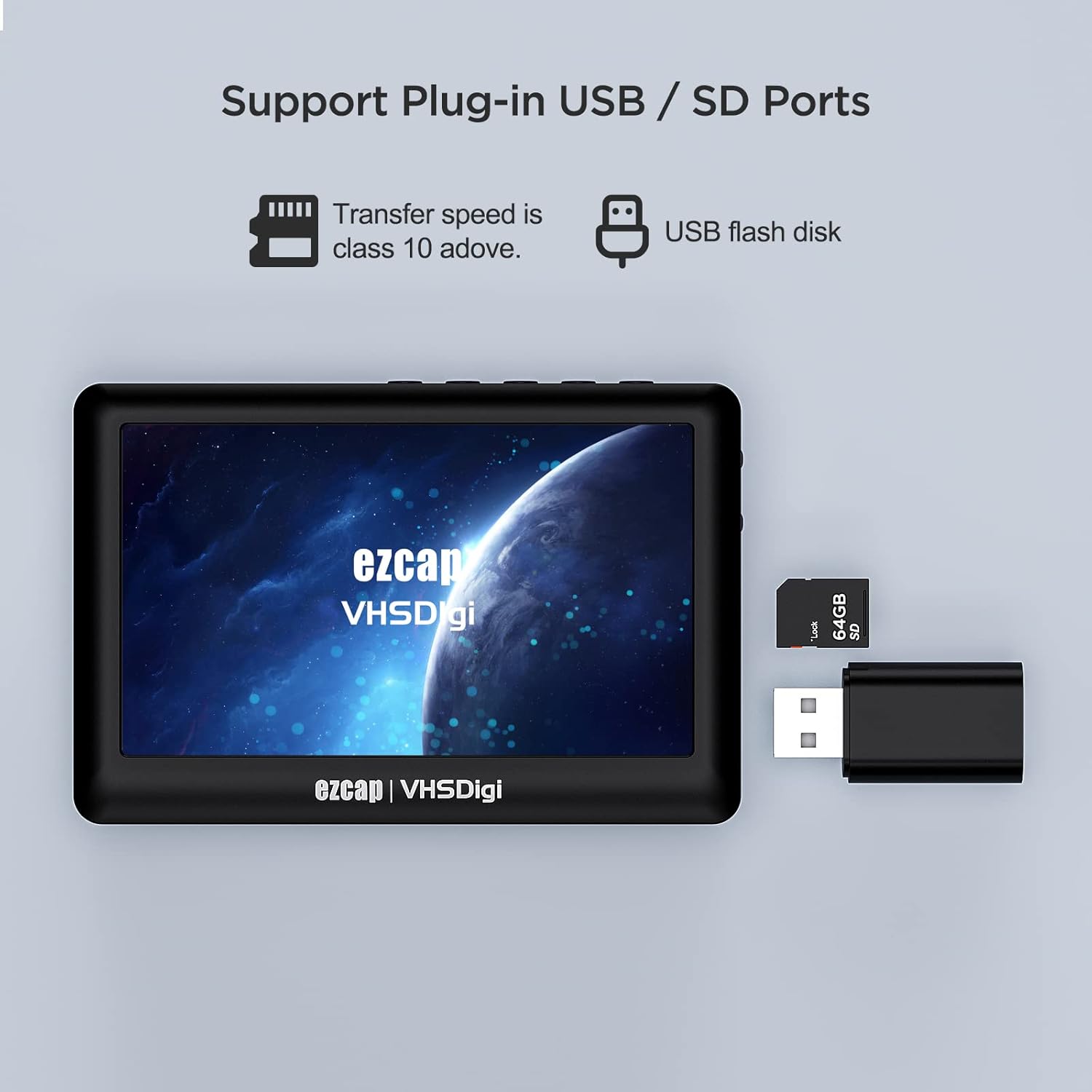
Figure 4: USB and Micro SD Card Ports
3.3 Connecting Analog Video Source
Use the supplied AV cable to connect your analog video source (e.g., VHS player, camcorder) to the 3.5mm composite video input jack on the VHSDigitizer. The audio input is integrated with the video via the same 3.5mm jack.
3.4 Connecting to a Display (Optional)
For real-time monitoring or playback on a larger screen, connect an HDMI cable from the VHSDigitizer's HDMI output port to your TV or monitor. The device also has an internal speaker and a 3.5mm Line OUT for audio monitoring.

Figure 5: Device Connected to External Display
4. Operating Instructions
4.1 Device Controls
- Power On/Off: Long press the 'OK' button.
- Navigation: Use the 'Previous' and 'Next' buttons for menu navigation.
- Selection/Playback: Press 'OK' to confirm selections or to play/pause during playback.
- Back: Press 'ESC' to return to the previous menu.
- Record: Press 'REC' to start recording. Press again to stop and save the file.

Figure 6: Device Buttons and Functions
4.2 Recording Video
- Ensure your analog video source is connected to the device's AV input.
- Power on the VHSDigitizer.
- From the main menu, select 'TV IN' or 'Recorder' to preview the video signal.
- Press the 'REC' button to begin recording. The device will save the video as an MP4 file.
- Press 'REC' again to stop recording and save the file to your inserted USB drive or Micro SD card.
Watch this video for a demonstration of the recording process:
Video 1: Ezcap180 CVBS Video Recorder with 4.3 Inch LCD Screen - Demonstrates connecting the device, navigating menus, and initiating video recording and playback.
4.3 Recording Audio
- Connect a 3.5mm audio cable from your audio source to the device's 3.5mm input jack.
- From the main menu, select 'Recorder' and then choose the audio recording option.
- Press the 'REC' button to begin recording. The device will save the audio as an MP3 file.
- Press 'REC' again to stop recording and save the file.
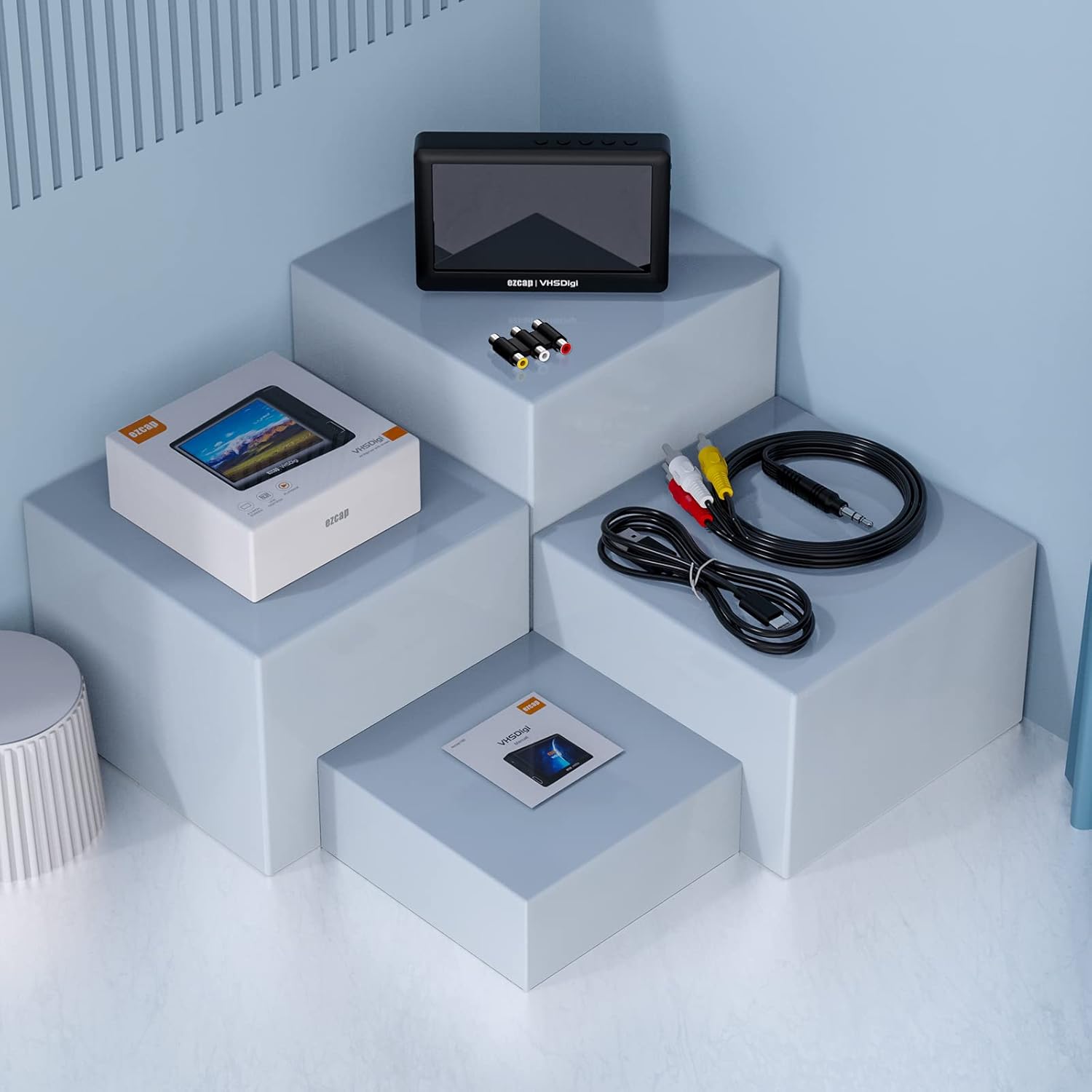
Figure 7: Audio Recording Setup
4.4 Playback
The VHSDigitizer allows direct playback of recorded video and audio files on its 4.3-inch LCD screen or an external display via HDMI. Navigate to the 'Videos' or 'Music' menu, select the desired file, and press 'OK' to play.

Figure 8: 4.3-inch Display Screen
5. Specifications
| Feature | Description |
|---|---|
| Host Interface | USB 2.0 |
| Video Input | Composite Video (3.5mm jack) |
| Audio Input | Stereo L/R audio (3.5mm jack with video together) |
| Video Output | HDMI |
| Audio Output | HDMI, Line OUT (3.5mm stereo jack), Speaker inside |
| User Interface | REC and other buttons, 4.3 inch display, 1500mAh lithium battery inside |
| Storage Media | USB drive, Micro SD card, Max 32GB, FAT32 and exFAT format. * Does not support NTFS format. |
| Power Supply | 1500mAh lithium battery inside, working about 2 hours. DC 5V2A USB-C port. |
| Record Info (Video) | .mp4 for video, Max 480 13fps, NTSC / 720 x 480, PAL / 720 x 576. About 250MB per hour. |
| Record Info (Audio) | .mp3 for audio. About 70MB per hour. |
| Playback | Supports most video and audio formats. |
| Dimensions / Weight | 116(L) × 78(W) × 18(H) mm, 132g (4.7 ounces) |
| Operating System (for PC connection) | PC |
| Video Capture Resolution | 576p |
6. Troubleshooting
6.1 Device Not Powering On
- Ensure the USB-C power cable is securely connected to both the device and a working power source.
- Verify the power adapter provides 5V/2A.
- Charge the internal battery for at least 30 minutes before attempting to power on again.
6.2 No Video Signal on Screen
- Check that the AV cable is correctly connected to the device's 3.5mm input and the analog video source's output.
- Ensure the analog video source (e.g., VCR, camcorder) is powered on and playing content.
- Confirm that the correct input mode (e.g., 'TV IN') is selected on the VHSDigitizer.
6.3 Recording Issues (e.g., 'Storage Full' or 'Error')
- Verify that a compatible USB drive or Micro SD card is inserted.
- Check the available storage space on your media. Delete unnecessary files or use a larger capacity card/drive.
- Ensure the storage media is formatted to FAT32 or exFAT. Reformat if necessary (this will erase all data on the drive).
6.4 Playback Issues (e.g., 'File Not Supported')
- Confirm that the recorded file is an MP4 (for video) or MP3 (for audio).
- Ensure the file is not corrupted. Try recording a short test video/audio to check.
7. Warranty and Support
For warranty information, technical support, or service inquiries, please refer to the documentation provided at the time of purchase or contact ezcap customer support directly through their official website or the retailer where the product was purchased. Keep your proof of purchase for warranty claims.


