
1. Introduction
This manual provides detailed instructions for the Mobapad M073 Bluetooth Wireless Game Controller. It covers setup, operation, maintenance, and troubleshooting for use with Nintendo Switch, PC, Android, and iOS devices. Please read this manual thoroughly before using the product to ensure proper functionality and to prevent damage.
2. Package Contents
- Mobapad M073 Wireless Game Controller
- USB Type-C Charging Cable (assumed, for fast charging)
- User Manual
3. Product Features
The Mobapad M073 controller is designed for a versatile gaming experience across multiple platforms. Key features include:
- ALPS Japan Joystick: Provides precise control and accurate positioning without drifting.
- Multi-platform Compatibility: Supports Nintendo Switch, PC, Android, and iOS devices.
- Bluetooth Wireless Connectivity: Enables seamless wireless operation.
- Long Battery Life: Approximately 40 hours of playtime on a single charge.
- Fast Charging: Integrated IC chip allows for quick charging (e.g., 5 minutes of charge provides over 2 hours of play).
- Six-Axis Automatic Intelligent Calibration: Enhances motion sensing and accuracy.
- Continuous Macro Programming: Allows recording and execution of complex button sequences.
- One-Touch Wake-up: Conveniently wakes up the connected console.
- NFC Support: For compatible functions (specific use cases may vary by region/device).

Image: Overview of Mobapad M073 controller features, including Japan ALPS joystick, 40 hours battery life, one-touch wake-up, wireless Bluetooth receiver, continuous macro programming, NFC support, six-axis sensing with vibration adjustment, and Type-C fast charging.
4. Setup
4.1 Controller Layout
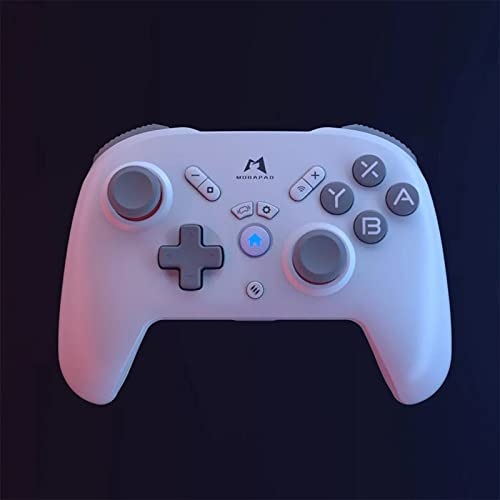
Image: Front view of the Mobapad M073 controller, showing the left and right joysticks, D-pad, A/B/X/Y buttons, Home button, Capture button, Plus/Minus buttons, and other function buttons.
Familiarize yourself with the button layout for optimal use. The controller features standard gaming buttons, two analog joysticks, a D-pad, and various function buttons for system interaction.
4.2 Charging the Controller
Before initial use, fully charge the controller. Connect the USB Type-C charging cable to the controller's charging port and the other end to a USB power source (e.g., console, PC, or USB wall adapter). The charging indicator light will show the charging status and turn off or change color when fully charged.
4.3 Pairing with Nintendo Switch
- On your Nintendo Switch, go to the HOME Menu.
- Select Controllers, then Change Grip/Order.
- Press and hold the pairing button on the Mobapad M073 controller (refer to controller layout for exact location, often a small button near the charging port or top edge) until the indicator lights begin to flash rapidly.
- Once the controller appears on the Switch screen and the indicator lights become solid, the pairing is complete.
4.4 Pairing with PC (Windows)
- Ensure your PC has Bluetooth enabled. If not, a Bluetooth adapter may be required.
- On your PC, go to Settings > Devices > Bluetooth & other devices.
- Select Add Bluetooth or other device, then choose Bluetooth.
- Press and hold the pairing button on the Mobapad M073 controller until the indicator lights flash rapidly.
- Select "Mobapad M073" or a similar name from the list of available devices.
- Follow any on-screen prompts to complete the pairing.
4.5 Pairing with Android/iOS Devices
- Enable Bluetooth on your Android or iOS device.
- Go to your device's Bluetooth settings.
- Press and hold the pairing button on the Mobapad M073 controller until the indicator lights flash rapidly.
- Select "Mobapad M073" or a similar name from the list of available devices.
- Confirm pairing if prompted.
5. Operating Instructions
5.1 Power On/Off
- Power On: Press the Home button to turn on the controller. It will automatically attempt to connect to the last paired device.
- Power Off: Press and hold the Home button for approximately 5 seconds to turn off the controller. It will also power off automatically after a period of inactivity.
5.2 One-Touch Wake-up
When the controller is paired with a Nintendo Switch, pressing the Home button can wake up the console from sleep mode, allowing for quick resumption of gameplay.
5.3 Macro Programming
The controller supports continuous macro programming to record and execute a sequence of button presses. Refer to the specific instructions provided with your controller for the exact button combinations and steps to initiate, record, and save macros. This feature allows for complex actions to be performed with a single button press.
5.4 Six-Axis Calibration
If you experience issues with motion control accuracy or drifting, you may need to recalibrate the six-axis sensor. Typically, this involves a specific button combination or a setting within the connected device's system menu. Consult the device's settings or the controller's specific instructions for calibration procedures.
5.5 Vibration Adjustment
The controller features adjustable vibration feedback. The intensity of the vibration can usually be modified through the settings of the connected gaming platform (e.g., Nintendo Switch system settings) or via specific button combinations on the controller itself. Refer to the controller's detailed instructions for adjustment methods.
6. Maintenance
- Cleaning: Use a soft, dry cloth to clean the controller. Do not use harsh chemicals or abrasive materials.
- Storage: Store the controller in a cool, dry place away from direct sunlight and extreme temperatures.
- Battery Care: To prolong battery life, avoid fully discharging the controller frequently. Charge it regularly, even if not in use for extended periods.
- Avoid Impact: Do not drop or subject the controller to strong impacts, as this can damage internal components.
7. Troubleshooting
| Problem | Possible Cause | Solution |
|---|---|---|
| Controller does not power on. | Low battery. | Charge the controller for at least 30 minutes. |
| Controller does not connect/pair. | Not in pairing mode; out of range; interference; previously paired to another device. | Ensure controller is in pairing mode. Move closer to the device. Turn off other Bluetooth devices. Delete previous pairings on the host device and re-pair. |
| Input lag or disconnection. | Low battery; wireless interference; distance from device. | Charge the controller. Reduce distance to the device. Minimize other wireless signals. |
| Joysticks or motion controls drifting. | Calibration issue; physical damage. | Perform six-axis calibration (see Section 5.4). If problem persists, contact support. |
| Controller not recognized by PC. | Missing drivers; Bluetooth adapter issues. | Ensure PC Bluetooth drivers are up to date. Try a different USB port for the Bluetooth adapter. |
8. Specifications
| Model Name | Mobapad M073 |
| Compatible Devices | Android, iOS, Nintendo Switch, PC |
| Connectivity Technology | Bluetooth |
| Additional Features | Wireless, Six-axis sensing, Macro Programming, NFC |
| Power Source | Battery Powered (Built-in rechargeable) |
| Battery Life | Approx. 40 hours |
| Charging Port | USB Type-C |
| Item Weight | 0.25 Kilograms |
| Item Dimensions (L x W x H) | 14 x 20 x 10 centimetres |
| Color | White |
| Manufacturer | MOBAPAD |
| Model Number (UPC) | 6972439002389 |
9. Warranty Information
The Mobapad M073 Bluetooth Wireless Game Controller comes with a Limited Warranty. Please retain your proof of purchase for warranty claims. The warranty covers manufacturing defects under normal use. It does not cover damage caused by misuse, accidents, unauthorized modifications, or normal wear and tear. For specific terms and conditions, please refer to the warranty card included with your product or contact Mobapad customer support.
10. Support
If you encounter any issues not covered in this manual or require further assistance, please contact Mobapad customer support. You can typically find contact information on the official Mobapad website or on the product packaging. Provide your model number (M073) and a detailed description of the issue when seeking support.
