
1. Product Overview
The ORICO Thunderbolt 3 15-in-1 Docking Station is a versatile hub designed to expand the connectivity of your USB-C enabled laptop, including MacBooks and Windows devices. It offers a wide array of ports for high-speed data transfer, multiple display outputs, fast charging, and network connectivity, streamlining your workspace into a single, powerful solution.
This docking station features a robust aluminum alloy construction for efficient heat dissipation, ensuring stable performance during intensive use.

Image: The ORICO Thunderbolt 3 Docking Station connected to a MacBook, extending the display to two external monitors, showcasing its multi-display capability and compact design.
2. Key Features
- 15-in-1 Connectivity: Includes 2x Thunderbolt 3 ports, 2x USB 3.1 Gen 2 Type-C (10Gbps), 1x USB 3.1 Gen 2 Type-A (10Gbps), 2x USB 3.1 Gen 1 Type-A (5Gbps), 2x USB 2.0 Type-A (480Mbps), DP 1.4, RJ45 Gigabit Ethernet, SD/TF card reader, 3.5mm audio input/output, and S/PDIF OUT.
- Ultra-High Speed Transmission: Up to 40Gbps via Thunderbolt 3 interfaces. USB-C and USB-A ports support up to 10Gbps.
- 4K UHD Video Configuration: Supports single 5K@60Hz display or dual 4K@60Hz displays via Thunderbolt 3. Daisy-chain up to 3 Thunderbolt 3 devices.
- Super Power Delivery: Provides up to 60W PD fast charging for your laptop. A secondary Thunderbolt 3 port delivers 15W for downstream devices.
- Wide Compatibility: Plug-and-play, no drivers required for laptops with Thunderbolt 3/4 ports, compatible with macOS and Windows.
- Efficient Heat Dissipation: Constructed with aluminum alloy for fast heat dissipation.
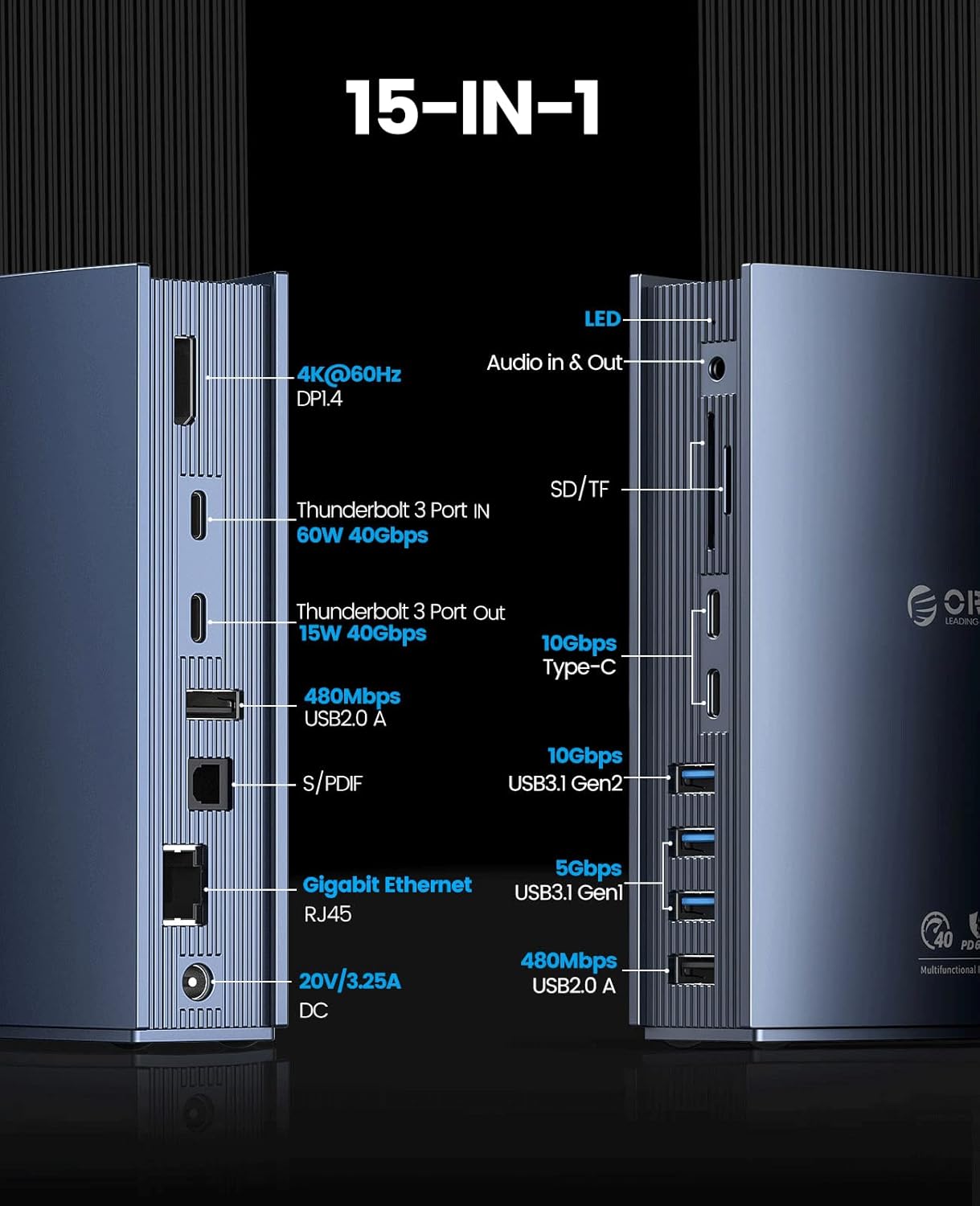
Image: Detailed view of the left side of the docking station, highlighting the DP 1.4 (4K@60Hz), Thunderbolt 3 (60W 40Gbps), Thunderbolt 3 (15W 40Gbps), USB 2.0 (480Mbps), S/PDIF, Gigabit Ethernet RJ45, and DC 20V/3.25A power input ports.

Image: Detailed view of the right side of the docking station, highlighting the LED indicator, Audio In & Out, SD/TF card slots, 2x 10Gbps Type-C ports, 2x 5Gbps USB 3.1 Gen 1 ports, and 2x 480Mbps USB 2.0 ports.
3. Setup Instructions
Follow these steps to set up your ORICO Thunderbolt 3 Docking Station:
- Connect Power: Connect the provided DC power adapter (20V/3.25A) to the DC 60W input port on the docking station and then plug it into a power outlet.
- Connect to Laptop: Use the included Thunderbolt 3 cable to connect one of the Thunderbolt 3 ports on the docking station to a Thunderbolt 3/4 port on your laptop. Ensure your laptop supports Thunderbolt 3/4 for full functionality.
- Connect External Displays:
- For a single 4K@60Hz display, connect your monitor to the DP 1.4 port.
- For dual 4K@60Hz displays or a single 5K@60Hz display, connect one monitor to the DP 1.4 port and another to the secondary Thunderbolt 3 port using an appropriate adapter (e.g., Thunderbolt 3 to DisplayPort).
- The docking station supports daisy-chaining up to 3 Thunderbolt 3 devices.

Image: A laptop connected to the ORICO docking station, which is then connected to a large external monitor displaying content at 4K@60Hz, illustrating the high-resolution display capability.
- Connect USB Devices: Plug your USB peripherals (e.g., keyboard, mouse, external hard drives) into the available USB-A (10Gbps, 5Gbps, 480Mbps) or USB-C (10Gbps) ports.
- Connect Ethernet: For a stable wired network connection, connect an Ethernet cable from your router/modem to the RJ45 Gigabit Ethernet port on the docking station.
- Insert SD/TF Cards: Insert your SD or TF memory cards into the corresponding slots for data access.
- Connect Audio Devices: Use the 3.5mm AUX port for headphones or speakers, or the S/PDIF OUT for optical audio output.
The docking station is plug-and-play and typically does not require additional drivers for basic functionality on compatible operating systems.
4. Operating the Docking Station
4.1 Display Modes
The docking station supports various display configurations:
- Extended Mode: Your laptop screen and connected monitors display different content, expanding your workspace.
- Mirror Mode: Your laptop screen and connected monitors display the same content.
Adjust display settings through your operating system's display preferences (e.g., System Preferences > Displays on macOS, Display settings on Windows).
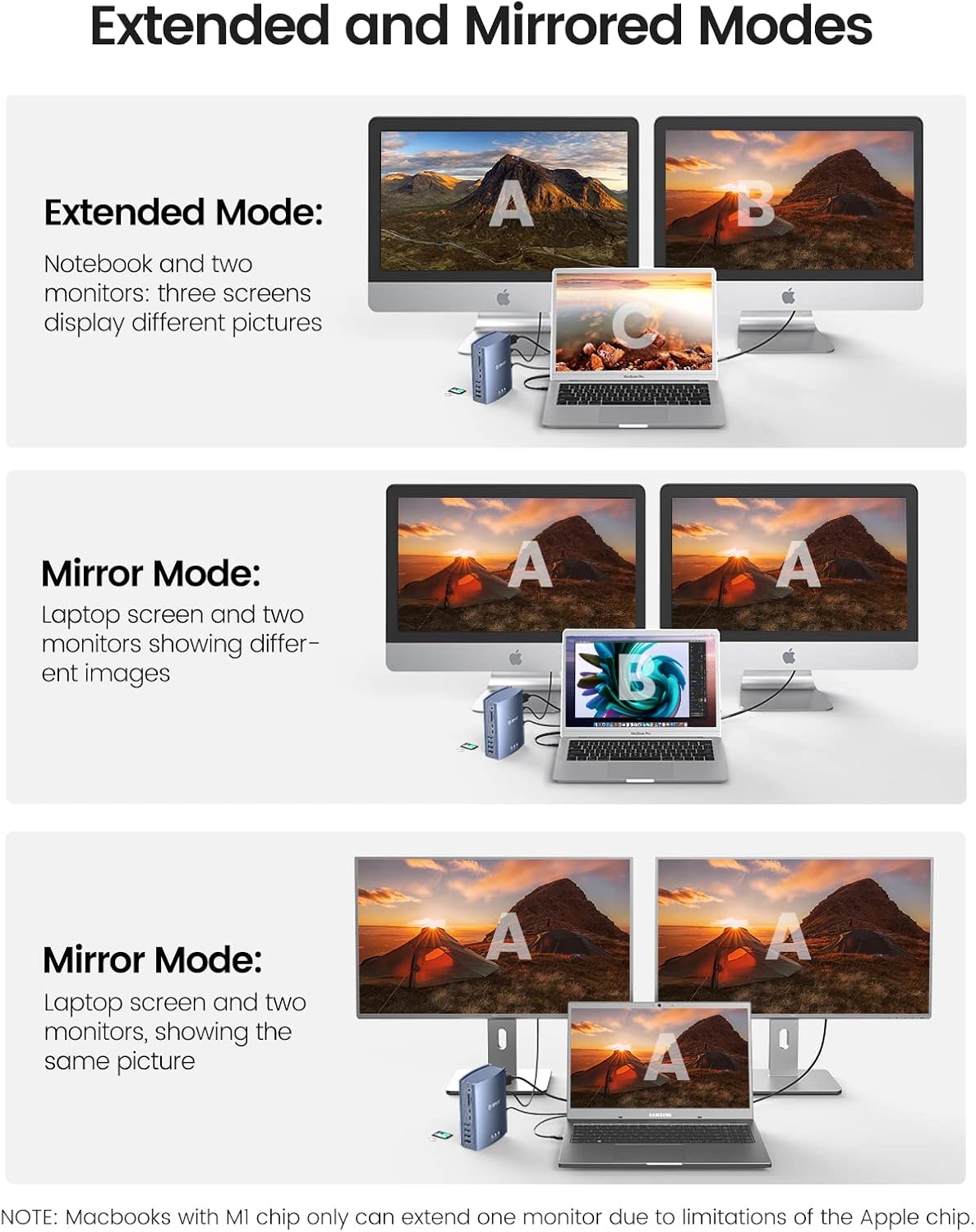
Image: Visual representation of Extended Mode, where the laptop and two monitors show different content, and Mirror Mode, where all screens display the same content, demonstrating the docking station's multi-display capabilities.
4.2 Data Transfer
Utilize the high-speed ports for efficient data transfer:
- Thunderbolt 3: Up to 40Gbps for connecting high-performance storage devices or daisy-chaining other Thunderbolt peripherals.
- USB 3.1 Gen 2 (Type-C/A): Up to 10Gbps for fast external SSDs and other compatible devices.
- USB 3.1 Gen 1 (Type-A): Up to 5Gbps for standard USB devices.
- SD/TF Card Slots: For quick access to photos and videos from memory cards.
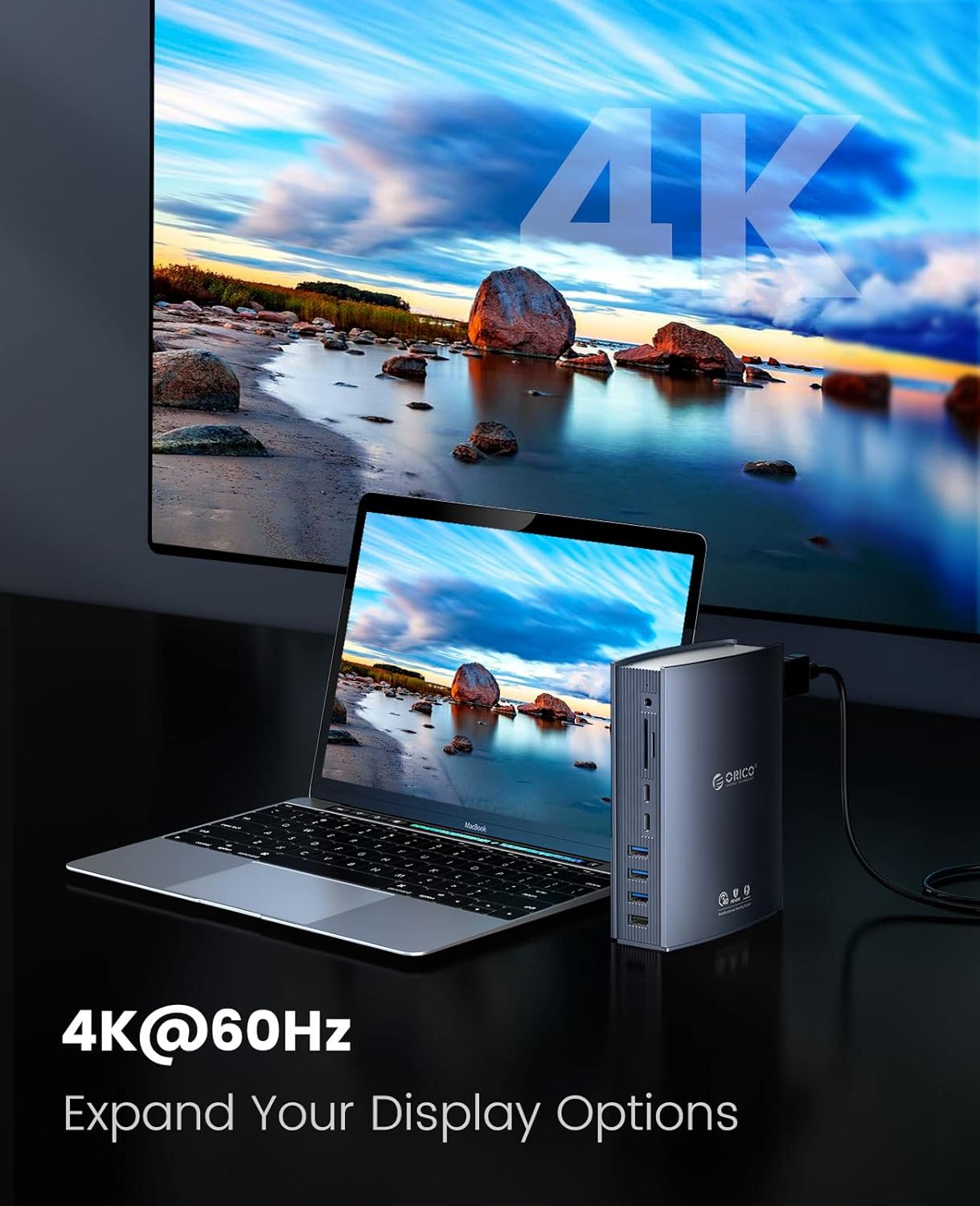
Image: An infographic illustrating the 40Gbps transfer speed achievable with Thunderbolt 3, highlighting its efficiency for large file transfers.
4.3 Charging Capabilities
The docking station provides power to your laptop and connected devices:
- Laptop Charging: The primary Thunderbolt 3 port delivers up to 60W Power Delivery (PD) to charge your connected laptop.
- Downstream Charging: The secondary Thunderbolt 3 port provides 15W of power for other Thunderbolt devices.

Image: A visual representation of the three power delivery options: 60W from the primary Thunderbolt 3 port, 15W from the secondary Thunderbolt 3 port, and 60W from the DC power input, ensuring ample power for devices.
5. Maintenance
To ensure the longevity and optimal performance of your ORICO Thunderbolt 3 Docking Station, follow these maintenance guidelines:
- Cleaning: Use a soft, dry cloth to clean the exterior of the docking station. Avoid using liquid cleaners or aerosols, which may damage the device.
- Ventilation: Ensure the docking station is placed in a well-ventilated area to allow for proper heat dissipation. Do not block the ventilation grooves.
- Storage: When not in use for extended periods, store the docking station in a cool, dry place away from direct sunlight and extreme temperatures.
- Cable Management: Avoid bending or crimping cables excessively, especially the Thunderbolt 3 cable, to prevent damage.
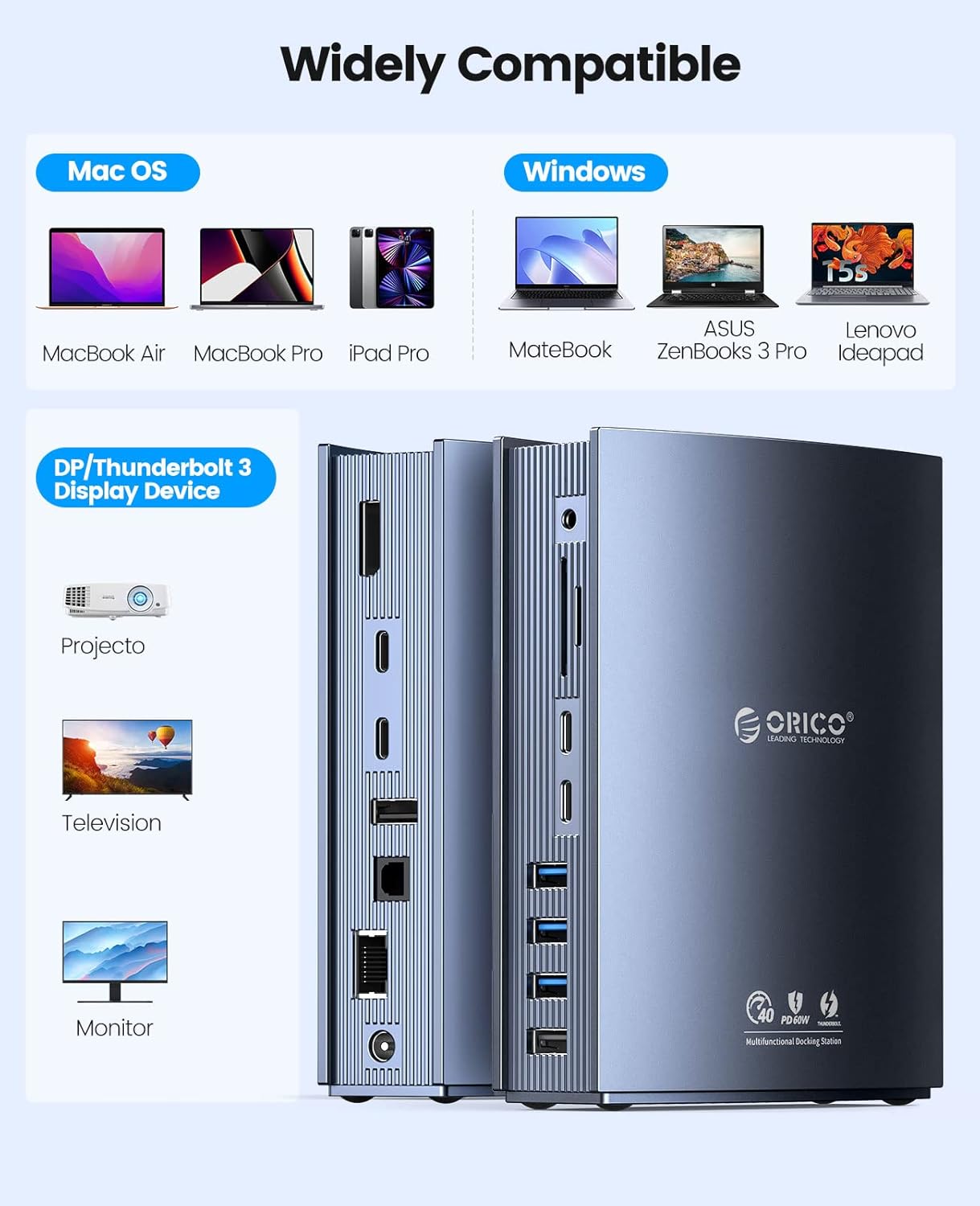
Image: A close-up of the ORICO docking station, emphasizing its aluminum alloy construction designed for fast heat dissipation, crucial for maintaining performance.
6. Troubleshooting
If you encounter issues with your docking station, refer to the following common problems and solutions:
- No Power/Device Not Recognized:
- Ensure the power adapter is securely connected to both the docking station and a working power outlet.
- Verify that the Thunderbolt 3 cable is firmly connected to both the docking station and your laptop.
- Confirm your laptop's USB-C port supports Thunderbolt 3/4. Not all USB-C ports are Thunderbolt compatible.
- No Display on External Monitor:
- Check all display cable connections (DP, Thunderbolt 3 to display adapter).
- Ensure the external monitor is powered on and set to the correct input source.
- Update your laptop's graphics drivers.
- Note for Apple M1/M2/M3 MacBooks: Due to Apple chip limitations, these MacBooks typically support only one external display in extended mode.
- Slow Data Transfer Speeds:
- Ensure you are using the correct ports for high-speed devices (Thunderbolt 3 for 40Gbps, USB 3.1 Gen 2 for 10Gbps).
- The actual transfer rate depends on the connected device and cable quality. Use high-quality cables.
- Avoid connecting multiple high-bandwidth devices to the same port or bus simultaneously if possible.
- Ethernet Not Working:
- Check the Ethernet cable connection to both the docking station and your router/modem.
- Verify network settings on your laptop.
- Audio Issues:
- Ensure your audio device is correctly plugged into the 3.5mm AUX or S/PDIF port.
- Check your laptop's audio output settings to ensure the docking station's audio output is selected.
7. Specifications
| Brand | ORICO |
| Color | Black |
| Hardware Interface | Ethernet, DisplayPort, Thunderbolt, USB 2.0, USB Type-C, Lighting |
| Compatible Devices | MacBook Pro (and other Thunderbolt 3/4 laptops) |
| Total USB Ports | 8 |
| Product Dimensions | 10.7L x 14.8H centimeters |
| Number of Ports | 15 |
| Item Weight | 900 Grams |
| Power Output | 60 Watts (PD) |
| Input Voltage | 20 Volts |
8. Warranty & Support
ORICO products are designed for reliability and performance. This product comes with a standard manufacturer's warranty. For detailed warranty information, product support, or technical assistance, please visit the official ORICO website or contact their customer service directly.
Please retain your proof of purchase for warranty claims.


