
1. Introduction
The ieGeek WiFi OBD2 Scanner is a compact wireless diagnostic tool designed to connect to your vehicle's On-Board Diagnostics (OBD-II) system. It allows you to read and clear engine fault codes, view real-time sensor data, and monitor various vehicle parameters directly from your iOS or Android smartphone or tablet. This device is intended for informational and diagnostic purposes, helping users understand and address potential issues with their vehicle's engine system.
Note: This product functions as an error code diagnostic tool. A compatible application must be downloaded and installed on your smartphone to utilize its features. The device supports over 3000 generic code definitions.

Image 1: ieGeek WiFi OBD2 Scanner connected to a vehicle's diagnostic port, communicating with a smartphone via WiFi.
2. Compatibility
2.1 Vehicle Compatibility
- Supports 12V gasoline and diesel vehicles.
- Generally compatible with vehicles manufactured from 1996 to the present. Some models from 1994 and 1995 may also be compatible.
- Does not support: Modified vehicles, vehicles exceeding 12V, or trucks.
- Does not support: ABS (Anti-lock Braking System) or airbag systems diagnostics.
2.2 Supported Protocols
- SAE J1850 PWM (41.6 kbaud)
- SAE J1850 VPW (10.4 kbaud)
- ISO9141-2 (5 baud init, 10.4 kbaud)
- ISO14230-4 KWP (5 baud init, 10.4 kbaud)
- ISO14230-4 KWP (fast init, 10.4 kbaud)
- ISO15765-4 CAN (11 bit ID, 500 kbaud)
- ISO15765-4 CAN (29 bit ID, 500 kbaud)
- ISO15765-4 CAN (11 bit ID, 250 kbaud)
- ISO15765-4 CAN (29 bit ID, 250 kbaud)
- ISO15765-4 CAN (29/11bit ID, arbitrary baudrate)
- SAE J1939
2.3 Operating System & Application Compatibility
- Compatible with iOS and Android operating systems.
- Recommended applications (available on App Store/Google Play):
- EOBD-Facile (available in French, some features may require purchase)
- Torque (Pro version may require purchase)
- DashCommand (English)
- OBD Car Doctor (English, free and paid versions)
- Car Scanner (free, recommended by users for comprehensive features)
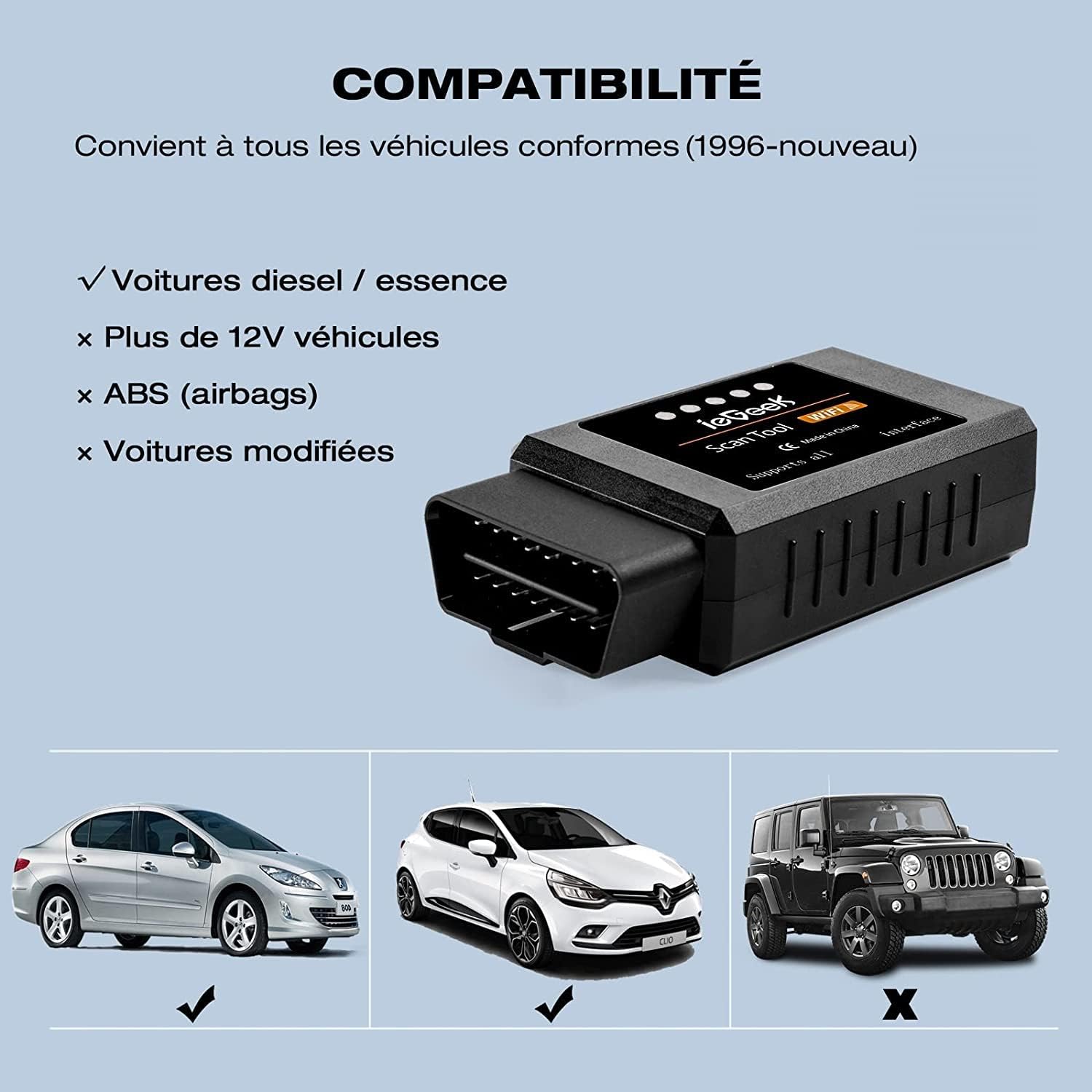
Image 2: Visual representation of vehicle compatibility, indicating support for diesel/gasoline cars and non-support for vehicles over 12V, ABS, or modified cars.
3. Setup Instructions
Follow these steps to set up your ieGeek WiFi OBD2 Scanner and connect it to your smartphone:
- Download the Application: Search for and download a compatible OBD-II diagnostic application (e.g., EOBD-Facile, Torque, Car Scanner) from the Apple App Store (for iOS) or Google Play Store (for Android).
- Connect the Device: Locate your vehicle's OBD-II diagnostic port, typically found under the dashboard on the driver's side. Plug the ieGeek WiFi OBD2 Scanner firmly into this port.
- Start the Engine: Turn on your vehicle's ignition or start the engine. The scanner will power on automatically.
- Connect via WiFi: On your smartphone, go to your WiFi settings. Find and connect to the WiFi network broadcast by the ieGeek scanner. The SSID is typically 'WiFi'. The default IP is 192.168.0.10 and Port is 35000.
- Launch the Application: Open the diagnostic application you downloaded. Within the app, you may need to configure the diagnostic tool settings and select your vehicle's model to establish a connection.
Important Note: To improve the product's lifespan, do not leave the scanner permanently plugged into the diagnostic port when not in use. Only connect it during diagnostic sessions.

Image 3: Step-by-step guide for connecting the WiFi diagnostic tool, including app download, device connection, WiFi setup, and app launch.
4. Operating Instructions
Once the ieGeek WiFi OBD2 Scanner is connected to your vehicle and smartphone, you can perform various diagnostic functions through your chosen application:
- Read Error Codes: Access the 'Read Codes' or 'Diagnostic' section in your app to retrieve Diagnostic Trouble Codes (DTCs) stored in your vehicle's Engine Control Unit (ECU). These codes indicate specific issues detected by the vehicle's system.
- View Real-time Data: Monitor live sensor data such as engine RPM, vehicle speed, fuel system status, oxygen sensor readings, coolant temperature, and more. This data can help in diagnosing intermittent problems or verifying repairs.
- Clear Fault Codes: After addressing a vehicle issue, use the 'Clear Codes' or 'Erase Faults' function in the app to turn off the Check Engine Light (MIL - Malfunction Indicator Lamp) and clear stored DTCs from the ECU.
- Freeze Frame Data: Some applications allow you to view 'Freeze Frame' data, which captures a snapshot of sensor readings at the exact moment a fault code was set.
- I/M Readiness Status: Check the status of various emission-related monitors to determine if your vehicle is ready for an emissions test.
The specific interface and terminology may vary depending on the diagnostic application you are using. Refer to your chosen app's documentation for detailed usage instructions.

Image 4: Example screenshots from the EOBD-Facile application, illustrating WLAN connection, diagnostic status, fault codes, and real-time data graphs.
5. Maintenance
The ieGeek WiFi OBD2 Scanner requires minimal maintenance. To ensure optimal performance and longevity:
- Storage: Store the device in a cool, dry place away from direct sunlight and extreme temperatures when not in use.
- Cleaning: Wipe the device with a soft, dry cloth if it becomes dirty. Do not use harsh chemicals or abrasive cleaners.
- Connection: Avoid leaving the device permanently plugged into your vehicle's diagnostic port. Disconnect it after each use to prevent unnecessary power draw and prolong its lifespan.
6. Troubleshooting
If you encounter issues while using your ieGeek WiFi OBD2 Scanner, consider the following:
- No Connection to Device WiFi:
- Ensure the scanner is firmly plugged into the OBD-II port and the vehicle's ignition is on.
- Verify that your smartphone's WiFi is enabled and you are selecting the correct network (SSID: 'WiFi').
- Try restarting your smartphone and the vehicle.
- App Not Connecting to Scanner:
- Confirm that your smartphone is successfully connected to the scanner's WiFi network.
- Check the app's settings to ensure it is configured to connect via WiFi and the correct IP (192.168.0.10) and Port (35000) are entered if required.
- Ensure the app is compatible with your operating system and the ieGeek scanner. Some apps may have specific requirements.
- Try using a different compatible diagnostic application.
- No Codes or Incorrect Readings:
- Verify your vehicle's compatibility with the OBD-II standard and the scanner (12V gasoline/diesel, post-1996 models).
- Ensure the vehicle's engine is running or the ignition is in the 'ON' position.
- Some advanced features or code clearing might require a paid version of the diagnostic application.
- Device Overheating: Disconnect the device immediately. Ensure it is not left plugged in for extended periods when not actively performing diagnostics.
If problems persist after attempting these troubleshooting steps, please contact ieGeek customer support for further assistance.
7. Specifications
| Model Number | 3301 |
| Material | Automotive Grade Plastic |
| Operating Temperature | -15°C to 100°C (5°F to 212°F) |
| Dimensions (L x W x H) | 9 x 5 x 3 cm (3.5 x 2.0 x 1.2 inches) |
| Weight | 75g (2.6 oz) |
| Power Consumption | 0.75 Watts (with Power Switch) |
| Power Source | Battery Powered (via OBD-II port) |
| Wireless Standard | 802.11a / b / g |
| WiFi SSID | WiFi |
| WiFi IP Address | 192.168.0.10 |
| WiFi Subnet | 255.255.255.0 |
| WiFi Port | 35000 |
| WiFi Range | 10m |
| Antenna | Internal |

Image 5: Size comparison of the ieGeek OBD2 scanner, showing its compact dimensions (90mm length, 45mm width).
8. Warranty and Support
8.1 Warranty Information
The ieGeek WiFi OBD2 Scanner comes with a 1-year warranty from the date of purchase, covering manufacturing defects and quality issues.
8.2 Exchange Policy
A 30-day exchange policy is provided for quality-related issues through our after-sales service.
8.3 Customer Support
Should you encounter any problems or have questions regarding your ieGeek product, please do not hesitate to contact our dedicated service team. We aim to respond to all inquiries within 24 hours.
Contact information can typically be found on the product packaging or the official ieGeek website.

Image 6: Overview of ieGeek product quality assurances, including FCC & RoHS certification, use of premium components, safety features, and an 18-month warranty (note: product description states 1-year warranty, which is 12 months).