
Strong Leap-S1+
STRONG Leap-S1+ Android TV Box User Manual
Model: LEAP-S1+ | Brand: STRONG
1. Introduction
The STRONG LEAP-S1+ Android TV Box transforms your television into a smart TV, providing direct access to the Google Play Store. Running on the latest Android 10, this Google-certified device offers a vast array of applications, games, and streaming services. Enjoy your favorite content from platforms like Netflix, YouTube, Prime Video, and Disney+. The LEAP-S1+ supports 4K UHD resolution, H.265 decoding, dual-band Wi-Fi 5, and built-in Chromecast functionality. Its integrated Google Assistant allows for voice control of playback, searching for shows, and answering queries. Connectivity options include 2 USB ports (1 x 3.0, 1 x 2.0), Bluetooth 4.2, a Micro SD card slot, HDMI, and Ethernet, ensuring a comprehensive and user-friendly TV experience.

Image: The STRONG Leap-S1+ Android TV Box and its accompanying remote control, showcasing the sleek design of both components.
2. Package Contents
Please check the package contents carefully. If any items are missing or damaged, contact your retailer.
- STRONG LEAP-S1+ Android TV Box
- Bluetooth Remote Control (requires 2 AAA batteries, often included)
- Power Adapter
- HDMI Cable
- Quick Start Guide

Image: An illustration showing the contents of the STRONG Leap-S1+ package, including the TV box, Bluetooth remote control, power adapter, and HDMI cable.
3. Initial Setup
Follow these steps to set up your STRONG LEAP-S1+ Android TV Box:
- Connect to TV: Connect one end of the HDMI cable to the HDMI OUT port on the LEAP-S1+ box and the other end to an available HDMI IN port on your television.
- Connect Power: Plug the power adapter into the DC IN port on the LEAP-S1+ box, then plug the adapter into a wall outlet.
- Power On: The device should power on automatically. If not, press the Power button on the remote control or the device.
- Initial Configuration: Follow the on-screen instructions to complete the initial setup, which includes:
- Pairing the Bluetooth remote control.
- Selecting your language.
- Connecting to your Wi-Fi network or Ethernet.
- Signing in with your Google account.
- Installing essential apps.
- Network Connection: For optimal performance, connect the device to your home network. You can use Wi-Fi (supports 2.4GHz and 5GHz) or an Ethernet cable for a wired connection.

Image: Visual representation of the STRONG Leap-S1+ supporting both 2.4GHz and 5GHz Wi-Fi bands for stable internet connectivity.
4. Operating Instructions
4.1. Navigating Android TV
The Android TV interface is designed for easy navigation. Use the directional pad on your remote to move between apps, content, and settings.
- Home Screen: Displays recommended content, installed apps, and input sources.
- Apps: Access all your installed applications.
- Settings: Configure network, display, sound, accounts, and device preferences.

Image: A screenshot of the Android TV home screen, showing various streaming apps and content recommendations, as seen on the STRONG Leap-S1+.
4.2. Using Google Assistant
The remote control features a dedicated Google Assistant button. Press and hold this button to activate voice commands.
- Search Content: Say "Find action movies" or "Play The Crown."
- Control Playback: Say "Pause," "Resume," "Fast forward 30 seconds."
- Open Apps: Say "Open Netflix" or "Launch YouTube."
- Get Information: Ask "What's the weather?" or "Tell me about the Eiffel Tower."

Image: The remote control with an overlay indicating the Google Voice Assistant functionality, demonstrating how to use voice commands to control the TV box.
4.3. Streaming Services
The LEAP-S1+ comes with pre-installed apps for popular streaming services and allows you to download more from the Google Play Store.
- Netflix, Prime Video, Disney+, YouTube: Access these services directly using the dedicated buttons on the remote or by selecting their apps.
- Google Play Store: Download thousands of additional apps, games, and content.
- Chromecast Built-in: Cast content from your compatible smartphone, tablet, or computer directly to your TV via the LEAP-S1+.

Image: The STRONG Leap-S1+ box and remote, surrounded by logos of supported streaming services and features like Netflix, YouTube, Zattoo, Google Play, Prime Video, Disney+, Dolby Atmos, Dolby Audio, 4K Ultra HD, Chromecast built-in, and Google Assistant.

Image: A collage of various streaming service logos and movie/TV show thumbnails, illustrating the vast content library available through the Android TV platform on the LEAP-S1+.
5. Connectivity and Ports
The STRONG LEAP-S1+ offers a variety of ports for connecting external devices and ensuring robust network connectivity.
- HDMI Output: For connecting to your TV or display.
- USB 3.0 Port: High-speed data transfer for external storage devices.
- USB 2.0 Port: For connecting peripherals like keyboards, mice, or additional storage.
- Micro SD Card Slot: Expand storage for apps and media.
- Ethernet (LAN) Port: For a stable wired internet connection (10/100 Mbps).
- Digital Audio Output (Optical): For connecting to external audio systems or soundbars.
- Audio/Video Output: For older TVs using analog connections.
- IR (Infrared) Port: For external IR receiver.
- Power Button: To turn the device on/off.
- Power Adapter Input: For connecting the power supply.
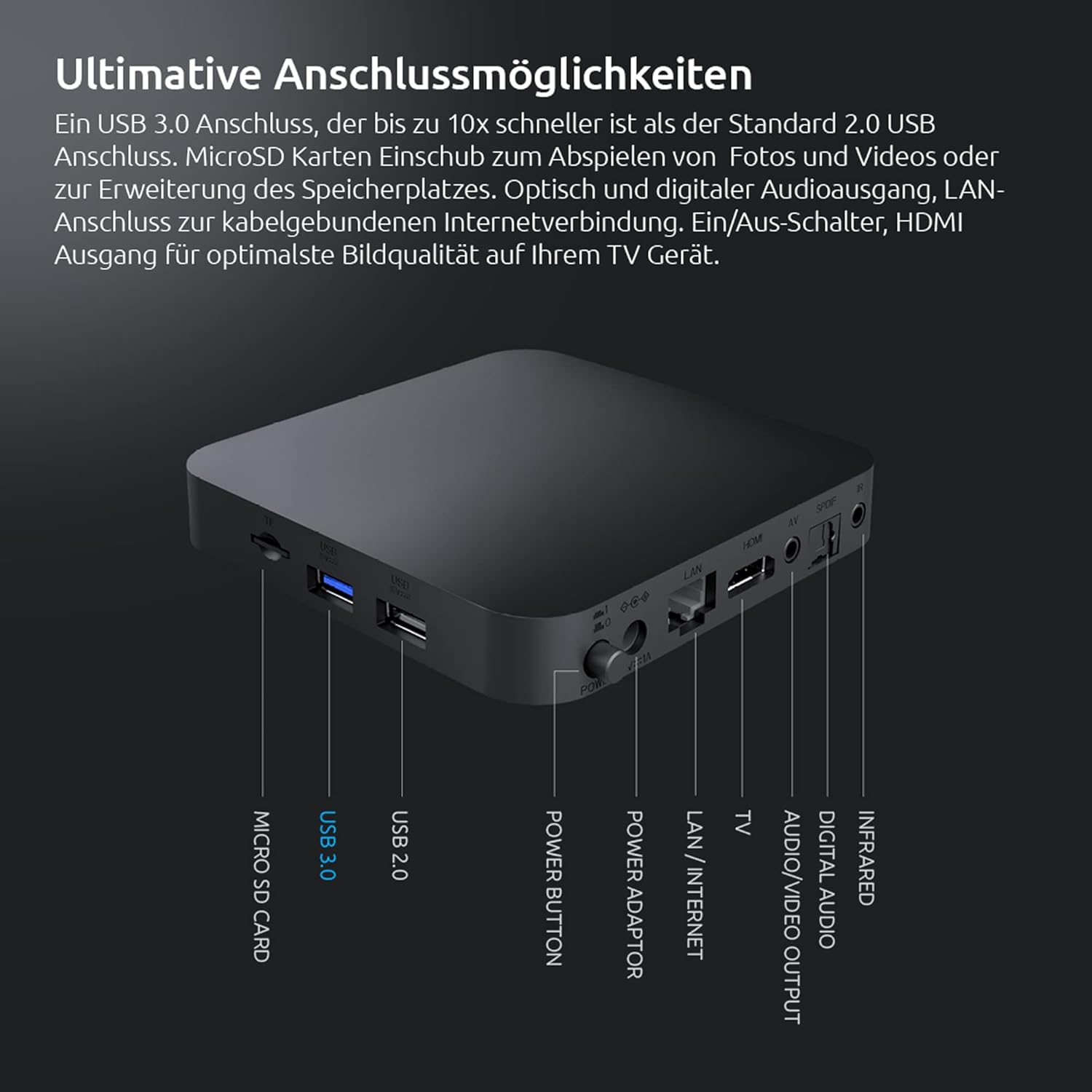
Image: A detailed diagram of the rear and side ports on the STRONG Leap-S1+ Android TV Box, labeling Micro SD Card, USB 3.0, USB 2.0, Power Button, Power Adaptor, LAN/Internet, TV (A/V), Digital Audio, Infrared, and HDMI ports.
6. Technical Specifications
| Feature | Specification |
|---|---|
| Model Name | Leap-S1+ |
| Brand | Strong |
| Operating System | Android TV 10.0 |
| Resolution | 4K UHD (3840 x 2160 pixels) with HDR10 |
| Processor | Quad Core Cortex-A53 (1.8 GHz) |
| Memory | DDR4 RAM |
| Internal Storage | Expandable via Micro SD card |
| Wi-Fi Connectivity | Dual-band Wi-Fi 5 (2.4GHz & 5GHz) |
| Bluetooth | Bluetooth 4.2 |
| USB Ports | 1 x USB 3.0, 1 x USB 2.0 |
| Video Decoding | H.265 |
| Special Features | Chromecast Built-in, Google Voice Assistant, Netflix, Prime Video, YouTube, Disney+ support |

Image: A visual representation of the powerful Quad-Core A53 1.8 GHz processor, highlighting the internal hardware that ensures smooth performance for the STRONG Leap-S1+.
7. Troubleshooting
If you encounter issues with your STRONG LEAP-S1+ Android TV Box, try the following solutions:
- No Power:
- Ensure the power adapter is securely connected to the device and a working power outlet.
- Try a different power outlet.
- No Picture/Sound:
- Check HDMI cable connections at both the TV box and the TV.
- Ensure your TV is set to the correct HDMI input source.
- Restart the TV box by unplugging it for 10 seconds and plugging it back in.
- Check TV volume and audio settings.
- Remote Control Not Responding:
- Replace the batteries in the remote control.
- Ensure there are no obstructions between the remote and the TV box.
- Re-pair the Bluetooth remote control if necessary (refer to initial setup or device settings).
- Network Connection Issues:
- For Wi-Fi, check your router and ensure it's broadcasting. Try restarting your router.
- If using Ethernet, ensure the cable is securely connected to both the box and your router.
- Go to Network settings on the device and try reconnecting or forgetting and re-adding the network.
- App Freezing/Crashing:
- Close and reopen the app.
- Clear the app's cache and data in Settings > Apps.
- Ensure the app is updated to the latest version from the Google Play Store.
8. Care and Maintenance
To ensure the longevity and optimal performance of your STRONG LEAP-S1+ Android TV Box, follow these care guidelines:
- Cleaning: Use a soft, dry, lint-free cloth to clean the device. Do not use liquid cleaners or aerosols.
- Placement: Place the device on a stable, flat surface with adequate ventilation. Avoid placing it in direct sunlight, near heat sources, or in humid environments.
- Ventilation: Do not block any ventilation openings. Proper airflow prevents overheating.
- Power Off When Not in Use: If you plan not to use the device for an extended period, it is advisable to unplug it from the power outlet.
- Software Updates: Regularly check for and install software updates to ensure the device has the latest features and security patches.
9. Warranty and Support
Information regarding specific warranty terms and conditions for the STRONG LEAP-S1+ Android TV Box is typically provided with your purchase documentation or can be found on the official STRONG website.
For technical support, product registration, or further assistance, please refer to the contact information provided by STRONG in your product packaging or visit their official support channels.
Note: Specific warranty duration and support contact details are not available in this manual. Please consult your product's official documentation.
Related Documents - Leap-S1+
 |
STRONG LEAP-S3+ / LEAP-S3+V2 4K UHD Streaming TV User Manual This user manual provides comprehensive instructions for the STRONG LEAP-S3+ and LEAP-S3+V2 4K UHD Google TV Box. It covers setup, connections, settings, app downloads, Google Assistant, troubleshooting, and technical specifications. |
 |
STRONG LEAP-S3+ / LEAP-S3+V2 4K UHD Streaming TV Box User Manual User manual for the STRONG LEAP-S3+ / LEAP-S3+V2 4K UHD Streaming TV Box, covering setup, settings, features like Google Assistant and Google Cast, troubleshooting, and technical specifications. |
 |
STRONG LEAP-S3+ / LEAP-S3+V2 4K UHD Streaming TV Box User Manual User manual for the STRONG LEAP-S3+ and LEAP-S3+V2 4K UHD Streaming TV Box, covering setup, configuration, features, troubleshooting, and technical specifications. |
 |
STRONG LEAP-S3+ 4K UHD Google TV Box User Manual This user manual provides detailed instructions for setting up, using, and troubleshooting the STRONG LEAP-S3+ 4K UHD Google TV Box, featuring Google TV and Android capabilities. |
 |
STRONG LEAP-S3+ / LEAP-S3+V2 4K UHD Streaming TV Box Manuale di Istruzioni Guida completa per il STRONG LEAP-S3+ / LEAP-S3+V2 4K UHD Streaming TV Box. Include istruzioni di installazione, configurazione, impostazioni, risoluzione problemi e specifiche tecniche. |
 |
STRONG LEAP-S3 UHD BOX - User Manual and Setup Guide Comprehensive guide for the STRONG LEAP-S3 UHD BOX, a 4K Ultra HD Google TV Box. Learn about setup, configuration, settings, app installation, Google Assistant, troubleshooting, and technical specifications. |
Ask a question about this manual
Ask about setup, troubleshooting, compatibility, parts, safety, or missing instructions. Manuals+ will review the question and use this page’s manual context to help answer it.