
1. Introduction
This manual provides comprehensive instructions for the setup, operation, and maintenance of your BESIA Bluetooth Remote Control, model RC802V FNR1. This remote is designed for seamless compatibility with various TCL Smart TV models, offering both infrared (IR) and Bluetooth connectivity for enhanced functionality, including voice control.

Figure 1: BESIA Bluetooth Remote Control RC802V FNR1
2. Setup
2.1 Battery Installation
The remote control requires two (2) AAA batteries for operation.
- Locate the battery compartment cover on the back of the remote control.
- Slide the cover downwards to open the compartment.
- Insert two new AAA batteries, ensuring correct polarity (+ and -) as indicated inside the compartment.
- Slide the cover back into place until it clicks securely.
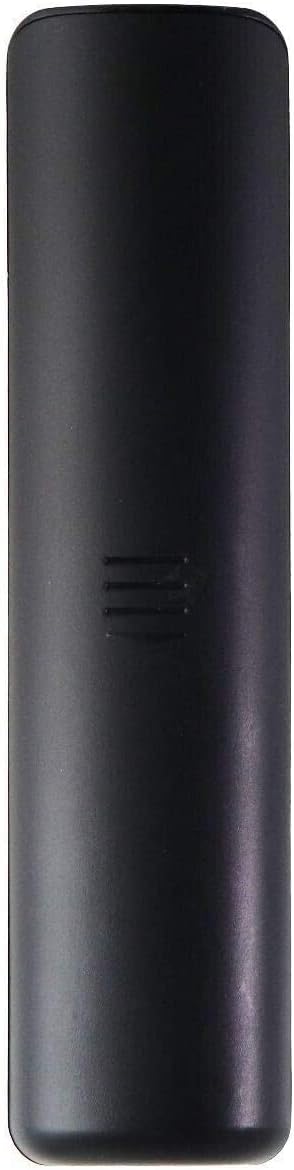
Figure 2: Back of the remote control
2.2 Bluetooth Pairing
For full functionality, including voice control, the remote must be paired with your TCL Smart TV via Bluetooth.
- Ensure your TCL Smart TV is powered on.
- Point the remote control towards the TV.
- Simultaneously press and hold the OK button and the Home button (the button with a house icon) for 3 to 10 seconds.
- A pairing confirmation message should appear on your TV screen. Follow any on-screen prompts to complete the pairing process.

Figure 3: Pairing instructions for the remote control
3. Operating the Remote Control
3.1 Button Functions Overview
The remote control features a standard layout for easy navigation and control of your TCL Smart TV. Refer to the diagram below for a detailed overview of each button's function.

Figure 4: Remote Control Button Functions
- Power Button (Red): TV on/off.
- Settings Button (Gear Icon): Accesses the settings menu.
- Home Button (House Icon): Returns to the Android TV home page.
- Option Menu Button (Three Lines): Displays the option menu.
- Navigation Direction Buttons (Up, Down, Left, Right): Navigates through menus and selections.
- OK Button: Confirms an entry or selection; displays channel in TV mode.
- Back Button (Left Arrow): Returns to the previous menu or quits an application.
- Source List Button (Rectangle with Arrow): Accesses the input source list.
- Google Assistant Button (Colored Dots): Activates Google Assistant for voice commands (requires network connection).
- Volume Up/Down (+/-): Adjusts sound volume.
- Mute Button (Speaker with X): Mutes or unmutes audio.
- Virtual Keyboard Button (Keyboard Icon): Turns on the virtual keyboard when available.
- Channel Up/Down (CH+/-): Changes channels.
- Netflix Button: Direct access to the Netflix application (when available).
- YouTube Button: Direct access to the YouTube application (when available).
3.2 Using Voice Control (Google Assistant)
After successful Bluetooth pairing, you can utilize the integrated Google Assistant for voice commands.
- Press the Google Assistant Button (colored dots) on the remote.
- Speak clearly into the remote control's microphone when prompted.
- Ensure your TV has an active internet connection for Google Assistant functionality.

Figure 5: Google Assistant Voice Control
3.3 Compatible TCL Smart TV Models
This remote control is compatible with a wide range of TCL Smart TV models, including but not limited to:
- 43S6500FS, 43S6800FS, 49S6500, 49S6500FS, 49S6800FS, 49S6800
- 32S6500S, 40S6800FS, 40S6800, 43S6500, 43S6800FS
- 40S330, 32S330, 43S434, 50S434, 55S434, 65S434, 75S434
- 43P30FS, 32P30S, 49P30FS, 32S6500A, 65P8S, 65P8, 55P8S, 55P8, 55EP680, 50P8S, 50P8
- 49S6510FS, 32S6500, 32S6800S, 32S6510S, 32A325, 32A323, 32S6800
- 40S6500, 40S6500FS, 40S6800FS, 40S6510FS, 40S6800
- 40A325, 40A323, 43S6510FS
4. Maintenance
4.1 Battery Replacement
When the remote control's performance degrades or it becomes unresponsive, it is likely due to low battery power. Replace both AAA batteries with new ones following the instructions in Section 2.1.
4.2 Cleaning
To clean the remote control, use a soft, dry cloth. Do not use liquid cleaners or abrasive materials, as these may damage the remote's surface or internal components.
5. Troubleshooting
- Remote is unresponsive:
- Check if the batteries are correctly installed and have sufficient charge. Replace them if necessary.
- Ensure there are no obstructions between the remote and the TV's IR receiver (for basic IR functions).
- Re-pair the remote control via Bluetooth (refer to Section 2.2).
- Voice control is not working:
- Confirm that the remote is successfully paired with the TV via Bluetooth (refer to Section 2.2).
- Ensure your TCL Smart TV has an active and stable internet connection.
- Verify that Google Assistant is enabled in your TV's settings.
- Buttons are not functioning correctly:
- Clean the remote control to remove any dirt or debris that might be obstructing button presses.
- If specific buttons remain unresponsive after cleaning and battery replacement, the remote may require replacement.
6. Specifications
| Feature | Detail |
|---|---|
| Model | RC802V FNR1 |
| Brand | Besia |
| Connectivity | Bluetooth, Infrared (IR) |
| Compatible Devices | TCL Smart Televisions |
| Power Source | 2 x AAA Batteries (not included) |
| Product Dimensions | 5 x 2 x 0.5 inches |
| Item Weight | 1.44 ounces |
| Color | Black |
| Special Feature | Ergonomic design, Voice Control |
7. Support
If you encounter any issues not covered in this manual or require further assistance, please contact Besia customer support.
For the latest support information and contact details, please visit the official Besia website or refer to your product's packaging.
